Reference material lives in PLAN_DMX_DEVICES (data model), README_DMX_MOTOR_GUIDE (movement engine), README_DMX_DIAGNOSTICS (hardware diagnostics) and ../docs_http_ws/README_HTTP_API_REFERENCE (API).
Chapter 1: Choose A Setup Path
The safest way to configure a rig is to start small and add complexity only after each stage works:
- One interface and one fixture: connect the interface, check its address/mode, add that fixture and verify the patch using the DMX Simulator or channel controls.
- Add the rest of the fixtures: check each fixture's DMX mode and address against its manual; ensure their address ranges do not overlap.
- Choose color behavior: decide whether colors are manual, screen-driven or a blend. Keep dimmer and movement conservative until you've tested the real fixtures.
- Add silence behavior and scenes: rehearse a pause, a scene change and blackout before the event.
| Rig size | Recommended approach |
|---|---|
| A few fixtures on one interface | Use one local universe; patch and test one fixture at a time. |
| Several fixture types | Give each fixture the correct channel mode, type and profile; spread fixtures across screen zones where useful. |
| Multiple interfaces or universes | Confirm the output port and local universe for every fixture; test each interface independently before running them together. |
| Moving heads, lasers or strobes | Configure only after basic output works; constrain movement and follow fixture and venue safety requirements. |
Warning
A wrong channel mode, start address or fixture profile can make controls affect the wrong output. Keep dimmers low during initial tests, disable automatic strobe, and test movement away from performers and audience. Blackout is available as an emergency control, but it does not replace safe rig setup.
Chapter 2: Worked Example: A Small Mixed Rig
The following example assumes a private party or small club night of about forty guests. It illustrates the controls and profile ideas, but the values are not defaults or guarantees. Adjust them for fixture manuals, beam placement, room brightness and local safety requirements.
| Fixture | Qty | Channels used | Role in the room |
|---|---|---|---|
| RGB PAR / LED bar (Dimmer, R, G, B, Strobe) | 4 | Dimmer, Red, Green, Blue | Wash on the walls / ceiling |
| RGBW moving head (Pan, Tilt, Dimmer, Strobe, R, G, B, W) | 2 | Dimmer, RGB, White (+ movement) | Dance-floor accent |
| LED strobe bar (BeamZ BS960 style, RGBW) | 1–2 | Dimmer, RGB, White, Strobe | Back-light, occasional hit |
| Fog machine | 1 | Fog | Atmosphere (never part of silence behavior) |
Nothing here needs a color wheel or gobo. If you later add a fixture that has them (a beam with a color wheel, for example), the same screens apply: those elements simply appear in the editors when the fixture has the channels.
Goals for a room this size
- Colors should follow the visuals on screen during tracks (the product's main feature).
- When the music stops (between tracks, a speech, a toast), the room must not snap to black or stay at full brightness: it should settle into a calm, dim, warm look and come back smoothly.
- Nothing should blind a guest standing two metres from a fixture.
- Moving heads should not keep pointing a bright beam at people during the quiet moments.
Chapter 3: Concepts In Two Minutes
- Source – where an element's value comes from:
screen(the color detected in the fixture's screen zone),scene(the value stored in the scene),mix(a blend of both) orfixed(a constant). If you set nothing, the scene mode decides: auto → screen, manual → scene, mixto → mix. - Audio silence – an element can have a silence behavior: when the audio analyzer confirms silence, the element
goes to a value of your choice with a fade, and returns to its live value when audio comes back. Actions:
hold(stay as it is),value(go to a number),off(0),open(fully open position) andsceneValue(the value the active scene defines). - Silence is audio-only. The screen going dark does not trigger it; only the audio silence detector does.
- Layers – a behavior can be set at three levels, and a more specific level overrides only the fields it sets: model profile → fixture → scene.
- Fade – the fade duration (
Silence fade, 0–5000 ms) and its shape (Fade curve: linear, smooth, ease in, ease out) are global, not per element. - Blackout always wins. While blackout is on, silence behavior never lights anything.
- Strobe, Fog, Haze and Laser channels never take part in silence behavior.
The five real-time subsystems. The DMX engine synchronizes lighting state across: (1) the Screen Zone Color Analyzer (3×3 grid → RGB/RGBW/RGBAW+UV or color-wheel indices), (2) the Audio Analyzer (peaks, rhythmic energy, silence detector), (3) the Movement Engine (Pan/Tilt/Z trajectories and Gobo/Halo rotations at 25–40 Hz), (4) the Scene Transition Engine (timed crossfades, static cues, macros) and (5) the Silence & Safety Output Layer (global fades and blackout latched onto the outgoing frame). Evaluation priority, highest first: Global Blackout → Audio Silence Output → Transient Macros → Movement & Auto Optic → Screen Zone Color → Scene State / Crossfades.
The multi-device universe model. Multiple USB-DMX interfaces can be connected simultaneously (one controller per
COM port). Each interface exposes its own local universes of 512 channels — 1 universe per interface, except the
dual-universe DMXKing ultraDMX2 Pro (2). The Enttec Pro Mk2 declares a single universe in the current build: its
second port needs an Enttec developer key. Fixtures route via outputPort (e.g. COM3, or empty for the primary interface) plus a
zero-indexed local universe (0..N-1).
Chapter 4: Step By Step
Step 0 – Connect the USB-DMX interface
DjMirror Pulse talks to USB-DMX interfaces over high-speed serial at 250,000 baud (8N2). Supported hardware:
- Enttec Open DMX USB & FTDI clones – inexpensive raw FTDI dongles (
DmxControllerEnttecOpen). - Enttec DMX USB Pro & DMXIS – microcontroller interfaces with hardware frame buffering
(
DmxControllerEnttecPro). - Enttec DMX USB Pro Mk2 – drives port 1 only (standard label 6) in the current build: the second port's labels require an Enttec developer key, so the interface declares 1 local universe. For two universes use a DMXKing ultraDMX2 Pro (labels 100/101) or two single-universe interfaces.
- DMXKing ultraDMX Micro & Pro – Enttec Pro compatible, 250,000 baud. ultraDMX2 Pro: dual-universe over one USB port (Universe 0 via label 100, Universe 1 via label 101).
- Eurolite USB-DMX512 PRO / PRO MK2 – select manually in the controller dropdown; Enttec Pro framing at 250,000 baud.
Open Settings → DMX Controller. The Actions group has three controls: Refresh (rescan COM ports), Connect (initialize the selected interface; several interfaces can be connected sequentially without dropping previous ones) and Detect protocol (for unidentified FTDI dongles, probes the interface to tell Open DMX from Enttec Pro apart).
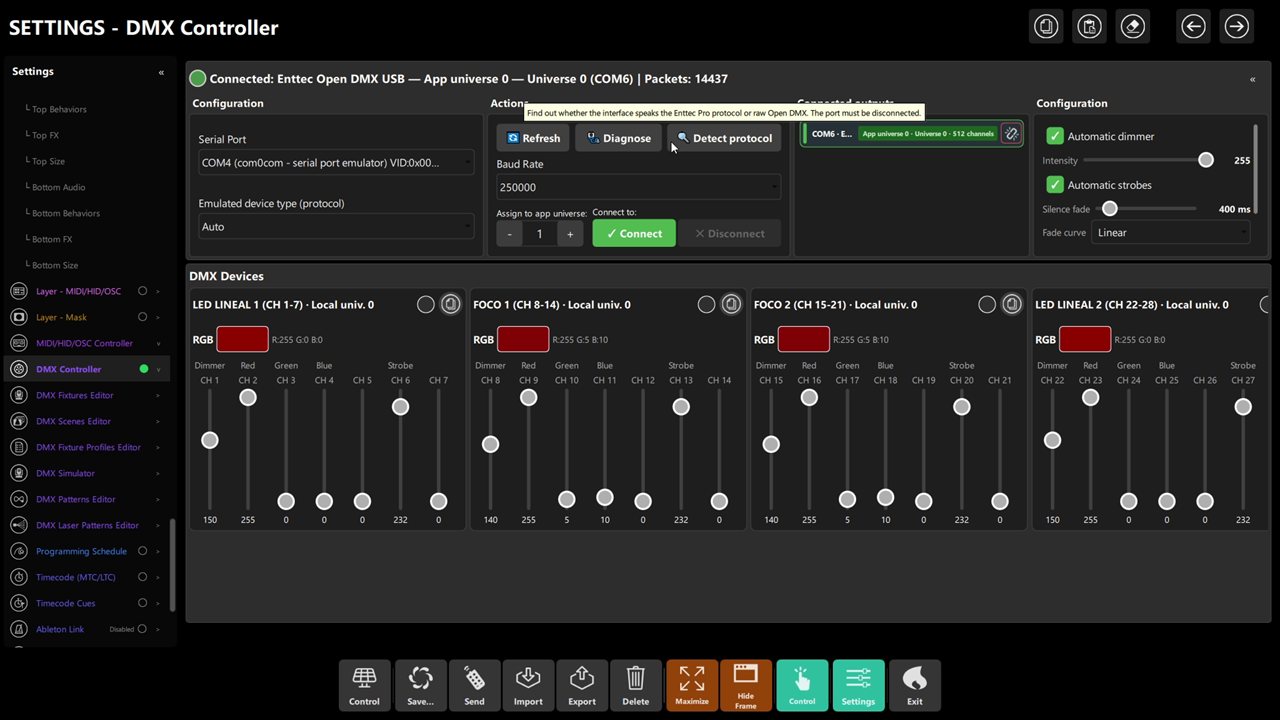 Figure 2: connected interface (Enttec Open DMX USB, COM6) with live channel faders.
Only one lighting application can hold a USB serial port at a time. Close QLC+, FreeStyler, Resolume or vendor utilities completely before launching DjMirror Pulse, or the port will appear busy.
Step 1 – Patch the fixtures and assign screen zones
In the Fixtures editor, add each fixture with its address and channels (or load the example set from
dmx_fixtures/dmx_fixtures.json). Per fixture configure: Name & Manufacturer (e.g. LED LINEAL 1),
Logical Type (drives the simulator rendering: Par RGB, Moving Head, LED Bar, Laser, Fog Machine),
Local Universe & Start Channel (the 1–512 address set on the fixture's own menu),
Number of Channels (footprint of the fixture mode: 7CH for PARs, 14CH for moving heads) and
Capabilities (Dimmer, RGB, White, Strobe, Laser).
For each fixture choose its Screen Zone (0–8, a 3×3 grid over the visual):
| Screen zone | Grid position | Recommended fixtures | Visual impact |
|---|---|---|---|
| Zone 0 / 1 / 2 | Top Left / Center / Right | Backdrop LED bars, up-lighting | Sky, ceiling, upper effects |
| Zone 3 / 5 | Middle Left / Right | Left & right side wash PARs | Broad lateral wash on venue walls |
| Zone 4 | Center | Center moving heads, dance-floor beams | Dominant focal color of the video |
| Zone 6 / 7 / 8 | Bottom Left / Center / Right | Floor strips, booth front accent | Floor effects, waveforms, bass visuals |
For the example rig:
| Fixtures | Suggested zone | Why |
|---|---|---|
| PARs on the left / right of the DJ | Zone 3 / Zone 5 (center left / right) | Follow the middle band of the visual |
| Back bar | Zone 1 (top center) | Takes the sky / top colors |
| Moving heads | Zone 4 (center) | Follow the dominant color |
Fixtures that share a zone share its color. Use a few different zones so the room is not one flat color.
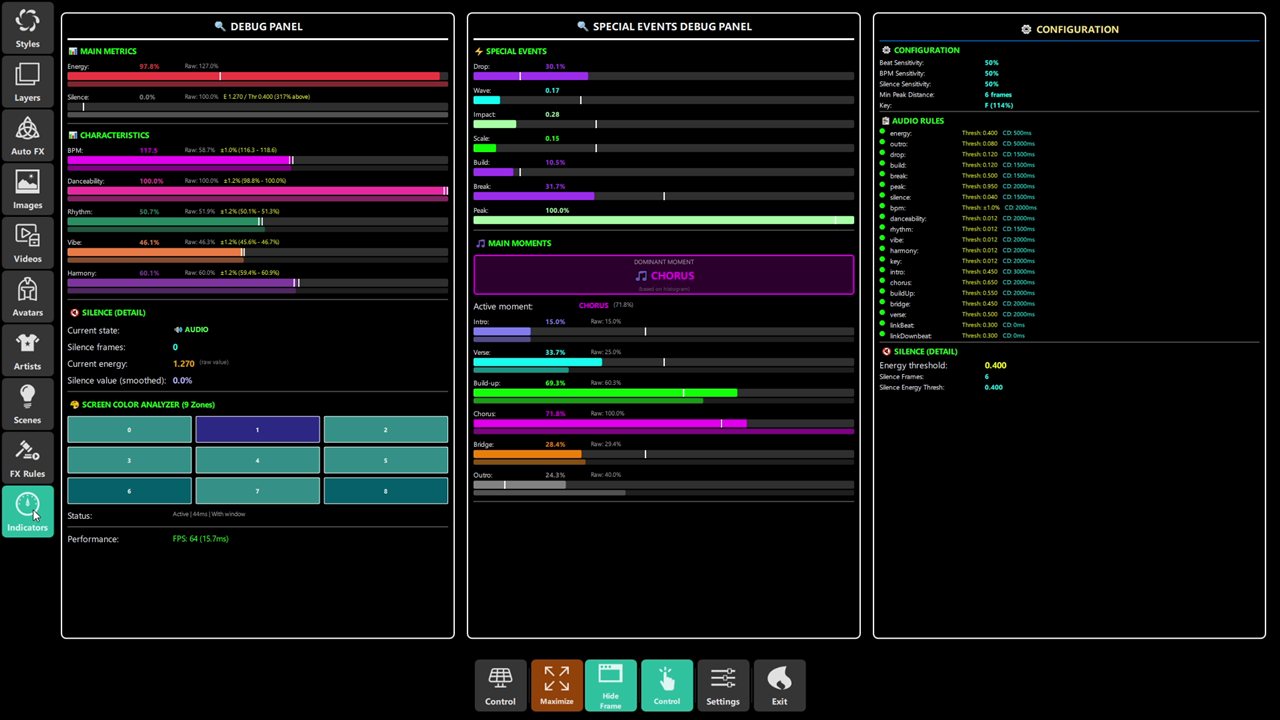 Figure 3: live detector values plus the 9-zone Screen Color Analyzer feeding fixture colors.
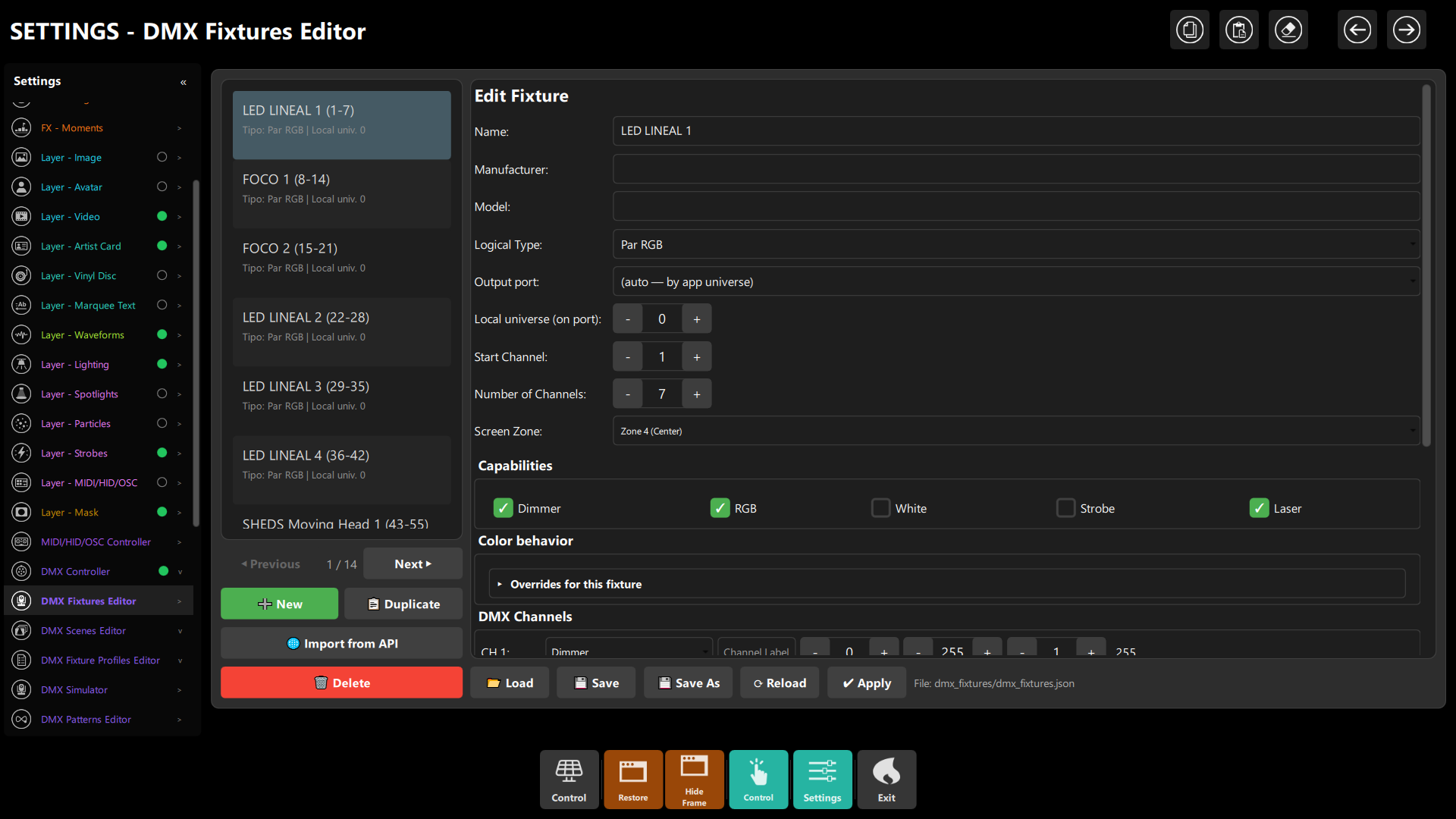 Figure 1: Patching an RGB PAR (
LED LINEAL 1) on universe 0, channels 1–7, assigned to Screen Zone 4 (Center).
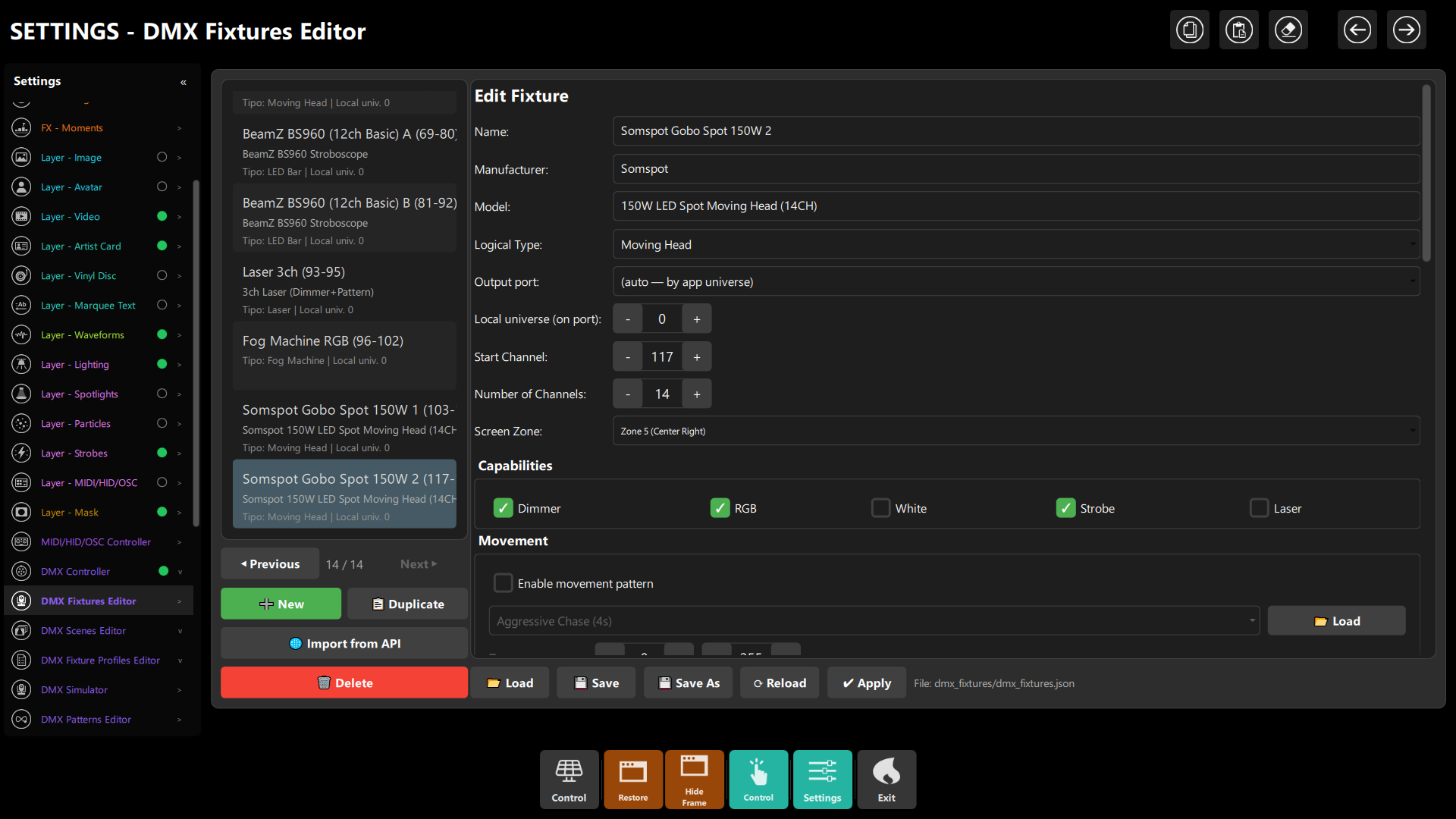 Figure 2: Patching a 14-channel moving head (
Somspot Gobo Spot 150W 2) starting at channel 117, mapped to Screen Zone 5 (Center Right).
Step 2 – Choose the dimmer policy (a safety setting for a small room)
In the DMX panel, the Automatic dimmer option forces every fixture's Dimmer to one value while screen colors are driving the lights. In the small-room example, try a conservative starting value (for example, around 55–70 %) rather than assuming full output is appropriate. This is only a rehearsal starting point, not a safety limit: adjust it for the fixtures, beam placement and venue. If you prefer each fixture to keep the dimmer from its scene, leave Automatic dimmer off.
In the same panel, keep automatic strobe pulses disabled unless you know your guests are fine with them.
Step 3 – Set the global silence fade
Still in the DMX panel:
- Silence fade: for this example, start at
1500 ms; adjust it to suit the transitions in your show. - Fade curve:
Smoothis one option for a gradual transition; compare it with the other available curves.
You can also set both from the API (see §7). When silence is active, the panel shows ● Audio silence.
Step 4 – Tune the audio silence detector
The behavior only triggers when the analyzer reports silence, so make sure the detector matches your gear: open the audio indicators / audio settings and check Silence Sensitivity, Silence Frames and Silence Energy Thresh. Play a track, stop it, and watch the Silence indicator. If it triggers during quiet breakdowns inside a track, raise the confirmation frames or lower the sensitivity; if it never triggers between tracks, do the opposite. Do this once per venue/soundcard; it is the single most important setting for the behavior to feel right.
Step 5 – Model profiles: the defaults per fixture type
Open the Fixture profiles editor. A profile applies to every fixture it matches (by exact fixture id, or manufacturer and model, or device type — the more specific match wins). Inside it, Color behavior lists the elements the model has.
Know the built-in default. The product ships a generic Moving Head profile whose behavior is
Dimmer → offandColorWheel → holdon silence. It matches any moving head by device type, including RGBW ones with no color wheel. So out of the box your two RGBW heads go dark when the music stops, and your PARs and bars (no profile) do nothing on silence.A more specific profile replaces the generic one completely; it does not inherit from it.
Recommended starting profiles for the example rig:
a) RGBW moving heads – create a profile for your model (manufacturer + a piece of the model name, e.g.
Sheds / 6x15W) so it wins over the generic one:
| Element | Source | On silence |
|---|---|---|
| Dimmer | – | value 25 % (≈ 64): keep a faint glow, no beam in faces |
| White | – | hold |
| Red / Green / Blue | – | hold (keep the last color, just dimmed) |
Also set the emitter modes in the same profile: White = minRGB (white is derived from the common part of R, G
and B, which gives cleaner pastels than the default luminance mix). For other fixture kinds: Amber =
minRG or warm (RGBA/RGBAW fixtures), UV = fromBlue (club UV fixtures). Leave Amber and UV at
Do not drive; you have no such channels. If your heads had a color wheel, its discrete slots are configured here
too, each with its DMX interval and color preview.
b) RGB PARs / LED bars – create a profile by device type (or by model if you have several kinds):
| Element | On silence |
|---|---|
| Dimmer | value 35 % (≈ 90): the walls stay softly lit |
| Red / Green / Blue | hold |
Alternative "ambient" look: leave Dimmer on hold, and set Red to value 255, Green to value 140, Blue to
value 40 for a warm amber wash while the music is off. (With hold on a dim value, the color stays but nothing
tells guests "the show is paused"; a warm wash does.)
c) Strobe bar (BS960 style) – Dimmer off on silence, RGB/White hold. The Strobe channel is never touched.
d) Fog machine – nothing to configure (it never takes part).
Behavior profile JSON equivalent (what the editor stores), for reference:
{
  "profileId": "sheds-rgbw-head",
  "manufacturer": "Sheds",
  "model": "6x15W",
  "deviceType": "Moving Head",
  "whiteMode": "minRGB",
  "behavior": {
    "Dimmer": { "silence": { "enabled": true, "action": "value", "value": 64 } },
    "Red":    { "silence": { "enabled": true, "action": "hold" } },
    "Green":  { "silence": { "enabled": true, "action": "hold" } },
    "Blue":   { "silence": { "enabled": true, "action": "hold" } },
    "White":  { "silence": { "enabled": true, "action": "hold" } }
  }
}
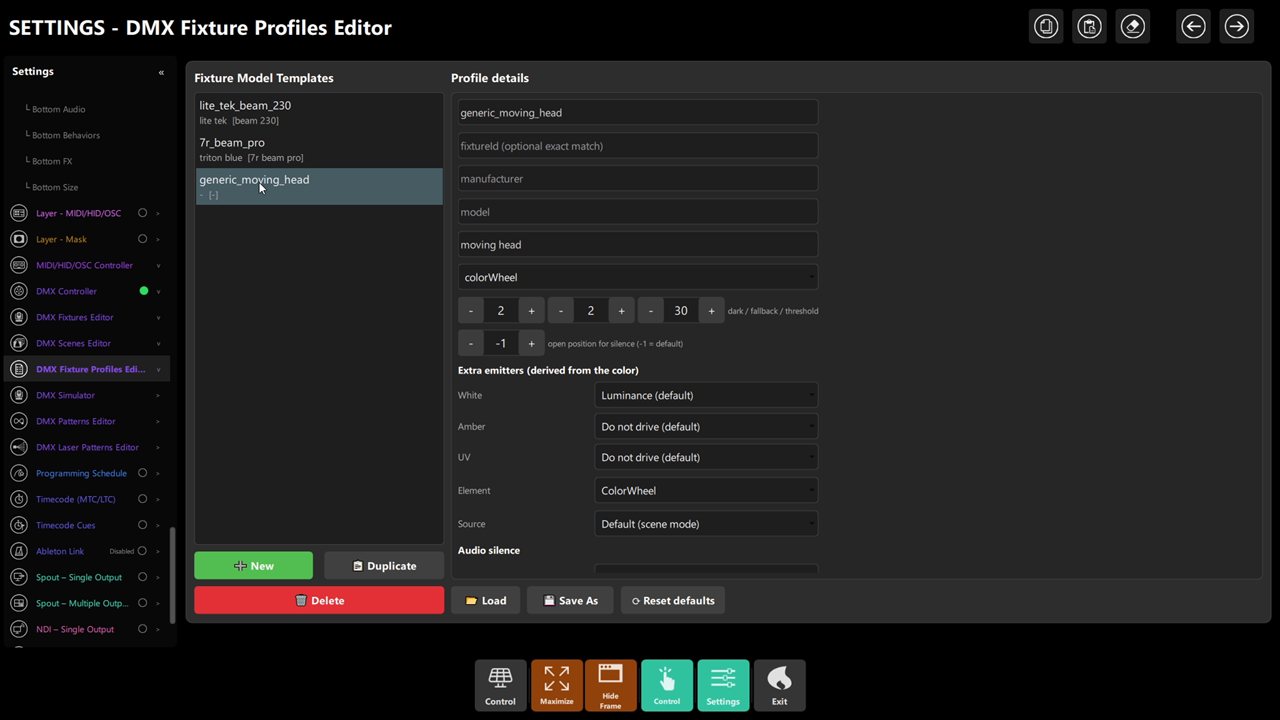 Figure 5b: model templates, emitter modes and the silence slot a specific profile replaces.
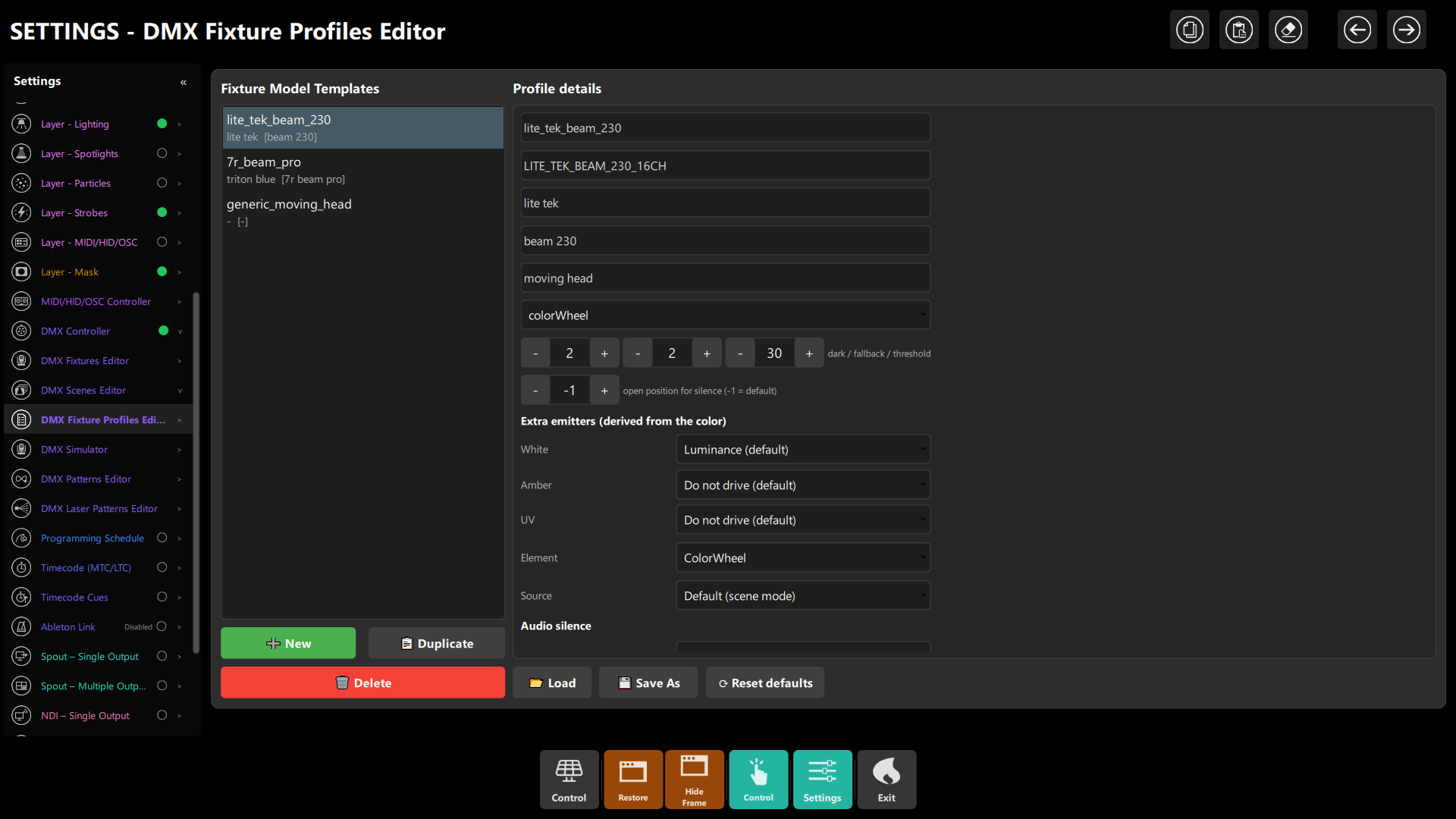 Figure 3: Configuring model profiles in the Fixture Profiles Editor, setting white/amber/uv emitter derivation and per-element silence behaviors.
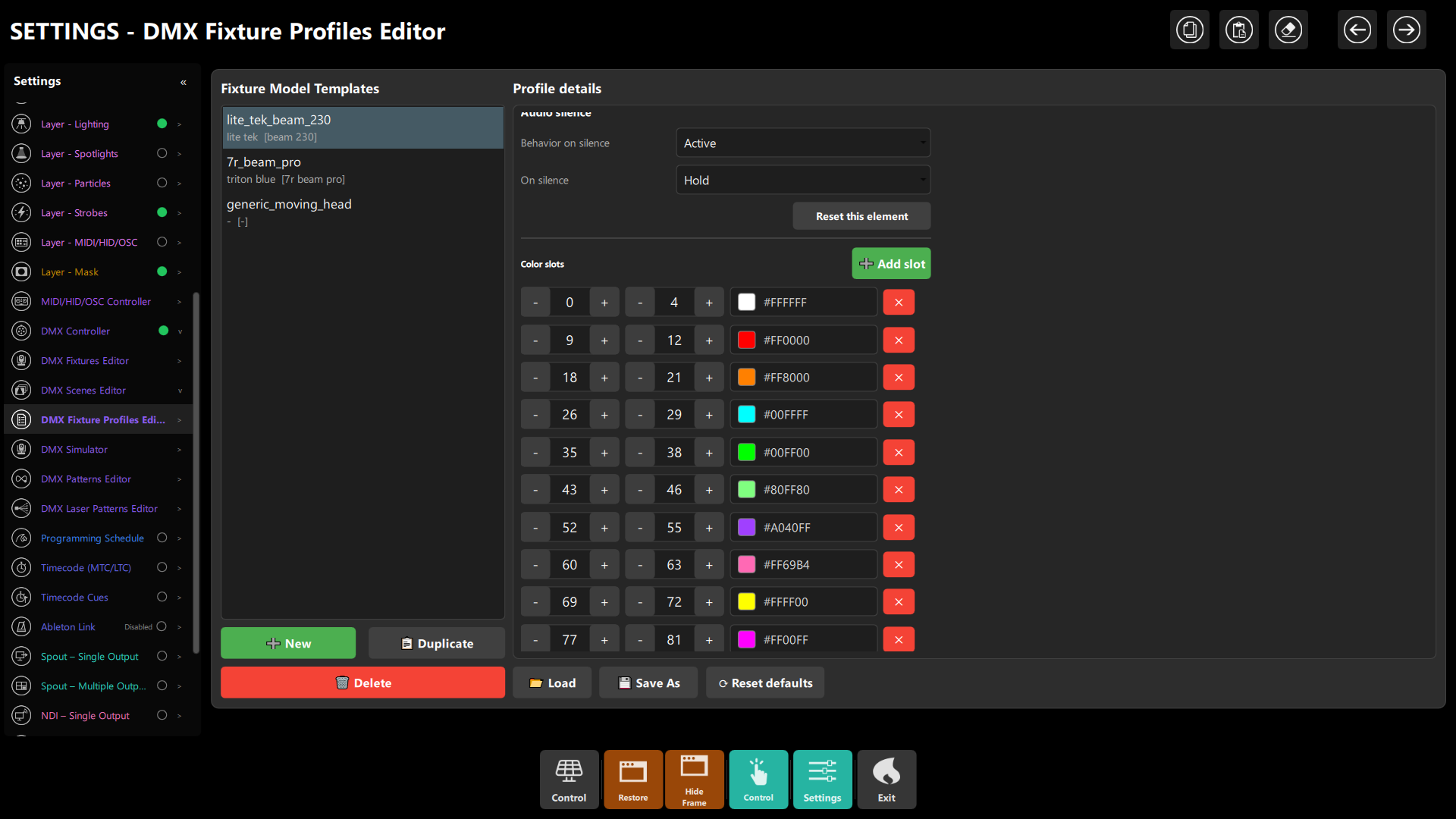 Figure 4: Setting Silence Action to Hold and defining discrete color wheel slots with DMX ranges and hex color swatches.
Step 5b – Moving heads: motor tuning and patterns (the two heads)
In the Fixtures editor, expand the Movement section of each moving head:
- Speed (multiplier) – scales keyframe playback speed (default
1.00x). - Phase Offset (0°–360°) – essential for pairs: head 1 at
0°, head 2 at180°moves them in complementary symmetry instead of rigid unison. - Fine Quantum – 16-bit motor damping; lower is silkier, higher kills mechanical jitter.
- Pan / Tilt Amount (0–100 %) – pattern amplitude around the center (
0.5). At80 %the heads stay on the dance floor without hitting guests' eyes — the right value for a 40-person room. - Pan / Tilt Range (0–255) – mechanical travel limits; constrain so beams never hit walls or trussing.
Most heads define the DMX speed channel as 0 = fastest, 255 = slowest. Enable
"Invert DMX speed channel (0=fast, 255=slow)" so UI sliders behave intuitively (higher = faster).
The same section holds per-fixture audio silence overrides for movement.
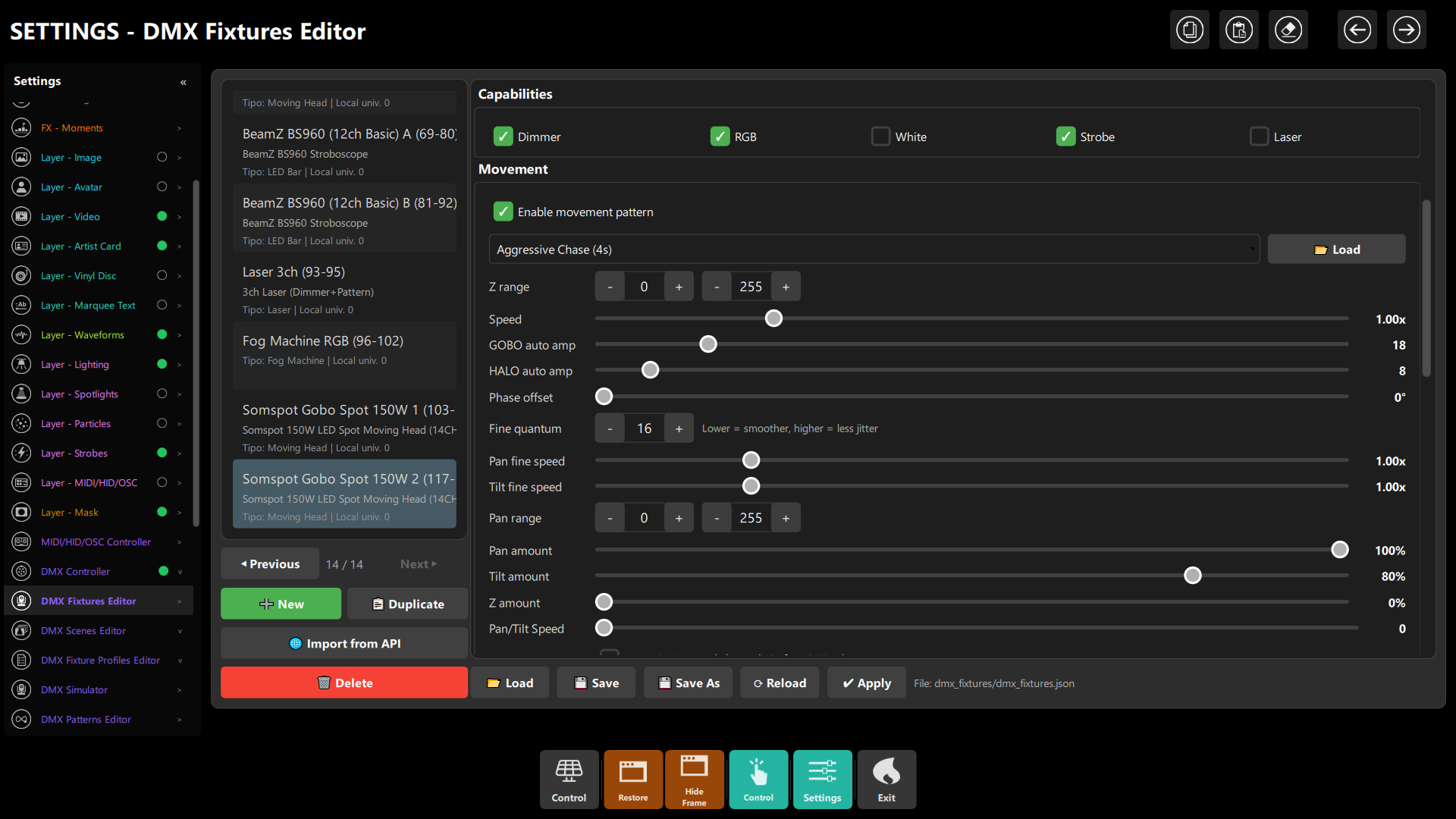 Figure 5: Motor tuning — Speed, Auto Amplitudes, Phase Offset, Quantum, Travel Ranges.
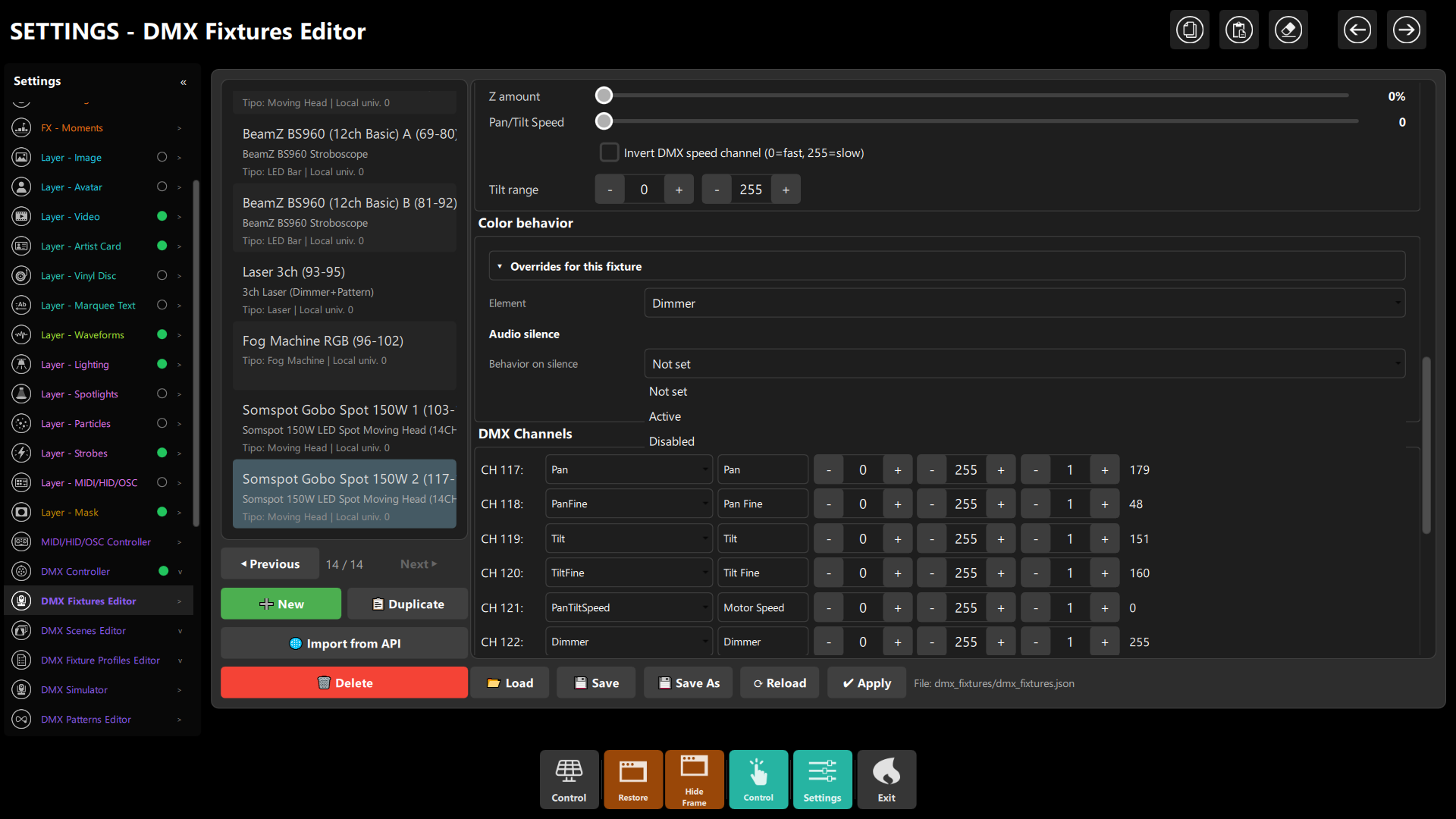 Figure 6: Invert DMX Speed Channel toggle and per-fixture silence overrides.
Channel roles. Tag every channel with its semantic role — never leave functional channels on Generic.
A 14-channel head typically maps to: Pan, PanFine, Tilt, TiltFine, PanTiltSpeed, Dimmer, Strobe, ColorWheel,
Gobo, Prism, Macro, Reset.
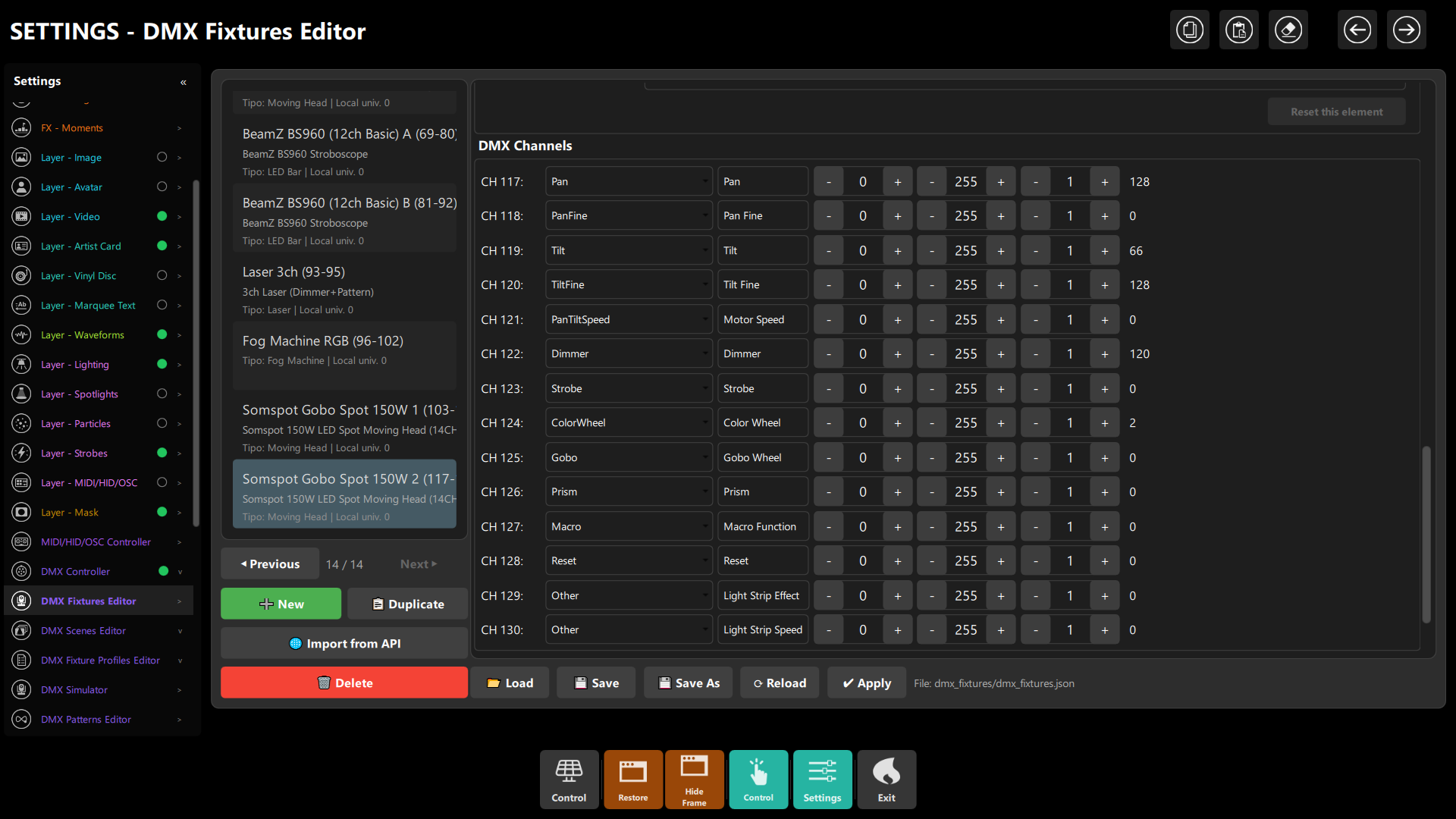 Figure 7: Full 14-channel role assignment.
Patterns. Open Settings → DMX Patterns Editor. The library spans Aggressive Chase (4s), Stutter Pan (6s), Circle Smooth (6s), Spiral In/Out (8s), Figure-8 Centered (7s), Infinity Wide (9s), Pan/Tilt Sweep + Holds (10s), Accents: Corners (8s), Slow Circle Ambient (12s — the right default for warm-up in a small room), Pan Ping-Pong (5s), Tilt Breath (6s), Stepped Random-Like (7s), Audience Sweep Slow (12s) and Ballyhoo (6s). Keyframes are normalized with per-segment weights; inspect and edit them per pattern.
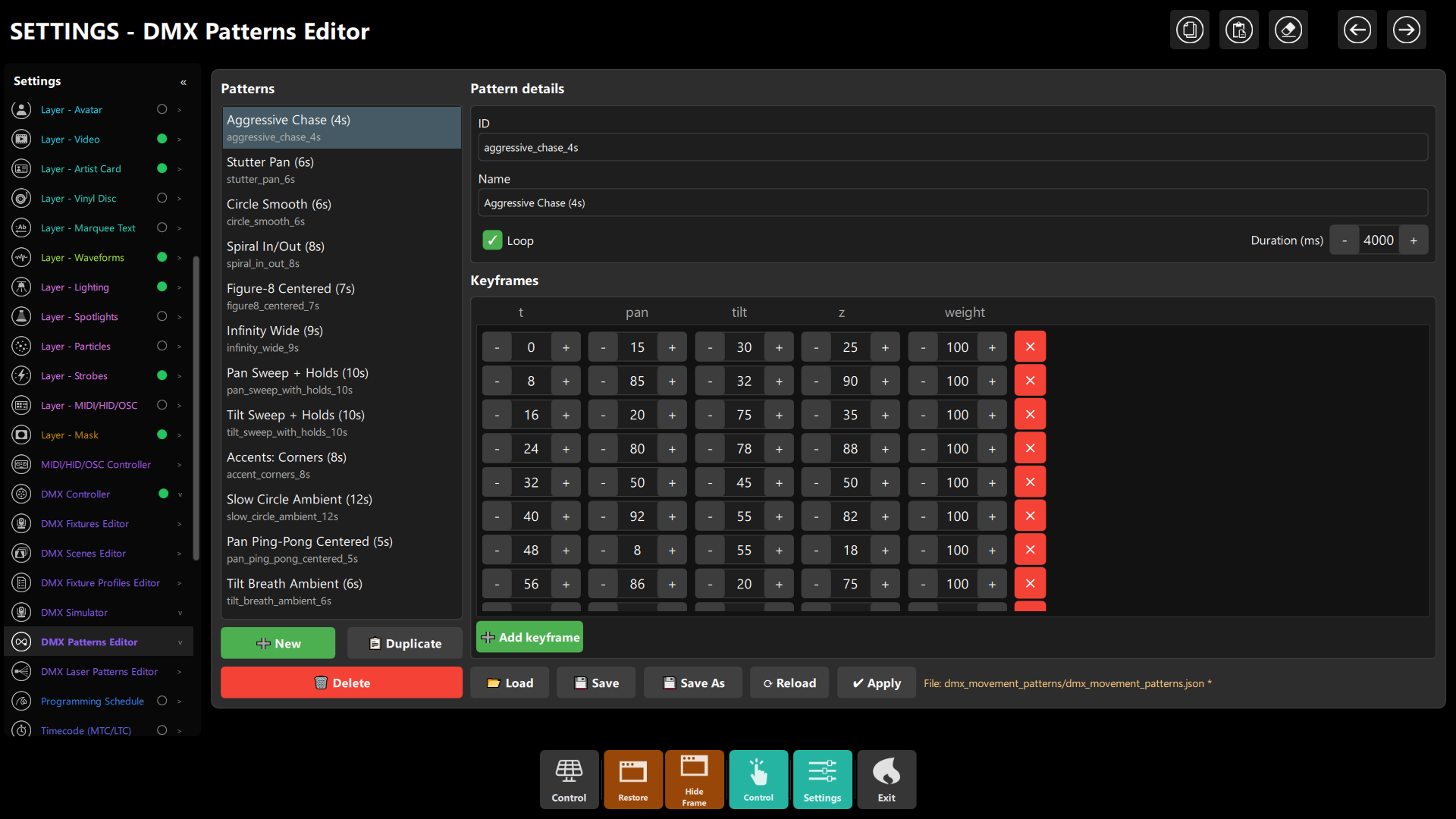 Figure 8b: the keyframe grid (t/pan/tilt/z/weight) with Loop and Duration.
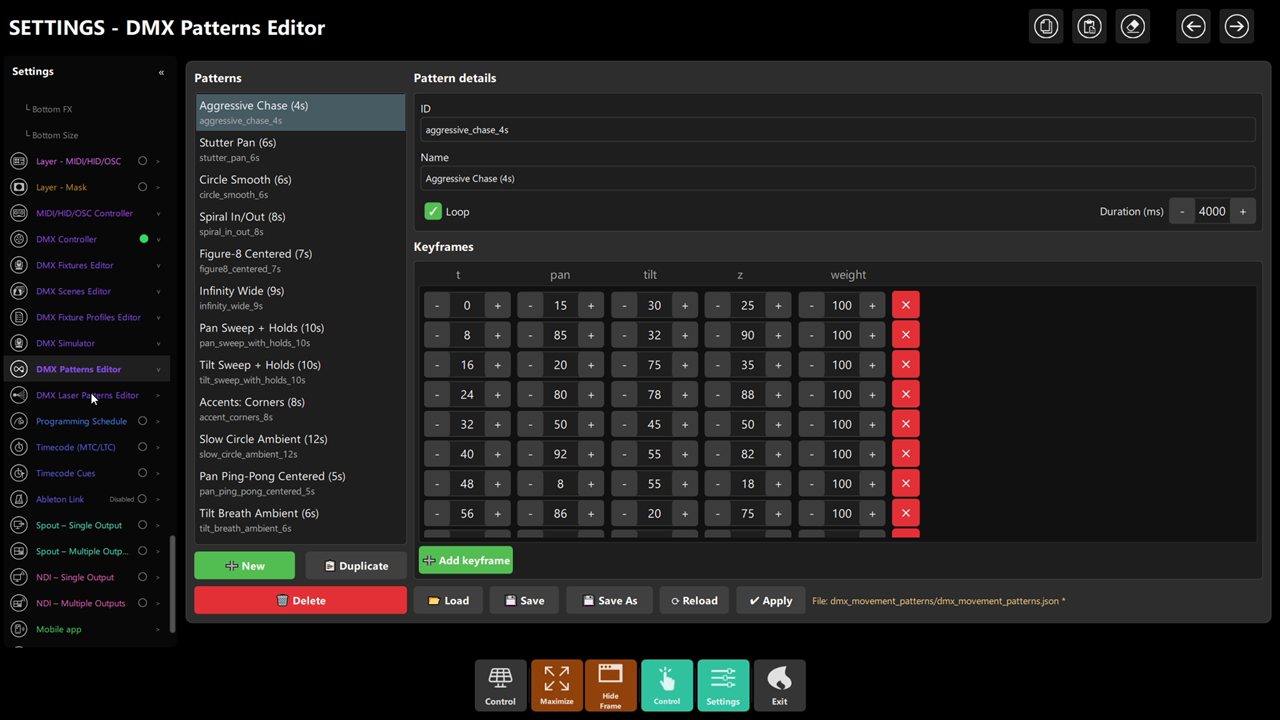 Figure 8c: library breadth — chase, sweeps, accents, ambient, ballyhoo.
Step 5c – Pixel bars and lasers (only if your rig grows)
Multi-segment LED bars. Select the bar (e.g. LED LINEAL 1) in the Fixtures editor and use the
Subfixtures / Pixel layout generator: define dimensions (W×H×D) and generate the 1D address mapping
automatically instead of patching every segment by hand.
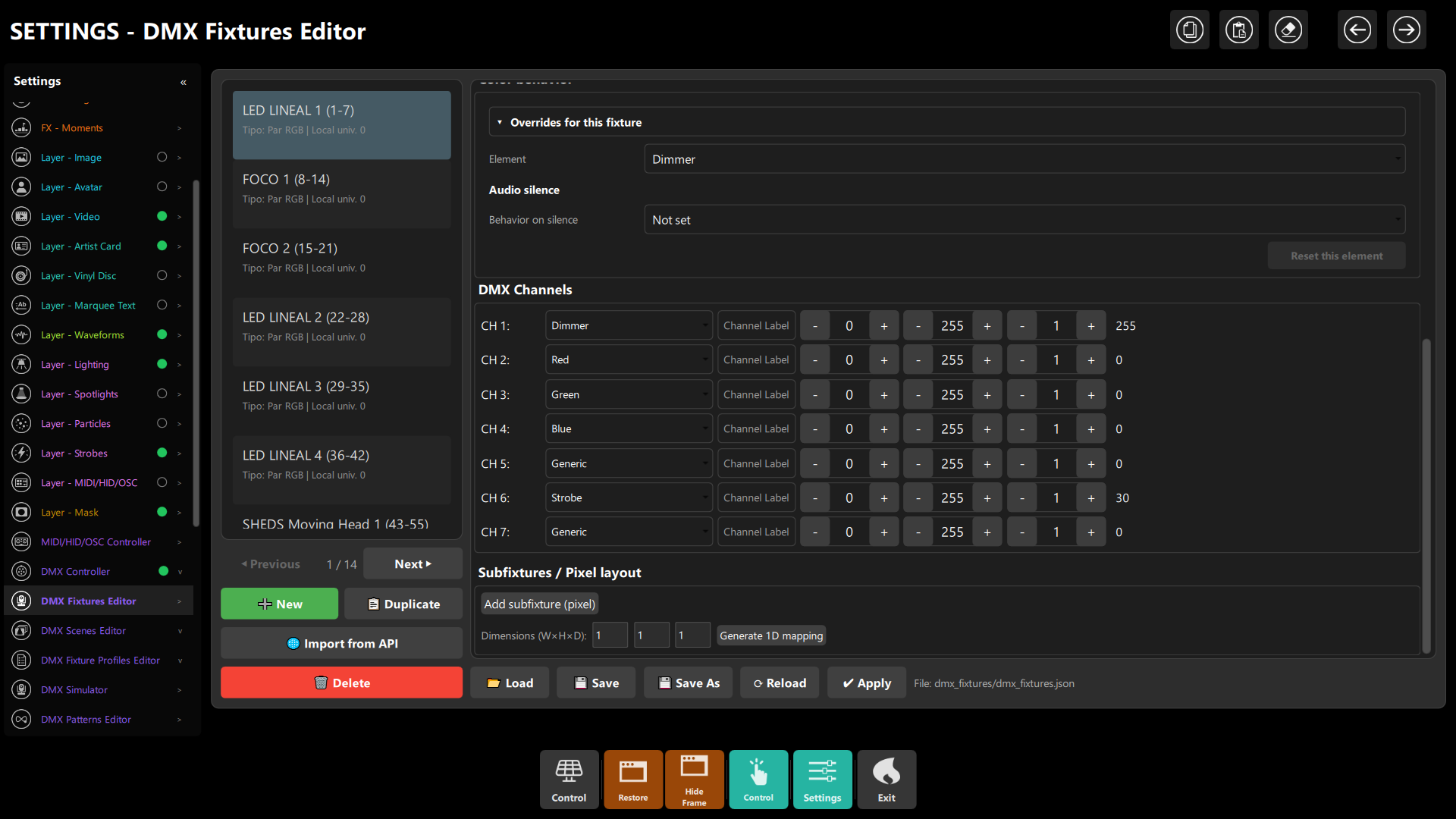 Figure 9: Defining subfixtures and generating 1D pixel mapping for linear bars.
Lasers. Open Settings → DMX Laser Patterns Editor to configure DMX preset ranges for the LaserPattern
and LaserDimmer roles.
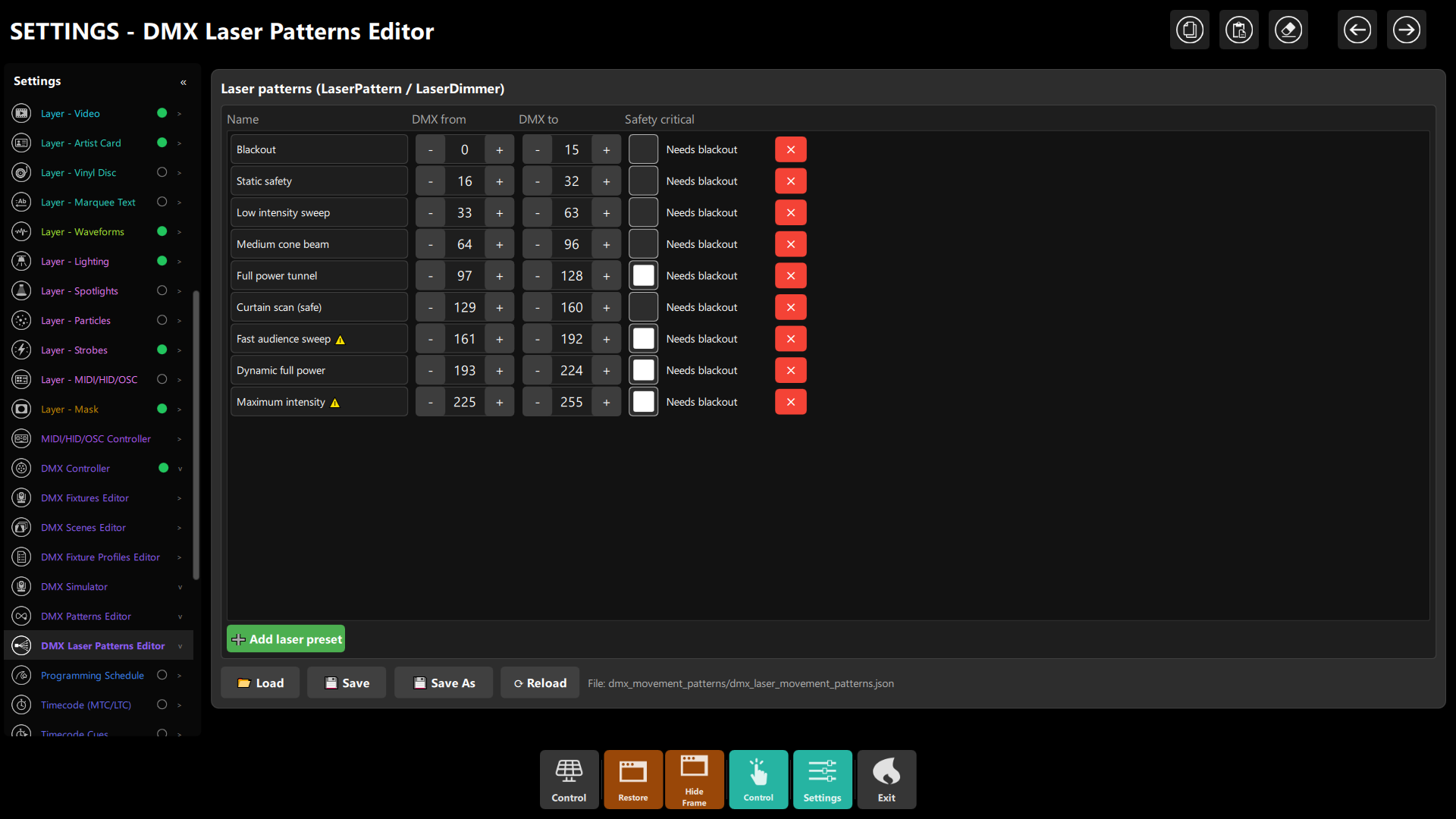 Figure 10: Pattern intervals; audience-sweep presets carry safety-critical blackout requirements.
Laser safety. Presets marked "Needs blackout" or safety-critical shut down automatically on master blackout or audio silence. Never aim high-power audience sweeps into crowd eyes without verified safety distances.
Step 6 – Scenes: pick the right color mode for each part of the night
In the Scenes editor each scene has a color mode:
| Mode | Use it for | What happens |
|---|---|---|
manual |
Arrival / dinner / speeches, warm static looks | Colors come from the scene; the screen does not change them |
auto |
Main dance sets | Colors follow the visuals on screen |
mixto |
Transitions, "mostly my palette but alive" | Scene values blend with screen color (wheel/gobo/halo blend; per-channel RGB blend is opt-in, below) |
A practical set of five scenes for a 40-person event:
- Welcome (
manual) – warm white/amber on PARs at 40 %, heads parked, no movement. - Warm-up (
mixto) – your brand palette with gentle screen influence, slow movement. - Dance floor (
auto) – screen-driven color, movement engine on, heads at ~65 %. - Peak (
auto) – same, heads and bar slightly brighter; use the strobe bar only on drops. - Chill / last songs (
manual) – deep reds and ambers, low dimmer, slow movement.
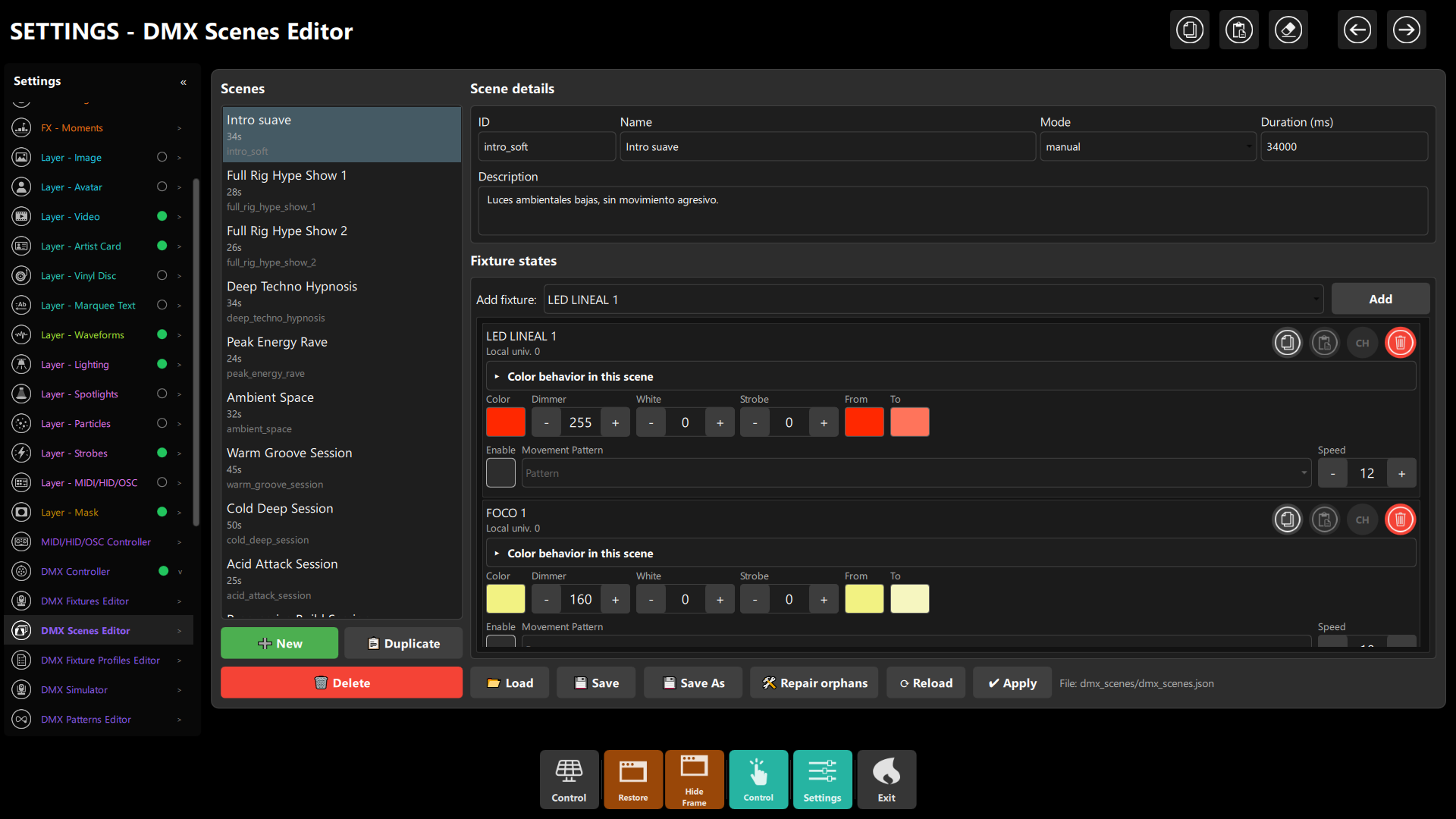 Figure 11: Scenes Editor — scene list on the left, fixture channel states (Dimmer, White, Strobe, From/To transitions) on the right.
Per-scene overrides. Inside a scene, each fixture has a folded group Color behavior in this scene. Use it for exceptions, for example:
- In Welcome and Chill, set the PARs' Dimmer silence to Disabled so the room never changes when a track ends. (Not set would inherit the profile and dim the room; Disabled is an explicit "off" that overrides it.)
- In Dance floor, keep the profile behavior, so silence between tracks dims the room instead of leaving it at full.
- In a manual scene where you want one element to keep following the screen (for example "my fixed palette on
RGB, but the white channel of the bar follows the picture"), set that element's Source to
screen. This is the only case where the screen still writes inside a manual scene.
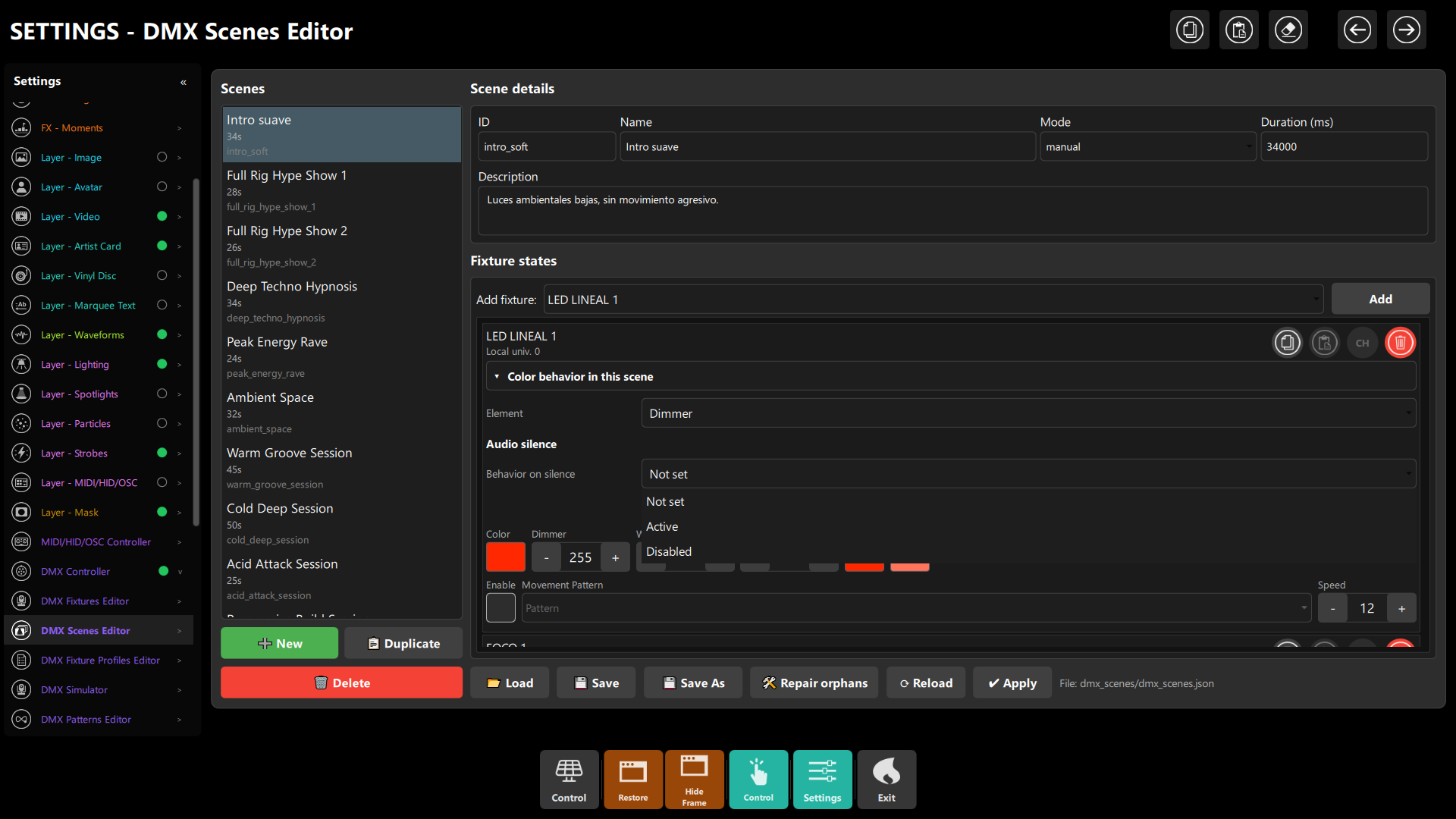 Figure 12: "Color behavior in this scene" — explicit silence overrides (
Not set, Active, Disabled).
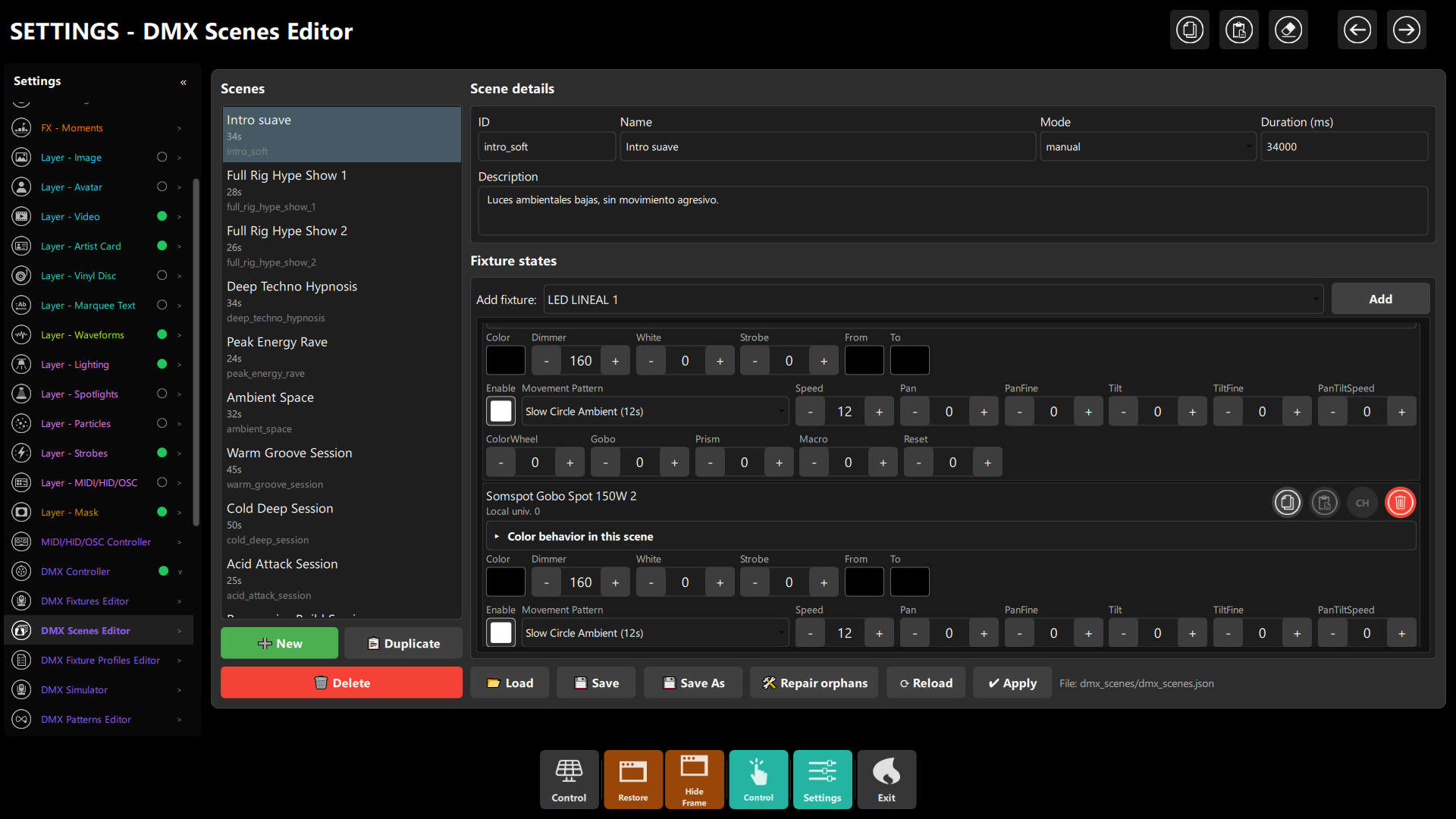 Figure 13: Movement pattern 'Slow Circle Ambient (12s)', speed and optical channels for a moving head in a scene.
Step 7 – Optional: blend RGB instead of choosing
If mixto does not give you the exact blend you want, set the Source of the individual color channels:
Red/Green/Blue→ Mix scene and screen with Mix amount (% screen)30: 30 % of the screen color, 70 % of your scene color. Apply it at fixture level (Color behavior → Overrides for this fixture, see Figure 14) for a permanent setting, or at scene level for one scene only.- A fixed accent: set the strobe bar's White source to
fixedwith a value of 180 so it is always the same cold white regardless of the picture.
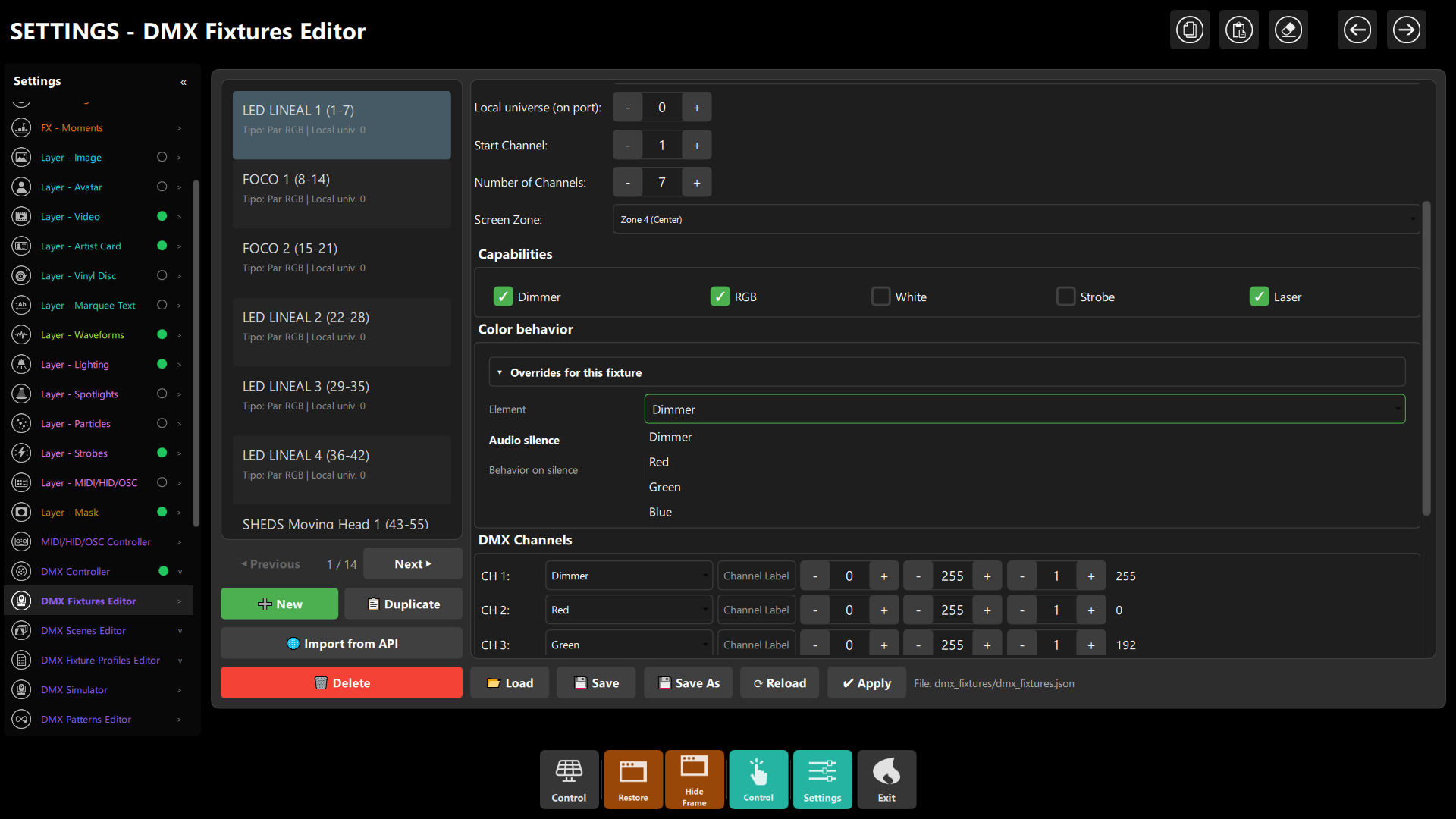 Figure 14: Per-element Source/Silence overrides (Dimmer, Red, Green, Blue) inside the Fixtures Editor.
Chapter 5: Putting It Together: What The Room Should Do
| Moment | Scene | Result |
|---|---|---|
| Guests arrive | Welcome (manual) |
Static warm look, nothing reacts |
| Warm-up set | Warm-up (mixto) |
Palette + slow screen influence |
| Dance sets | Dance floor (auto) |
Colors follow visuals; between tracks the room fades over 1.5 s to a 25–35 % dim, same colors; heads lose their beam |
| Drop | Peak | Brighter; strobe bar only if you trigger it |
| Silence ends | – | Everything fades back to its live value, no jump |
| Emergency / break | Blackout | Everything off; silence behavior cannot relight anything |
DMX Quick Controls (v1.0.0.724+)
Five one-click scene-player buttons in the DMX panel for instant live control:
| Button | Action | API/MCP |
|---|---|---|
| Strobe Burst | Fires strobe macro on active fixtures | dmx_runtime_trigger_macro(name:"strobe", intensity:...) |
| Clear Blackout | Releases blackout, restores prior state | dmx_runtime_set_blackout(false) |
| Movement Engine ON/OFF | Toggles Pan/Tilt patterns | dmx_runtime_patch_movement(enabled) |
| Auto Dimmer ON/OFF | Toggles automatic dimmer scaling | dmx_runtime_patch_dimmer(enabled) |
| Long Fog Burst | Fires fog machine macro | dmx_runtime_trigger_macro(name:"fog", duration:...) |
API: POST /api/v1/dmx/runtime/macro (name + params); MCP: dmx_runtime_trigger_macro, dmx_runtime_patch_dimmer, dmx_runtime_patch_movement.
Chapter 6: Test It Before The Event (No Audio Needed)
Open Settings → DMX Simulator: a virtual stage rendering in real time what is transmitted to hardware. Drag fixtures to match the physical stage, lock positions to avoid accidental drags during the show, and right-click any fixture to pick its shape (Auto, PAR Spotlight, 6/12 RGB LEDs, Strobe Bar, Moving Head, Laser, Fog Machine). Fixtures altered by active silence show an amber outline with their live dimmer reading.
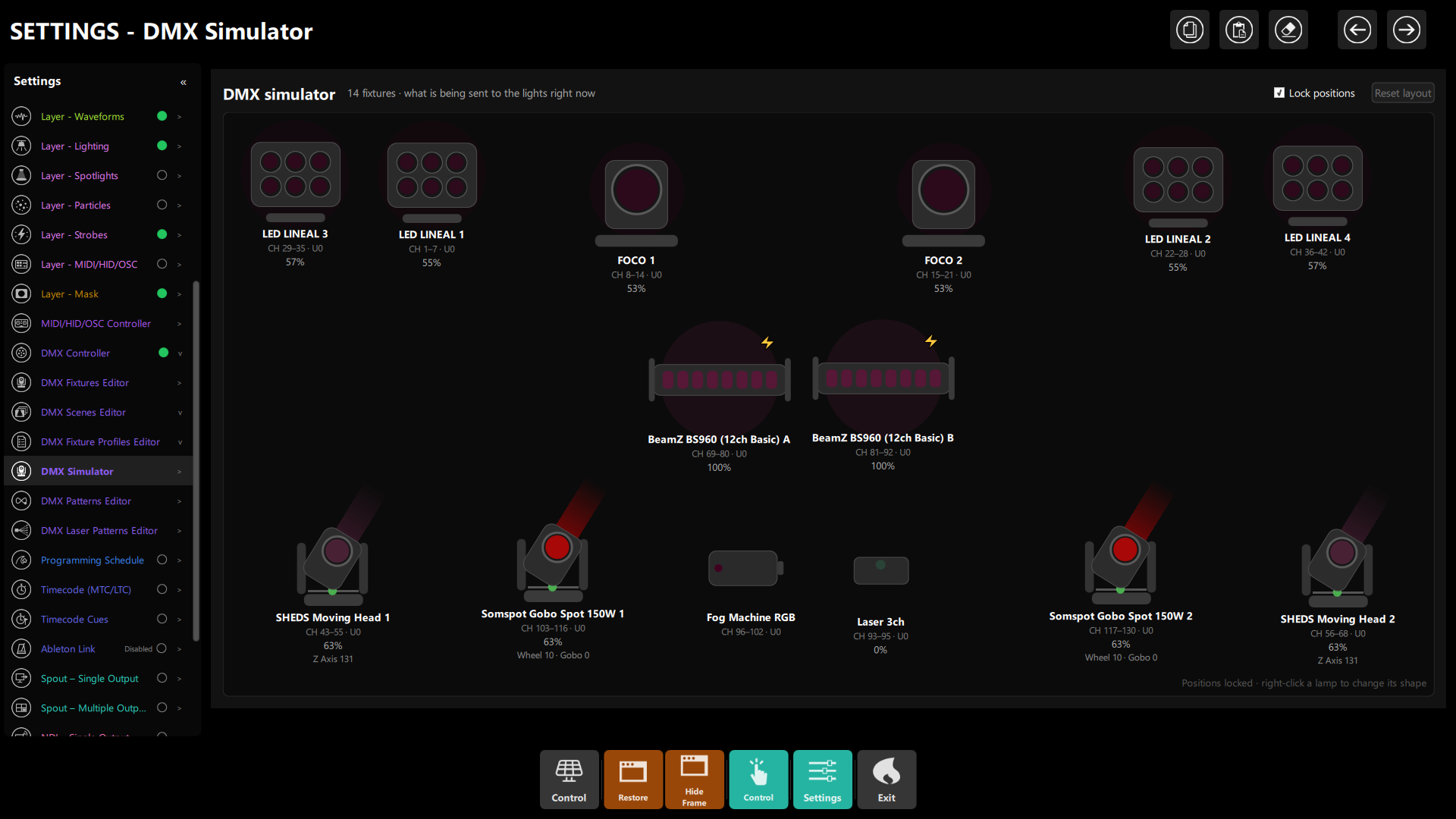 Figure 15: Rehearsing in the DMX Simulator — beam angles, zone colors and dimmer states in real time.
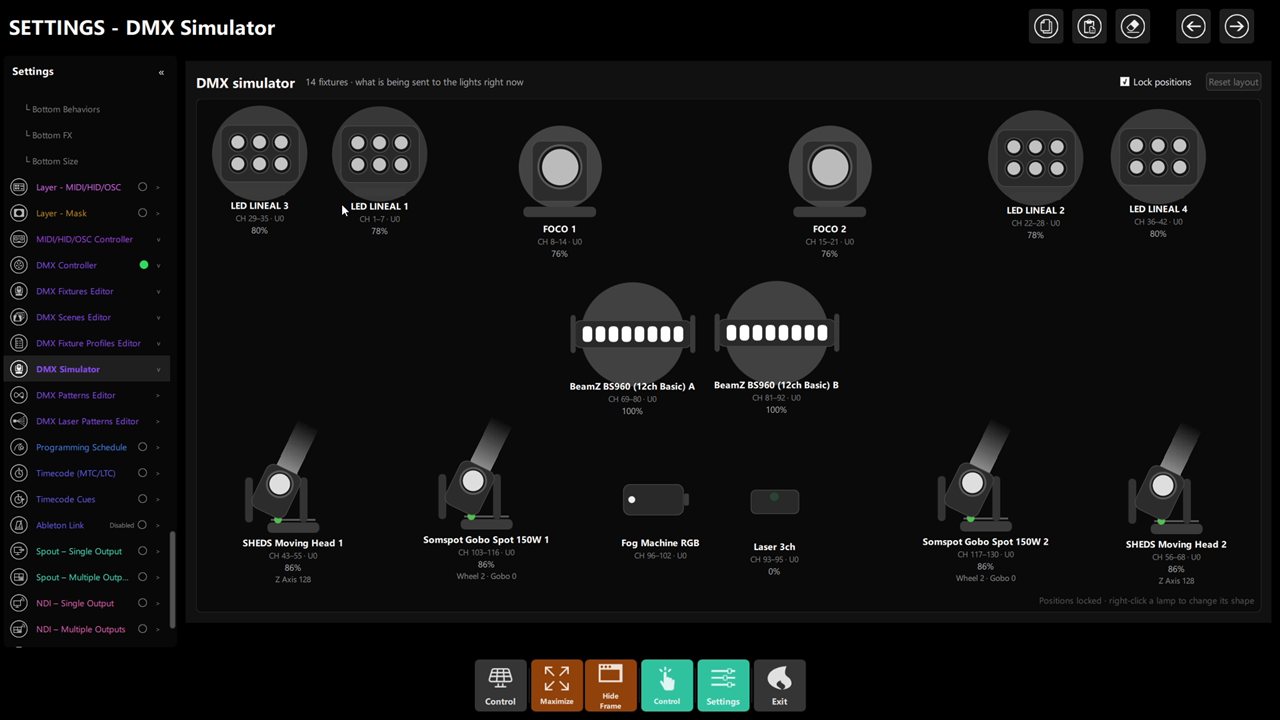 Figure 16: the same rig live — PARs, spots, strobe bars, moving heads, fog and laser with dimmer readouts.
The next views show the same simulator layout at different moments. Fixture positions stay fixed; the colors, beam directions and displayed output levels update to reflect the current DMX output. Treat them as examples of live output, not as target values for your own rig.
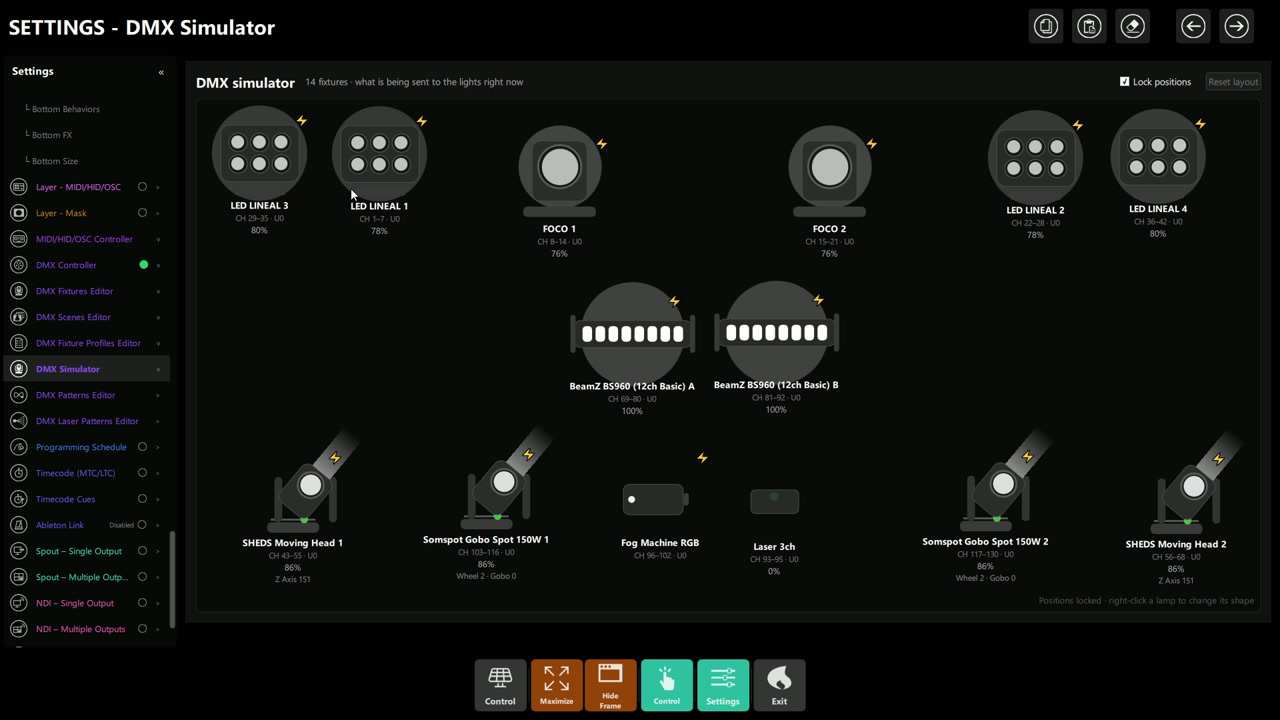 Figure 17: live simulator view with multiple fixtures emitting light; the displayed channel addresses and
levels help identify each fixture's current output.
Figure 17: live simulator view with multiple fixtures emitting light; the displayed channel addresses and
levels help identify each fixture's current output.
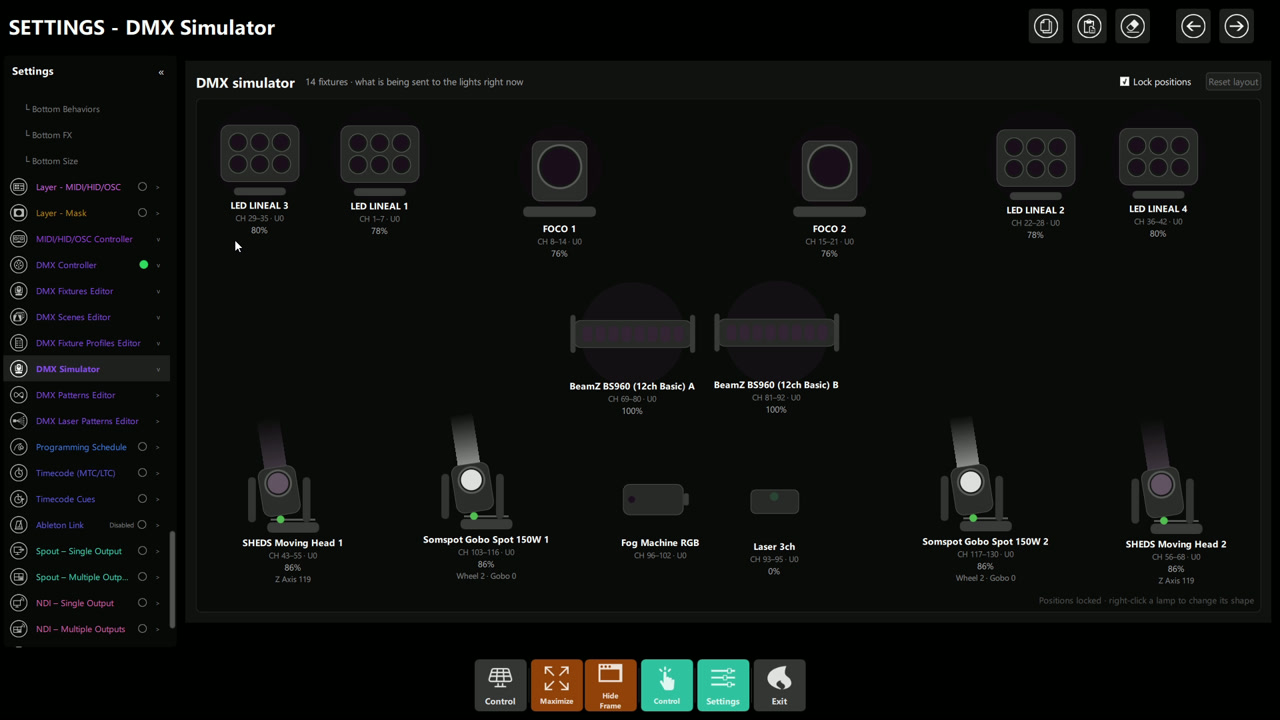 Figure 18: a different live moment in the same layout, with several fixtures dimmer or inactive. Compare the
readouts and rendered output rather than expecting the simulator to show a static scene.
Figure 18: a different live moment in the same layout, with several fixtures dimmer or inactive. Compare the
readouts and rendered output rather than expecting the simulator to show a static scene.
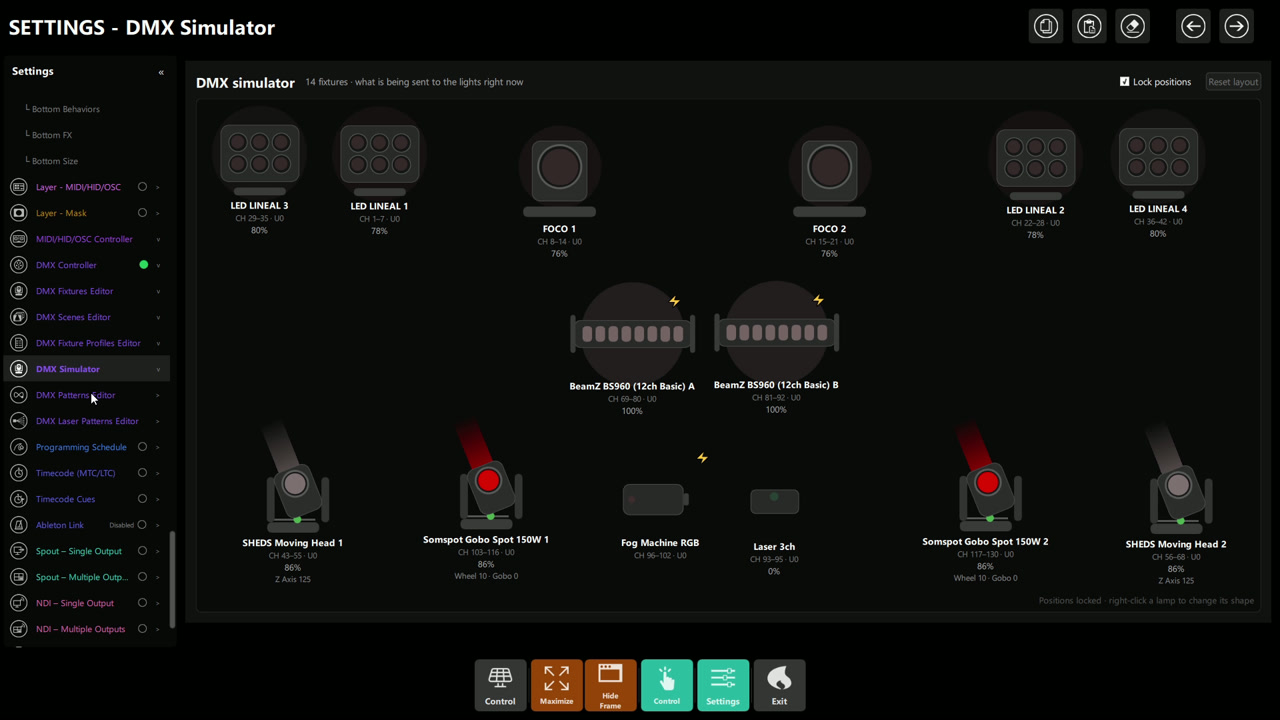 Figure 19: another output moment, including red moving-head beams. Beam direction and intensity depend on the
current DMX values and fixture configuration.
Figure 19: another output moment, including red moving-head beams. Beam direction and intensity depend on the
current DMX values and fixture configuration.
You can rehearse the silence behavior without playing music:
- From the API:
POST /api/v1/dmx/runtime/silencewith{ "active": true }, then{ "active": false }(the next real silence start/end from the analyzer overrides a forced state). - Or via the MCP tools
dmx_runtime_set_silence/dmx_runtime_get_silence.
A quick 5-minute check list:
- Load each scene; verify the colors and the movement.
- Force silence on; confirm: heads dim to a glow (not dark, unless you chose
off), PARs settle to the dim/warm look, the strobe and fog are untouched, ● Audio silence shows. - Force silence off; confirm everything returns smoothly (no flash to full).
- Activate blackout while silent; confirm everything goes dark, then release it.
- Change scene while silent; confirm the new scene's behavior applies.
- Set the Silence fade to 0 once to see the "instant" version and decide which you prefer.
Hardware diagnostics. If lights flicker or stay dark, open Settings → DMX Controller → 🩺 Diagnose.
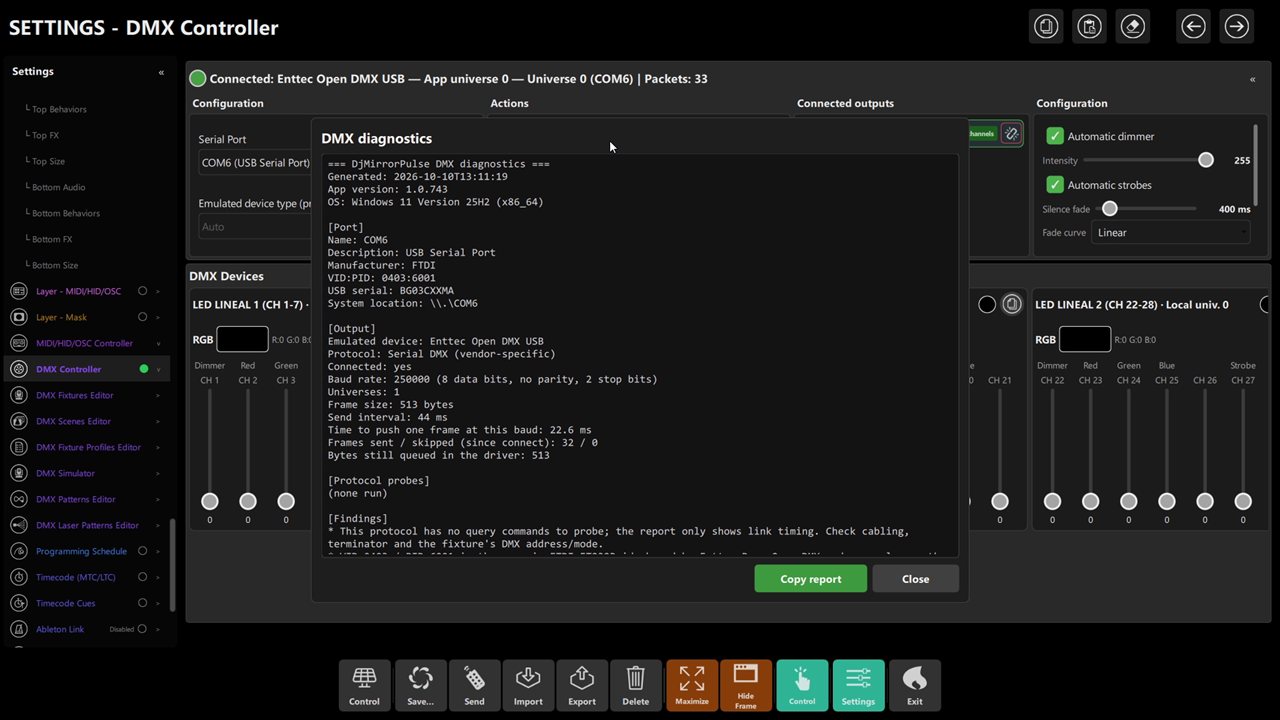 Figure 16: DMX Controller with the diagnostics report open — Enttec Open DMX USB on COM6 at 250,000 baud 8N2.
The probe reports, among others:
| Report field | Normal value | Action if abnormal |
|---|---|---|
| Time to push one frame | < 44 ms (typically ~23 ms at 250k baud) | USB interface lagging — avoid unpowered hubs |
| Frames skipped | 0 |
PC cannot empty the serial buffer — close background apps |
| Bytes still queued | 0 (or ~1036 for dual-universe) |
Growing queue = baud mismatch or unplugged cable |
| Protocol probes | "Answered Enttec Pro protocol" | "No response" = raw Open DMX / Eurolite protocol device |
A fuller checklist for the example fixtures is in dmx_others/dmx_rig_test/README_RIG_TEST.md.
Chapter 7: Optional: Rehearse From The API
This section is for integrators comfortable with HTTP requests. The desktop interface and DMX Simulator are enough for the setup in this guide; use the HTTP & WebSocket API guide for server startup, authentication and response details.
The example below sets a 1.5-second smooth silence fade. The fade settings are persisted by the app; the active
flag is a rehearsal override. With the default open local API, no key header is needed. If you configured an API
key, add an X-API-Key header with that key.
$base = "http://127.0.0.1:8080"
curl.exe -X POST "$base/api/v1/dmx/runtime/silence" `
  -H "Content-Type: application/json" `
  -d '{"fadeMs":1500,"curve":"smooth"}'
Rehearse silence on and off in a controlled setup:
curl.exe -X POST "$base/api/v1/dmx/runtime/silence" `
  -H "Content-Type: application/json" `
  -d '{"active":true}'

curl.exe -X POST "$base/api/v1/dmx/runtime/silence" `
  -H "Content-Type: application/json" `
  -d '{"active":false}'
The audio analyzer can override the forced active state when it reports a real silence transition. Blackout still
takes priority. Do not rehearse this with strobes or moving beams aimed at people.
Chapter 8: Troubleshooting
| Symptom | Likely cause | Fix |
|---|---|---|
| RGBW heads go completely dark between tracks | The built-in generic Moving Head profile (Dimmer → off) is the one matching |
Create a more specific profile (manufacturer + model) as in Step 5a |
| Nothing happens on silence | The fixture has no profile/override with an enabled silence; or the detector never confirms silence | Add the behavior; check Silence Sensitivity/Frames; test with forced silence |
| Room dims during breakdowns inside a track | Silence detector too sensitive | Raise Silence Frames / lower Silence Sensitivity |
| Lights jump instead of fading | Silence fade is 0, or the fixture's channel is written by something else | Set a fade of 800–1500 ms; check no other source (pixel FX) owns the channel |
| White channel looks muddy or too strong | Default white = luminance of the color | Set the profile's White mode to Minimum of R, G, B or Do not drive |
| A manual scene ignores the screen | That is by design | Set the Source of the elements that should follow the screen to Screen color |
| After silence the color is slightly different | hold keeps the value from the moment silence began; live color kept changing underneath |
Expected: on return the element goes to its current live value |
| Strobe bar flashes during silence | Strobe is not controlled by silence behavior | Disable automatic strobe pulses, or trigger strobes yourself |
| Lights flicker or don't respond | Port held by another app, lagging interface, wrong protocol | Close other lighting software; run Diagnose; check skipped frames / protocol probes |
| Heads move in rigid unison | Same phase offset on both | Set 180° apart (Step 5b) |
| Beams hit walls / guests' eyes | Travel or amount too wide | Constrain Pan/Tilt Range and Amount (Step 5b) |
| Motors crawl when sliders go up | Speed channel not inverted | Enable Invert DMX speed channel (Step 5b) |
| A channel never automates | Role left on Generic |
Tag Pan/Tilt/Speed/Wheel/Gobo roles (Step 5b) |
| Laser stays on during blackout/silence | Preset not marked safety-critical | Mark "Needs blackout" in the Laser Patterns Editor (Step 5c) |
Chapter 9: Quick Recipe Card
- Interface: serial 250k baud; one lighting app per interface; Diagnose before doors.
- Zones: spread fixtures over several screen zones.
- Worked-example starting point only: automatic dimmer ≈ 60 %; silence fade 1500 ms, curve Smooth. Adjust these values for the fixture and venue; they are not universal defaults.
- Heads: profile by model — Dimmer
value25 %, colorshold, White mode Minimum of R, G, B; phase 180° apart, amount ≈ 80 %, invert speed channel. - PARs/bars: Dimmer
value35 % (or warm amber wash). - Scenes: Welcome/Chill
manualwith silence disabled; Dance floor/Peakautowith the profile silence active. - Rehearse with forced silence, then with real audio, before the doors open.