Chapter 1: Overview — What Can You Control?
DjMirror Pulse puts your entire visual show under hardware control. Any button, fader, knob, pad, jogwheel or hat on your MIDI or HID controller can be mapped to a live action. Controllable actions include:
| Category | Actions Available |
|---|---|
| Visual Shapes | Spawn any of 24 named shapes (star, burst, vortex, galaxy, prism, etc.) |
| Visualization Styles | Switch between saved visual styles instantly |
| Image / Avatar / Video Playlists | Select a playlist or step forward/backward through items |
| Artist Display | Select an artist by name |
| DMX Scenes | Recall DMX lighting scenes |
| Layer Visibility | Show, hide, or toggle any visual layer (video, images, avatars, waveform, mask, lighting…) |
| Mask Cycling | Step forward or backward through mask shapes |
| Continuous Parameters | Map faders/knobs to opacity, brightness, contrast, saturation, blur, shader effects, output levels, audio reactivity thresholds, and more |
| Beat & Link | Set a beat anchor or mark a downbeat for Ableton Link phrase sync |
Tip
Every controllable parameter is a path in the settings tree. Use setFromInput in the Action editor to discover what you can bind — suggestions appear as you type.
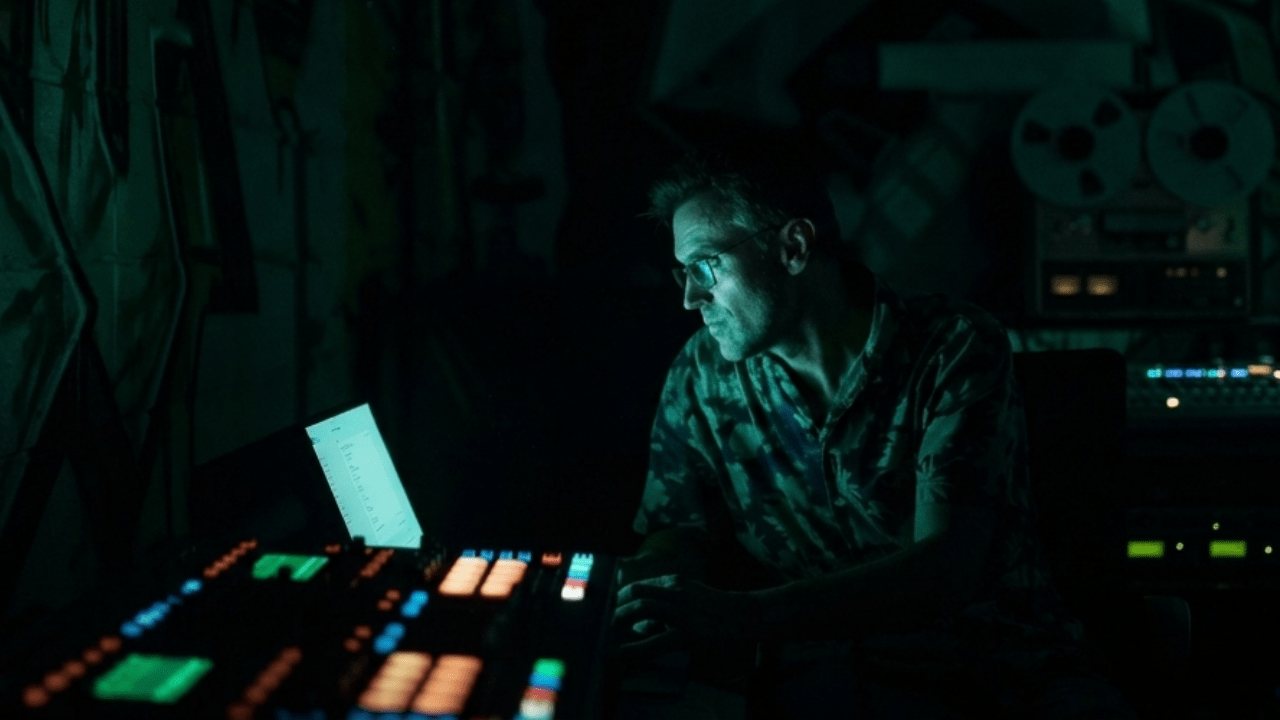 Figure 1: any hardware becomes a live trigger.
Chapter 2: Supported Controller Types
MIDI Controllers
MIDI (Musical Instrument Digital Interface) is the industry-standard protocol for DJ and music hardware. Most DJ controllers, pad controllers, keyboards, and knob boxes are class-compliant MIDI devices — they work without installing any additional drivers on supported desktop platforms (Windows and macOS).
DjMirror Pulse reads these MIDI message types:
| Message Type | Typical Use | Value Range |
|---|---|---|
| Note On / Off | Buttons, pads | 0–127 (velocity) |
| Control Change (CC) | Knobs, faders, buttons | 0–127 |
| Pitch Bend | Jogwheels, expression pedals | 0–127 (MSB) |
| Program Change | Scene/bank buttons | Program number |
| Aftertouch / Channel Pressure | Pressure-sensitive pads | 0–127 |
Mapping files for MIDI controllers use the .midi.xml extension (e.g., Pioneer DDJ-400.midi.xml).
HID Controllers
HID (Human Interface Device) is a lower-level USB protocol. Some DJ controllers operate in native HID mode (bypassing the MIDI layer) for lower latency and richer data — for example, the Traktor Kontrol series or controllers in "HID mode" with Serato/Rekordbox. Gamepads and joysticks also appear as HID devices.
Key differences from MIDI:
| MIDI | HID | |
|---|---|---|
| Driver required | No (class-compliant) | No |
| Data format | Messages with type/channel/number | Raw byte reports (polled every 10 ms) |
| Value resolution | 0–127 | 0–255 (axes) |
| Bit-level buttons | No | Yes — several buttons share one byte |
| Mapping file | .midi.xml |
.hid.xml |
Note
Keyboards, mice, touchpads and media keys are hidden in the HID device list. Only DJ controllers, gamepads, and vendor-defined HID devices are shown — this is intentional.
Chapter 3: Connecting Your Controller
Plug-and-Play (Most Controllers)
- Connect your controller to a USB port before or after starting DjMirror Pulse.
- Open Settings → MIDI/HID/OSC Controller.
- Set Protocol to MIDI or HID as appropriate for your device.
- Open the Device dropdown — your controller should appear by name.
- Select it. The status line confirms the connection.
If you plugged in the controller after opening Settings, click Refresh devices (in the Status area) to rescan.
Note
DjMirror Pulse remembers your device by name. If you reconnect it or plug it into a different USB port, it reopens automatically — even if other devices are attached in a different order.
Manual Setup (HID Fallback)
If your HID device is listed but selecting it immediately deselects it, check the Status line at the bottom of the panel:
- "can't be used as a controller" — the device sends no readable input (e.g., a capture card's configuration interface). This device cannot be used.
- "HID device disconnected" — the device stopped responding. Try reconnecting it.
Chapter 4: The Controller Panel In Settings
Navigate to Settings → MIDI/HID/OSC Controller to access the full controller configuration panel.
| Panel Area | What It Does |
|---|---|
| Protocol | Switch between MIDI, HID, and OSC. Switching stops any active recording. |
| Device | Select the MIDI input port or HID device. Remembered by name across sessions. |
| Status → Refresh devices | Rescans all ports and devices. The currently open device stays selected. |
| Mapping | Choose a mapping file from controllers/, Import… one from another folder, create a New mapping, duplicate it with Save as…, or Delete mapping (the file goes to the Recycle Bin, so it can be restored). Every change auto-saves immediately. |
| Actions → Start Recording | Enter global discovery mode — any unmapped input is added to the list automatically. |
| Actions → Set Last as Shift | Opens the editor for the last-used control with the SHIFT option pre-ticked. |
| Control List | One row per mapped control, showing name, binding, and action. Each row has Remap, Edit, and Clear buttons. |
| Status Line | Shows the last action fired (e.g., "Shift + play") and any warnings. |
Tip
Every edit — remapping, editing, clearing — is saved to the mapping XML file immediately. No separate Save button is needed.
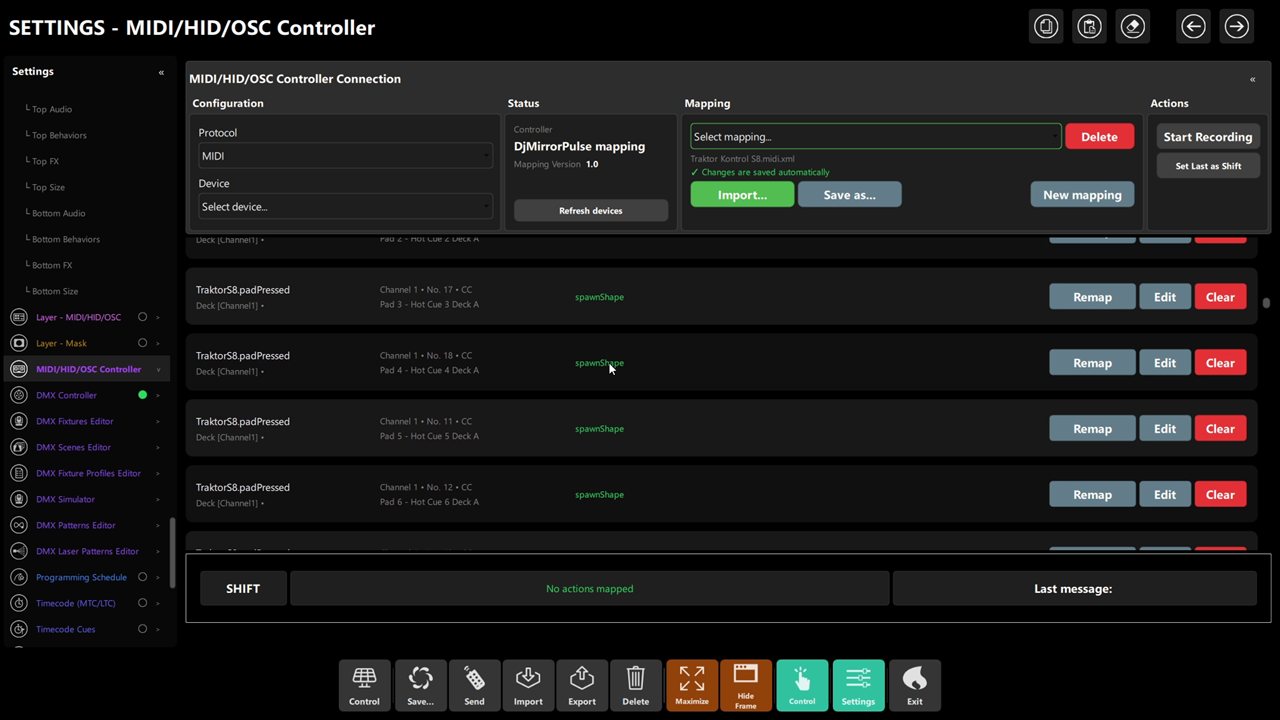 Figure 2: Control List with per-row Remap / Edit / Clear.
Chapter 5: Auto-Discovering Controls (Record Mode)
The fastest way to set up a new controller is to use Start Recording and move every physical control on your device.
Step-by-Step Discovery
Unknown_cc_1_74 (MIDI) or Unknown_HID_button_0_3 (HID). Axes are automatically classified as sliders.Note
If a newly recorded input is already bound to another control, the old binding is released — one input can only drive one control. The SHIFT control and jog touch/move controls are protected from this.
Remapping a Single Control
To rebind one specific control without entering global recording mode:
- Find its row in the Control List.
- Click Remap.
- Move the physical control you want to use — the row is updated immediately.
- Click Remap again to cancel without changing anything.
Chapter 6: Editing Bindings & Mapping Actions
Click Edit on any row to open the Control Editor, which has two tabs.
General Tab
Configure the control's identity and its hardware binding.
| Field | Description |
|---|---|
| Group | Logical group, e.g., [Channel1] or [Master]. Shown as "Deck" in the editor. |
| Key | The control's internal name. Names do not need to be unique. |
| Description | Free text displayed in the Control List and the status line. |
| MIDI: Channel (1-16), Message Type, Midino / Number (0-127) | The MIDI channel, the message type (CC, Note, Pitchbend, Aftertouch, Channel Pressure, Program Change) and the number. |
| HID: Status, Report byte / packed id | Button, Slider or Hat; the byte index, or a packed bit-level id (byte<<8 \| mask). |
| OSC: OSC Address | Filled in automatically when you remap using an incoming OSC message. |
| Use this control as SHIFT / modifier | Tick this to designate this control as the SHIFT button (see Section 7). |
Action Tab
Define what the control does when pressed or moved.
| Field | Description |
|---|---|
| Action Type | The action to perform (see the Action Types table below). |
| Target | The shape name, layer ID, playlist file, or settings path — with autocomplete suggestions. |
| Value | Optional fixed value for the action. |
| Continuous mapping | For setFromInput: set inMin/inMax (input range) and outMin/outMax (output range), plus throttleMs (update rate) and persistIdleMs (whether the value is saved). These six fields are in the dialog; clamp and round can only be set in the mapping file (see below). |
| SHIFT action | Tick "Define a different action when SHIFT is held" to configure a secondary djmpShiftAction. |
Action Types Reference
| Action Type | What It Does | Example Target |
|---|---|---|
spawnShape |
Spawns a named visual shape | star, vortex, burst, galaxy |
style |
Applies a saved visualization style | Neon Rave, Dark Minimal |
imagePlaylist |
Selects an image playlist file | Abandoned.txt |
avatarPlaylist |
Selects an avatar playlist file | Artists.txt |
videoPlaylist |
Selects a video playlist file | Loops.txt |
playlistStep |
Steps to next/previous item in a playlist | target: videoPlaylist, value: next |
artist |
Selects an artist by name | DJ Mirrorpulse |
dmxScene |
Recalls a DMX lighting scene | Scene ID string |
layerVisibility |
Shows, hides, or toggles a visual layer | videoBackgroundView |
maskStep |
Cycles through mask shapes | value: next or previous |
setConfigValue |
Writes a fixed value to any setting | path: globalOutputBrightness, value: 1.5 |
setFromInput |
Maps fader/knob value continuously to a setting | globalOutputSaturation |
beatAnchor |
Set or clear the Ableton Link beat anchor | value: mark or clear |
markDownbeat |
Mark the current beat as the bar's "1" | — |
Continuous Mapping Parameters (setFromInput)
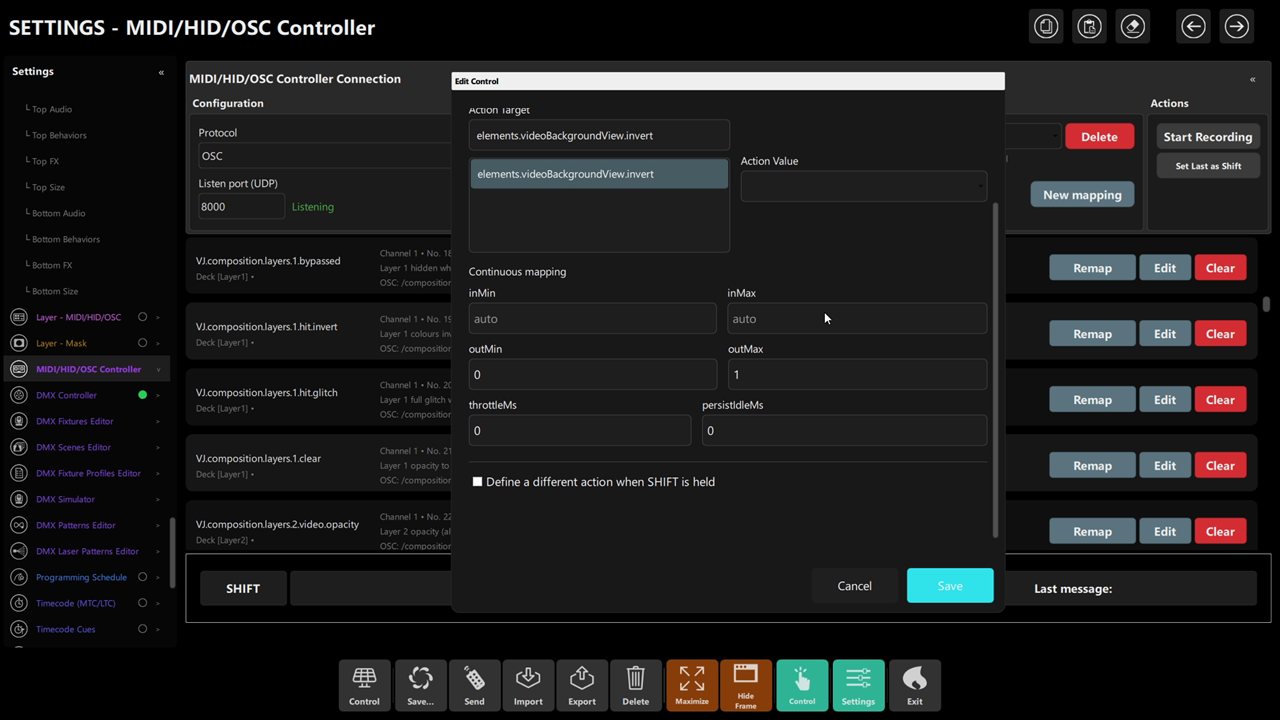 Figure 3: target autocomplete plus continuous mapping and the SHIFT variant checkbox.
| Parameter | Default | Description |
|---|---|---|
inMin / inMax |
Auto (MIDI: 0–127, HID: 0–255) | Input value range from the hardware |
outMin / outMax |
0 / 1 | Output value range sent to the setting |
clamp |
true |
Keeps output within the defined range (mapping file only) |
round |
false |
Round output to integer — use for boolean (0/1) settings (mapping file only) |
throttleMs |
16 | Minimum milliseconds between updates |
persistIdleMs |
500 | Saves value to config after this many ms idle. Set 0 for session-only changes |
Tip
To control video opacity with a channel fader: set type setFromInput, target elements.videoBackgroundView.opacity, outMin 0, outMax 1. The fader now fades the video in and out in real time.
Chapter 7: The Shift Modifier — Double Your Controls
SHIFT lets one physical button act as a modifier key, giving every other button on your controller a second action.
How to Set a SHIFT Control
Method A — From the editor:
- Open Edit on any button row.
- On the General tab, tick "Use this control as SHIFT / modifier".
- Click Save. The row is marked with a ⇧ SHIFT badge.
Method B — Quick set:
- Press the button on your hardware that you want to be SHIFT.
- In the panel, click Actions → Set Last as Shift.
Note
Only one control per mapping can be SHIFT. Marking a new one automatically unmarks the previous one. If your mapping file names a control shiftButton, shiftPressed, ShiftBtn, etc., it is automatically detected as SHIFT without any setup.
Using SHIFT in Live Performance
- Hold your SHIFT button → the status line shows "Shift + …" for every action fired.
- Release SHIFT → all controls return to their normal actions.
- SHIFT is never stuck: it resets automatically when you change device, port, or mapping.
Adding a SHIFT Action to a Control
- Open Edit on any control that already has a primary action.
- On the Action tab, tick "Define a different action when SHIFT is held".
- Configure the SHIFT action (type, target, value) independently of the primary action.
- Save. The row now shows both actions — the normal action and the SHIFT action on a second line.
Chapter 8: The MIDI Visual Layer
DjMirror Pulse includes an automatic MIDI Visual Layer that spawns reactive shapes for every controller interaction — even before you map any actions. This layer reads the name (key) of each control and uses it to choose a matching shape and color theme.
Shape Rules by Control Name
| Control Name Contains | Shapes Spawned | Color Theme |
|---|---|---|
play |
energy, burst, flare | Techno |
cue |
star, crystal, prism | Electro |
sync |
rings, pulse, quantum | Techno |
pad, sample |
plasma, nova, comet | Tech House |
jog, scratch, wheel |
vortex, galaxy, spectrum | Electro |
volume |
waveform, beam, nebula | Dark |
eq, filter, gain |
hexagon, grid, cosmic | Tech House |
| (anything else) | orb, spiral, lightning | Dark |
Behaviour
- The same control always spawns the same shape (determined by channel + number, so it's consistent across performances).
- Shapes are throttled: one shape every 80 ms, maximum 6 on screen at once — preventing visual overload during fast jog movements.
- The visual layer is separate from
spawnShapeactions you define in your mappings. Both can run simultaneously. - HID and OSC controllers also feed this layer.
Tip
Name your controls descriptively (play, cue_a, pad_1, eq_high) to get visually appropriate shapes automatically. The visual layer reads the control key, not the description.
Chapter 9: Example: Mapping A Pioneer Ddj-Series Controller
This walkthrough demonstrates the full process on a Pioneer DDJ-400 or DDJ-FLX4 in MIDI mode.
Pioneer DDJ-400.midi.xml) is created in the controllers/ folder.Unknown_note_1_11.play, Description = Play Deck 1. On the Action tab, set type = spawnShape, target = energy. Save.cue, Action type = spawnShape, target = crystal. On the Action tab, tick Define a different action when SHIFT is held: type = maskStep, value = next. Save.volume, Action = setFromInput, target = elements.videoBackgroundView.opacity, outMin = 0, outMax = 1. Save.Tip
For a head-start, check the controllers/ folder — DjMirror Pulse ships with pre-built mappings for popular Pioneer and Native Instruments controllers. Use Mapping → Import… to load one and customise it.
Chapter 10: Troubleshooting
| Symptom | Cause | Solution |
|---|---|---|
| Controller not in Device list | Device connected after app started | Click Refresh devices |
| HID device deselects immediately | Device sends no readable data | Check status line: "can't be used as controller" = unsupported device |
| Nothing happens when I press a button | No action mapped, or wrong device selected | Use Start Recording — if no Unknown_… row appears, check the Device selection |
| Button fires on both press AND release | Control uses setFromInput — it receives both values |
Use a discrete action type, or set round to true in the mapping file for on/off behaviour (the dialog has no field for it; see mapping XML format) |
| Fader acts like an on/off switch (jumps 0→1) | Input range mismatch | Set inMin/inMax correctly (MIDI: 0–127, HID: 0–255) |
| Shader effect (glitch, kaleidoscope) does nothing | Layer shader is off by default | Map a button to setConfigValue, target elements.<layer>.shaderEnabled, value 1 — or enable it in Settings |
| SHIFT does nothing | No SHIFT control set, or SHIFT controls have no SHIFT action | Confirm one row is marked ⇧ SHIFT; confirm other rows have a SHIFT action defined |
| Values come back after restart | setFromInput saves values by default after 500 ms idle |
Set persistIdleMs: 0 in the action for session-only changes |
| Log shows "duplicate control binding" | Two controls share the same MIDI/HID address | Remap or clear the earlier one; the last row in the file wins |
| HID: first data byte never seen | Byte 0 is treated as the report ID | Map from byte index 1 onward; or contact support with the device name |
Chapter 11: Summary
| Task | Where | Key Action |
|---|---|---|
| Connect a controller | Settings → MIDI/HID/OSC Controller | Set Protocol + Device |
| Discover controls automatically | Actions → Start Recording | Move every physical control |
| Map an action to a control | Edit button on a row | Action tab → type + target |
| Bind a continuous fader | Edit → Action | Type = setFromInput + outMin/outMax |
| Enable the SHIFT modifier | Edit → General tab or Set Last as Shift | Tick "Use as SHIFT" |
| Add a SHIFT variant action | Edit → Action tab | Tick "Define different action when SHIFT held" |
| Save your mapping | Automatic | All changes save instantly |
| Import a mapping for a known controller | Mapping → Import… | Browse to a .midi.xml or .hid.xml file |