Chapter 1: Overview
DjMirror Pulse can route its live visual output to external video software — OBS Studio, vMix, Resolume Arena, TouchDesigner, and any other NDI or Spout receiver — without any capture card or video encoding overhead. Two complementary technologies are available:
- NDI® (Network Device Interface by Vizrt) — streams over your local network to any machine on the same LAN.
- Spout — shares the GPU texture directly to other applications on the same Windows PC, with near-zero latency and CPU cost.
This guide covers both output methods, single and multi-output layouts, integration with OBS and Resolume, HTTP API control, and troubleshooting.
Note
NDI is available on Windows and macOS. Spout is Windows only — it does not appear in Settings on other platforms.
Chapter 2: Ndi Vs. Spout — Choosing The Right Output Method
| Feature | NDI | Spout |
|---|---|---|
| Platform | Windows, macOS | Windows only |
| Target receivers | Any machine on the same LAN | Same PC only |
| Latency | ~1–3 frames (network) | Sub-frame (GPU texture share) |
| CPU cost | Moderate (encoding per frame) | ~0.5 ms/frame (GPU path) |
| Requires helper process | Yes — DjMirrorPulseNdiBridge |
No — runs in-process |
| Multi-output layout | ✅ Yes (JSON config) | ✅ Yes (JSON config, same format) |
| Audio | Video only (no audio) | Video only |
| Best for | Multi-machine setups, broadcast rigs | Same-PC routing to OBS/Resolume |
Tip
If your receiver (OBS, Resolume) runs on the same PC as DjMirror Pulse, use Spout — it is faster, uses less CPU, and needs no network configuration. Use NDI when the receiver is on a different computer or when you need to send to multiple machines simultaneously.
Chapter 3: Ndi Setup: Simple Single Output
The quickest way to publish a single NDI source for the entire DjMirror Pulse window.
Prerequisites
- DjMirror Pulse built/installed with NDI enabled (includes
DjMirrorPulseNdiBridgeand thendi_config/folder next to the executable). - On macOS: grant Screen Recording permission: System Settings → Privacy & Security → Screen Recording → enable for both DjMirror Pulse and DjMirrorPulseNdiBridge.
- NDI receiver (OBS, vMix, etc.) on the same LAN or same machine.
Steps
- NDI source name — the name your receiver will see. Left empty, the bridge uses
DjMirrorPulse Main. - Window title to capture — substring of the DjMirror Pulse window title. Left empty, the bridge uses
DjMirror Pulse. Leave it alone unless you have renamed the window. - Frame rate — slider from 0 to 120; 0 = Automatic (60 fps). Lower it to 30 to reduce CPU load.
- Scale — 10 %–100 % of the window size, in steps of 5. Use 50 % to halve the resolution.
- Fixed resolution — optional; forces a specific output size instead of following the window size.
Note
Changes to these options apply the next time the output starts, not while it is already running. NDI is not included in the Mac App Store build of the app.
The bridge captures the DjMirror Pulse window — the window must be open and visible on screen. If you minimize or hide it, the bridge stalls (receivers keep the last frame) and resumes automatically when the window is shown again.
Chapter 4: Ndi Setup: Advanced Multi-Output JSON Layout
For installations requiring multiple independent NDI sources — each with its own crop, rotation, and mask — use the NDI – Multiple Outputs panel.
Use Cases
- Panoramic stage: split one wide DjMirror Pulse window into three separate screen zones (left, center, right), each published as its own NDI source.
- Circular content: mask outputs as circles, triangles, or custom polygons for projection mapping.
- Mixed formats: send one source at full 1080p and another at 720p cropped from a different region.
Steps
- Drag the crop rectangle to position it.
- Use the top handle to set rotation.
- Enable and drag mask handles (polygon, circle, rect, or ellipse).
ndi_config/ndi_bridge_config.example.json).Tip
The JSON config is hot-reloaded — the bridge keeps checking the file, so you can edit and save it while the bridge is running and the change applies at once, with no restart.
One bridge, hard stops. A single bridge process serves single and layout modes — starting either stops the other. Status means "process alive" only; stop kills the process. A self-exited bridge raises
ndi.error (EXITED).
Pre-Built Layout Examples
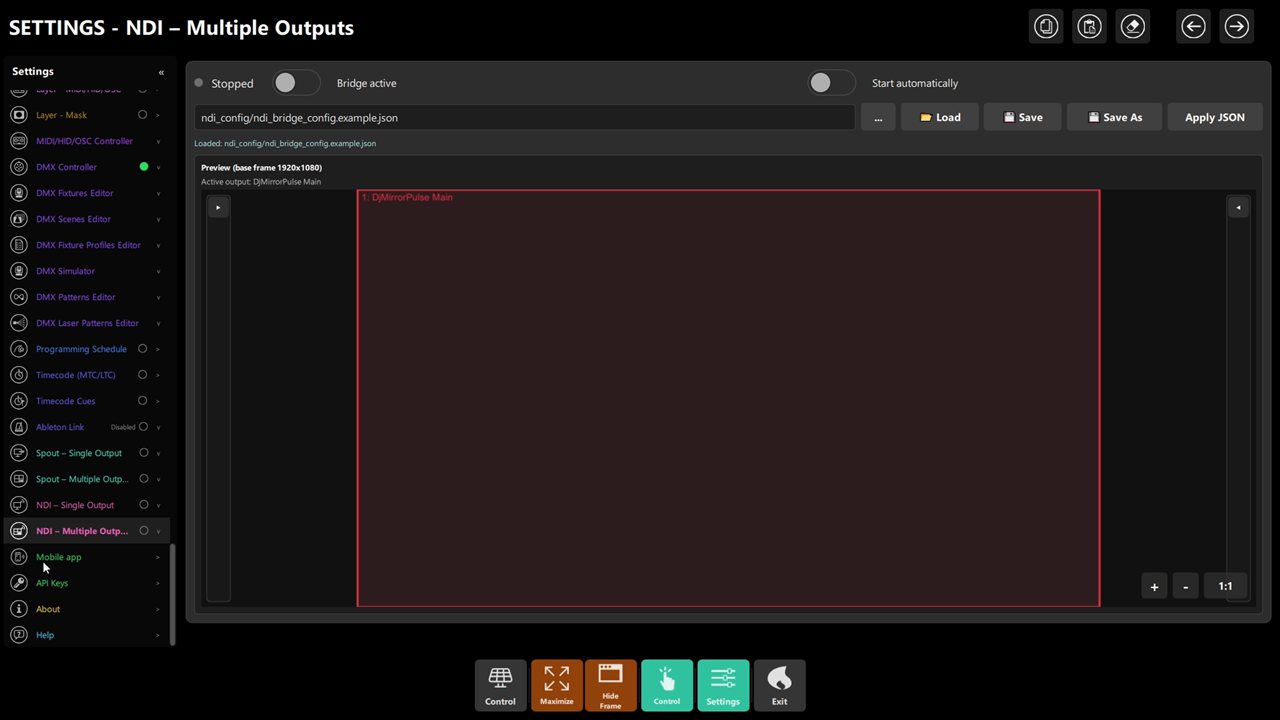 Figure 3: JSON loaded, bridge stopped, 1920×1080 preview canvas.
The ndi_config/ folder ships with ready-made layouts:
| File | Description |
|---|---|
ndi_bridge_config.example.json |
Single full-frame output |
simples/ndi_bridge_config_3_screens.example.json |
Three horizontal screen zones |
simples/ndi_bridge_config_3_circles.example.json |
Three circular masked outputs |
simples/ndi_bridge_config_3_triangles.example.json |
Three triangular masked outputs |
simples/ndi_bridge_config_5_screens.example.json |
Five-screen panoramic split |
advanced/ndi_bridge_config_orquesta_panorama.example.json |
Wide orchestra panorama |
advanced/… |
The same layouts as simples/ plus the single-output example, with extra options filled in |
Note
All advanced samples assume a 1920×1080 captured window. If your DjMirror Pulse window is a different resolution, re-measure crop coordinates in the NDI – Multiple Outputs editor or scale the values accordingly.
JSON Reference
A minimal two-output configuration:
{
  "outputs": [
    {
      "name": "Stage Left",
      "crop": { "enabled": true, "x": 0, "y": 0, "width": 960, "height": 1080 }
    },
    {
      "name": "Stage Right",
      "crop": { "enabled": true, "x": 960, "y": 0, "width": 960, "height": 1080 }
    }
  ]
}
Per-output fields:
| Field | Required | Description |
|---|---|---|
name |
Yes | NDI source name visible on the network |
crop |
No | Pixel rectangle from the captured window (applied before rotate/mask) |
rotate |
No | Rotation in degrees (float, any value) |
mask |
No | Alpha mask shape: polygon, circle, rect, or ellipse |
video |
No | Pixel format (BGRA, RGBA, UYVY) and frame type |
Mask example — circle:
"mask": { "enabled": true, "type": "circle", "center": [0.5, 0.5], "radius": 0.45 }
Note
Coordinates in 0.0–1.0 range are treated as fractions of the output size. Values above 1.0 are treated as absolute pixels.
Chapter 5: Spout Setup (Windows Only — Same-Pc Gpu Sharing)
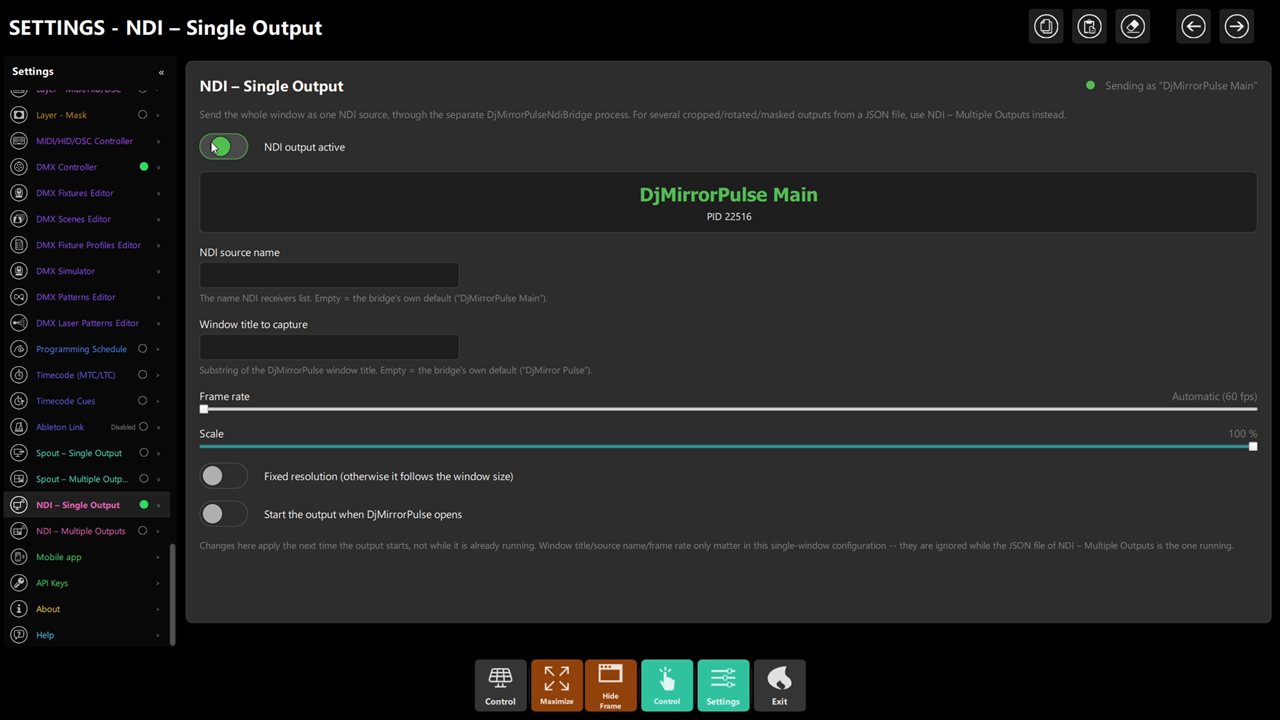 Figure 2: sending as "DjMirrorPulse Main" — source name, window title, fps, scale.
Spout sends the DjMirror Pulse visual output as a shared GPU texture to any Spout receiver running on the same Windows PC. No network, no encoding, near-zero overhead.
Prerequisites
- Windows only (Spout panel does not appear on macOS or in builds without Spout support).
- DjMirror Pulse built with the Spout2 SDK (standard Windows release includes it).
- Spout receiver installed: OBS with the Spout plugin, Resolume, TouchDesigner, etc.
Steps
- Sender name — the name receivers will see (default:
DjMirrorPulse). If another sender already uses this name, Spout appends a number (e.g.DjMirrorPulse_1); the panel shows the actual name in use. - What to send — Visual output only (no control panels, GPU path required) or Whole window (includes panels, works on CPU path).
- Send path — Automatic (prefers GPU), GPU (fast), or CPU (works everywhere, slower).
- Frame rate — automatic (60 fps GPU, 30 fps CPU) or a fixed rate from 1–120.
- Scale — 10%–100% of the base output size.
- Fixed resolution — optional fixed output size, independent of window size.
GPU vs. CPU Send Path
| GPU path | CPU path | |
|---|---|---|
| Latency | ~0.5 ms/frame | 10–25 ms/frame |
| Requires | Direct3D 11 backend (default on Windows) | Any Qt rendering backend |
| What to send | Visual output only or whole window | Whole window only |
| Multi-GPU laptops | Sender and receiver must use same GPU | Choose GPU in panel |
Automatic selects GPU when possible. If GPU is requested but the Qt backend is not Direct3D 11, the output falls back to CPU and the panel displays a degraded warning.
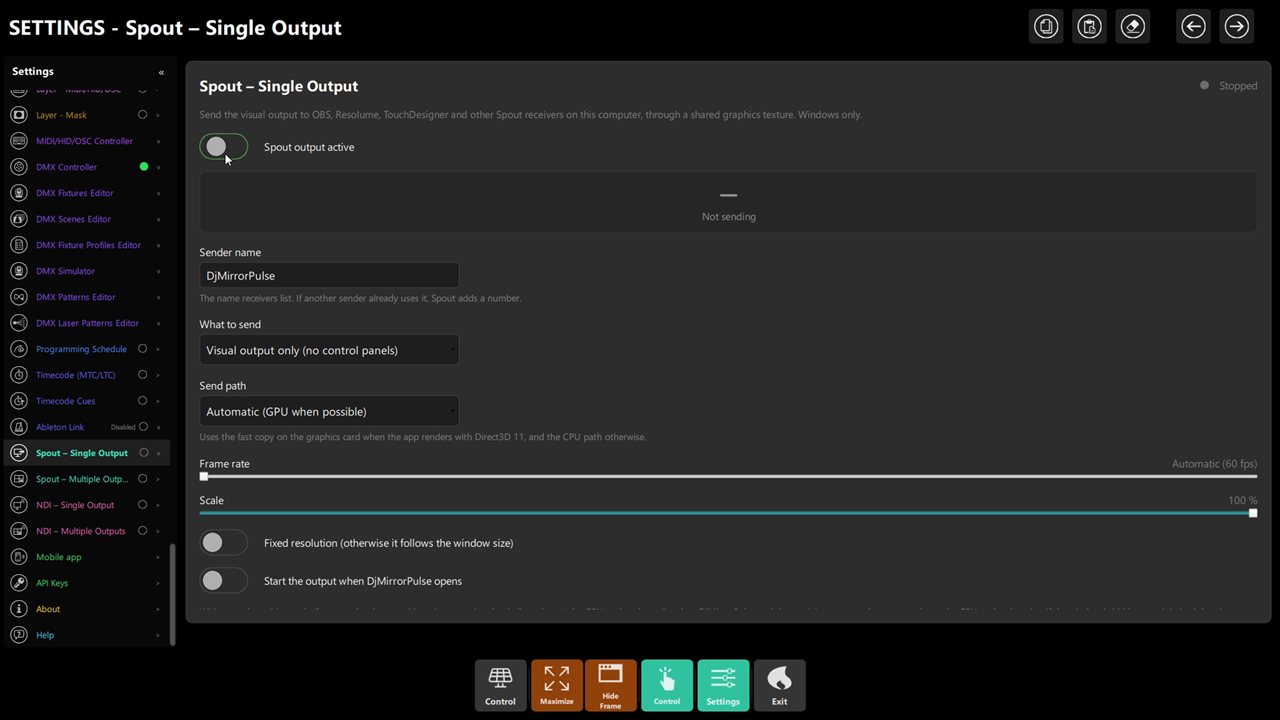 Figure 4: sender name, visual-only mode, GPU path, fps, scale, start-at-open.
Warning
On laptops with both integrated and dedicated GPUs: if DjMirror Pulse and the receiver (OBS, etc.) use different GPUs, the receiver will not find the Spout sender — no error is shown on either side. Check which GPU DjMirror Pulse uses (shown in the panel) and force the receiver to use the same GPU via Windows Settings → System → Display → Graphics.
Chapter 6: Spout Multi-Output Layout
Like the NDI multi-output panel, Spout can send multiple named senders simultaneously, each with its own crop, rotation, and mask, defined in a JSON file.
Note
The multi-output JSON format is identical for Spout and NDI — the same file works for both.
Steps
Per-output Spout-specific fields (inside a "spout" object in the JSON):
| Field | Description |
|---|---|
enabled |
Mute/unmute this output without removing it from the JSON |
alpha_mode |
straight or premultiplied |
scale |
10%–100% of the cropped/rotated size |
Pre-Built Spout Layout Examples
The spout_config/ folder (next to the program) ships with ready-made layouts (same format as NDI):
| File | Description |
|---|---|
advanced/spout_bridge_config.example.json |
Single full-frame Spout sender |
simples/spout_bridge_config_3_screens.example.json |
Three horizontal screen zones |
simples/spout_bridge_config_3_circles.example.json |
Three circular masked outputs |
simples/spout_bridge_config_3_triangles.example.json |
Three triangular masked outputs |
simples/spout_bridge_config_5_screens.example.json |
Five-screen panoramic split |
advanced/spout_bridge_config_orquesta_panorama.example.json |
Wide orchestra panorama |
Note
Same 1920×1080 reference canvas as NDI. Scale coordinates if your window differs.
Chapter 7: Integration With Obs Studio
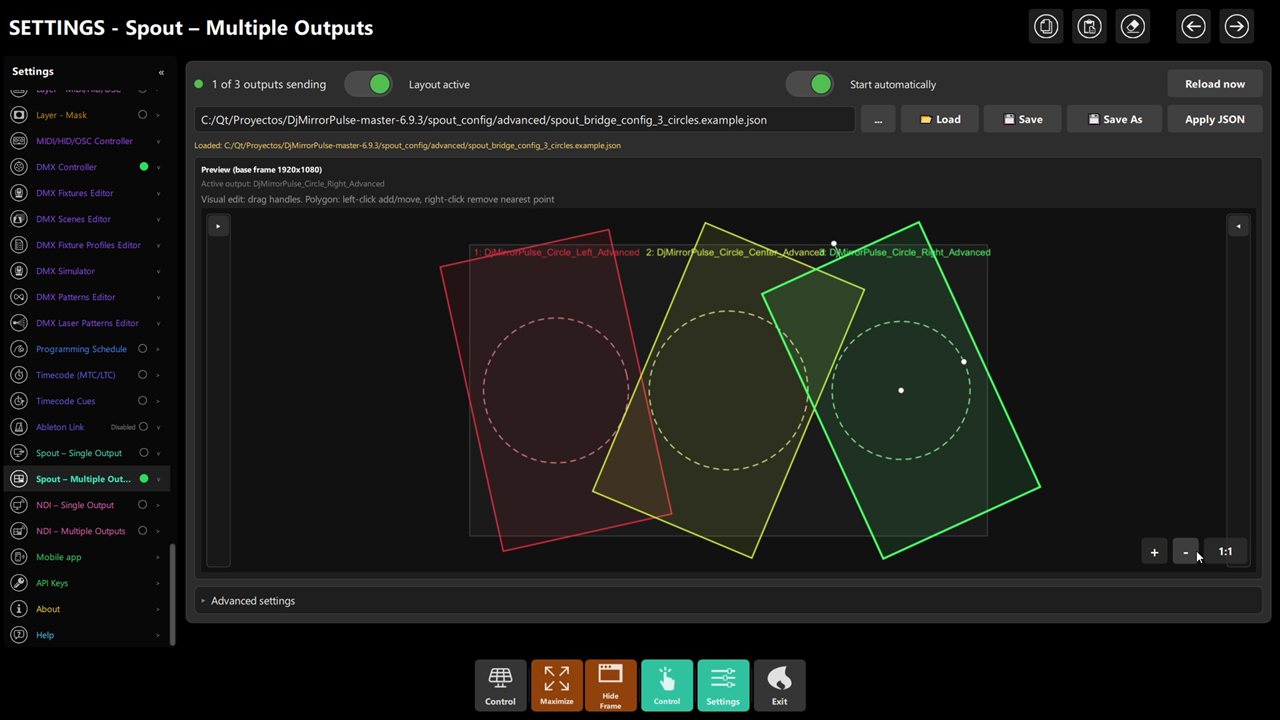 Figure 5: 1 of 3 outputs sending — rotated circle crops on the preview canvas.
NDI in OBS
obs-ndi) from obsproject.com/kb or the plugin's GitHub page.DjMirrorPulse Main).Note
NDI sources are only visible when the DjMirrorPulseNdiBridge process is running. Start it from Settings → NDI – Single Output or Settings → NDI – Multiple Outputs in DjMirror Pulse before looking for the source in OBS.
Spout in OBS
Tip
Spout is the preferred method when OBS and DjMirror Pulse run on the same PC. It is lower latency and lower CPU than NDI, and no network configuration is needed.
Chapter 8: Integration With Resolume Arena
NDI in Resolume
Spout in Resolume
Resolume Arena supports Spout natively on Windows. Add a Spout Receiver source, select DjMirror Pulse, and it will appear as a live clip.
Note
Resolume and TouchDesigner Spout integration has not been formally verified with this release of DjMirror Pulse (as of 6.9.3). OBS with the Spout2 plugin at 1920×1080 @ 60 fps has been tested and confirmed working. Please report issues to support.
Chapter 9: HTTP API & MCP Control For Output
Both NDI and Spout can be fully controlled without opening the DjMirror Pulse UI, via the HTTP API or MCP tools.
NDI HTTP API
# Check bridge status
curl http://127.0.0.1:8080/api/v1/ndi/status

# Start the NDI bridge
curl -X POST http://127.0.0.1:8080/api/v1/ndi/start

# Stop the NDI bridge
curl -X POST http://127.0.0.1:8080/api/v1/ndi/stop

# Configure bridge settings
curl -X PATCH http://127.0.0.1:8080/api/v1/ndi/settings \
  -H "Content-Type: application/json" \
  -d '{"fps": 30, "singleWindowMode": true}'

# List available NDI config files
curl http://127.0.0.1:8080/api/v1/ndi/files
The settings you can change with PATCH /api/v1/ndi/settings are autoStart, bridgeExecutablePath,
singleWindowMode, windowTitle, sourceName, fps, scale (a factor from 0.1 to 1.0), width and height
(0 and 0 follow the window size). Unknown fields are rejected.
NDI WebSocket events: ndi.started, ndi.stopped, ndi.error, ndi.updated
NDI MCP tools: get_ndi_status, start_ndi_bridge, stop_ndi_bridge, configure_ndi_bridge, list_ndi_configs
Spout HTTP API
# Check Spout status
curl http://127.0.0.1:8080/api/v1/spout/status

# Start Spout output
curl -X POST http://127.0.0.1:8080/api/v1/spout/start

# Stop Spout output
curl -X POST http://127.0.0.1:8080/api/v1/spout/stop

# Configure (e.g. change frame rate)
curl -X PATCH http://127.0.0.1:8080/api/v1/spout/config \
  -H "Content-Type: application/json" \
  -d '{"fps": 30}'
The settings you can change with PATCH /api/v1/spout/config are senderName, fps (0 = automatic), scale
(a factor), width, height, source (output = visual output only, or the whole window), mode (auto, gpu or
cpu), adapterIndex (-1 = automatic) and autoStart. GET /api/v1/spout/status also lists the graphics adapters
it found, which helps on laptops with two GPUs.
Spout WebSocket events: spout.started, spout.stopped, spout.updated, spout.error
Spout MCP tools: get_spout_status, start_spout_output, stop_spout_output, configure_spout_output, list_spout_senders
Spout Layout MCP tools: get_spout_layout, set_spout_layout, start_spout_layout, stop_spout_layout, reload_spout_layout, list_spout_layouts
Tip
Use the HTTP API to integrate DjMirror Pulse into show automation scripts — start NDI output when the show begins, stop it after, and change frame rates dynamically without opening the UI.
Chapter 10: Troubleshooting
NDI Troubleshooting
| Symptom | Likely Cause | Fix |
|---|---|---|
| No NDI source visible in OBS/vMix | Bridge not running, firewall, or wrong subnet | Start bridge from Settings → NDI – Single Output; allow NDI through firewall; confirm same LAN/VLAN |
| Source appears but video is black or frozen | Window title mismatch — bridge cannot find the window | Check the window title substring in NDI Output settings; ensure DjMirror Pulse window is open and not minimized |
| Black frames on macOS | Missing Screen Recording permission | System Settings → Privacy & Security → Screen Recording → enable for DjMirrorPulseNdiBridge and DjMirror Pulse; restart bridge |
| Crop or mask is misaligned | DjMirror Pulse window is not 1920×1080 | Re-measure crop coordinates in NDI – Multiple Outputs, or adjust the reference canvas scale |
| Hot-reload of JSON not working | Bridge path does not match saved file | Confirm the bridge's --config path (shown in NDI – Multiple Outputs) matches the file you edited |
| High CPU usage | High frame rate + many outputs + complex masks | Lower frame rate (e.g. 30 fps); reduce number of outputs; simplify masks |
UYVY format not working |
Odd output width after crop/rotate | Use an even crop width, or switch to BGRA format in the video config block |
Spout Troubleshooting
| Symptom | Likely Cause | Fix |
|---|---|---|
| Sender not listed in OBS / receiver | Different GPUs in use, or Spout output not started | Check GPU shown in panel; force receiver to same GPU; confirm output is active |
| Sender not listed (single GPU) | Output not started, or Spout plugin not installed | Use GET /api/v1/spout/status to confirm; install receiver's Spout plugin |
| Frozen / stale image | DjMirror Pulse window minimized or hidden | Restore the window; panel shows Running, but no frames are being produced when stalled |
Sender name shows DjMirrorPulse_1 |
Another sender already used that name | Use the actual name shown in the panel in your receiver, or rename the sender |
| Panel shows Not available in this build | Windows build without Spout SDK, or non-Windows OS | See build documentation (README_BUILD_ENV.md, variable DJMIRROR_SPOUT_DIR) |
| Fewer fps than configured (CPU path) | grabWindow costs 10–25 ms/frame |
Lower the frame rate, reduce scale, or switch to GPU send path |
| Seeing control panels in the output | CPU path always sends the whole window | Switch to GPU send path for Visual output only mode |
Chapter 11: Summary Table
| Output Method | Platform | Setup Location | Receiver Side |
|---|---|---|---|
| NDI Single Output | Win, macOS | Settings → NDI – Single Output | OBS NDI plugin, vMix, Resolume (native) |
| NDI Multi-Output (Layout) | Win, macOS | Settings → NDI – Multiple Outputs + JSON | Same as above, one source per output |
| Spout Single Output | Windows | Settings → Spout – Single Output | OBS Spout2 plugin, Resolume, TouchDesigner |
| Spout Multi-Output (Layout) | Windows | Settings → Spout – Multiple Outputs + JSON | Same receivers, one source per output |
Chapter 12: Related Documentation
- NDI SDK installation:
docs_tech/docs_ndi/README_INSTALL_SDK_NDI.md - HTTP API reference:
docs_tech/docs_http_ws/README_HTTP_API_REFERENCE.md - MCP tools reference:
docs_tech/docs_mcp/README_MCP.md - Build environment:
docs_tech/docs_build/README_BUILD_ENV.md - Client-Server setup:
MULTI_SCREEN_CLIENT_SERVER_GUIDE.md(this manual set)