Chapter 1: Overview
DjMirror Pulse includes a built-in server/client architecture that lets a single master instance (the server) drive any number of secondary instances (the clients) across a local network. Every client mirrors the server's configuration in real time — style changes, brightness, effects — so you can run multiple screens or rooms from one control point without reconfiguring each machine individually.
This guide is written for AV integrators, event production companies, and venue IT staff who need to deploy DjMirror Pulse in a networked multi-screen or multi-room environment.
Supported desktop platforms: Windows and macOS. Linux is not a supported DjMirror Pulse desktop server or client platform. Android is supported as a separate mobile remote control; it does not act as a multi-screen display client. See Mobile Remote Guide.
Note
The client/server feature is enabled by default. No additional licensing or plugins are required.
Chapter 2: Architecture Overview
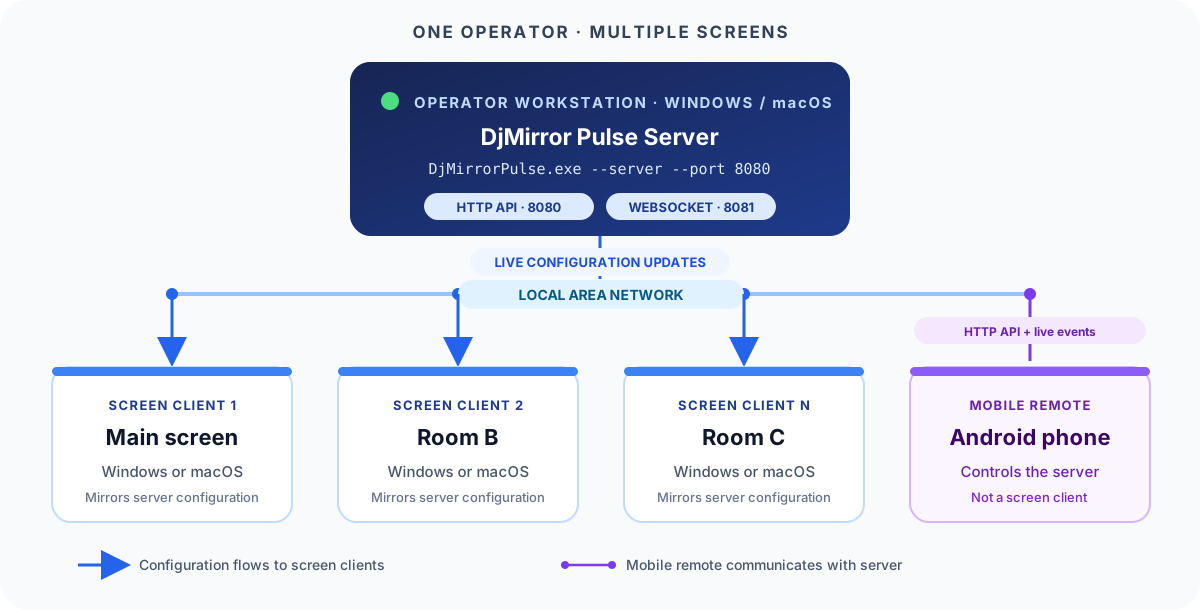 Figure 1: the desktop server sends configuration updates to each screen client; the Android mobile remote controls the server but is not a display client.
How changes propagate:
| Channel | Port | Purpose |
|---|---|---|
HTTP long-poll (/api/v1/config/subscribe) |
HTTP port (default 8080) | Config subscription; delivers full state on connect |
| WebSocket live events | HTTP port + 1 (default 8081) | Real-time change announcements (<1 second latency) |
Each client reads the server's full configuration on startup, then applies every subsequent change immediately. If the WebSocket connection drops, the client automatically retries every 5 seconds — no manual intervention needed.
Note
A client is a pure mirror. Configuration changes made locally on a client machine are not sent back to the server. DMX scene and "Play All" events are also not mirrored (they are available through the mobile remote control).
Chapter 3: Requirements
Network Requirements
| Requirement | Details |
|---|---|
| Network topology | All machines on the same LAN or with a routed path between them |
| Firewall | Inbound TCP 8080 (HTTP) and 8081 (WebSocket) open on the server machine |
| Bandwidth | Minimal — only configuration deltas are transmitted, not video |
| Latency | < 100 ms recommended for smooth real-time sync |
Tip
For production venues, use wired Ethernet (Gigabit) rather than Wi-Fi. Wi-Fi is acceptable for small setups but can introduce latency spikes under load.
Software Prerequisites
- DjMirror Pulse installed on every machine (server and all clients)
- Network path open between all machines (ping test recommended before show)
- Static IP address or DHCP reservation configured for the server machine
Media Availability (Visuals/ on Every Machine)
Only configuration travels over the network — media files never do. Each machine resolves
playlist entries, style assets and artist media against its own local documentsPath/Visuals/
tree, so every client needs the same files the server uses, or layers render black/missing while
config sync looks fine. Two supported layouts:
| Layout | How | Best for |
|---|---|---|
| Identical copies | Copy the server's Visuals/ (Videos|Images|Avatars|Logos|Styles, *.txt playlists) to the same relative location on each client before the show; re-copy after adding media |
Touring rigs, unreliable venue networks |
| Network share | Put Visuals/ on an SMB/NFS share and set the same documentsPath (UNC path or identically-mounted drive letter) on server and clients |
Fixed installs where one librarian updates content for all screens |
Rules for both: keep identical subfolder structure and filenames (playlists reference bare filenames);
point every machine's documentsPath at its copy (see Config & CLI); verify
by loading each style/playlist on one client before doors. Note: with a network share, video
decoding streams over the LAN — prefer wired Gigabit and pre-test your heaviest loops; with local
copies, disks do the work and the LAN carries config only.
Chapter 4: Setting Up The Server
The server is the machine an operator uses to control the show. All other machines follow it.
Step 1 — Launch the Server
Open a PowerShell (or Terminal) window and run:
.\DjMirrorPulse.exe --server --port 8080
| Flag | Description |
|---|---|
--server |
Forces the HTTP configuration server ON |
--no-server |
Forces it OFF |
--port <n> |
Sets the HTTP port (default: 8080). The WebSocket port is always n + 1 |
Note
The server is on by default at port 8080. You only need --server --port 8080 if you changed the defaults or want to be explicit.
Step 2 — Configure via config.json (optional)
Alternatively, set server options permanently in config.json next to the executable:
{
  "server": true,
  "port": 8080
}
The command-line flags always override config.json. A server restart is required for these settings to take effect.
Step 3 — Verify the Server Is Running
From any computer on the network, open a terminal and run:
curl.exe http://SERVER_IP:8080/config
Expected responses:
| Response | Meaning |
|---|---|
| JSON configuration object | ✅ Server is up and accessible |
{"ok":false,"error":{"code":"UNAUTHORIZED"...}} |
✅ Server is up — but an API key is required (see Section 6) |
| Connection timeout | ❌ Firewall blocking, wrong IP, or server not running |
Chapter 5: Connecting Clients
Windows and macOS
On each client machine, open a terminal and run the command for its operating system:
# Windows (PowerShell)
.\DjMirrorPulse.exe --no-server --client http://192.168.1.50:8080
# macOS
./DjMirrorPulse --no-server --client http://192.168.1.50:8080
Replace 192.168.1.50 with the actual IP address of the server machine.
| Flag | Description |
|---|---|
--no-server |
Prevents the client from starting its own HTTP server (recommended — avoids port conflicts) |
--client <url> |
URL of the server to follow |
--no-client |
Disables client mode even if config.json has a URL |
Persistent Configuration via config.json
To avoid typing the command every time, set the client URL in config.json:
{
  "server": false,
  "client": "http://192.168.1.50:8080"
}
An empty "client": "" value means "no client mode."
Tip
Once configured in config.json, double-clicking the DjMirror Pulse icon will automatically connect the client — no terminal needed for daily use.
Chapter 6: Firewall Configuration
Open the following inbound TCP ports on the server machine's firewall. Client machines do not require any special firewall rules (they make outbound connections only).
| Port | Protocol | Service | Required |
|---|---|---|---|
| 8080 | TCP | HTTP Config API + long-poll | ✅ Yes |
| 8081 | TCP | WebSocket live events | ✅ Yes (strongly recommended) |
Warning
If port 8081 (WebSocket) is blocked, clients fall back to slower HTTP long-polling. Changes will still arrive, but with higher latency. Always open both ports for best performance.
Windows Firewall (PowerShell — run as Administrator)
# HTTP port
New-NetFirewallRule -DisplayName "DjMirror Pulse HTTP" `
  -Direction Inbound -Protocol TCP -LocalPort 8080 -Action Allow

# WebSocket port
New-NetFirewallRule -DisplayName "DjMirror Pulse WebSocket" `
  -Direction Inbound -Protocol TCP -LocalPort 8081 -Action Allow
macOS Firewall
If the macOS Application Firewall is enabled, allow DjMirror Pulse through it in System Settings → Privacy & Security → Firewall → Firewall Options.
Chapter 7: API Key Authentication
For venues where network security matters, you can require an API key on the server so that only authorized clients can connect.
Setting the API Key
Set the key using any one of these methods (listed in order of priority — higher items win):
- Environment variable (highest priority):
$env:DJMIRROR_API_TOKEN = "YOUR_SECRET_KEY" .\DjMirrorPulse.exe --server config.json:{ "apiKey": "YOUR_SECRET_KEY" }- Settings → Mobile app (API security section) in the DjMirror Pulse UI
Connecting Clients with the Key
.\DjMirrorPulse.exe --no-server --client http://192.168.1.50:8080 --client-key YOUR_SECRET_KEY
Or set it permanently in config.json on the client:
{
  "client": "http://192.168.1.50:8080",
  "clientApiKey": "YOUR_SECRET_KEY"
}
Tip
The easiest secure setup is to configure the same API key on every machine (server and clients). If clientApiKey is not set, the client automatically uses its own apiKey value — meaning identical config.json files work on all machines.
Warning
Prefer config.json over --client-key on shared computers. Command-line arguments are visible to other users in the process list.
Testing Authentication
# Should return the config JSON (not UNAUTHORIZED)
curl.exe -H "X-API-Key: YOUR_SECRET_KEY" http://SERVER_IP:8080/config

# Alternative header format also accepted
curl.exe -H "Authorization: Bearer YOUR_SECRET_KEY" http://SERVER_IP:8080/config
Note
In PowerShell, always use curl.exe (not curl) when passing custom headers. curl in PowerShell is an alias for Invoke-WebRequest and does not support these options.
Chapter 8: Verifying Synchronization
Use this checklist after connecting all clients to confirm the setup is working correctly.
Synchronization Checklist
| Test | How to perform | Expected result |
|---|---|---|
| Server responds | curl.exe http://SERVER_IP:8080/config |
Config JSON returned |
| One client follows | Change a style or brightness on the server | Client updates within 1 second |
| Multiple clients follow | Connect 2+ clients; change server setting | All clients update simultaneously |
| Automatic reconnection | Restart the server while clients are connected | Clients reconnect within ~5 seconds, no manual action |
| Client independence | Stop one client | Server and remaining clients continue unaffected |
| Media present everywhere | Load each style/playlist on one client | Same pictures/video as the server — no black layers |
Reading the Client Log
To see exactly what a client is doing, start it with --console and pipe the output:
.\DjMirrorPulse.exe --no-server --console --client http://192.168.1.50:8080 2>&1 | Tee-Object client.log
Key log lines to look for:
| Log line | Meaning |
|---|---|
WebSocket connected to ws://... |
Live channel established ✅ |
Configuration update received via WebSocket |
Server change arrived and applied ✅ |
Subscription error / WebSocket error |
Server unreachable or API key rejected ❌ |
WebSocket reconnection scheduled in 5 seconds... |
Connection dropped; auto-retry in progress ⚠️ |
Note
If the log shows only FFmpeg or MIDI messages but no [HttpConfigClient] entries, you may be running an older build. Set these environment variables before starting:
$env:QT_LOGGING_TO_CONSOLE = "1"
$env:QT_FORCE_STDERR_LOGGING = "1"
Chapter 9: Multi-Room & Large Venue Scenarios
Scenario A — Single Room, Multiple Screens
Run one server and connect one client per screen. All screens show the same content, synchronized in real time.
[Operator Laptop — Server]
       │
       ├── [Stage Screen L — Client]
       ├── [Stage Screen C — Client]
       └── [Stage Screen R — Client]
Scenario B — Multi-Room Venue
Each room has its own display machine (client). All rooms follow the same server.
[Lighting Booth — Server :8080]
       │
       ├── [Main Hall — Client]
       ├── [VIP Room — Client]
       └── [Bar Area — Client]
Scenario C — Backup / Redundancy
Run a second DjMirror Pulse as a client on a standby machine. If the primary display fails, point the output at the standby. The standby is always in sync and ready.
Performance Notes for Large Deployments
- The server accepts any number of clients simultaneously.
- Only configuration deltas are transmitted — bandwidth scales well even with many clients.
- Avoid running multiple instances on the same machine in production. All instances on one machine share the same
config.json, audio input, Ableton Link, Spout/NDI outputs, and DMX interface. Use dedicated hardware per role.
Tip
For venues with VLAN segmentation, ensure the server's HTTP and WebSocket ports are reachable from the VLAN(s) where client machines reside. A simple ping test from each client machine to the server IP confirms routing before show day.
Chapter 10: Troubleshooting
Connection Problems
| Symptom | Likely Cause | Fix |
|---|---|---|
curl to server times out |
Firewall blocking, wrong IP, or server is off | Check --server flag; open ports 8080 and 8081 in firewall |
Server returns UNAUTHORIZED |
API key is configured | Send the key via -H "X-API-Key: YOUR_KEY" (see Section 6) |
| Client starts but never syncs | Wrong IP/port, or missing API key | Check the client log for UNAUTHORIZED, 401, or WebSocket errors |
| Port already in use on startup | Two instances on same machine both have server enabled | Start the second instance with --no-server |
Synchronization Problems
| Symptom | Likely Cause | Fix |
|---|---|---|
| Changes arrive slowly (seconds delay) | WebSocket port 8081 blocked | Open port 8081 — client is falling back to slow HTTP long-poll |
| Client follows config but layers are black / media missing | Visuals/ files absent on that client |
Copy the server's Visuals/ tree or point documentsPath at the shared folder (§2, Media Availability) |
| Client does not reconnect after server restart | Invalid or empty --client URL |
Verify the URL is correct; reconnection requires a valid URL |
| Client shows stale content after reconnect | Normal — config is re-fetched on reconnect | Wait a moment; client re-reads full config on reconnect |
Log-Guided Diagnostics
Start both server and client with --console and compare logs side-by-side:
# Terminal 1 — Server
.\DjMirrorPulse.exe --server --console 2>&1 | Tee-Object server.log

# Terminal 2 — Client
.\DjMirrorPulse.exe --no-server --console --client http://192.168.1.50:8080 2>&1 | Tee-Object client.log
Note
PowerShell does not wait for a windowed program without a pipe. Using | Tee-Object file.log makes PowerShell wait and capture all output. The log ends when you close DjMirror Pulse — do not close the PowerShell window first.
Chapter 11: Summary — Command Reference
| Scenario | Command |
|---|---|
| Start server (default port) | DjMirrorPulse.exe --server |
| Start server (custom port) | DjMirrorPulse.exe --server --port 9090 |
| Connect client | DjMirrorPulse.exe --no-server --client http://SERVER_IP:8080 |
| Connect client with API key | DjMirrorPulse.exe --no-server --client http://SERVER_IP:8080 --client-key KEY |
| Start with console log | DjMirrorPulse.exe --server --console 2>&1 \| Tee-Object server.log |
Chapter 12: Related Documentation
- HTTP API Reference:
docs_tech/docs_http_ws/README_HTTP_API_REFERENCE.md - Configuration Parameters:
docs_tech/docs_parameters/README_CONFIG_PARAMETERS.md - NDI & Spout Output:
NDI_SPOUT_OUTPUT_GUIDE.md(this manual set)