It assumes the controller panel basics from MIDI_HID_CONTROLLER_GUIDE (Control List, editor, SHIFT concept). Technical detail lives in docs_osc_midi_hid_dmx/README_OSC_GUIDE and the mapping format in docs_osc_midi_hid_dmx/README_MAPPING_XML_FORMAT.
Chapter 1: The Example Setup
| Piece | Example | Role |
|---|---|---|
| Sender | TouchOSC phone/tablet on venue Wi-Fi | Faders, buttons, XY pads in your hand |
| Receiver | DjMirror Pulse, Protocol: OSC, listen port 8000 | Acts on messages |
| Mapping | Generic OSC Controller.osc.xml (start) → your own |
Address → action |
| Tester | DjMirror Pulse OSC Emulator (same PC) | Rehearse mappings with no tablet |
Goals: sub-second response on local Wi-Fi, no double-fires on taps, faders that fade (not on/off switches), and a mapping you can test at home before the gig.
Chapter 2: Concepts In Two Minutes
- UDP + addresses. OSC messages travel as UDP datagrams to
<this-PC>:<port>(default 8000). Each message has an address (/deck1/play) — the address is what identifies the control, one address per control. - First number wins. The control's value is the first numeric argument. An XY pad sending
,ff x ydrives with x only; send y to a second address if you need it. Messages with no numeric argument (text, impulse, no args) are triggers: discrete actions fire,setFromInputhas nothing to apply. - Bundles OK. Single messages and
#bundles (nested included) are accepted; timetags are ignored. - Type tags understood. Ints (
i,h,c), floats (f,d), bools (T→1,F→0), text/blob (s,S,b), nil/impulse (N,I= no value). Timetag/RGB/MIDI tags (t,r,m) and array delimiters are accepted but carry no value; a truly unknown tag drops the whole message, so stick to the listed ones. - Same panel, same SHIFT. Protocol OSC reuses the MIDI/HID Control List, editor and SHIFT model — only the binding (address instead of MIDI number / HID byte) differs. Changing the listen port releases SHIFT (a SHIFT held on the old port could never be released).
Chapter 3: Step By Step
Step 1 – Open the receiver
In Settings → MIDI/HID/OSC Controller, choose Protocol: OSC. The device selector becomes Listen port (UDP): type a port (1–65535, default 8000), press Enter — it is saved. Next to the field: Listening (green) = port open; Port unavailable (in use?) (red) = another program holds it, pick another port in both places.
The receiver listens on all IPv4 interfaces: same-machine senders use 127.0.0.1:<port>; tablets/phones on
venue Wi-Fi use this computer's LAN address. Open UDP on the firewall for the chosen port.
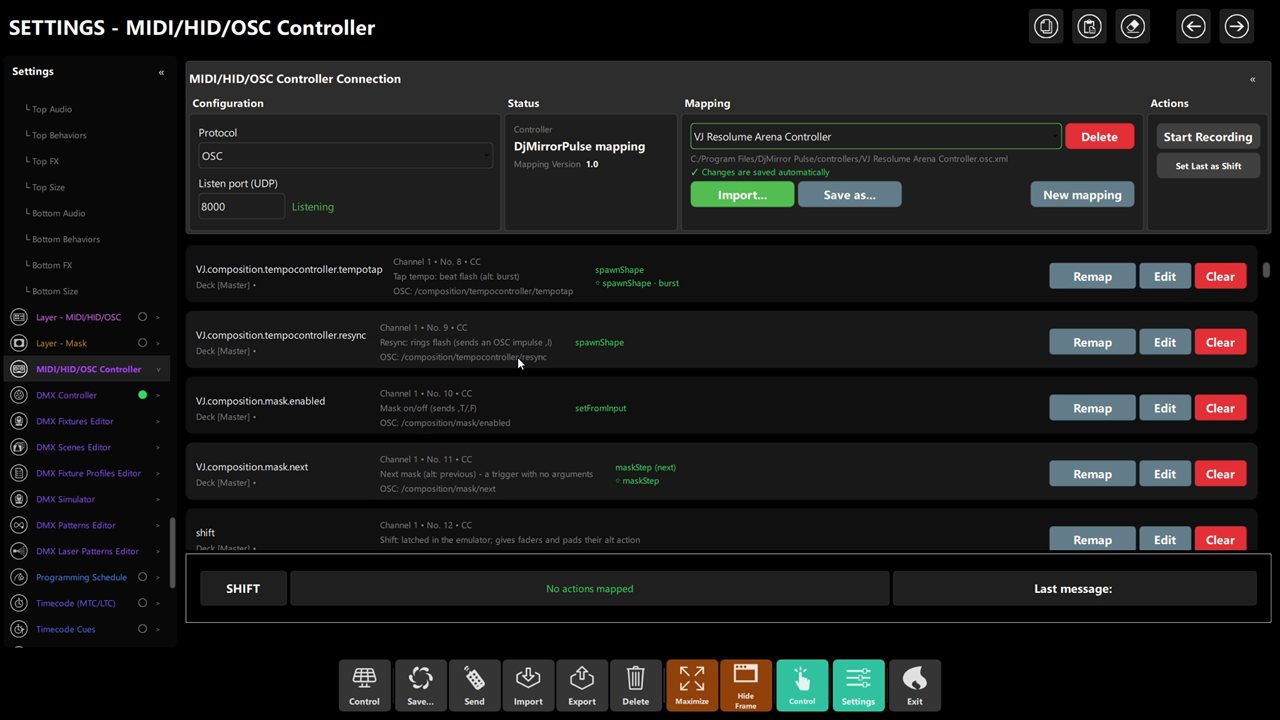 Figure 2: port 8000 Listening with the VJ Resolume Arena mapping.
Step 2 – Map controls (three ways, same as MIDI/HID)
| Method | How |
|---|---|
| Remap | Click Remap on a row, then move the fader / press the button on the sender. The row takes that address. |
| Start Recording | Every unmapped address arrives as Unknown_OSC_cc_<ch>_<n>_<address> (address included). Edit rows into actions. |
| By hand | Add <oscAddress>/my/address</oscAddress> to a <control> in the .osc.xml file. Any unique <status>/<midino> pair works. The editor's OSC address field does the same. |
One address belongs to one control: assigning it (editor or Remap) removes it from any other. Re-record a dead control rather than debugging it.
Step 3 – Get values right (the fader-that-switches trap)
setFromInput assumes OSC input range 0.0–1.0 (what TouchOSC/Lemur send). A sender using 0–127 ints must
declare it in the action, or any value ≥ 1 reads as maximum and the fader becomes an on/off switch:
<djmpAction>
  <type>setFromInput</type>
  <target>elements.imagesBackgroundView.brightness</target>
  <param key="inMin" value="0" />
  <param key="inMax" value="127" />
  <param key="outMin" value="0" />
  <param key="outMax" value="2" />
</djmpAction>
Press and release. Many OSC buttons send 1.0 on press, 0.0 on release:
- Discrete actions (shapes, layer toggles, playlist steps) fire on press only — the
0.0is ignored, a tap never fires twice. setFromInputreceives both — useroundfor on/off switches that must turn off, or held effects.
Step 4 – SHIFT over OSC
Mark one control as SHIFT (editor, or <options><shift/>). Its numeric value is the state: ≠ 0 held,
0 released — a TouchOSC push button works (1.0 held, 0.0 released). A SHIFT message with no numeric value
is ignored (status line explains why). Other controls need their SHIFT action defined, as with MIDI/HID.
Step 5 – Start from a bundled mapping
| Mapping | Controls | Use it for |
|---|---|---|
Generic OSC Controller.osc.xml |
26 | Reference: master, crossfader, 2 decks (play, cue, sync, hotcues, loop), SHIFT (/shift), one control per argument form (XY ,ff, int64 ,h, float64 ,d, bool ,T/,F, no args, text ,s, impulse ,I) |
VJ Resolume Arena Controller.osc.xml |
92 | Full VJ controller (TouchOSC style, Resolume naming): Master, Layers 1–3, Layer 4 Lights, FX Rack, Audio Reactive, Overlays, Visual Hits — 35 with SHIFT alternates |
Design rules worth copying from the VJ mapping: effects need FX ON (layer shaderEnabled starts off);
live only (every setFromInput uses persistIdleMs 0 — nothing written to config.json mid-show);
on/off controls round (switches and held effects honor the release 0).
Step 6 – Rehearse with the Emulator (no tablet needed)
The DjMirror Pulse OSC Emulator (separate Qt app, own repository) sends OSC like hardware:
- Destino OSC: target host/port (default
127.0.0.1:8000); Int 0-127 sends,iinstead of,f; Bundle wraps messages in#bundlelike TouchOSC; Test taps Play D1 (/deck1/play). - Desk: fixtures wrap into rows — faders + XY pads on top, button grid below, address on hover.
- Faders send while moving (~30/s) plus final position; momentary buttons send press+release; toggles send on/off. SHIFT latches (blue border) — test SHIFT + control with one mouse.
- Log shows every message with type tags and bytes (hideable; one-line latest-message bar while hidden).
- Fixture files pair with mappings:
osc_fixtures.json↔ Generic mapping,osc_fixtures_avanzado.json↔ VJ mapping. Channel fields:label,oscAddress,controlType(fader/button/xy),mode(toggle/momentary),argType(i/h/f/d/T/none/I/s),stringValueforsbuttons. - Nobody listening? The log warns and the emulator keeps running. It can also listen on UDP 9000/9001 for
/osc/channelmessages (8000 excluded on purpose — it is DjMirror Pulse's).
Chapter 4: Putting It Together: Gig-Day Flow
| Moment | Action | Result |
|---|---|---|
| Home | Emulator → mapping → all rows fire, faders fade smoothly | Mapping proven without hardware |
| Venue Wi-Fi | Tablet → <LAN-IP>:8000 over OSC/UDP, same port both sides, Listening green |
Connected |
| Soundcheck | Full playlist step, style+mask change, one held effect | No surprises on stage |
| Show | Tablet in hand, laptop keyboard as backup (Ctrl+R, Ctrl+W) |
Two control paths |
| Drop | SHIFT + pads for the second bank (VJ mapping) | Double the controls |
Chapter 5: Troubleshooting
| Symptom | Check |
|---|---|
| Nothing arrives | OSC mode + Listening? Sender targets this machine:port? Firewall blocking UDP? Emulator log warns when nobody listens |
| "Port unavailable (in use?)" | Another program holds it — pick another port in both places |
| Fader acts like on/off | Sender uses ints 0–127 but OSC assumes 0–1 → send floats, or set inMin/inMax |
| Recorded control dead | Re-record: the address moved and was removed from the other row |
| SHIFT does nothing | SHIFT message needs a number (≠0 held / 0 released); others need SHIFT actions |
| XY vertical axis dead | Only first arg (x) is used — send y to a second address |
| Effects don't show | Layer FX (shaderEnabled) is off — turn it on |
Chapter 6: Quick Recipe Card
- Receiver: Protocol OSC, port 8000 (green Listening), UDP open, LAN IP to tablets.
- Map: Remap / Record /
<oscAddress>by hand — one address, one control. - Values: floats 0.0–1.0 native; ints need
inMin/inMax; discrete fires on press,setFromInputgets both. - SHIFT: numeric ≠0/0; others need SHIFT actions.
- Start from: Generic (26, reference) or VJ Resolume Arena (92, show-ready); copy its live-only + round rules.
- Rehearse: OSC Emulator (
127.0.0.1:8000), latching SHIFT, message log.