Chapter 1: The 5 Audio-Reactive Visualizers — Digital, Particle, Analog, Spectrum And Xy
Chapter 2: Overview — Audio-Reactive Visualization In DjMirror Pulse
| Settings group | What it draws | Patterns | Chapter |
|---|---|---|---|
| Digital | Vertical frequency bars | — | 2 |
| Particle | Frequency bands as dots of light | — | 3 |
| Analog | Oscilloscope-style waveform | 8 | 4 |
| Spectrum | Mirrored rounded frequency bars | — | 5 |
| XY Visualizer | Radial and circular geometry | 10 | 6 |
Note
Earlier versions of this guide listed a Peak Meter and an Amplitude Histogram visualizer. They exist in the source code but are not enabled in the application, so they do not appear in Settings and are not covered here.
How It Works
The DjMirror Pulse audio engine continuously processes the incoming audio signal and produces these kinds of analysis data:
| Data Type | Description | Used By |
|---|---|---|
| Waveform samples (raw PCM) | Time-domain amplitude of the audio signal | Analog |
| Frequency bands / FFT spectrum | Frequency-domain energy across bands | Digital, Particle, Spectrum, XY |
| Left / right channels | Separate stereo signals | XY pattern 7 (XY Oscilloscope) |
Audio data flows from the input selected in Settings → AUDIO Device. If the visualizers are not reacting, first check that the audio meters move; see Audio Setup & Beat Sync.
Start with one visualizer
- Open Settings → Layer - Waveforms.
- Make sure the layer itself is Visible, then open one visualizer group (Digital, Particle, Analog, Spectrum or XY Visualizer) and turn on that visualizer's Visible option.
- Change one setting at a time — color, intensity or pattern — and look at the output screen.
- Once it behaves as expected, add another visualizer only if the composition needs it.
The exact groups and controls depend on the visualizer. The examples below are starting ideas, not required settings. Property names in code formatting describe configuration/API fields; use the visible control names in Settings when you are operating the app by hand.
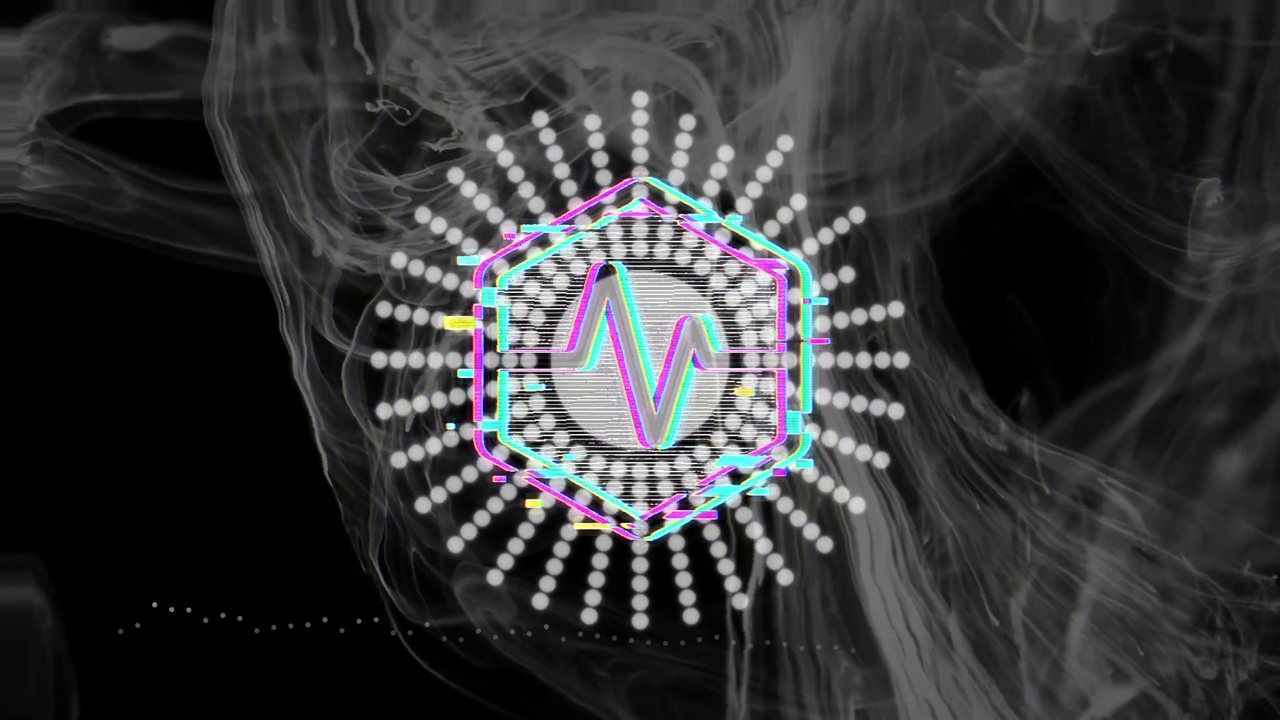 Figure 1: layered XY geometry over a smoke bed, driven by live FFT.
Tip
If motion is not responding to music, fix the audio input and level before increasing visualizer intensity.
The Layer - Waveforms page
The page you land on holds controls for the whole layer, shared by every visualizer inside it. The five groups are listed underneath it in the sidebar.
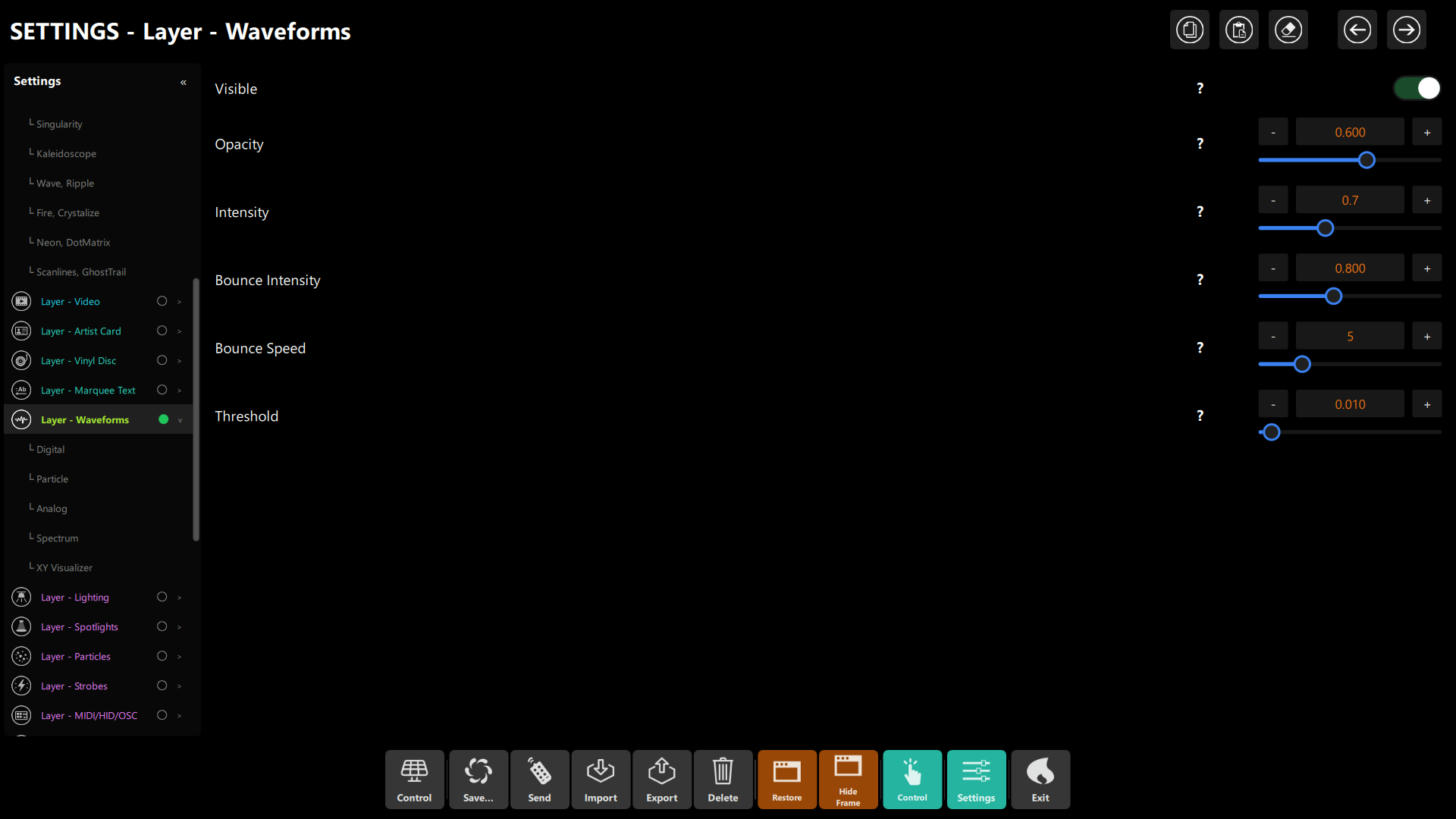 Figure: Settings → Layer - Waveforms, with the five visualizer groups listed under it.
| Control | Property | Default | What it does |
|---|---|---|---|
| Visible | visible |
on | Master switch for the whole layer — if it is off, none of the visualizers show |
| Opacity | opacity |
0.6 | Transparency of the whole layer |
| Intensity | intensity |
0.7 | Added to each visualizer's own intensity |
| Bounce Intensity | bounceIntensity |
0.8 | How strongly the layer pulses (scales) on a beat |
| Bounce Speed | bounceSpeed |
5 | How fast that pulse plays (1–10) |
| Threshold | audioThreshold |
0.01 | Audio-level threshold for the layer's reaction; use the ? help beside it for details |
Controls every visualizer shares
Each group repeats the same core controls, so once you know them you know all five: Visible, Opacity, Color, Intensity, Bar Count (where it applies) and the four margins. To change Color, type a hex value and press Apply in the color dialog. Margins are in pixels from each edge of the output, so a large Top Margin pushes a visualizer down into a band along the bottom.
Chapter 3: Visualizer 1: Digital (Frequency Bars)
Settings group: Layer - Waveforms → Digital · Config key: elements.waveFormView.waveformVisualizer
Input: audio frequency bands · Output: a row of vertical bars, low frequencies on the left
Digital is the most direct monitoring view: one bar per band that rises and falls with the music. It is simple, cheap to draw and easy to read on a dark background.
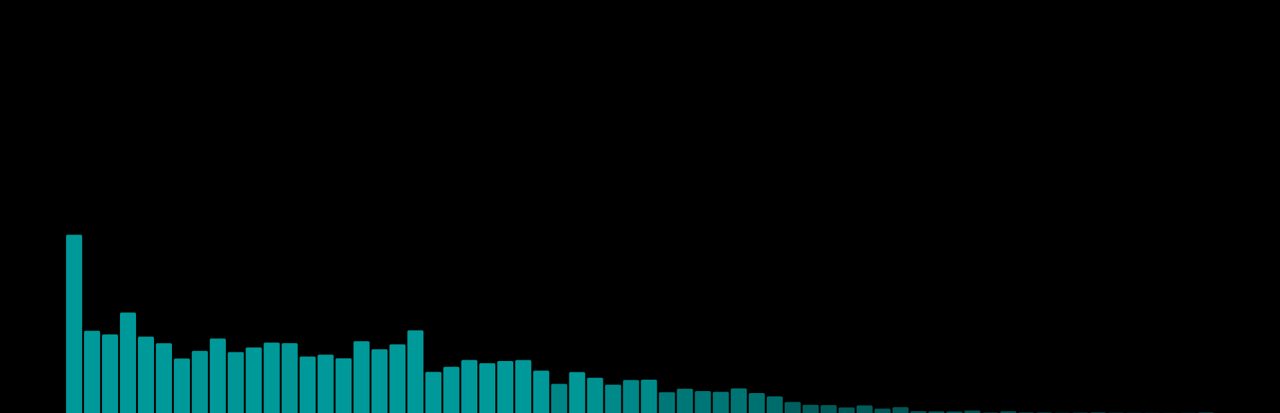 Figure: Digital on its own — 64 bars with the bass on the left. The color was set to cyan for the capture.
- Best for: a readable "is it alive?" reference, club screens, anything that needs a clear sense of bass vs. treble
- Key tip: a low Opacity (the default is 0.4) lets it sit under a video layer without hiding it.
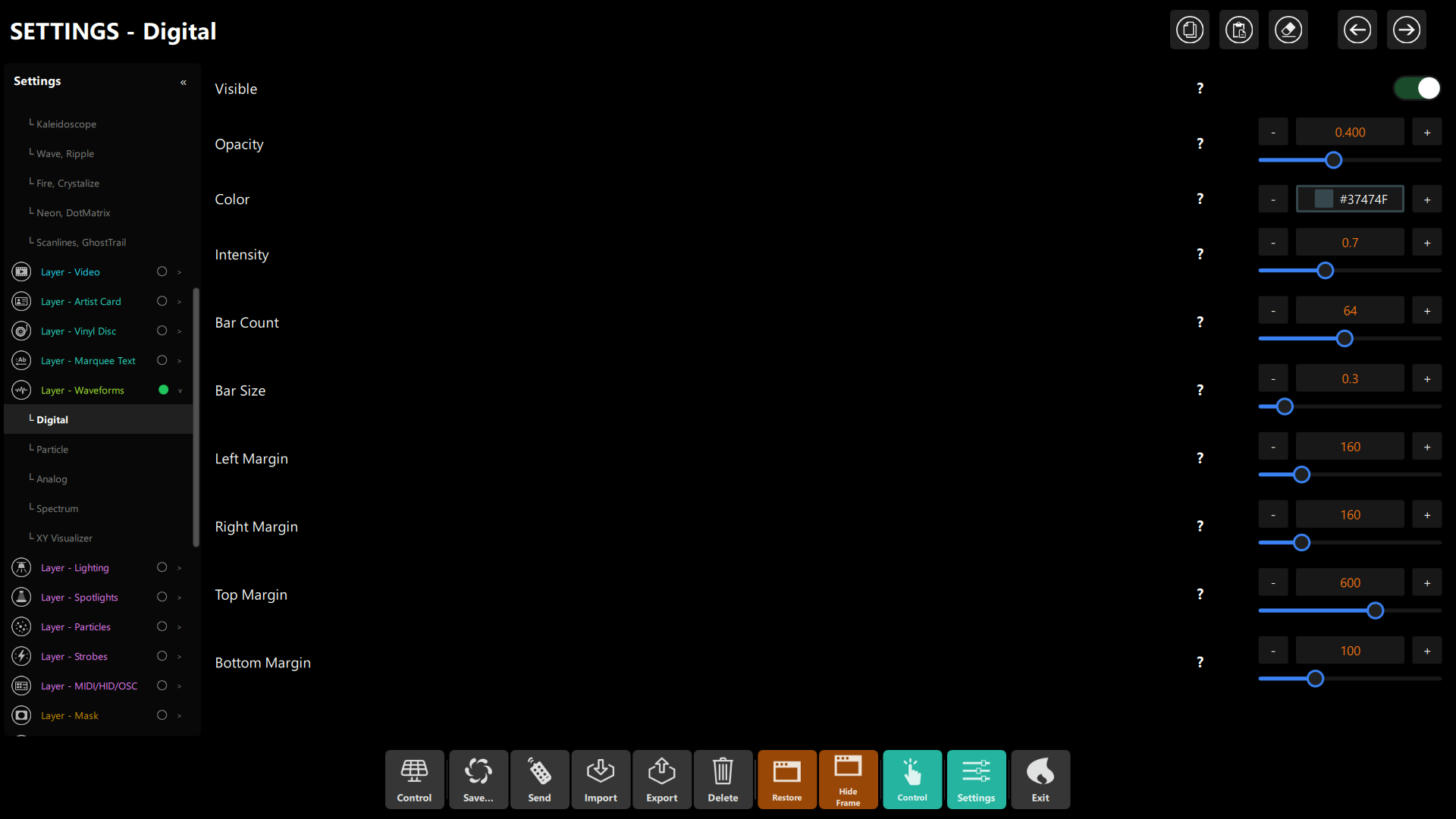 Figure: Settings → Layer - Waveforms → Digital.
| Control | Property | Default | What it does |
|---|---|---|---|
| Visible | visible |
off | Shows or hides the visualizer |
| Opacity | opacity |
0.4 | Transparency |
| Color | baseColor |
#37474F |
Bar color |
| Intensity | intensity |
0.7 | Overall amplitude of the motion |
| Bar Count | barCount |
64 | Number of bars |
| Bar Size | barFactorSize |
0.3 | Bar height scaling |
| Left / Right / Top / Bottom Margin | margins.* |
160 / 160 / 600 / 100 | Placement, in pixels from each edge — the default fills a band across the lower part of a 1080p screen |
Chapter 4: Visualizer 2: Particle
Settings group: Layer - Waveforms → Particle · Config key: elements.waveFormView.particleWaveVisualizer
Input: audio frequency bands · Output: dots (particles) emitted along the frequency axis
Particle uses the same bands as Digital but draws them as points of light instead of bars. It is lighter and more atmospheric, so it works well as a background texture behind logos or text.
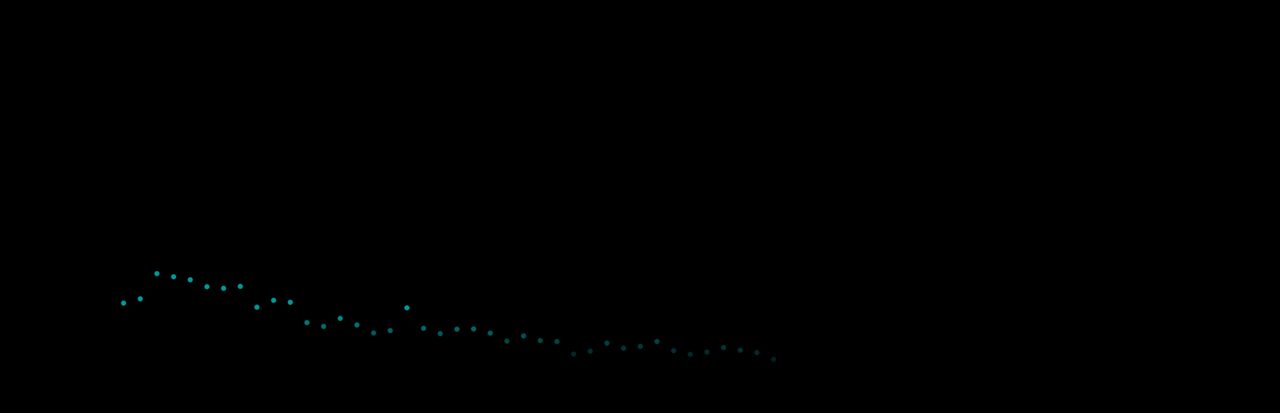 Figure: Particle on its own. The dots are small by design; raise Intensity or Bar Size for a denser look.
- Best for: soft backgrounds, ambient sets, layering behind an artist card
- Key tip: it defaults to a higher opacity (0.8) than Digital because the dots are small.
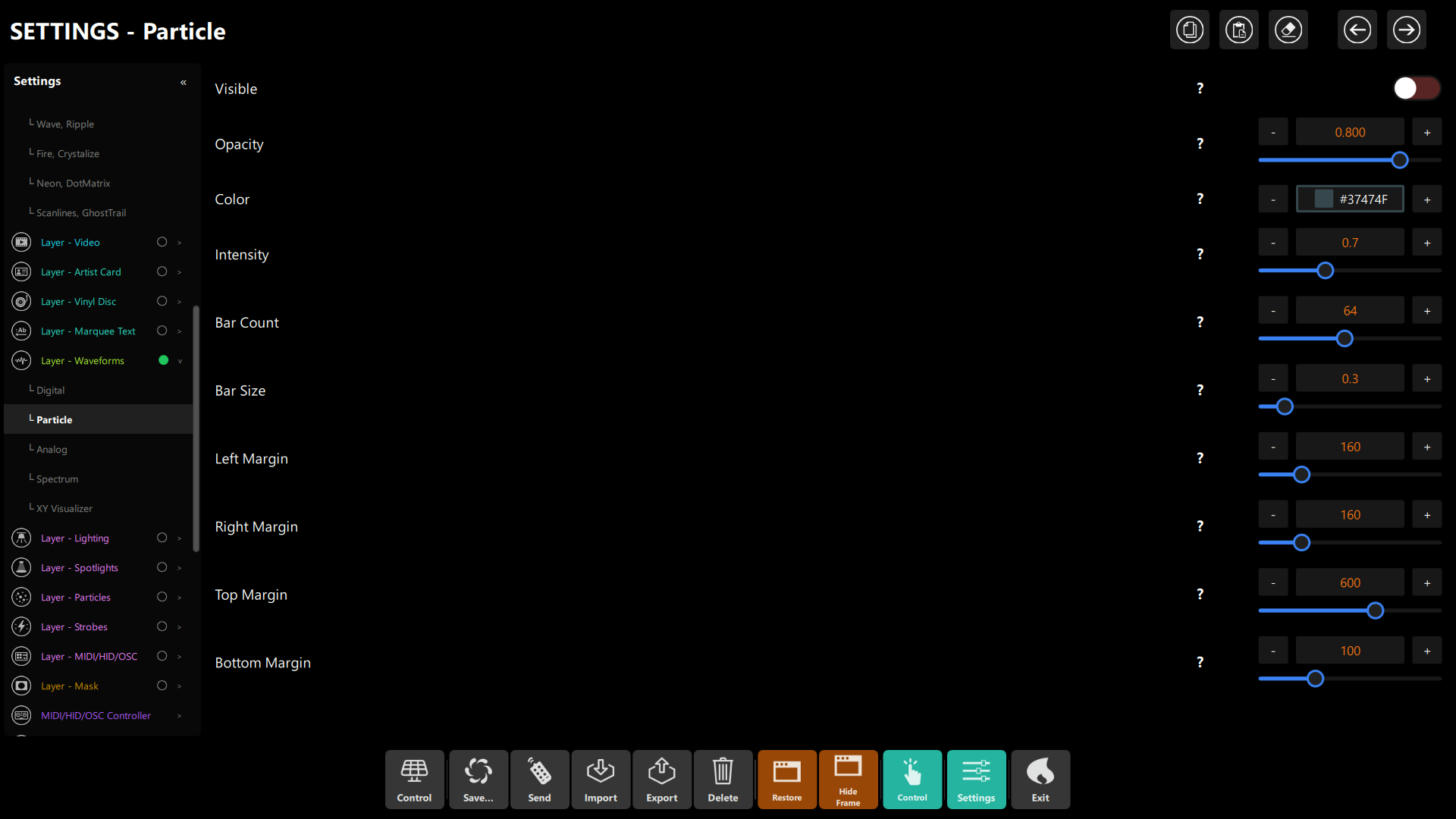 Figure: Settings → Layer - Waveforms → Particle — the same controls as Digital.
| Control | Property | Default |
|---|---|---|
| Visible | visible |
off |
| Opacity | opacity |
0.8 |
| Color | baseColor |
#37474F |
| Intensity | intensity |
0.7 |
| Bar Count | barCount |
64 |
| Bar Size | barFactorSize |
0.3 |
| Margins (left / right / top / bottom) | margins.* |
160 / 160 / 600 / 100 |
Chapter 5: Visualizer 3: Analog (Waveform Patterns)
Settings group: Layer - Waveforms → Analog · Config key: elements.waveFormView.analogWaveVisualizer
Input: raw audio waveform samples · Output: an oscilloscope-style trace with eight selectable patterns
Analog draws the actual shape of the audio signal — think of it as a software oscilloscope. Choose the look with Pattern Type; every pattern uses the same Color, Intensity and margin controls.
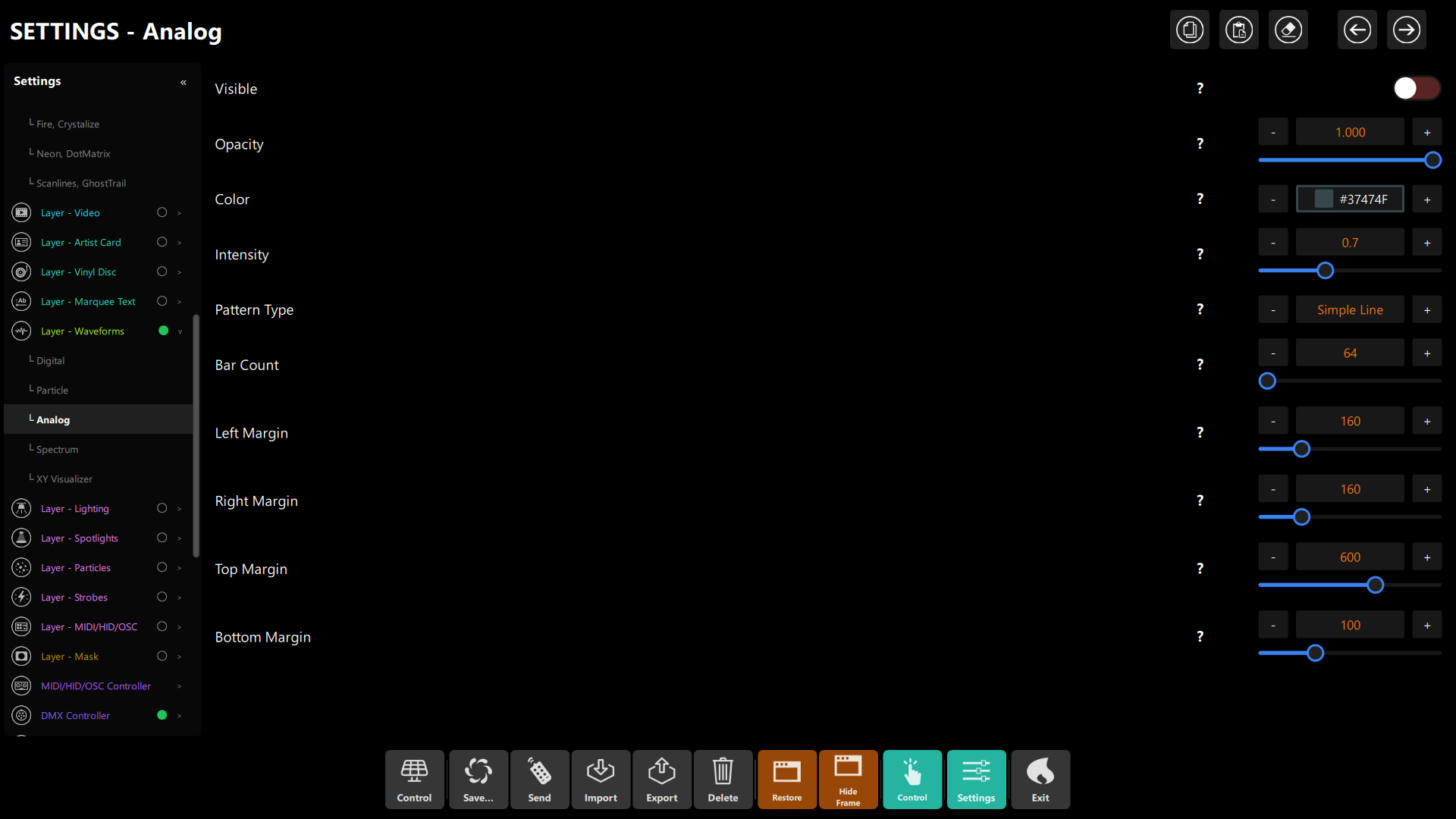 Figure: Settings → Layer - Waveforms → Analog. Pattern Type switches between the eight modes below.
4.1 Pattern Types
Simple Line (default)
A classic single-line oscilloscope trace. Clean, minimal and the fastest to render.
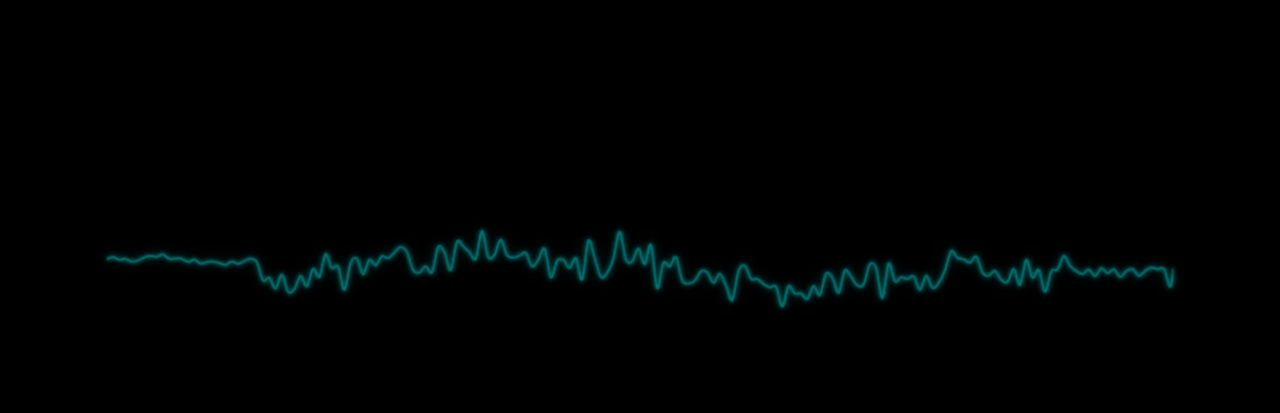 Pattern 0 — Simple Line, with only the Analog visualizer on.
- Best for: DJ mixing reference, technical monitoring, minimal looks
- Key tip: use a bright, contrasting color on dark backgrounds.
Dots
Draws individual dots spaced along the waveform path instead of a continuous line, for a bubbling, retro-digital feel. The number of dots follows Bar Count (up to 256).
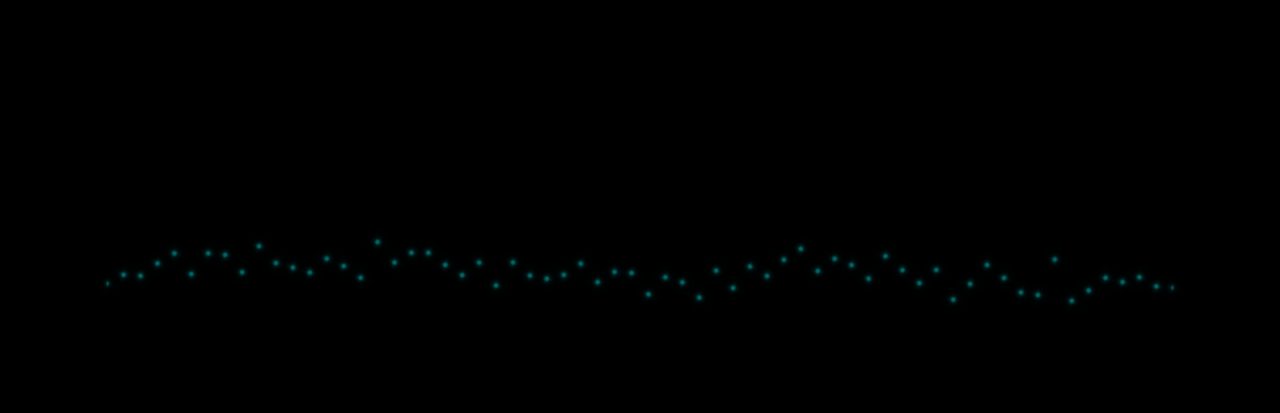 Pattern 1 — Dots.
- Best for: EDM, arcade aesthetics, lighter rendering
- Key tip: a lower Bar Count gives fewer, more widely spaced dots.
Area
Fills the space between the center line and the waveform with a solid color, giving a strong volumetric presence.
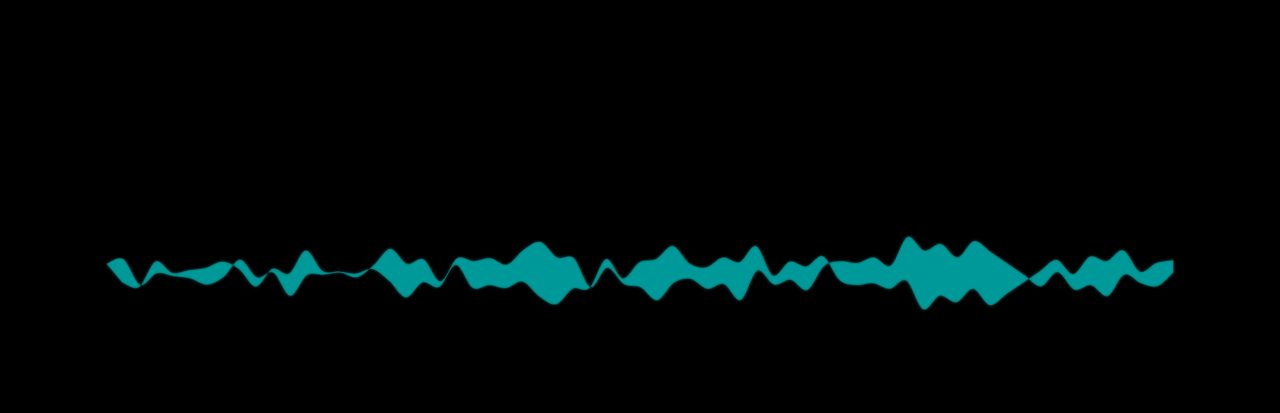 Pattern 2 — Area.
- Best for: dance and club environments, emphasizing amplitude dynamics
- Key tip: pair with a lower Opacity so it layers gracefully over video.
Gradient
A filled shape whose color fades from lighter to darker, derived automatically from your Color. It adds depth and a more polished finish.
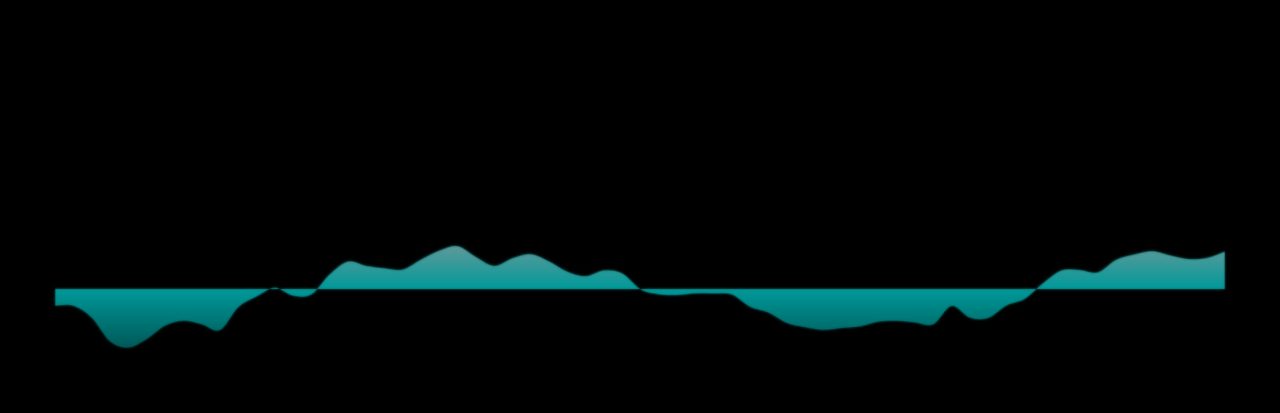 Pattern 3 — Gradient.
- Best for: artistic performances, festival visuals, premium productions
- Key tip: choose a saturated mid-tone; the lighter and darker tones are generated for you.
MultiLine
Nine parallel lines offset vertically that follow the same waveform, forming a pseudo-3D ribbon. The lines fade toward the edges of the band.
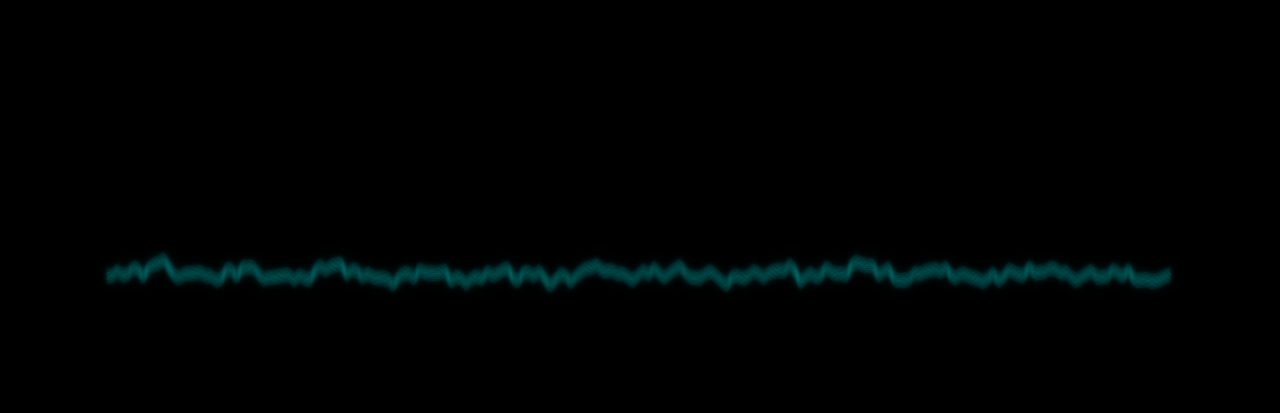 Pattern 4 — MultiLine. The ribbon is subtle by design; raise Intensity for more presence.
- Best for: adding depth to a composition, subtle layered looks
- Key tip: it reads best at moderate opacity over a darker background.
Waveform
A filled, mirrored envelope with a vertical gradient (lighter at the top, darker at the bottom). It is the most "solid" of the shapes and gives a professional, technical look.
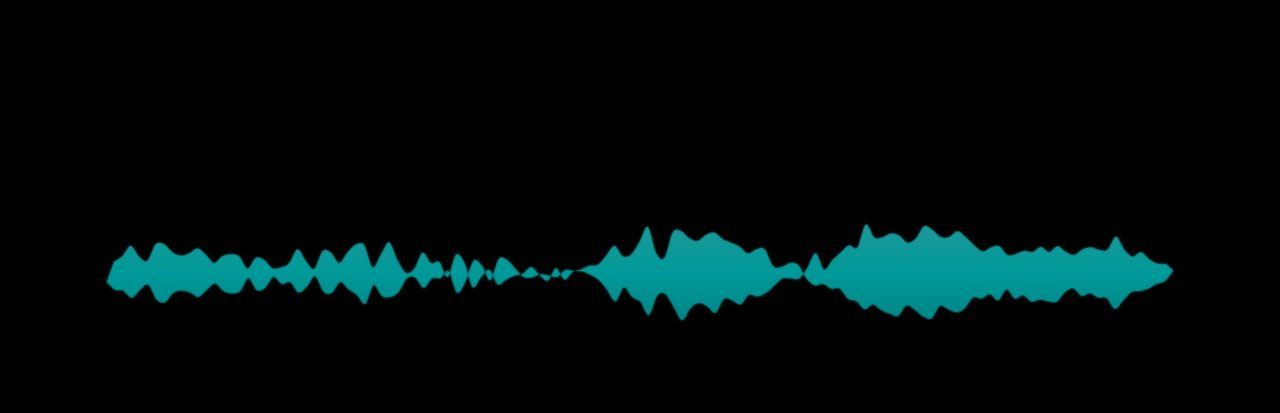 Pattern 5 — Waveform.
- Best for: technical monitoring, detailed waveform inspection
- Key tip: warm colors (yellow or amber) give the classic oscilloscope impression.
Tri-Band
A mirrored waveform split into three frequency bands, each with its own color — the style DJ software uses to show bass, mids and highs at a glance. The band colors come from the pattern rather than from the Color setting.
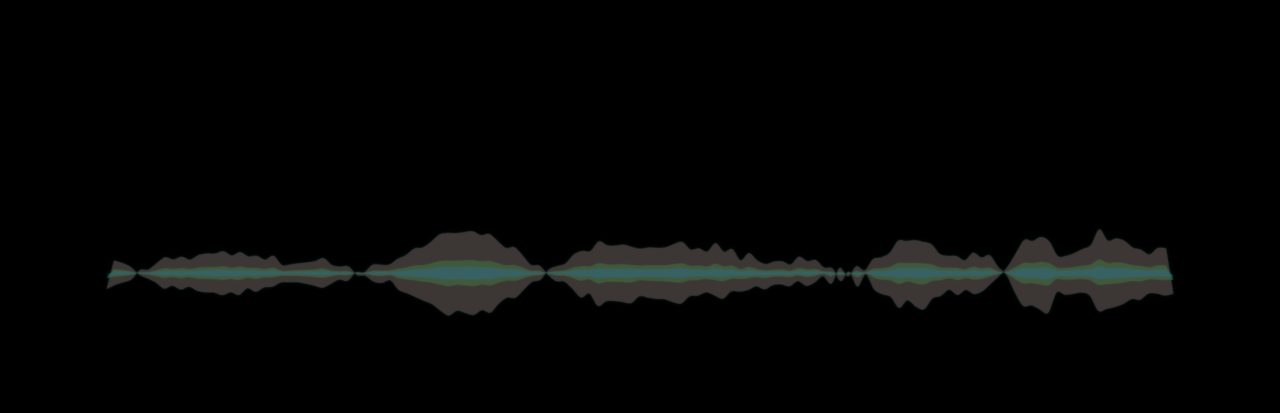 Pattern 6 — Tri-Band.
- Best for: reading a mix's frequency content at a glance, DJ-style displays
- Key tip: use it on its own; its built-in colors do not combine well with a strong custom color.
Radial
A circular scope: the waveform is wrapped into a ring that pulses with the music.
 Pattern 7 — Radial.
- Best for: a compact focal point, a logo in the center, circular layouts
- Key tip: the ring is drawn inside the same area as the other patterns, so a taller area (smaller Top Margin) gives a bigger ring.
4.2 Settings and properties
| Control | Property | Default | What it does |
|---|---|---|---|
| Visible | visible |
off | Shows or hides the visualizer |
| Opacity | opacity |
1.0 | Transparency |
| Color | baseColor |
#37474F |
Main trace/fill color (Tri-Band uses its own colors) |
| Intensity | intensity |
0.7 | Overall amplitude and glow |
| Pattern Type | patternType |
Simple Line (0) | Simple Line, Dots, Area, Gradient, MultiLine, Waveform, Tri-Band, Radial (0–7) |
| Bar Count | barCount |
64 | Sampling resolution; sets the dot count for Dots |
| Left / Right / Top / Bottom Margin | margins.* |
160 / 160 / 600 / 100 | Placement, in pixels from each edge |
Chapter 6: Visualizer 4: Spectrum
Settings group: Layer - Waveforms → Spectrum · Config key: elements.waveFormView.spectrumVisualizer
Input: FFT frequency-domain data · Output: mirrored, rounded bars centered on a horizontal axis
Spectrum shows the energy of each frequency band as rounded bars that grow symmetrically up and down from the center line. Bass is on the left, treble on the right.
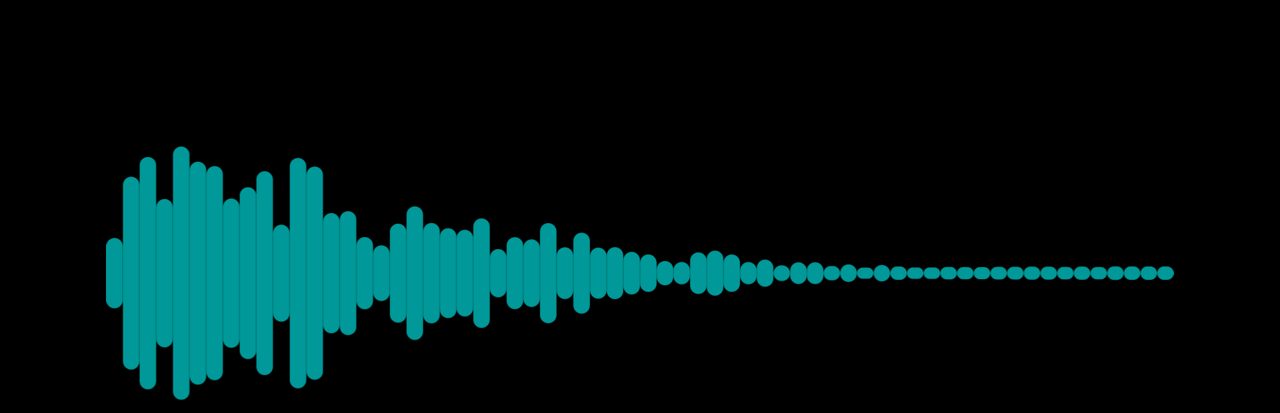 Figure: Spectrum on its own — 64 mirrored bars; the low frequencies carry most of the energy.
- Best for: DJs monitoring frequency balance, broadcast technical views, live A/V setups
- Key tip: 64 bars is a good balance of resolution and performance; use fewer for a bolder, simpler look.
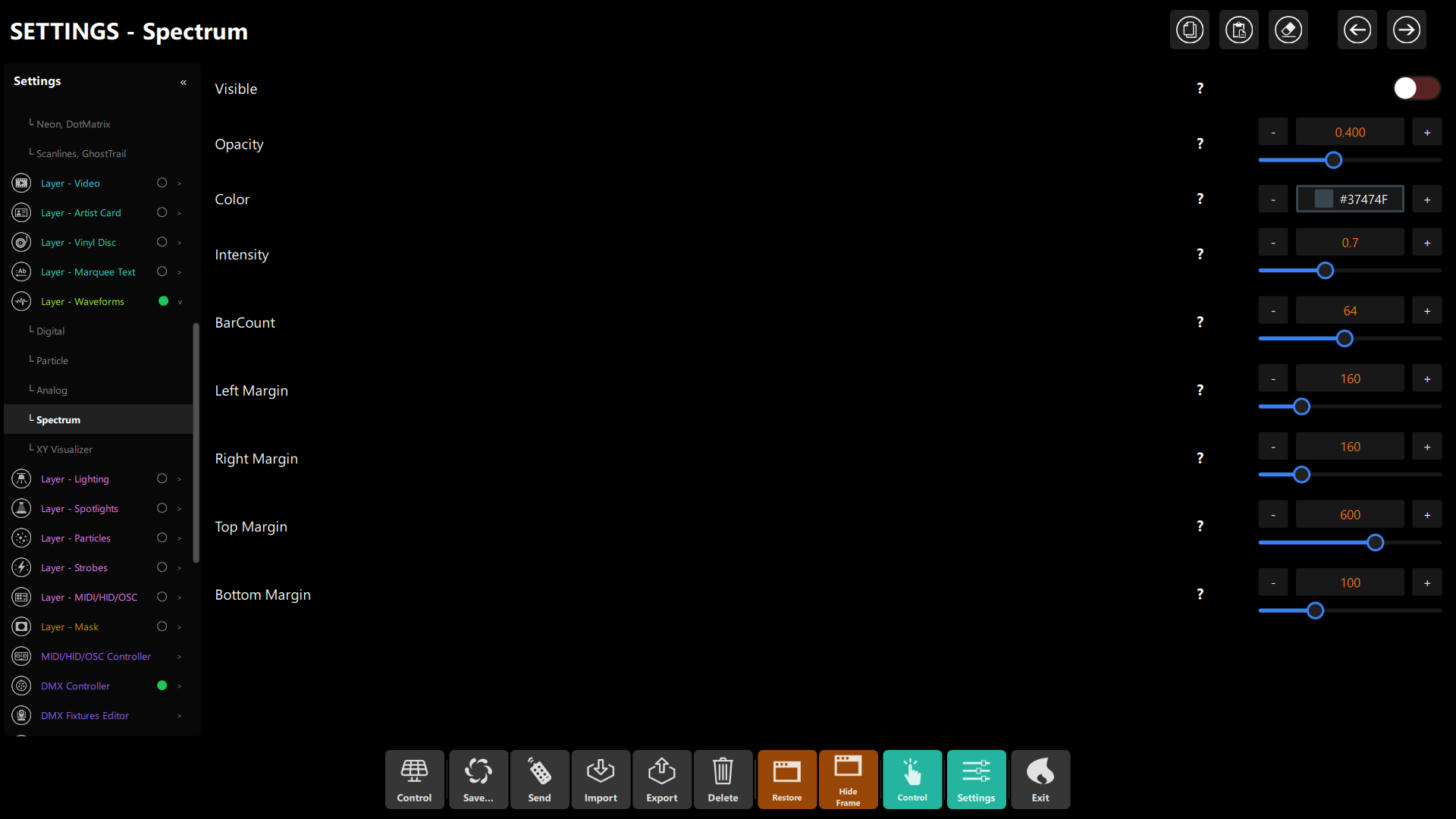 Figure: Settings → Layer - Waveforms → Spectrum.
| Control | Property | Default | What it does |
|---|---|---|---|
| Visible | visible |
off | Shows or hides the visualizer |
| Opacity | opacity |
0.4 | Transparency |
| Color | baseColor |
#37474F |
Bar color |
| Intensity | intensity |
0.7 | Overall bar amplitude |
| BarCount | barCount |
64 | Number of bars |
| Left / Right / Top / Bottom Margin | margins.* |
160 / 160 / 600 / 100 | Placement, in pixels from each edge |
Note
The engine also contains a scrolling spectrogram mode and fixed bar spacing, corner radius and frequency-weighting values. This version does not expose them in Settings: the bars are always mirrored and rounded.
Chapter 7: Visualizer 5: Xy / Lissajous
Class: XYVisualizer
Input: FFT frequency spectrum data
Output: Circular / radial artistic patterns
The XY Visualizer transforms frequency spectrum data into radial and circular geometric shapes. While inspired by Lissajous figures, it maps the full frequency spectrum around a central ring — producing dramatically different results based on the selected pattern type. Ten patterns are available, ranging from sharp and aggressive to smooth and organic.
6.1 Pattern Types
0 — SpikyRing (Default)
Lines radiate outward from a center point like a starburst. Each spike represents a frequency band; spike length is proportional to amplitude. Very aggressive, high-energy feel.
- Best for: EDM, Techno, high-energy club nights
Try it: Pattern → SpikyRing (0) · Bars → 56 · Color → #FF0000 · Intensity → 1.0.
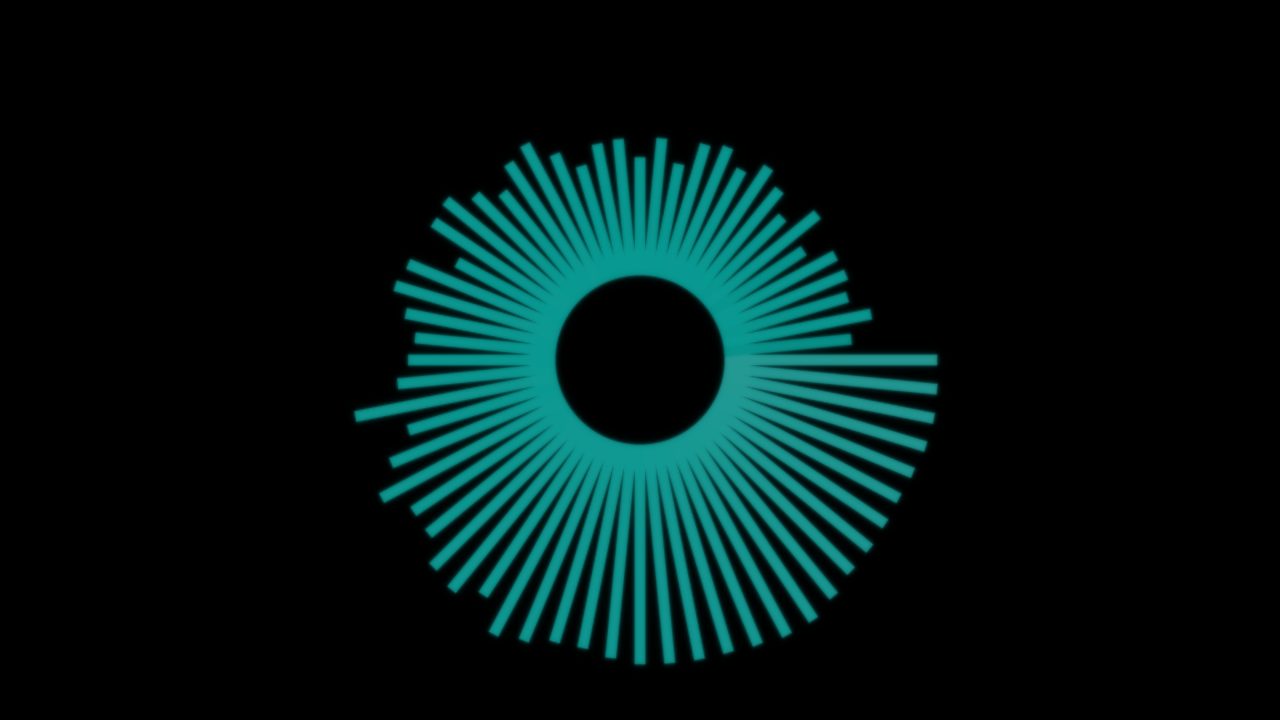 Pattern 0 — SpikyRing. Only the XY visualizer is on in this capture.
1 — WavyRing
A smooth ring with 5 sinusoidal lobes that pulse with the music. Much softer and more fluid than SpikyRing.
- Best for: Progressive house, Trance, Ambient, elegant events
Try it: Pattern → WavyRing (1) · Bars → 56 · Color → #00FF00 · Intensity → 0.8.
 Pattern 1 — WavyRing. Only the XY visualizer is on in this capture.
2 — CircularRing
Small circles are placed radially; each circle's size varies with frequency amplitude, producing a blob-like, organic boundary.
- Best for: Ambient, Jazz, artistic projections
Try it: Pattern → CircularRing (2) · Bars → 60 · Color → #0088FF.
 Pattern 2 — CircularRing. Only the XY visualizer is on in this capture.
3 — PlaneRing
A sine-wave based smooth undulation with no sharp edges. Resembles flowing fabric or liquid.
- Best for: Chillwave, Vaporwave, Meditation content, subtle background layers
Try it: Pattern → PlaneRing (3) · Bars → 48 · Color → #FF00FF.
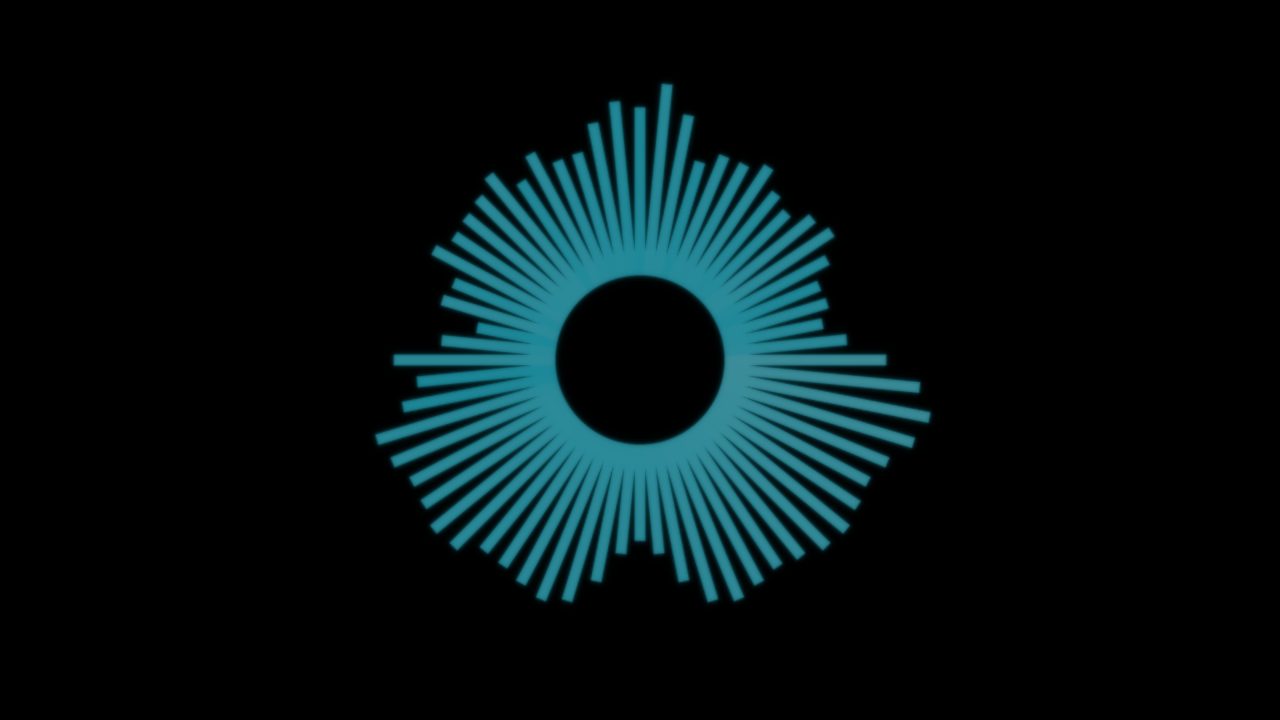 Pattern 3 — PlaneRing. Only the XY visualizer is on in this capture.
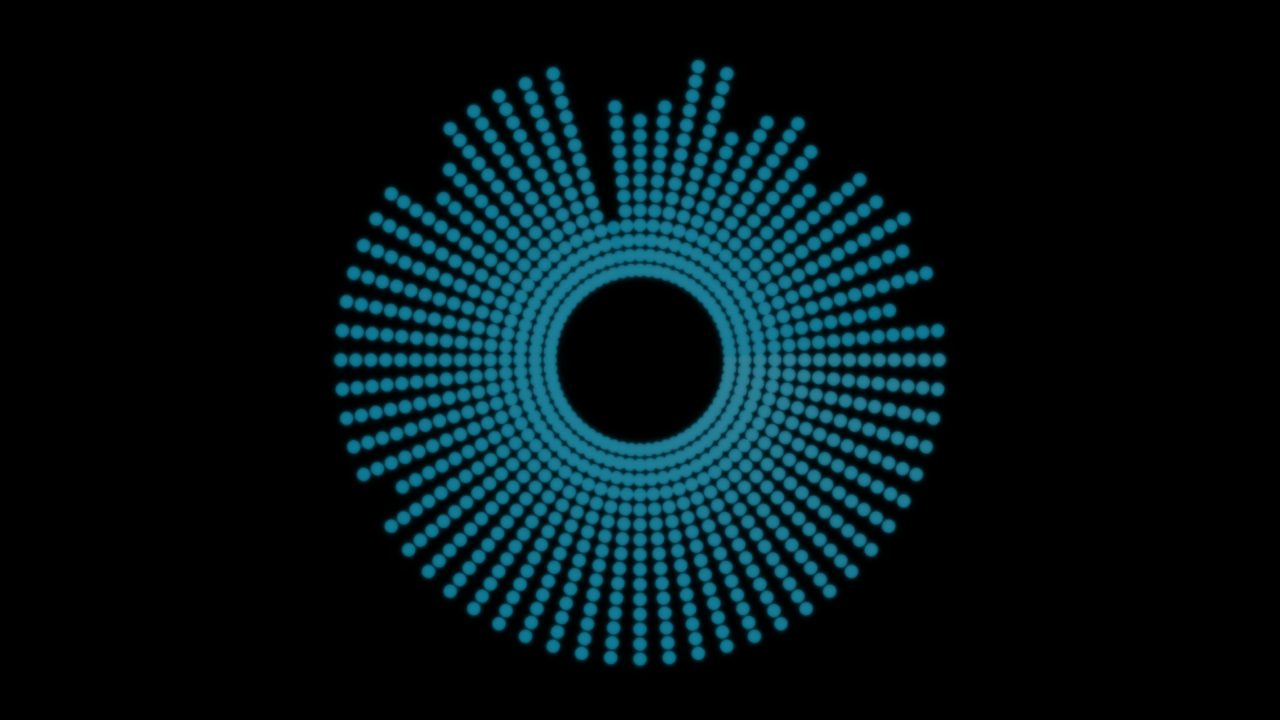
4 — DottedRing
A circle of discrete dots; each dot's distance from center scales with amplitude. Gives a modern tech/cyber aesthetic.
- Best for: Tech house, Cyberpunk aesthetics, modern electronic events
Try it: Pattern → DottedRing (4) · Bars → 64 · Color → #00FFFF.
 Pattern 4 — DottedRing. Only the XY visualizer is on in this capture.
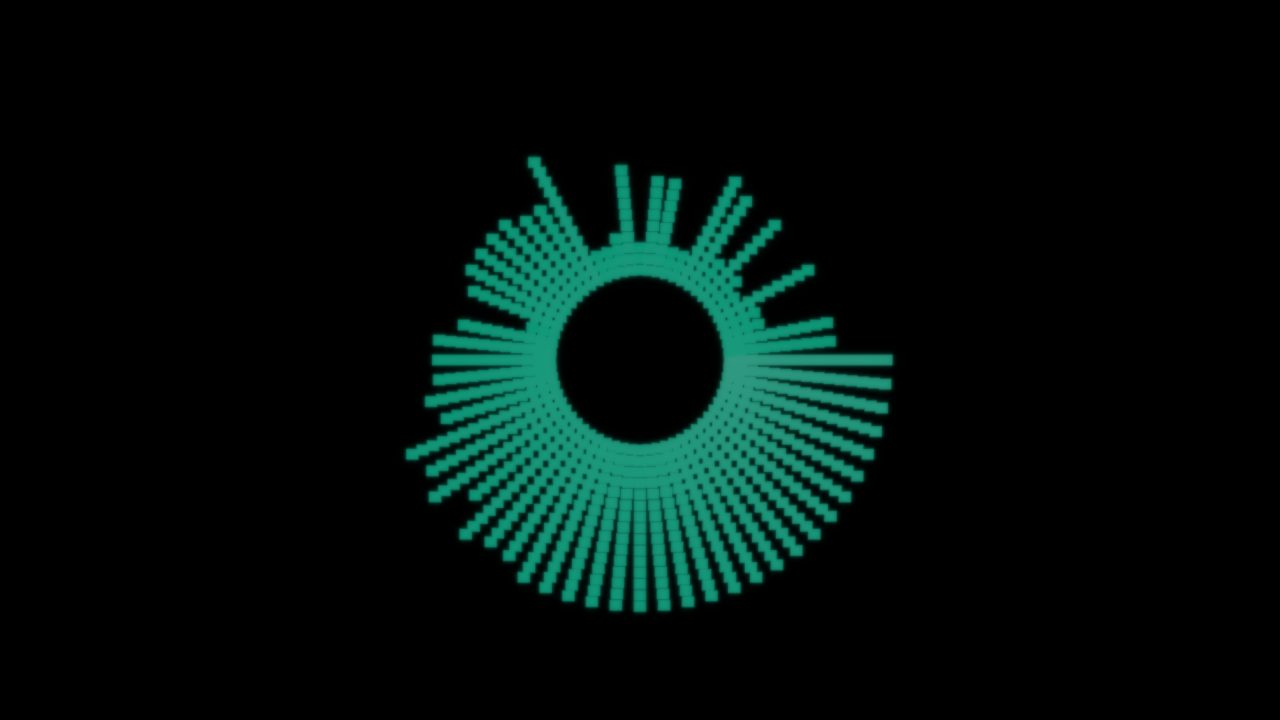
5 — AnalogTripleWave
Three concentric ring layers corresponding to bass (inner), midrange (middle) and treble (outer) frequency bands, color-coded for easy reading.
- Best for: Detailed frequency monitoring, educational demonstrations, advanced audio visualization
Try it: Pattern → AnalogTripleWave (5) · Bars → 56 · Color → #FFAA00.
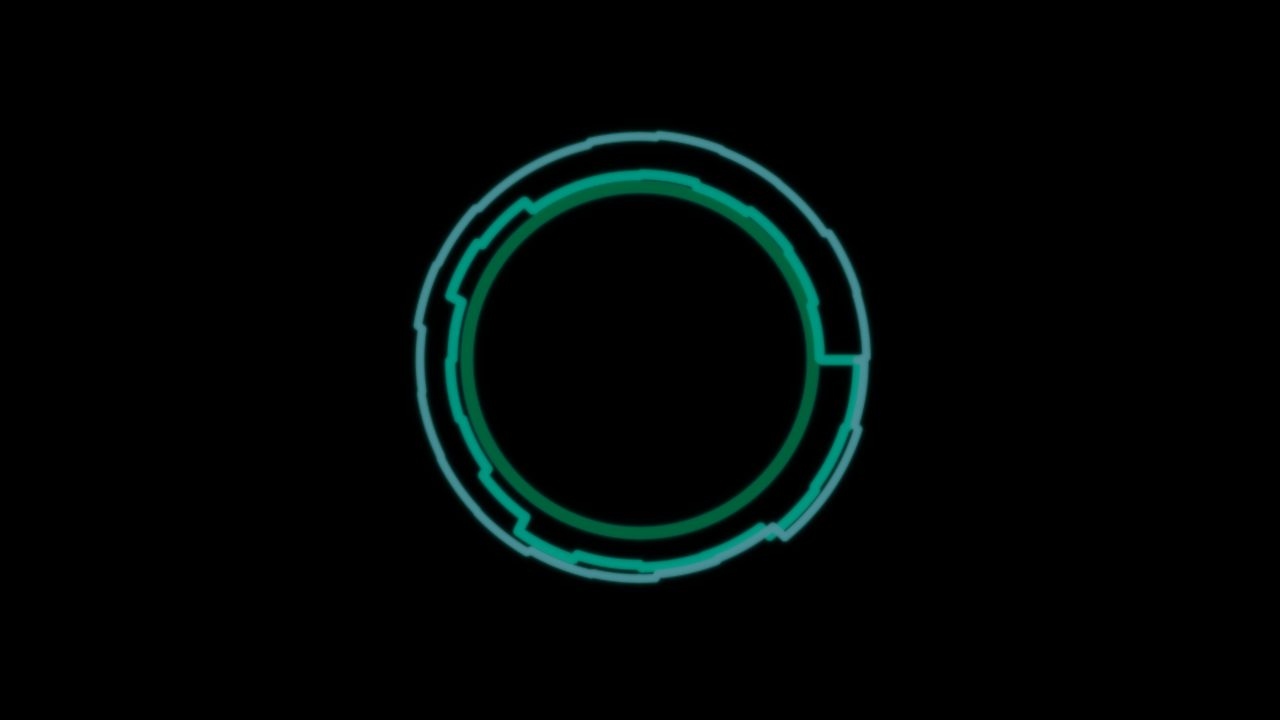 Pattern 5 — AnalogTripleWave. Only the XY visualizer is on in this capture.
6 — NoisyRing
A smooth base ring deformed by a random noise field. Produces water-ripple or plasma-like organic chaos, controlled by noiseLevel.
- Best for: Glitch/noise music, experimental art installations, unpredictable creative visuals
Try it: Pattern → NoisyRing (6) · Bars → 64 · Color → #AABBFF · Noise level → 0.5.
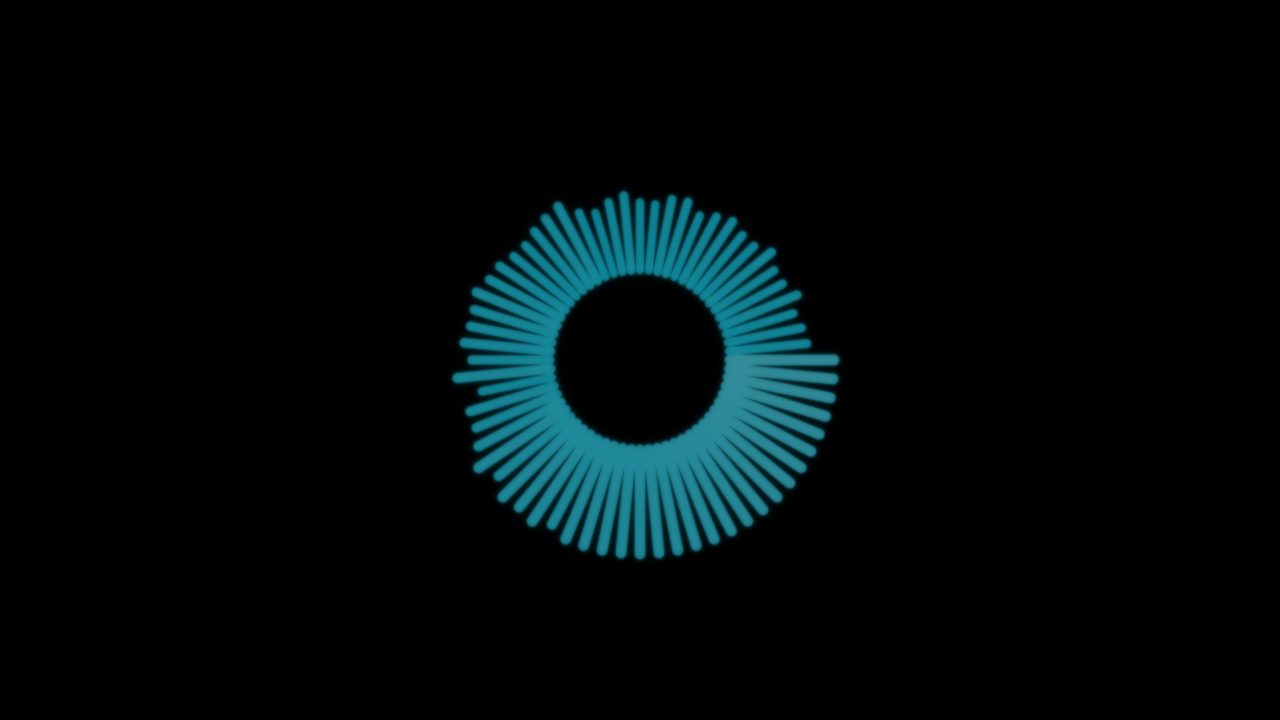 Pattern 6 — NoisyRing. Only the XY visualizer is on in this capture.
7 — XY Oscilloscope (genuine Lissajous)
True X/Y oscilloscope: plots the left audio channel against the right channel instead of the spectrum ring. Produces classic Lissajous figures that collapse to a diagonal line on mono material and bloom on wide stereo.
- Best for: Ambient/IDM, stereo-width checks, hypnotic center visuals
Try it: Pattern → XY Oscilloscope (7) · Color → #00FFCC · Intensity → 1.2. Feed it stereo material — mono collapses.
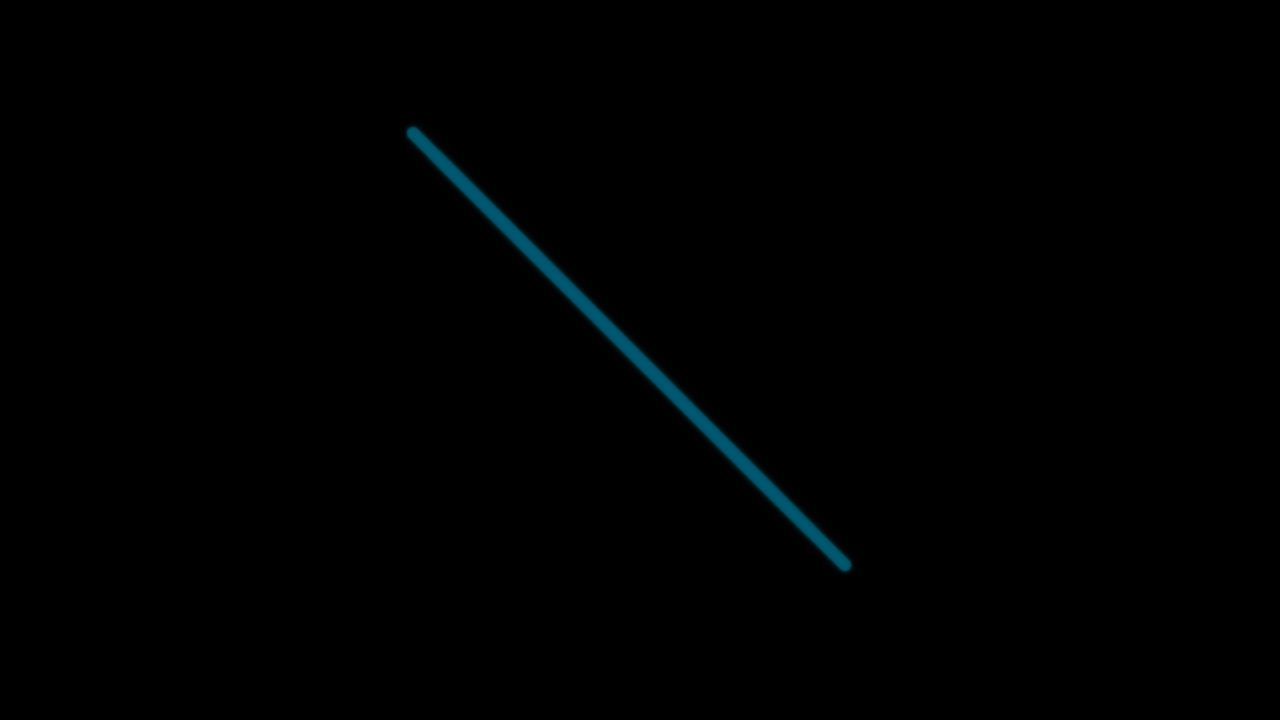 Pattern 7 — XY Oscilloscope (mono material collapses to a diagonal line). Only the XY visualizer is on in this capture.
8 — Galaxy Swirl
Spiral galaxy of particles with a bright pulsing core. Arms rotate around the center; barCount drives arm density, intensity arm length. The core pulses with the beat.
- Best for: Trance/progressive builds, cosmic themes, peak-time euphoria
Try it: Pattern → Galaxy Swirl (8) · Bars → 64 · Color → #AA66FF · Intensity → 1.2.
 Pattern 8 — Galaxy Swirl. Only the XY visualizer is on in this capture.
9 — Hyperspace Tunnel
Rings of neon light flying outward in perspective, like a warp tunnel. Depth speed follows the music's energy; color shifts per beat when beat sync is active.
- Best for: Psytrance/techno drops, high-speed transitions, finales
Try it: Pattern → Hyperspace Tunnel (9) · Bars → 96 · Color → #00FFFF · Sensitivity → 2.0.
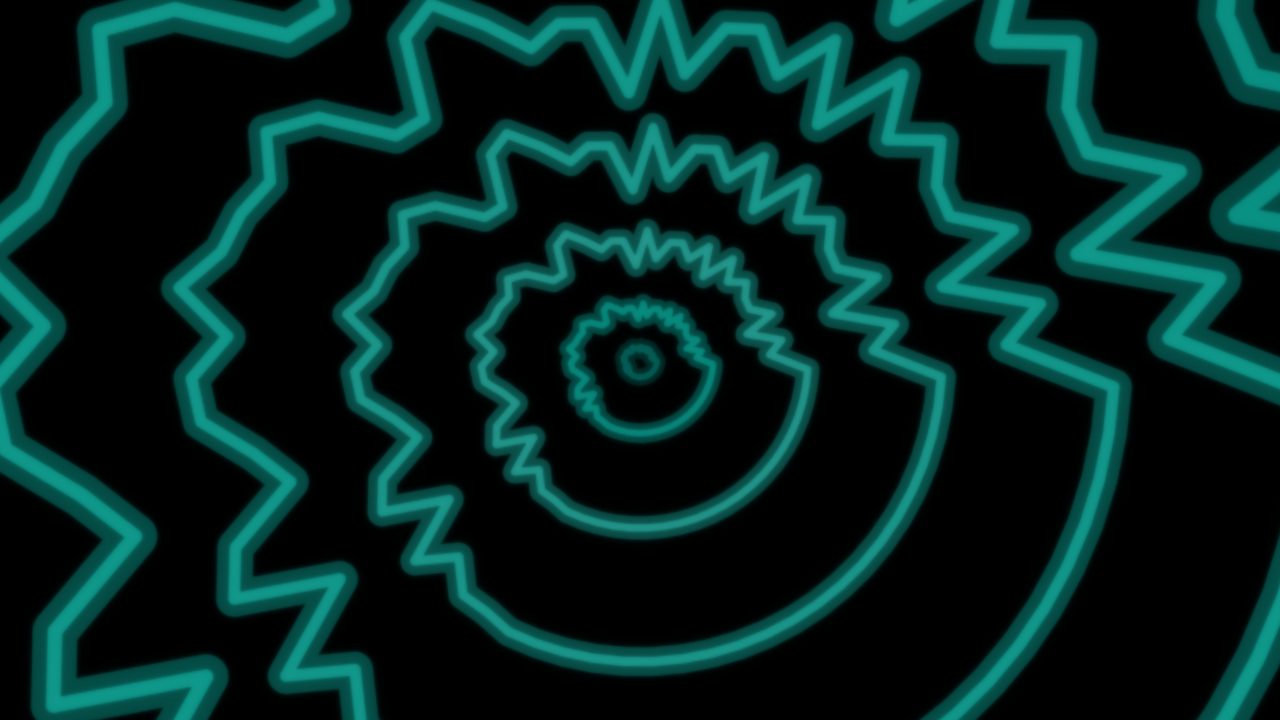 Pattern 9 — Hyperspace Tunnel. Only the XY visualizer is on in this capture.
6.2 Settings and properties
Open Settings → Layer - Waveforms → XY Visualizer. The page scrolls: the first half holds the look, the second half the geometry and placement.
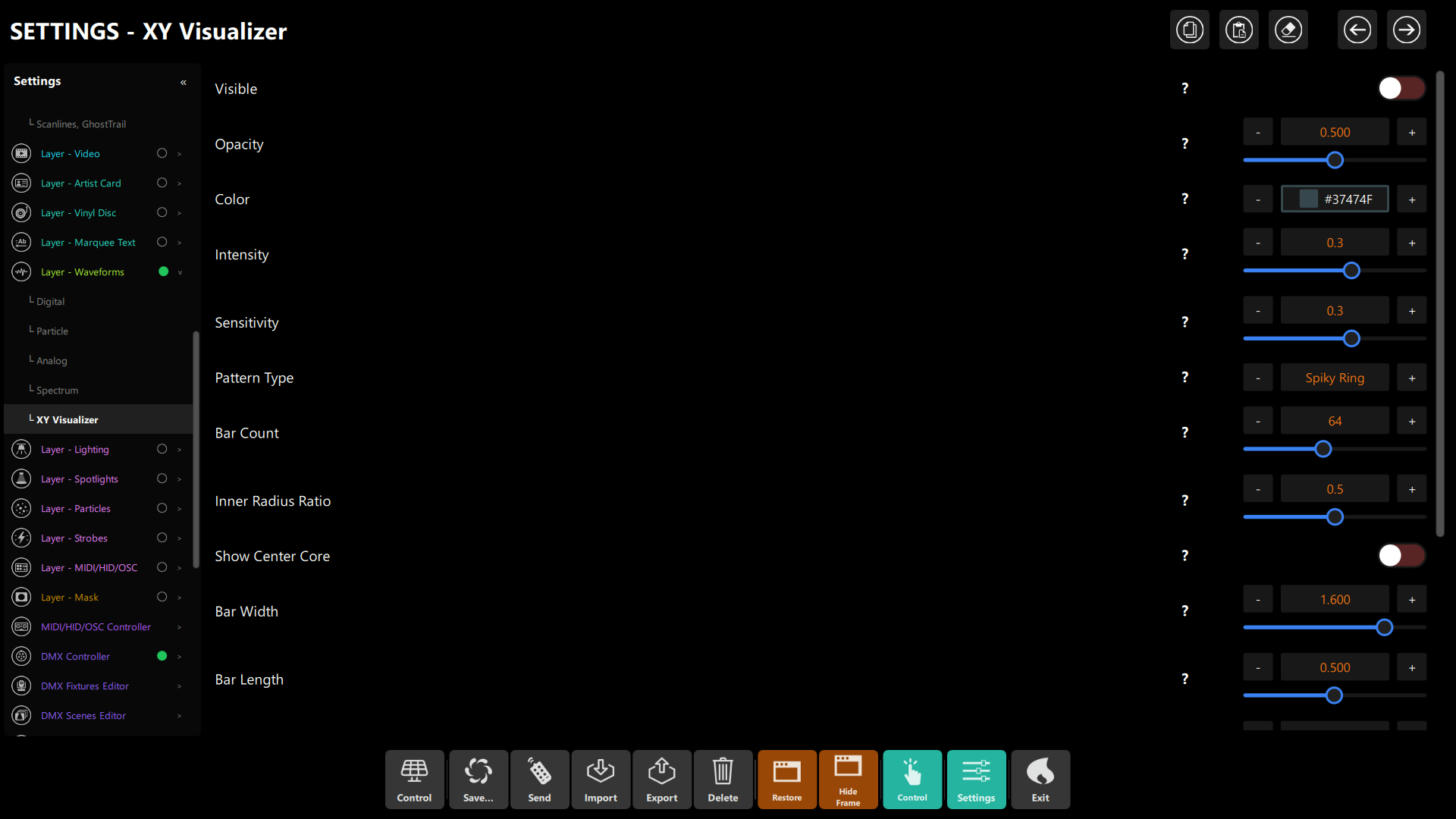 Figure: XY Visualizer settings — Visible, Opacity, Color, Intensity, Sensitivity, Pattern Type, Bar Count, Inner Radius Ratio, Show Center Core, Bar Width and Bar Length.
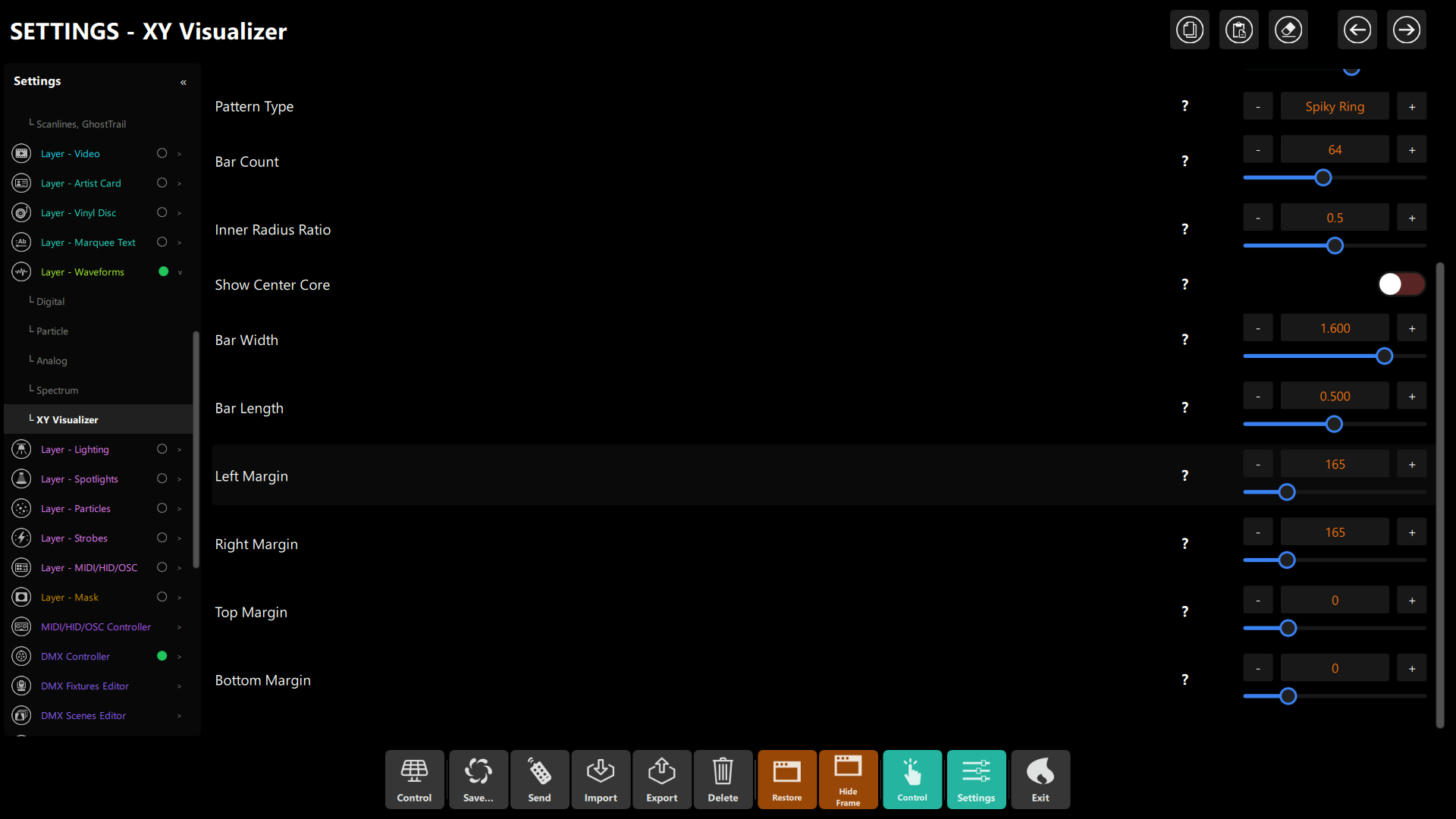 Figure: scrolled to the end — Bar Length and the four margins. XY defaults to a full-screen area (left/right 165, top/bottom 0).
| Control | Property | Default | What it does |
|---|---|---|---|
| Visible | visible |
off | Shows or hides the visualizer |
| Opacity | opacity |
0.5 | Transparency of the whole visualizer |
| Color | baseColor |
#37474F |
Primary pattern color (type a hex value and press Apply) |
| Intensity | intensity |
0.3 | Overall pattern amplitude |
| Sensitivity | sensitivity |
0.3 | Audio reactivity multiplier |
| Pattern Type | patternType |
Spiky Ring (0) | One of the 10 patterns above |
| Bar Count | barCount |
64 | Number of frequency bands drawn |
| Inner Radius Ratio | innerRadiusRatio |
0.5 | Inner ring size as a fraction of the outer radius |
| Show Center Core | coreVisible |
off | Draws a pulsing core in the middle of the ring |
| Bar Width | barWidth |
1.6 | Width of the lines or dots |
| Bar Length | barLength |
0.5 | How far bars extend from the ring |
| Left / Right / Top / Bottom Margin | margins.* |
165 / 165 / 0 / 0 | Where the visualizer sits, in pixels from each edge |
Note
The NoisyRing noise amount, the kaleidoscope segment count and the trail persistence exist in the engine but are not shown in the Settings page of this version; they keep their built-in values.
Chapter 8: Choosing The Right Visualizer
Feature Matrix
| Feature | Digital | Particle | Analog | Spectrum | XY / Lissajous |
|---|---|---|---|---|---|
| Input type | Frequency bands | Frequency bands | Raw PCM samples | FFT data | FFT spectrum (+ L/R for pattern 7) |
| Real-time | ✓ | ✓ | ✓ | ✓ | ✓ |
| Pattern variety | 1 look | 1 look | 8 patterns | 1 look | 10 patterns |
| GPU demand | Low | Medium | Low–Medium | Low | Medium–High |
| Artistic potential | Medium | High | High | Medium | Very High |
| Technical accuracy | High | Low | High | Very High | Medium |
| Customization | Medium | Medium | High | Medium | Very High |
| Best primary use | Clear bass/treble bars | Soft background texture | Oscilloscope / DJ trace | Frequency analysis | Stage visuals |
Visual Style Matrix
| Visualizer | Energy Feel | Tech/Professional | Artistic/Creative |
|---|---|---|---|
| Digital | ★★★☆☆ | ★★★★☆ | ★★☆☆☆ |
| Particle | ★★☆☆☆ | ★★☆☆☆ | ★★★★☆ |
| Analog | ★★★☆☆ | ★★★★☆ | ★★★☆☆ |
| Spectrum | ★★☆☆☆ | ★★★★★ | ★★☆☆☆ |
| XY / Lissajous | ★★★★★ | ★★★☆☆ | ★★★★★ |
Chapter 9: Performance And Graphics Load
Graphics load varies by visualizer, settings, output resolution, other layers and hardware. The relative ranking below is a rough guide, not a frame-rate promise or a benchmark.
| Rank | Visualizer | Relative GPU Cost | Notes |
|---|---|---|---|
| 🥇 1st | Digital | Low | A row of bars; scales with Bar Count |
| 🥈 2nd | Spectrum | Low | Mirrored bars; scales with BarCount |
| 🥉 3rd | Analog | Low–Medium | Simple Line is cheapest; MultiLine, Waveform and Tri-Band are heavier |
| 4th | Particle | Medium | Particle emitters cost more than plain bars |
| 5th | XY / Lissajous | Medium–High | Circular math is costliest; Galaxy Swirl and Hyperspace Tunnel draw the most |
Optimization Tips
Tip
Limited graphics headroom: Start with one visualizer, then add layers gradually. A Digital or Spectrum visualizer with fewer bars is a reasonable starting point.
Tip
More headroom: Try additional visualizers or more bars, then check the output on the actual show display.
- Reduce the number of bars or switch to a simpler pattern if motion looks uneven.
- Disable visualizers and effects that are not part of the current composition.
- Test at the same screen resolution and with the same media you plan to use live.
Chapter 10: Recommended Combos Per Event Type
9.1 Club night / EDM
| Role | Visualizer | Configuration |
|---|---|---|
| Main focal point | XY — AnalogTripleWave | Choose Pattern Type: AnalogTripleWave, a contrasting color and about 64 bars |
| Background energy | Analog — Area | Choose Pattern: Area, an orange color and reduced opacity |
| Frequency detail | Spectrum | Start around 64 bars and use a coordinated accent color |
Start with the XY visualizer by itself. Add the other two only if the screen stays clear and rendering remains smooth.
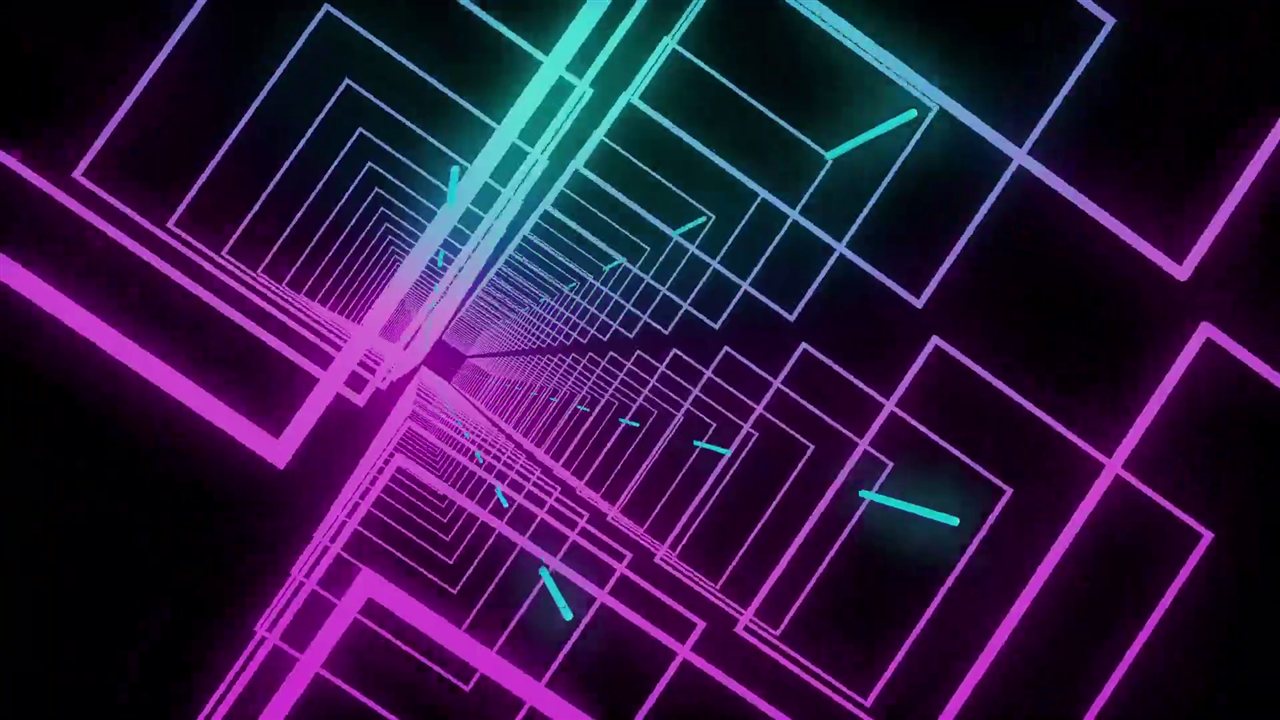
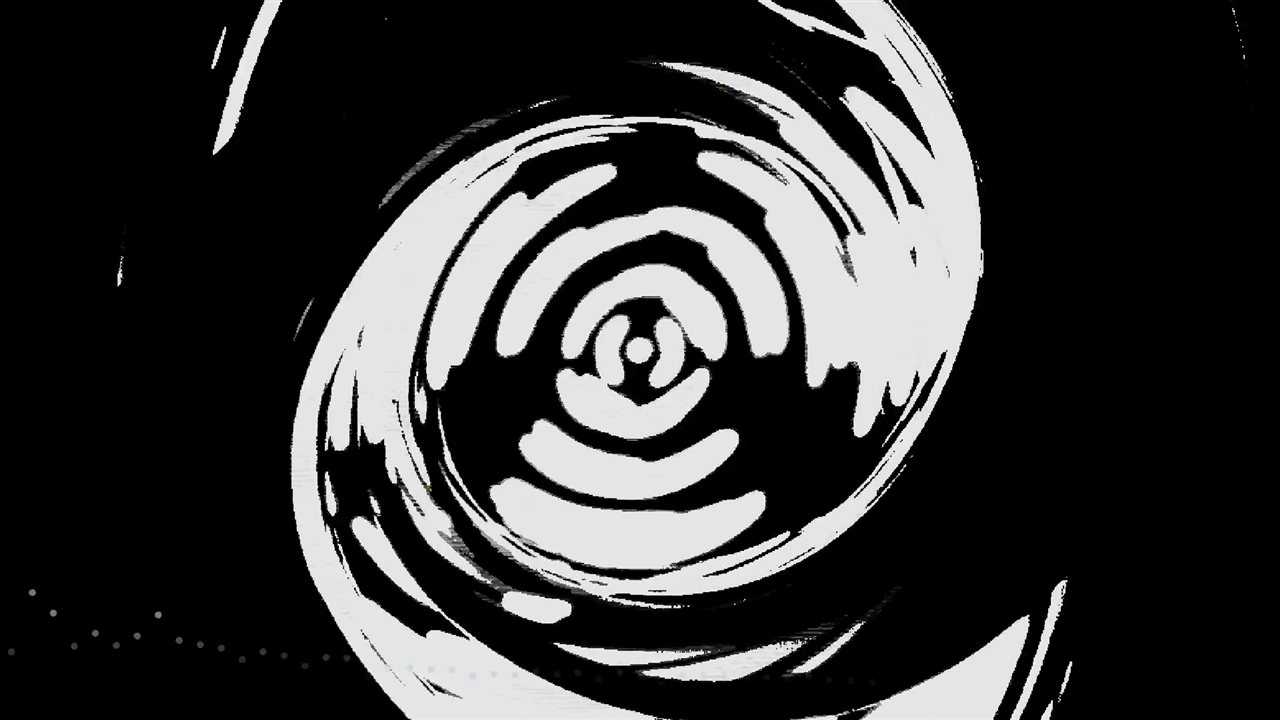 Figure 2: club-night frames — neon, laser and strobe looks, all audio-reactive.
9.2 Corporate / brand event
Clean, controlled, professional — must never distract from the presenter.
| Role | Visualizer | Configuration |
|---|---|---|
| Ambient background | Analog — Gradient | Use a muted brand color and modest intensity |
| Level reference | Digital | Use a single high-contrast color and a low opacity so the bars stay unobtrusive |
| Subtle frequency view | Spectrum | Start with about 32 bars and a restrained color |
Note
For corporate events, keep the visualizers subtle and use soft, desaturated brand colors so they do not compete with the presenter.
9.3 Broadcast / Livestream
Technical accuracy is paramount — viewers need to read the visualizers clearly on compressed video streams.
| Role | Visualizer | Configuration |
|---|---|---|
| Frequency view | Spectrum | Use a readable bar count and high-contrast color |
| Level monitoring | Digital | Watch the bars; their color does not change automatically at a threshold |
| Signal view | Analog — Tri-Band | Shows the bass, mid and treble content of the signal at a glance |
These visualizers help inspect the signal; they do not replace the meters in your audio system or broadcast loudness/compliance tools.
9.4 Artistic / Gallery / Experimental
Prioritize aesthetics and uniqueness over technical accuracy.
| Role | Visualizer | Configuration |
|---|---|---|
| Central artwork | XY — NoisyRing | Choose the NoisyRing pattern and a cool accent color |
| Complementary layer | Analog — Gradient | Choose a contrasting color and lower its opacity |
| Depth layer | Analog — MultiLine | Use a thinner line and subtle opacity |
Tip
Add layers gradually and lower opacity when details begin to obscure one another.
Chapter 11: Live Control Without Code
The visualizer controls are available in Settings. Depending on your setup, selected controls can also be mapped to a controller or changed through show automation.
10.1 Sliders and Color Pickers
Try it: In Settings, drag the Intensity slider and pick a color — the visual updates live.
10.2 Evolving Motion Over Time
Try it: change Intensity or Bar Width slowly during a long breakdown instead of switching patterns, and check the result on the output display.
10.3 Rotating Patterns During Long Sets
Try it: Change the XY pattern between songs for variety. If you use controller pads, map pattern selection to a pad and rehearse it first.
10.4 Dynamic HTTP API Control
For live control from scripts, use the versioned PATCH /api/v1/config API and the actual configuration
properties for the selected visualizer. For example, this turns on the XY visualizer and selects Galaxy Swirl:
curl -X PATCH http://127.0.0.1:8080/api/v1/config -H "Content-Type: application/json" \
  -d '{"elements":{"waveFormView":{"xyVisualizer":{"visible":true,"patternType":8}}}}'
The Analog visualizer takes patternType 0–7 and the XY visualizer 0–9, in the order shown in this guide. The complete API guide explains how to start the server, authenticate and
apply partial config changes: HTTP & WebSocket API. Confirm the property path for
your visualizer before sending a change; a generic example property may not correspond to the live app.
Chapter 12: Summary & Quick-Reference Table
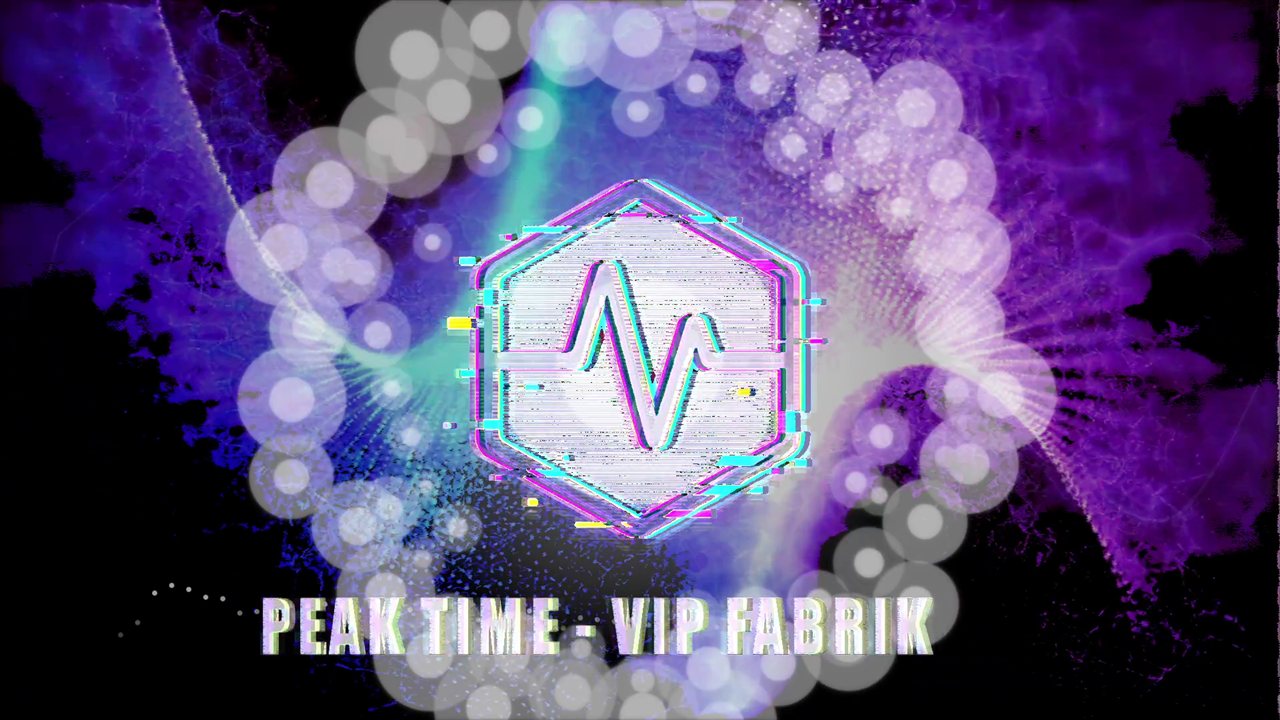 Figure 3: promoter artwork composited live over the reactive bed.
 Same logo, four beds — the overlay stays put while the background changes the mood.
| Visualizer | Config key (elements.waveFormView.…) |
Input | Patterns | GPU | Top Use Case |
|---|---|---|---|---|---|
| Digital | waveformVisualizer |
Frequency bands | 1 | Low | Clear bass/treble bars |
| Particle | particleWaveVisualizer |
Frequency bands | 1 | Medium | Soft background texture |
| Analog | analogWaveVisualizer |
PCM samples | 8 | Low–Medium | Oscilloscope / DJ-style trace |
| Spectrum | spectrumVisualizer |
FFT data | 1 | Low | Frequency analysis |
| XY / Lissajous | xyVisualizer |
FFT spectrum (+ L/R for pattern 7) | 10 | Med–High | Main stage visual |
Tip
Start with the Feature Matrix in Chapter 7 to identify which visualizer fits your event type, then consult Chapter 9 for a ready-to-use combo that matches your scenario.