Related guides: beat-driven layers are covered in Layers, Shaders & FX and timecode shows in Timecode Shows. For technical detail see docs_audio/README_CONFIGURE_AUDIO_INPUT and docs_audio/README_SILENCE_STATES_GUIDE; the app's own help is under Settings → Help → Audio Analysis.
Chapter 1: The Example Setup
| Piece | Setting | Value for tonight |
|---|---|---|
| Main device | Settings → AUDIO Device → Main Audio Device | Mixer USB out (or system loopback on same laptop) |
| Fallback device | Fallback Audio Device | Built-in mic / second interface |
| Level | Capture Input Volume (0.0–2.0) | ~1.0, meters dancing mid-scale |
| Silence | Settings → FX - General (Silence Threshold / Frames / Cooldown / Energy Threshold) | Defaults first, tune per venue |
| Beat grid | Ableton Link panel (Pro/Enterprise) | Audio analysis default; Link modes when a Link peer exists |
Chapter 2: Concepts In Two Minutes
- The app chooses the device for you, in a fixed order. It looks for the Main device by its exact name; if it is missing it tries the Fallback by exact name, then any device whose name contains the fallback's name, and finally the first device the system lists. This check runs again whenever the list of audio devices changes, so plugging the main device back in returns the app to it. Your Main setting is never overwritten by a fallback.
- Volume is gain, not a fader. Capture Input Volume (0.0–2.0, step 0.01) scales the captured signal before analysis. Too low = sleepy visuals; pinned at max = everything fires constantly.
- Silence is a state machine (none → detecting → confirmed → ongoing), driven by four controls: threshold (0.01–0.90), frames 3–12 (default 6, about 270 ms), cooldown 500–3000 ms and energy threshold 0.15–0.50 (default 0.25).
- Two beat sources. Audio-peak analysis (always available) and the Ableton Link grid (LAN peers: Traktor, Live, Resolume). Clock-source modes decide which leads; a beat policy decides how they combine.
- Link settings are saved outside
config.json(in the operating-system settings, groupAbletonLink), so they survive aconfig.jsonreset but not a full settings reset. Timecode is not a beat source: cues fire actions at positions (see the Timecode guide).
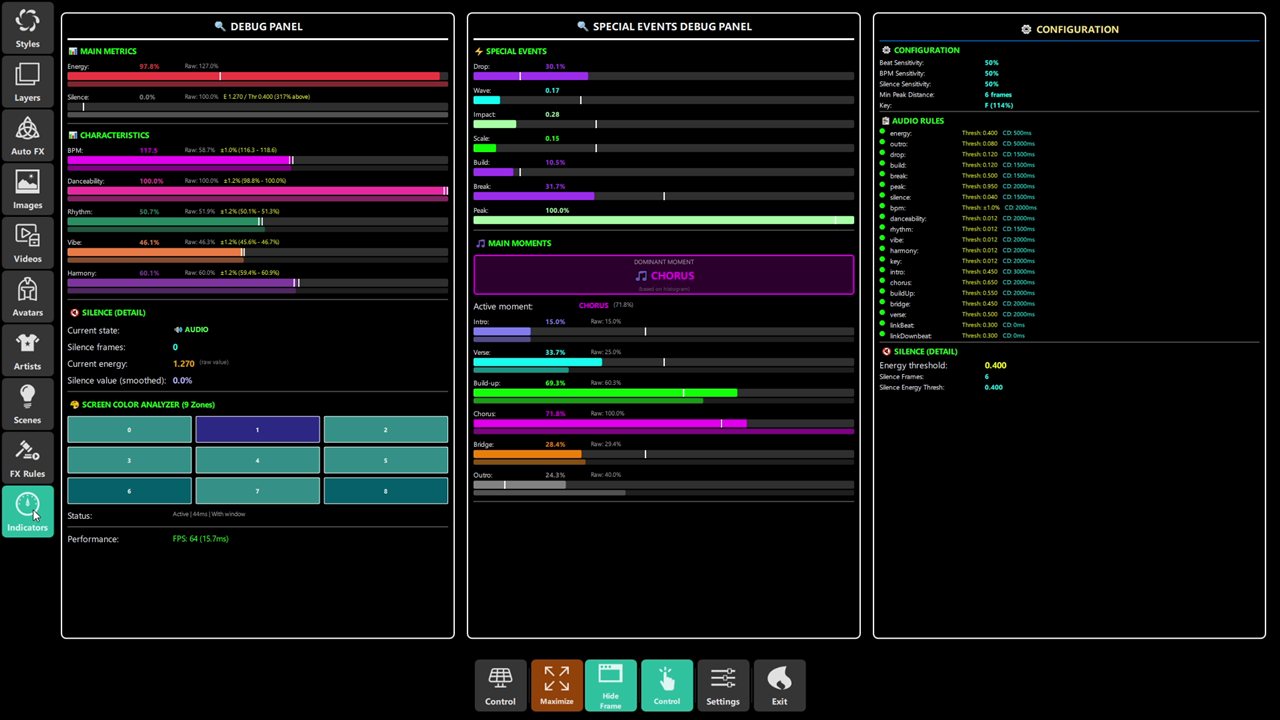 Figure 1: the Indicators debug panel — live detector values, silence state and the 9-zone analyzer in one view.
Chapter 3: Step By Step
Step 1 – Main + fallback devices (2 min)
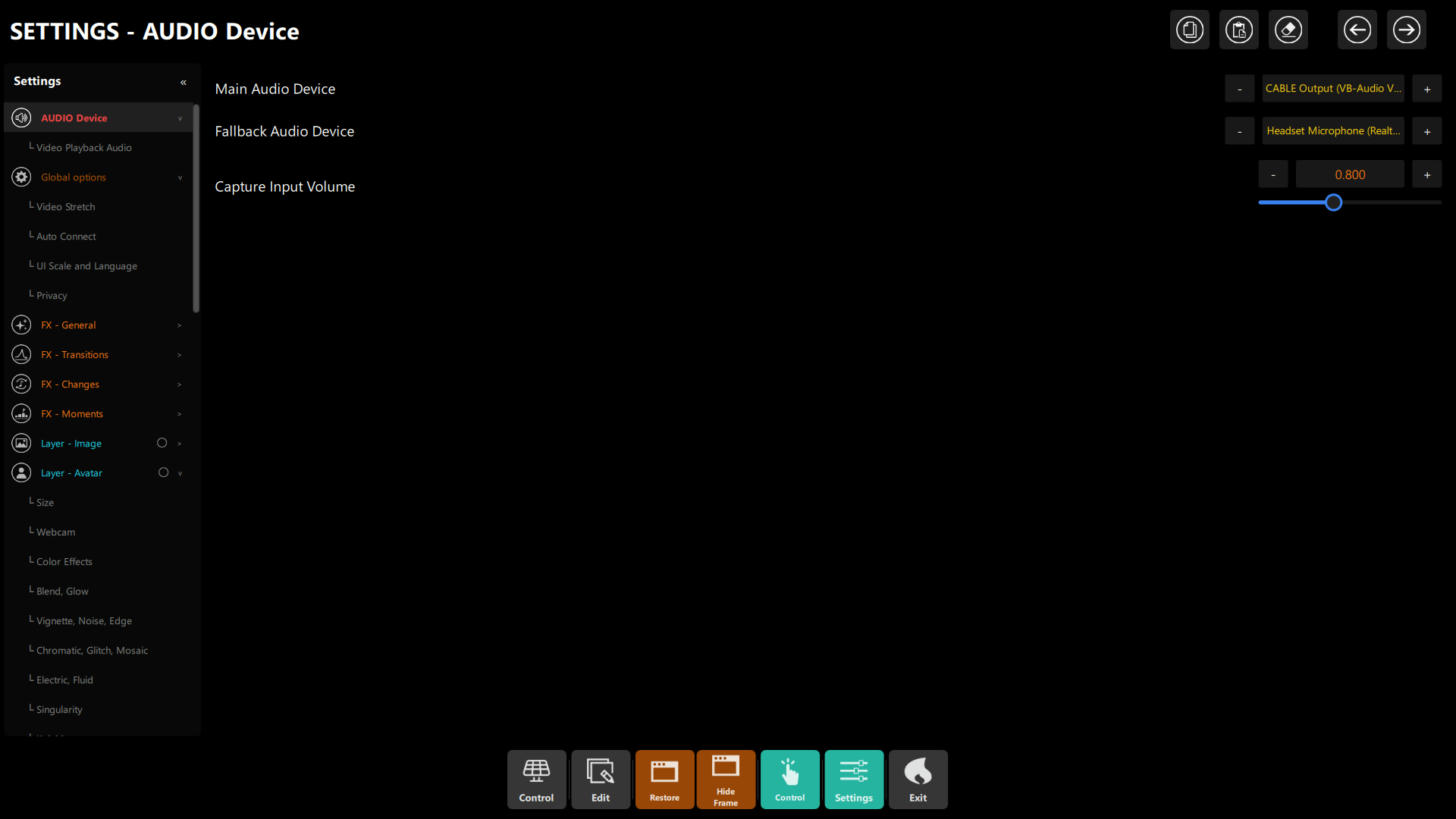 Figure 2: Settings → AUDIO Device — Main and Fallback devices (step through the list with − and +) and the Capture Input Volume. The sub-page Video Playback Audio sits under it.
- Settings → AUDIO Device. Set Main Audio Device to the mix source.
- Set Fallback Audio Device to anything else available. If the main vanishes mid-show, the app fails over instead of going silent. Test once: unplug the main, watch the meters continue on the fallback, then replug it and check the app returns to the main device.
Step 2 – Level (2 min)
Play music at show volume. Set Capture Input Volume (it starts at 0.8) so peak meters dance around 60–80 %: about 1.0 is typical for a mixer USB feed; laptop loopback often needs more. Confirm on the Waveforms layer — a healthy waveform fills without flattening at the rails.
Step 3 – Video audio and stretch (1 min)
- Settings → AUDIO Device → Video Playback Audio: turn it on and choose the output device — only if show audio comes from played videos. By default it is off and uses the system default output.
- Settings → Global options → Video Stretch: Crop / Fit / Stretch for the projector's aspect ratio.
Step 4 – Silence detector (3 min, per venue)
Defaults work for recorded music; live rooms need tuning. The four silence controls are in Settings → FX - General (the same detector grid is on the touch panel's FX Rules section):
| Control | Range | Meaning |
|---|---|---|
| Silence Threshold | 0.01–0.90 | Sensitivity of the silence rule; see the symptom table below for which way to move it |
| Silence Frames | 3–12 (default 6) | How many consecutive quiet frames confirm silence |
| Silence Cooldown | 500–3000 ms | Minimum time between silence events |
| Silence Energy Threshold | 0.15–0.50 (default 0.25) | Energy below which a confirmed silence is validated |
Play a track, stop it, and watch the Silence indicator:
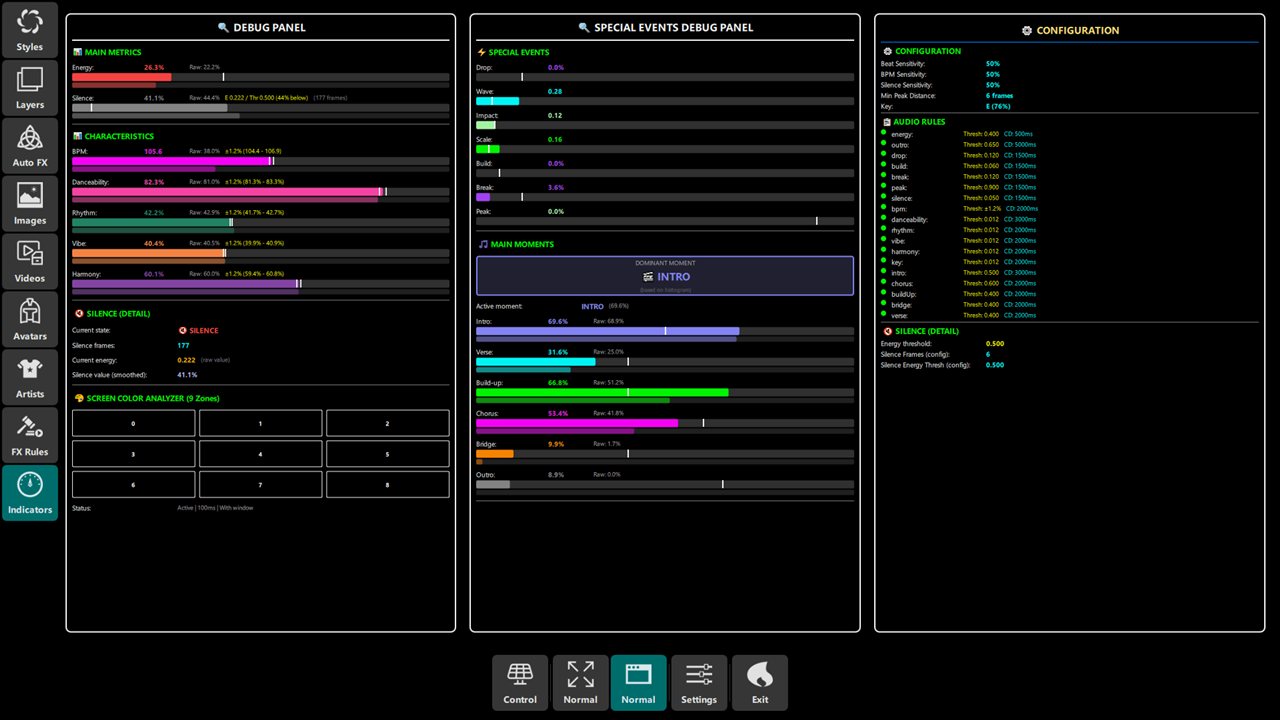 Figure 3: a tuned detector holding silence — DMX and FX rest with it.
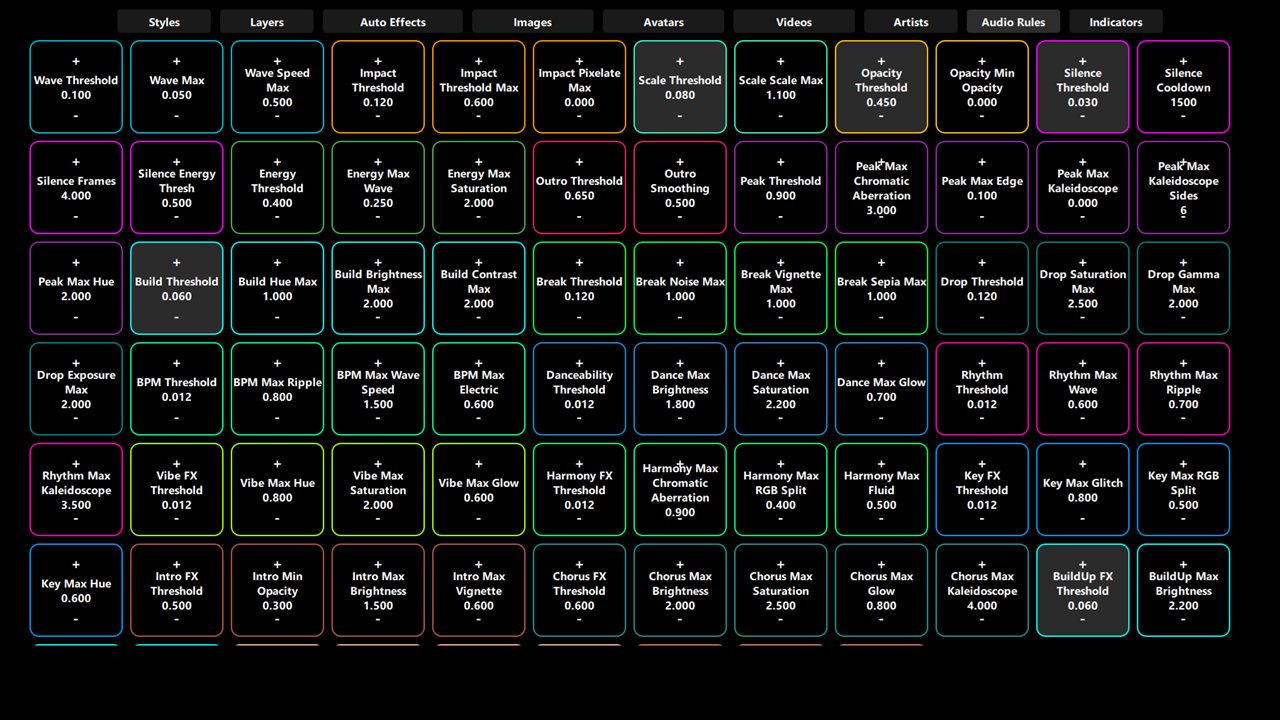
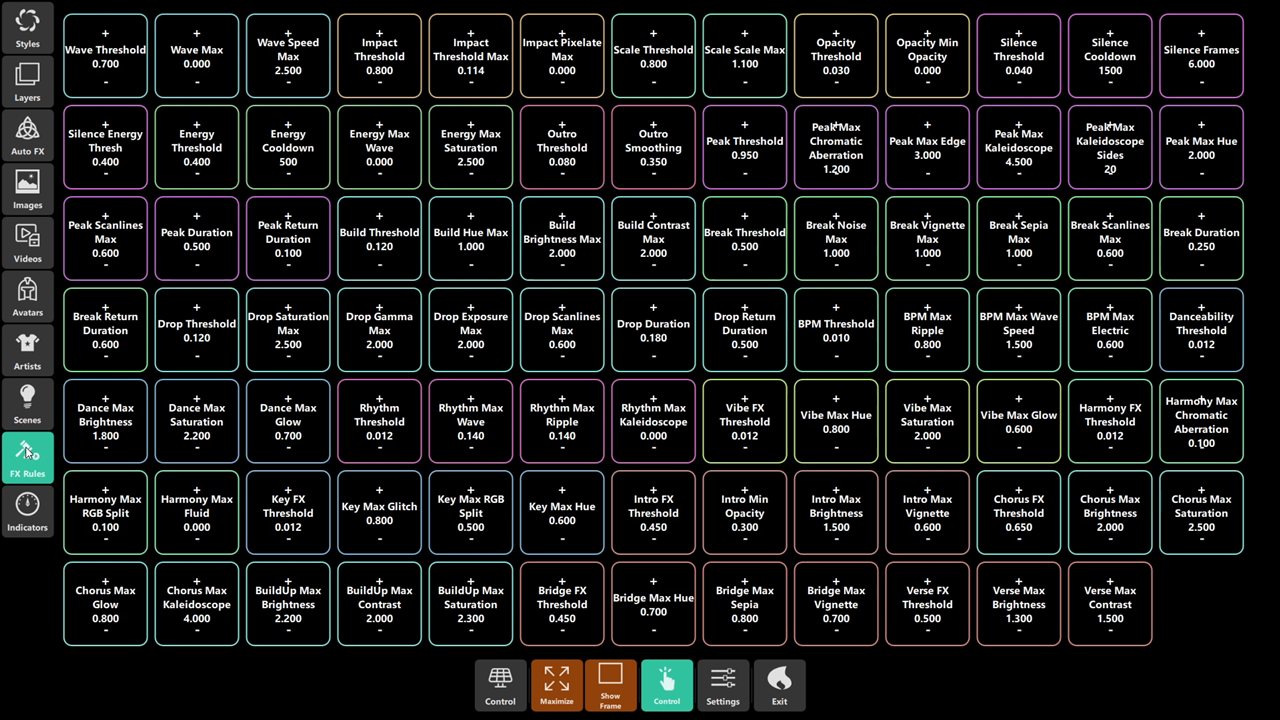 Figure 4: the same detector grid in Settings and on the touch panel.
| Symptom | Fix |
|---|---|
| Triggers during quiet breakdowns | Raise Silence Frames / lower Silence Threshold |
| Never triggers between tracks | Lower frames / raise sensitivity |
| Flickers on/off | Raise Silence Cooldown |
This detector also drives DMX silence behavior and FX gating — one tuning serves all three.
Step 5 – Ableton Link (Pro/Enterprise, only with Link peers)
Enable Ableton Link in the DJ/VJ app and keep both devices on the same local network. Allow DjMirror Pulse through the OS firewall if it cannot see the other app.
In DjMirror Pulse, open Settings → Ableton Link, switch on Link active, and wait for Connected · N peers. The panel also shows the session BPM and bar position.
Choose the Clock source:
- Audio analysis (default): audio supplies tempo and beats; Link only supplies grid signals.
- Link only: Link supplies tempo and beats; audio tempo/beat analysis is disabled while connected.
- Link primary, audio fallback: Link supplies tempo; beats follow the selected beat policy, and audio takes over if the Link session is lost.
- Audio primary, Link grid: audio supplies tempo and beats; Link supplies the grid and reports tempo mismatches.
The Beat policy is shown for Link primary only: Link grid only, Audio peaks only, Audio peak confirmed by the grid (AND), or Either, no double firing (OR). These options determine how audio peaks and Link grid beats combine; they do not apply to every clock source.
In Beat sync, use Mark downbeat to make the nearest Link beat the local bar beat 1. Mark phrase start sets the local phrase anchor; it does not change the shared Link session. The panel shows the current bar and beat relative to that anchor.
The Effect tempo multiplier (×¼, ×½, ×1, ×2, ×4) changes the tempo used by beat-driven effects only; it does not change the Link session BPM or the displayed session tempo.
Other controls appear only when they make sense for the chosen clock source:
Control Range / default Shown for What it does Beats per bar 1–32, default 4 Always Length of a bar on the Link grid Phase offset in ms (positive = beats fire earlier) Always Nudges the beat to match what you hear Bar offset (beats) in beats Always Moves which beat is counted as beat 1 Mark phrase start / Automatic start — Always Sets the phrase anchor by hand, or returns to the automatic anchor (the bar where the session was joined) Alignment window 10–200 ms, default 50 Link primary with the AND or OR policy How close an audio peak must be to a grid beat to count as the same beat Tempo smoothing 0–1000 ms, default 150 Link only, Link primary Smooths tempo changes from the session Link beats also trigger the classic beat signal (drives DMX strobes on drops) On by default Link only, Link primary Lets Link beats drive the same signal as audio beats Use audio analysis when no other Link app is in the session On by default Link only Falls back to audio while you are alone in the session Keep emitting Link beats while the audio input is silent On by default Always Keeps the beat grid running between tracks The status line reads Disabled, Waiting for other Link apps…, Another Link app found in a separate session: joining… or Connected · N peers. The first time you enable Link, the operating system may ask you to allow DjMirror Pulse on the local network: Link uses UDP multicast, so every app must be on the same network.
Link and beat-clock settings persist in the QSettings AbletonLink group, not in config.json. They survive application restarts, but a full settings reset clears them.
Power-user configuration (no UI): elements.beatSync.beatPulse (source: audio|grid, gridEvent: beat|downbeat|division, divisionsPerBeat, default 2) and layerPulse (attack/decay beats and per-layer scale/brightness/glow amounts).
Note
Ableton Link is not part of every build: the panel says Not available in this build when the Link SDK is missing, and the Mac App Store build leaves Link out because of the store's sandbox rules.
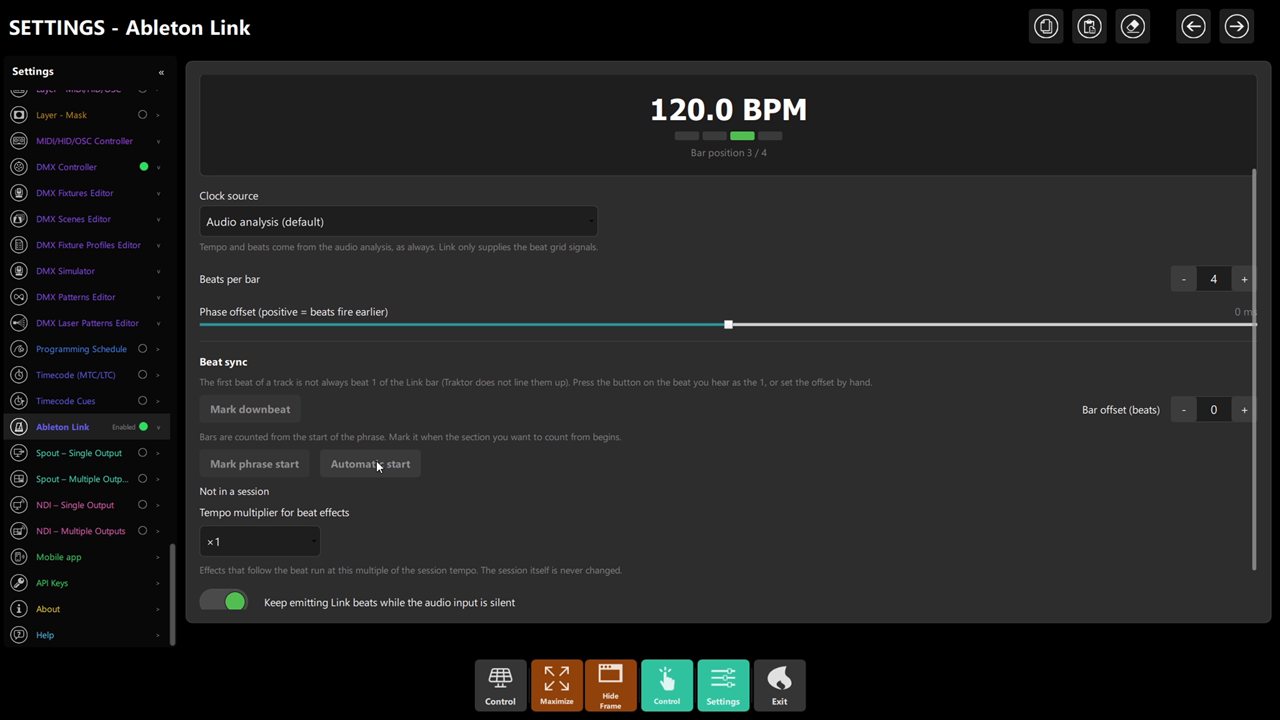 Figure 5: clock source, beats per bar, phase offset and the Mark downbeat controls.
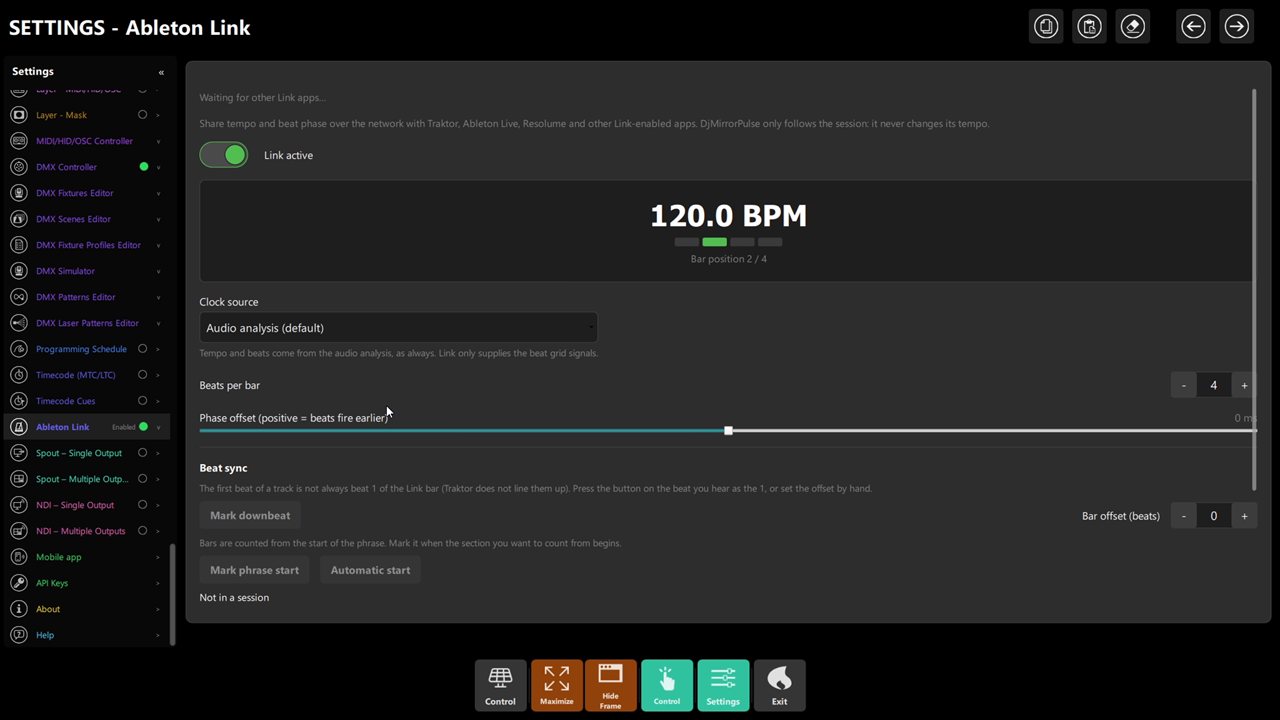 Figure 6: session status, 120 BPM and bar position — follow-only, the tempo is never changed.
Beat Pulse & Layer Pulse (v1.0.0.730+)
Beat Pulse (elements.beatSync.beatPulse): drives visualizers on grid events.
source:audio|grid— source of beat events (defaultaudio)gridEvent:beat|downbeat|division— which grid event fires (defaultbeat);divisionsPerBeat(default 2) sets how manydivisionevents fall in a beatlayerPulse(per-layer): attack/decay in effect beats (defaults 0.1 / 0.3), scale/brightness/glow amounts (defaults 0.04 / 0.15 / 0.2) per listed layer (always grid — nosourcefield; disabled until layers are listed)
Mark downbeat / phrase (MCP/API): markDownbeat sets the local bar downbeat; beatAnchor
(mode: mark|clear) marks the phrase start or returns to the automatic anchor. Neither changes the
shared Link session.
Chapter 4: Pre-Show Checklist (2 Min)
- Main device = mix source, fallback set, unplug test passed.
- Meters at 60–80 % on show-volume music.
- Silence indicator: on with music stopped, off with music playing.
- Link (if used): peer count > 0, grid LED blinking with the DJ's tempo.
Chapter 5: Troubleshooting
| Symptom | Likely cause | Fix |
|---|---|---|
| Meters dead | Wrong device / volume ~0 / OS input muted | Reselect Main device; volume ~1.0; OS sound settings |
| Everything fires constantly | Input clipping | Lower capture volume / OS input level |
| Silence flickers | Cooldown too short / threshold on the edge | Raise cooldown; move threshold away from room noise floor |
| Link peers not seen | Different Wi-Fi / firewall UDP | Same LAN, allow Link UDP; wired preferred |
| Panel says Not available in this build | The build has no Link SDK, or it is the Mac App Store build | Use a build that includes Link |
| Status stays on Waiting for other Link apps… | No other Link app is running or it is on another network | Enable Link in the other app; same network |
| Beat double-fires | AND/OR policy mismatch | Use Either, no double firing (OR) |
| Settings lost after config wipe | Link lives in QSettings | Re-set Link panel after any settings reset |
Chapter 6: Quick Recipe Card
- Main + fallback devices → unplug test. Volume ~1.0 → meters 60–80 %.
- Video-audio only if videos carry the show. Stretch: Crop/Fit/Stretch.
- Silence per venue: frames/threshold/energy/cooldown; one tuning feeds DMX + FX.
- Link: clock source + beat policy; peers on same LAN; QSettings-persisted.