Related guides: automation tied to the wall clock instead is the Programming Schedule; the musical beat grid is covered in Audio Setup & Beat Sync; the license requirement is in License & Activation.
Chapter 1: The Example: A 30-Minute Playback Show
| Position | Cue name | Action |
|---|---|---|
| 00:00:00:00 | Top of show | style → Opener, dmxScene → Welcome |
| 00:05:12:00 | First peak | dmxScene → Dance floor |
| 00:14:00:00 | Speech | artist → the host, layerVisibility → marquee ON |
| 00:28:30:00 | Finale | style → Peak |
| 00:29:55:00 | Blackout | dmxScene → Chill |
The source here is a theater playback machine sending LTC over an audio cable (right channel), with MTC as a backup.
Chapter 2: Concepts In Two Minutes
- Source modes:
Disabled,MTC only (MIDI),LTC only (audio),Automatic (MTC + LTC)andManual (internal). Manual is a rehearsal clock inside the app (Play, Pause, seek) that needs no external gear. - Cues fire only when the timeline crosses them going forward. Scrubbing backward, pausing, or jumping more than 8 seconds past a cue never fires it. Frames follow the active frame rate (in Manual mode: 24, 25, 29.97 or 30 fps).
- The same 14 actions as the Programming Schedule and the controllers — see the action reference. A cue has an optional Name, hours / minutes / seconds / frames (frames 0–29), an action with its target and value, and its own Active switch.
- Source and device choices are not saved. Select the MIDI input, audio input and channel again on each computer. The cues themselves are saved with the show and can be exported to a JSON file.
- Dedicated lines. MTC needs its own MIDI input; LTC needs its own audio input and channel (0 = left or mono, 1 = right). Never use the input you use for music analysis — the panel says so at the bottom.
Chapter 3: Step By Step
Step 1 – Lock to the source (5 min)
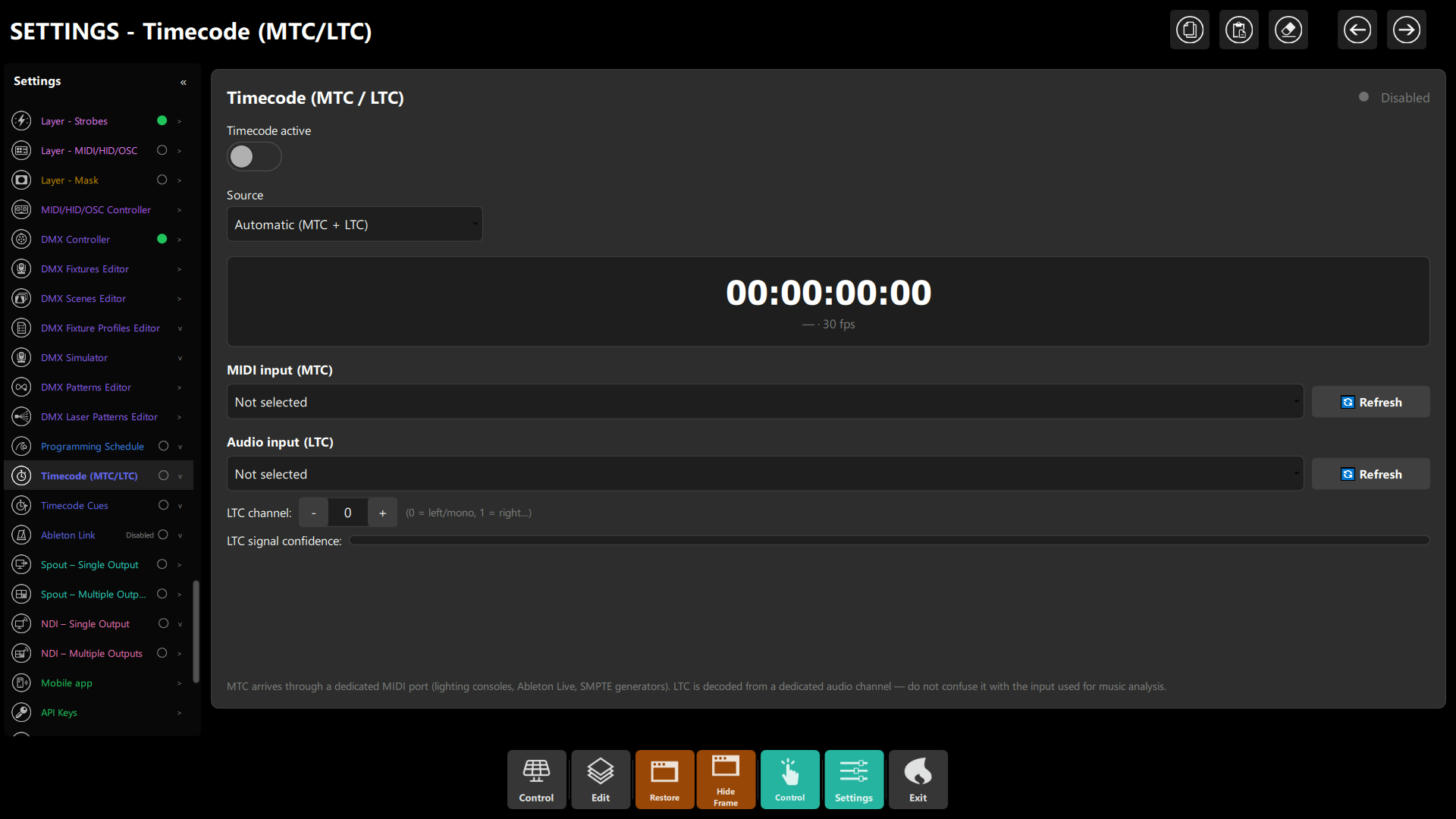 Figure 1: Settings → Timecode (MTC/LTC) — the master switch, Source, the running time display, the MIDI and audio inputs, the LTC channel and the LTC confidence bar.
- Open Settings → Timecode (MTC/LTC) and turn Timecode active on.
- Source: choose
Automatic (MTC + LTC)for a redundant rig, or the single mode you actually feed. - Pick the MIDI input (MTC) that carries MTC and the Audio input (LTC) that carries the LTC signal (press Refresh if a device is missing). Set the LTC channel to match the cable. Only the inputs relevant to the selected mode are shown.
- Watch the monitor: a running
HH:MM:SS:FF, a line with the source and frame rate, a status of Locked to MTC/LTC, and a steady, high LTC signal confidence bar. If you seeNo signal, check the cable and the device first, then the settings.
Step 2 – Place cues (10 min)
- Open Settings → Timecode Cues, turn Active cues on and press New cue. A new cue starts at
0:0:0:0with astyleaction. - For each cue set the Name (optional, but you will thank yourself later), the hours / minutes / seconds / frames, and press Edit to choose the action, its target and value. Keep the cue's Active switch on.
- Reorder with ▲/▼ and delete with the bin button.
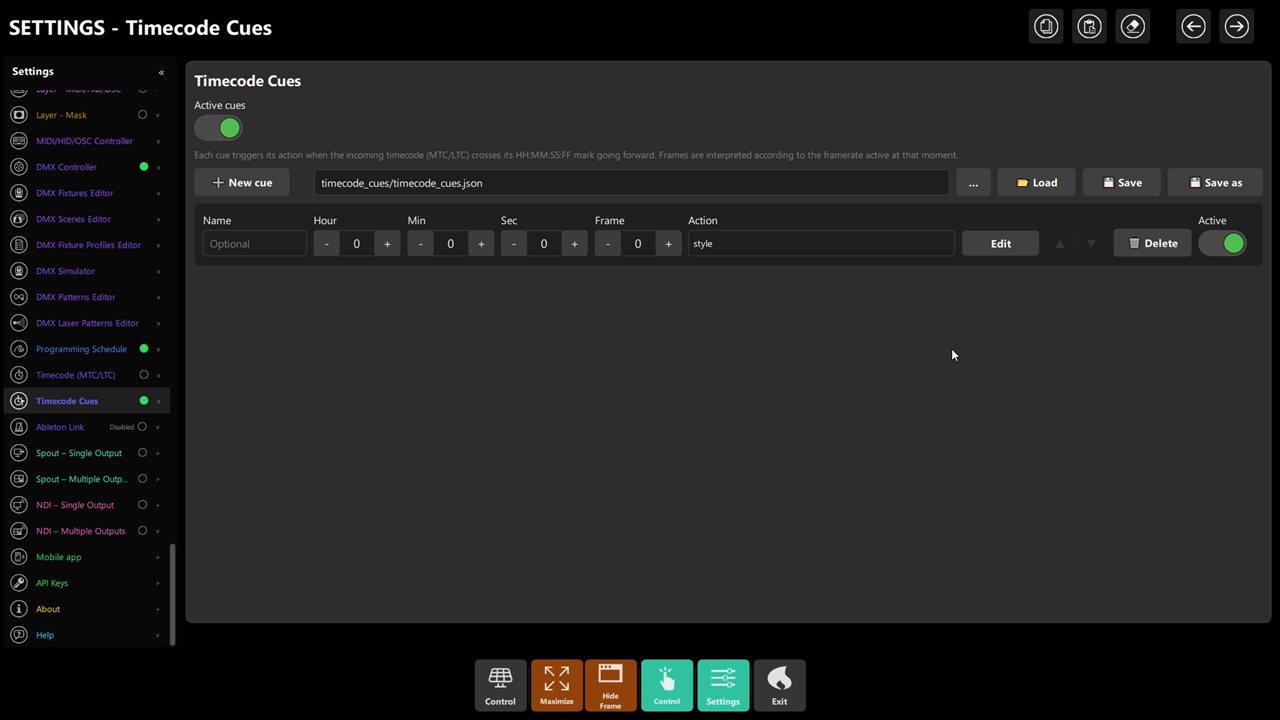 Figure 2: the cues editor — master switch, New cue, the JSON file row and the per-cue time steppers.
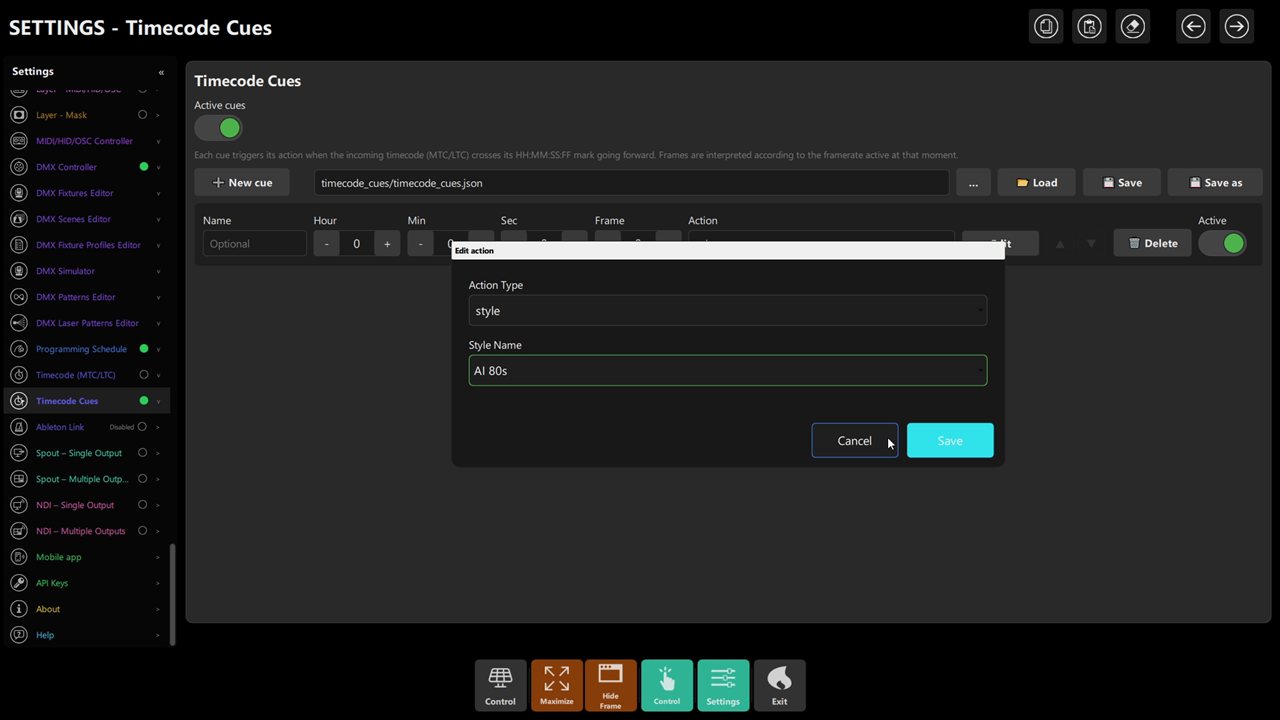 Figure 3: the same Edit dialog as the Programming Schedule — action type plus the live list of targets (here, a style).
- Respect the physics: keep cues a few seconds apart and put nothing critical within 8 seconds after a point where the playback rig can jump.
Step 3 – Rehearse without the rig (5 min)
- Set Source to Manual (internal), press ▶ Play, drag the Timeline or use Go to for an exact
H:M:S:F. - Play through the cue marks going forward — each one fires once. Seeking back over a cue that already fired does nothing, which is correct.
- Save writes
timecode_cues/timecode_cues.json; Load and Save as let you keep one file per venue.
Chapter 4: Pre-Show Checklist
- Source is the show source — not Manual left over from rehearsal.
- The status shows Locked, the confidence bar is steady, and the frame rate matches the playback rig.
- Active cues is on and every cue's own Active switch is on.
- A full run was done once (Manual or dress rehearsal): every cue fired, and the finale and blackout were confirmed.
Chapter 5: Troubleshooting
| Symptom | Likely cause | Fix |
|---|---|---|
No signal or Disabled |
Wrong source mode, device or cable | Match the mode to the feed; Refresh; pick the inputs again; check cables |
| LTC keeps losing lock | Wrong channel or weak level | Set the channel (0/1) to the cable; raise the feed level; watch the confidence bar |
| A cue never fires | Master or cue switch off, or the timeline jumped past it by more than 8 s | Turn both on; avoid locating past cues; space cues away from jump points |
| A cue fires twice | The timeline looped back over the mark | Forward crossings only, by design — check the playback is not re-crossing |
| Frames are misaligned | Frame rate differs from the rig | Match Manual frame rate or the rig's fps (24/25/29.97/30) |
| Inputs are empty on a new PC | Source and device choices are not saved | Select the inputs again; the cues travel in the JSON file |
| Load fails | The file is not a cues file | It must be JSON with an entries list; read the status (Could not read: / Invalid JSON…) |
| A cue's action does nothing | Its target was renamed or deleted | Edit the cue and pick the target again |
More: Troubleshooting.
Chapter 6: Quick Recipe Card
- Source: MTC, LTC, Automatic or Manual (for rehearsal). Dedicated inputs; LTC channel 0 or 1; Refresh.
- Monitor:
HH:MM:SS:FFplus Locked plus the confidence bar. Match the rig's frame rate. - Cues: Name + H/M/S/F + one of 14 actions; forward crossings only; 8 s re-arm window; two switches (master + cue).
- Save one JSON per venue (
timecode_cues/); re-select inputs on each machine.