Related guides: the same actions are available from controllers (MIDI & HID, OSC) and from timecode cues. For automation tied to a playback position instead of the wall clock, use Timecode Shows.
Chapter 1: The Example: A Venue Evening On Autopilot
| Time | Days | Action | Why |
|---|---|---|---|
| 19:00:00 | Mon–Fri | style → Welcome Warm |
Doors: calm look, no operator needed |
| 20:30:00 | Fri–Sat | artist → headliner, then videoPlaylist → the headliner's reels |
Support ends, card and reels switch |
| 22:00:00 | Fri–Sat | dmxScene → Dance floor |
Lights to full show |
| 23:45:00 | Fri–Sat | layerVisibility → marquee, Visible true |
Last-drinks banner |
| 00:30:00 | Sat–Sun | style → Chill and dmxScene → Chill |
Wind-down, room settles |
Each line is one row; two actions at the same time are two rows.
Chapter 2: Concepts In Two Minutes
- Rows, not timelines. Each row has days of the week, an hour, a minute, a second and one action (type, target and value). The scheduler checks the clock once per second and fires every row that matches the time and weekday. A row is skipped when the master switch is off, its own switch is off, or no day is selected.
- Two switches. Scheduler active is the master switch; every row also has its own switch on the right. Both must be on.
- Rows use the computer's local time. Check the operating-system clock and time zone against the venue.
- Everything saves automatically. You never have to press Save. Import, Export and Export As only
move the schedule to or from a file (default
programming_schedule/programming_schedule.json). - The simulated clock is temporary. It is never saved and Reset appears only while an offset is active.
Chapter 3: Step By Step
Step 1 – Add rows (5 min)
- Open Settings → Programming Schedule and turn Scheduler active on.
- Press Add row. A new row appears for Monday–Friday at
12:00:00with astyleaction. - Set the Days (Su Mo Tu We Th Fr Sa), then Hour (0–23), Minute and Second (0–59).
- Press Edit to choose the action (see §4), then Save.
- Reorder rows with ▲/▼ (they are evaluated in that order), turn a row off with its switch to keep it for later, or remove it with Delete.
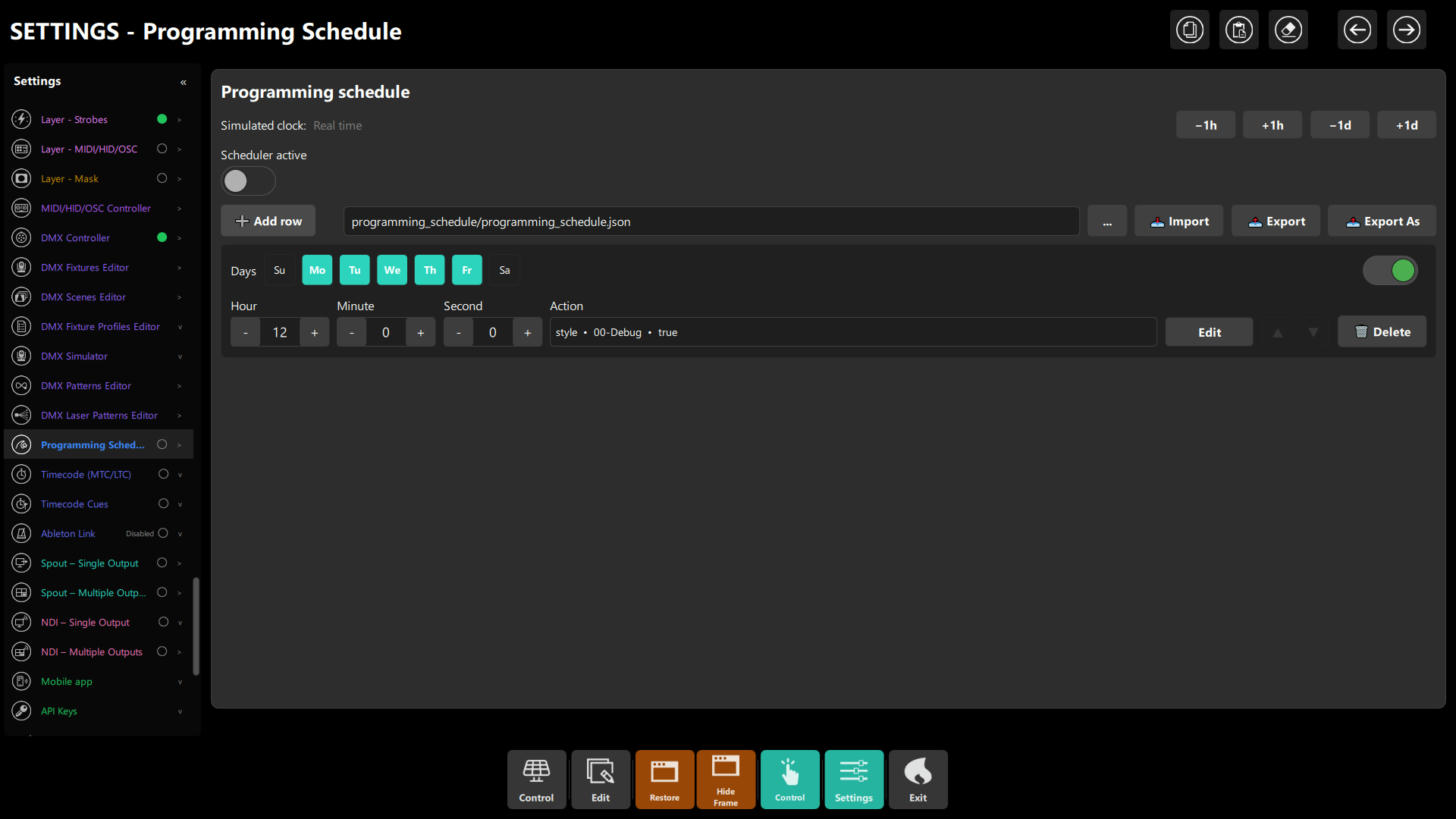 Figure 1: a new row — days, hour/minute/second, the action summary
 style • 00-Debug • true, and the Edit and Delete buttons.
Step 2 – Rehearse with the simulated clock (3 min)
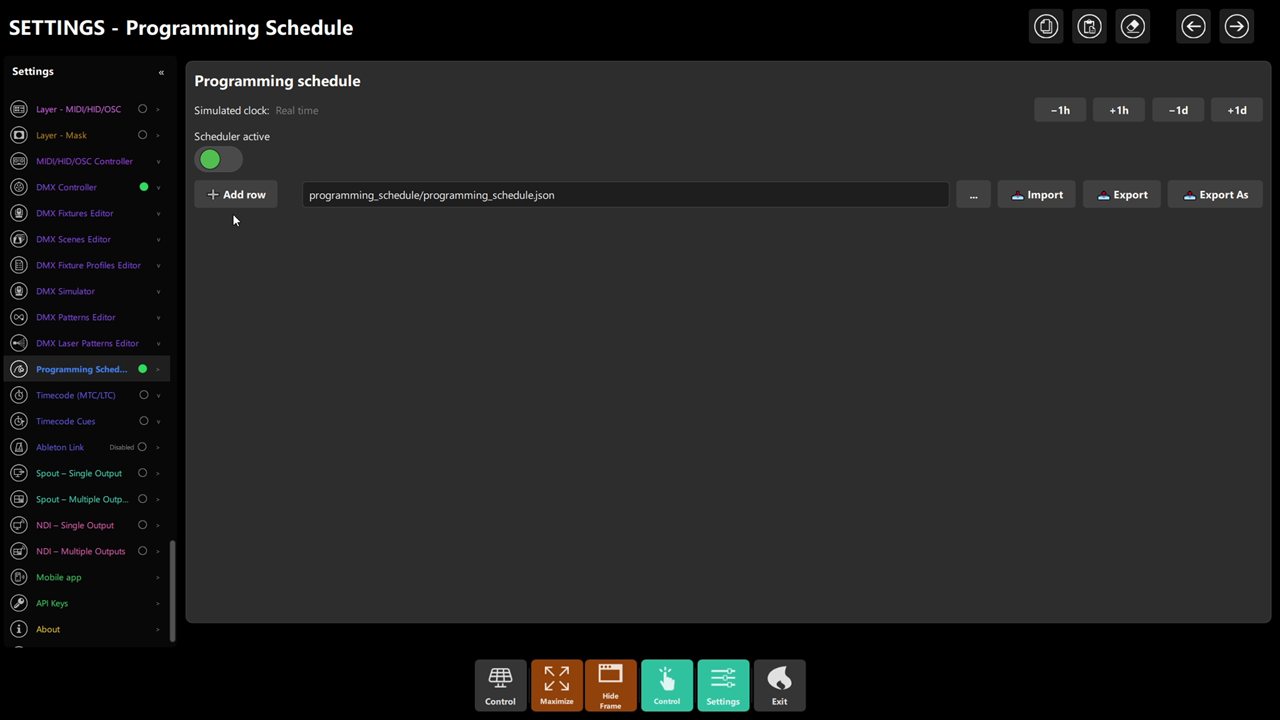 Figure 2: the simulated-clock buttons, the master switch, Add row and the JSON Import/Export row.
- Simulated clock shows
Real time, or the simulated date and time with its offset. - Jump with −1h, +1h, −1d and +1d to a moment just before a row (for example 21:59:55 for a 22:00:00 row) and watch it fire.
- Reset returns to real time. The offset is never saved, so it is safe to leave in the middle of a jump — but remember to reset it before the show.
Step 3 – Version it (2 min)
Export writes programming_schedule/programming_schedule.json; keep it in your show folder or in git next to
your DMX profiles. Import restores it on any machine. The status line reports Exported: or Imported:.
A file that is not a schedule is rejected with Could not read: or Invalid JSON.
Chapter 4: Action Reference
The Edit action dialog adapts to the action you choose: it shows only the fields that action uses.
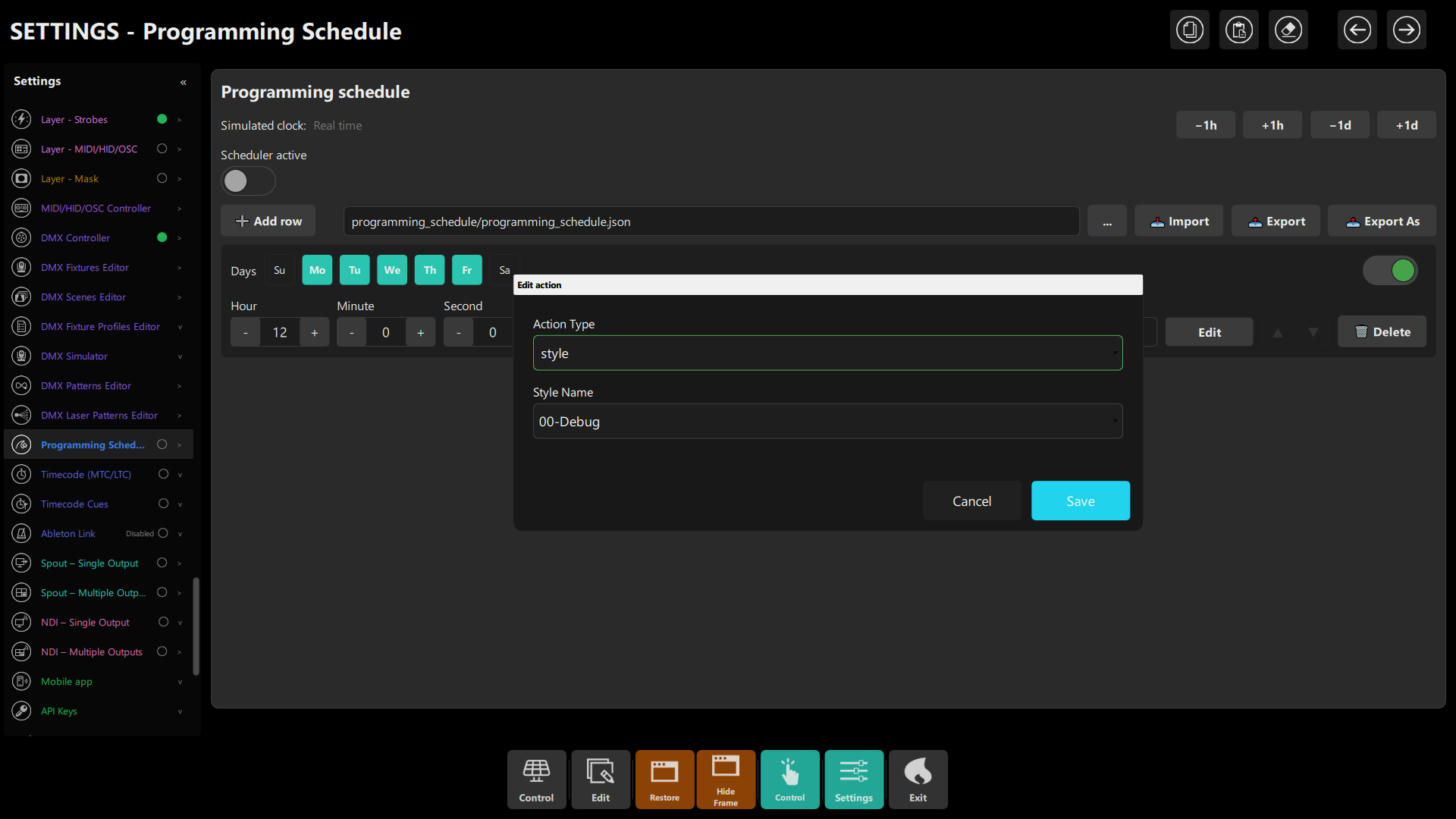 Figure 3: the Edit action dialog for a
 style action — Action Type and Style Name. Actions that need no value show no value field.
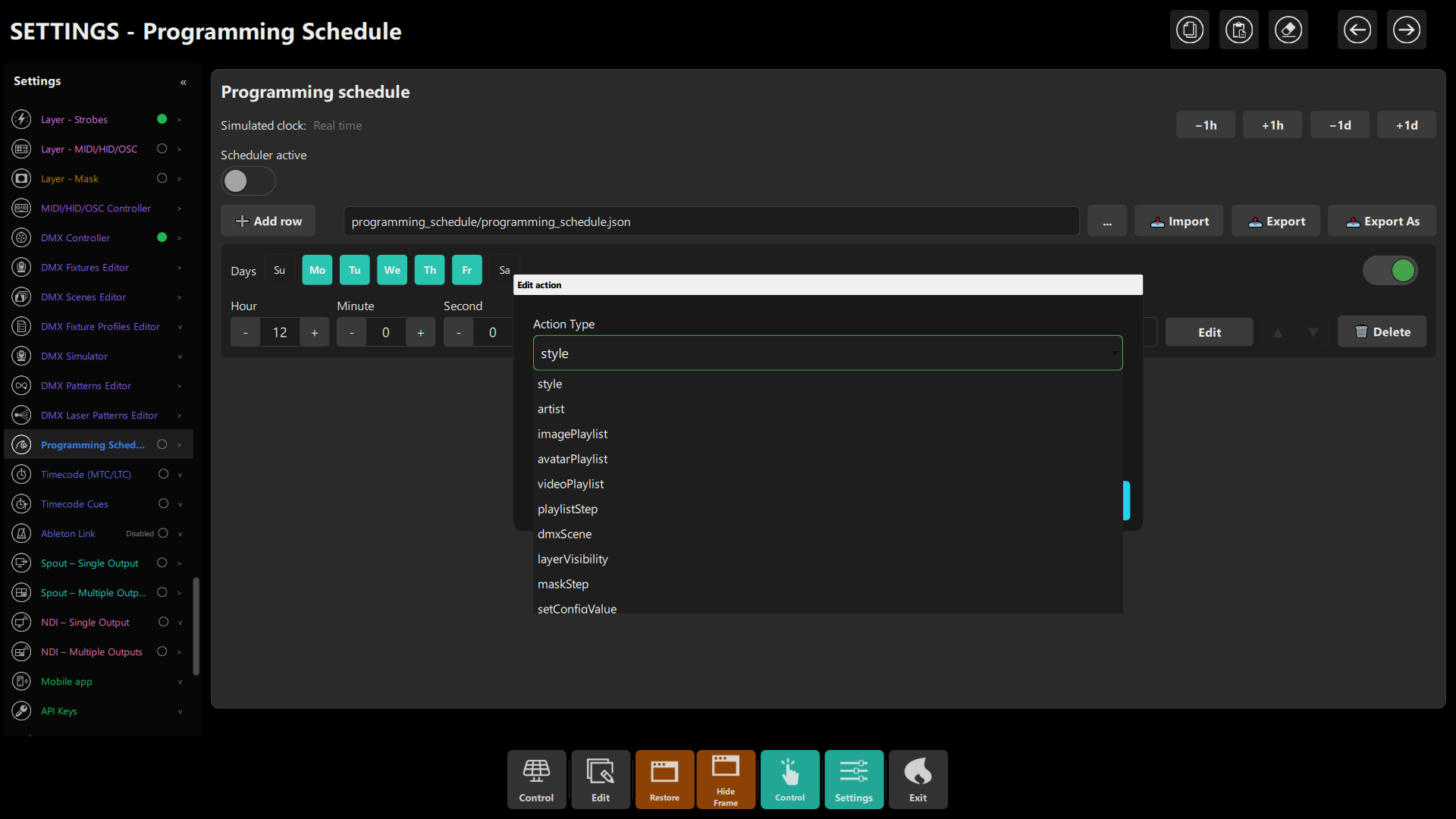 Figure 4: the Action Type list. It scrolls; there are 14 actions in total.
| Action | Target (what you choose) | Value | What it does |
|---|---|---|---|
style |
Style Name | — | Switches to that visual style |
artist |
Artist Name | — | Selects that artist |
imagePlaylist |
Image Playlist Name | — | Selects an image playlist |
avatarPlaylist |
Avatar Playlist Name | — | Selects an avatar playlist |
videoPlaylist |
Video Playlist Name | — | Selects a video playlist |
playlistStep |
Playlist Kind: current, imagePlaylist, avatarPlaylist or videoPlaylist |
Direction: next or previous |
Moves one item in that playlist |
dmxScene |
DMX Scene Id | — | Recalls a DMX scene |
layerVisibility |
Layer (list below) | true, false or empty |
Shows or hides a layer; empty toggles |
maskStep |
— | Direction: next or previous |
Steps to the next or previous mask |
setConfigValue |
Config Path | Value to Set | Sets any configuration value by path |
setFromInput |
Elements Path | Value (used only when fired from a schedule row or cue, with no live control) | Sets a value in the elements tree |
spawnShape |
Shape Type | — | Spawns that shape on screen |
beatAnchor |
— | mark or clear |
Marks or clears the beat anchor (needs a beat clock, see below) |
markDownbeat |
— | — | Marks the current beat as the downbeat on the Link clock |
Note
beatAnchor and markDownbeat act on the Ableton Link beat clock. If no clock is available they report an error
instead of doing nothing; see Audio Setup & Beat Sync.
The target lists come from live data (styles, artists, .txt playlists, DMX scene ids) and refresh
each time you open the dialog. If you rename or delete something a row points to, re-open the row and pick again.
Layers you can show or hide
layerVisibility offers these layers: Image, Avatar, Video, Artist Card, Vinyl Disc, Marquee Text, Waveforms (the
whole layer), each of the five visualizers (Digital, Particle, Analog, Spectrum, XY), Lighting, Spotlights, Particles,
Strobes, MIDI/HID/OSC and Mask.
Chapter 5: Pre-Show Checklist
- Scheduler active is on — the classic miss is perfect rows with the master switch off.
- Every row's switch is on and every row has at least one day.
- The simulated clock has been Reset to real time.
- The operating-system clock and time zone match the venue.
- One full row fired in rehearsal with the simulated clock, and any DMX scene rows verified on the rig.
Chapter 6: Troubleshooting
| Symptom | Likely cause | Fix |
|---|---|---|
| Nothing fires | Master switch off, row switch off, or no day selected | Turn on both switches; select at least one day |
| Fires at the wrong hour | PC clock or time zone differs from the venue | Check the OS clock; rows use local time |
| Action does nothing | The style, playlist or scene it points to was renamed or deleted | Re-open the row with Edit and pick again from the list |
| A layer ends up in the wrong state | layerVisibility with an empty value toggles |
Use explicit true or false for predictable cues |
beatAnchor or markDownbeat reports an error |
No beat clock — Link is not connected to another app | Start Ableton Link with a peer, or remove the row |
| Import fails | The file is not a schedule | It must be JSON with an entries list; read the status message |
| Offset still active next day | The simulated clock was not reset | Press Reset |
More: Troubleshooting.
Chapter 7: Quick Recipe Card
- A row is days +
hh:mm:ss+ one of 14 actions with its target and value. - The scheduler checks once per second; the master switch and the row switch must both be on.
- It saves automatically; Export the JSON to keep a copy.
- Rehearse with −1h/+1h/−1d/+1d, then Reset.
- For predictable cues use explicit values (
true/false, scene ids), not toggles.