Use this guide for the Image, Avatar, Video, Artist Card, Vinyl Disc, Marquee Text, Waveforms, Lighting, and Mask layers, per-layer image effects, and automatic audio-driven effects. For the dedicated audio visualizer types, see Visualizers. If the audio input is not reaching the app, start with Audio Setup & Beat Sync.
Chapter 1: Three Building Blocks
Layers are the parts of the picture
A layer is one visual element in the output. For example, you can put a video behind an Artist Card, add a waveform over it, and use a Mask to give the composition a shaped edge. A layer can be shown or hidden and, where available, made more or less transparent with Opacity.
| Layer | What you can use it for |
|---|---|
| Image | Show still images as backgrounds or overlays. |
| Avatar | Show images from an avatar playlist, or use a webcam instead. Rotation is optional. |
| Video | Add moving video from your video content. Video audio has separate routing options; see the audio guide. |
| Artist Card | Put artist branding on screen, with a 2D or 3D logo, text, sound waves, and optional bounce. |
| Vinyl Disc | Add a rotating record-style graphic; choose its size, color, line details, and deck view. |
| Marquee Text | Show scrolling text and artist information, with controls for its message, font, position, and speed. |
| Waveforms | Add waveform, digital-bar, spectrum, or other audio visualizer elements. The Visualizers guide explains their individual styles. |
| Lighting | Add visual spotlights, particles, and strobes, then tune their look and audio response. See the Lighting Layer guide for every setting. |
| Mask | Shape or cover the output, for example with a circle, heart, star, or pixel-style mask. |
Most layers start hidden, so having a layer configured does not necessarily mean it is currently on screen. Visible controls whether the layer appears. Opacity controls how strongly it shows through when other layers are behind it.
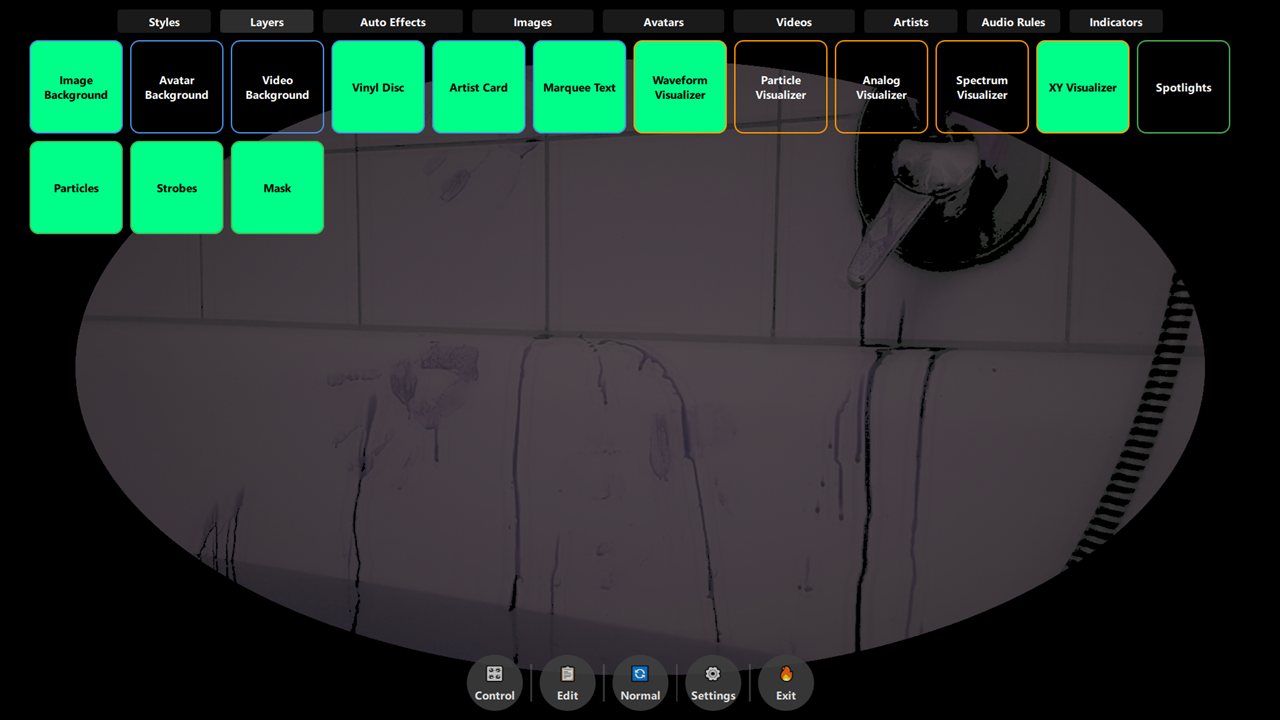 The Layers view gives you quick access to the visual elements in the composition.
Shaders change how a layer looks
The Enable Shader setting allows the visual effects for a supported layer. Basic adjustments such as Brightness, Contrast, Saturation, Gamma, and Exposure help match an image or video to the rest of the composition. Other groups can add treatments such as glow, vignette, color shifts, pixelation, glitch, waves, fire, neon, scanlines, or a ghost trail.
You do not need to use every effect. Start with the image itself, make one change at a time, and stop when the result is clear on the output display. Most effect controls are neutral at their default values, and layer visibility and shader enablement are separate controls.
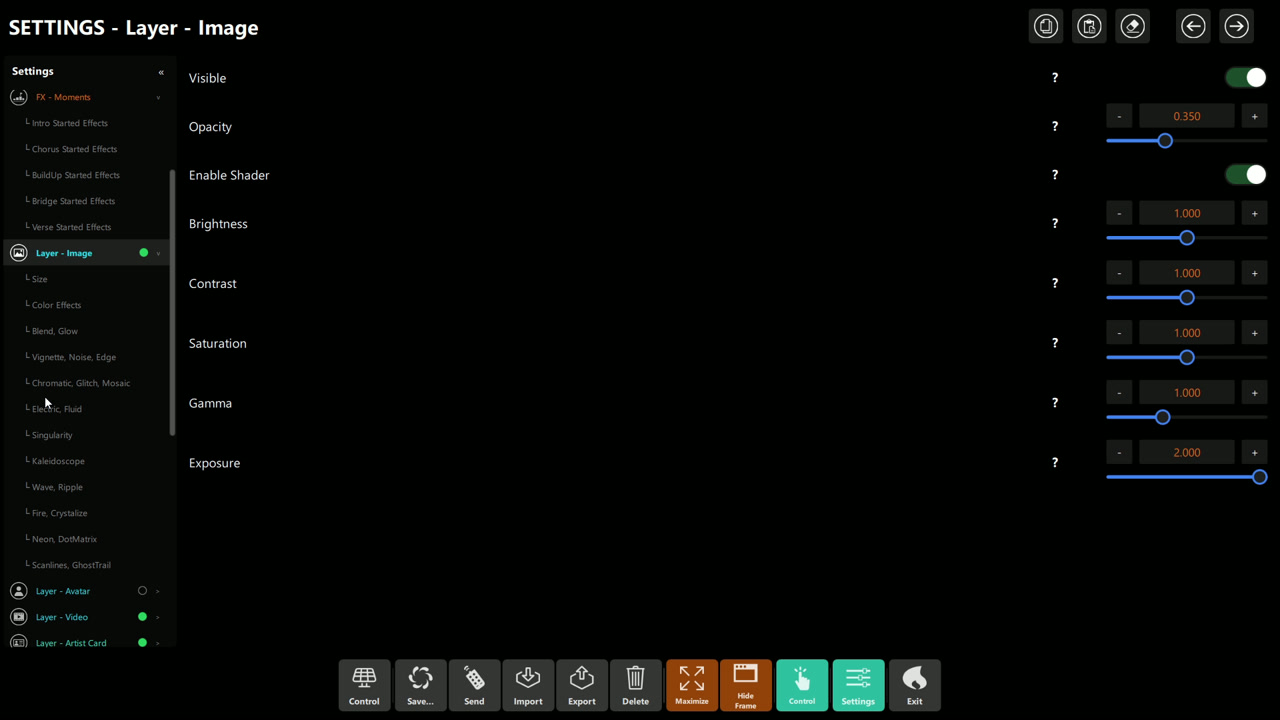 The Image layer has its own shader switch and basic picture adjustments. The displayed values are from this
capture, not recommended settings.
The Image layer has its own shader switch and basic picture adjustments. The displayed values are from this
capture, not recommended settings.
Automatic FX add movement or color changes
Audio-driven FX respond to changes detected in the incoming audio. In Settings, the groups are organized as:
- FX - General — core reactions such as wave, impact, scale, and opacity, plus silence settings.
- FX - Transitions — energy changes, outros, peaks, builds, breaks, and drops.
- FX - Changes — detected changes in BPM, danceability, rhythm, vibe, harmony, or key.
- FX - Moments — song-section cues such as intro, chorus, build-up, bridge, or verse.
Each family may have a detection setting and a corresponding Effects group. The detection setting controls how readily a change is recognized; an effect's Enabled switch and controls such as Duration, Return Duration, and Max determine whether and how strongly the visual response is applied. A detector and its visual response are related, but they are not the same setting.
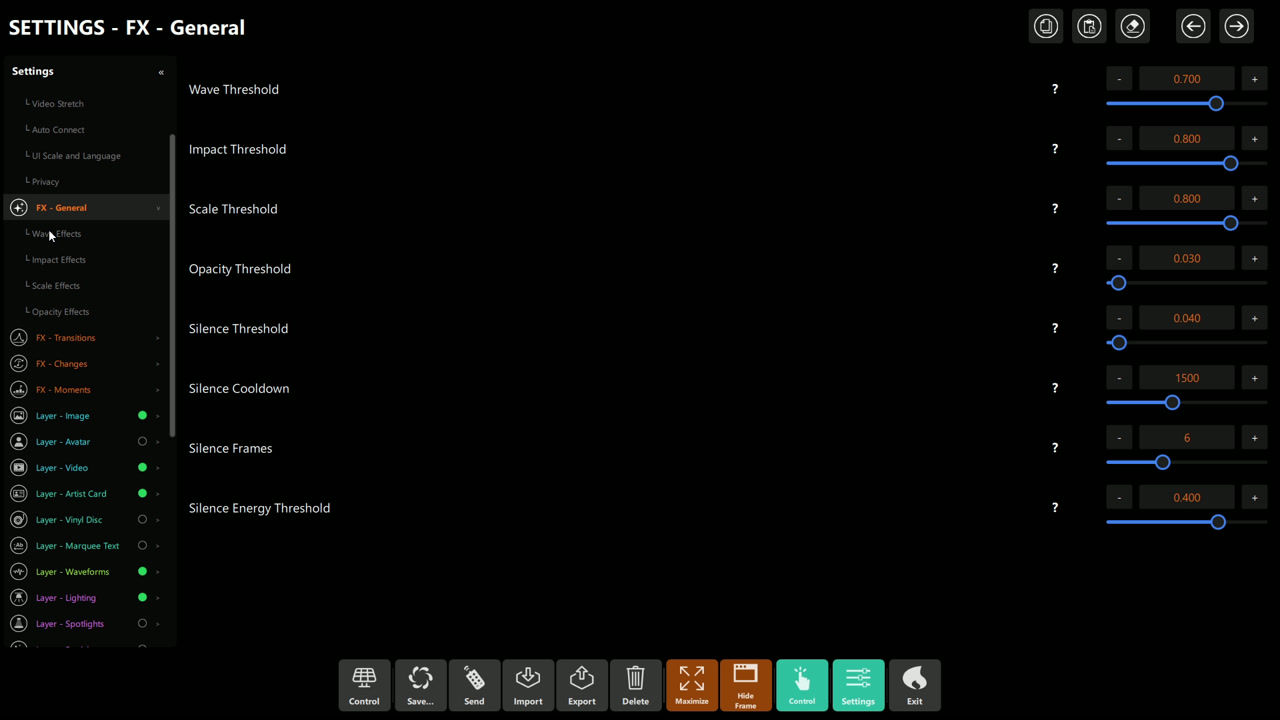 FX - General shows detection controls such as Wave, Impact, Scale, and Opacity Threshold, followed by the
silence-detection settings. The pictured threshold values are an example, not a preset recommendation.
FX - General shows detection controls such as Wave, Impact, Scale, and Opacity Threshold, followed by the
silence-detection settings. The pictured threshold values are an example, not a preset recommendation.
These audio rules are driven by the configured audio input. They are not a substitute for a beat clock such as Ableton Link, and they do not require you to switch to AutoMode just to receive audio. The exact result depends on the rule, its enabled effect, the visible layers, and the current visual settings.
Chapter 2: Make A Simple Layered Composition
Try this first: a moving background, a small amount of audio movement, and readable artist information.
- Choose your content. Load or select the images, videos, or avatar material you want to use in the corresponding content/playlist view. These panels configure how a layer looks; they do not replace choosing its media.
- Show one background layer. Open Settings → Layer - Image or Settings → Layer - Video and switch Visible on. Confirm that the selected content appears before changing effects.
- Set the balance. Adjust Opacity so the background does not overwhelm other elements. If the image needs correction, make small changes to Brightness, Contrast, or Saturation.
- Add one foreground element. Turn on Layer - Artist Card for branding, Layer - Marquee Text for scrolling messages, or Layer - Waveforms for a live audio graphic. Check visibility for both the layer and any visualizer within the Waveforms layer.
- Add one shader treatment, if useful. In the layer's settings, turn on Enable Shader and adjust one effect at a time. Return to neutral values if the image becomes hard to read.
- Test with music. Confirm that the audio input meters move. Then try one audio effect family at a time from the FX - General, FX - Transitions, FX - Changes, or FX - Moments settings.
- Check the actual output. Judge brightness, contrast, and text size on the display or projector used for the show, not only in a settings preview.
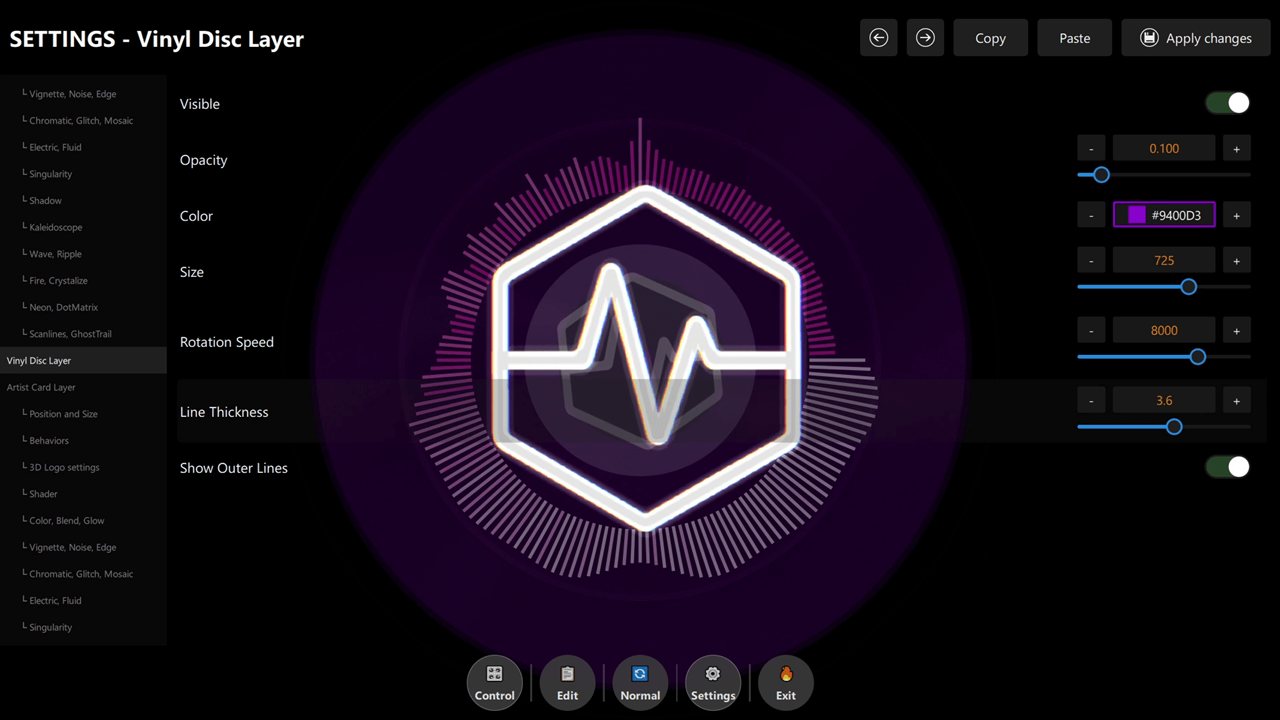 The Vinyl Disc layer has its own controls for color, size, rotation, and line details.
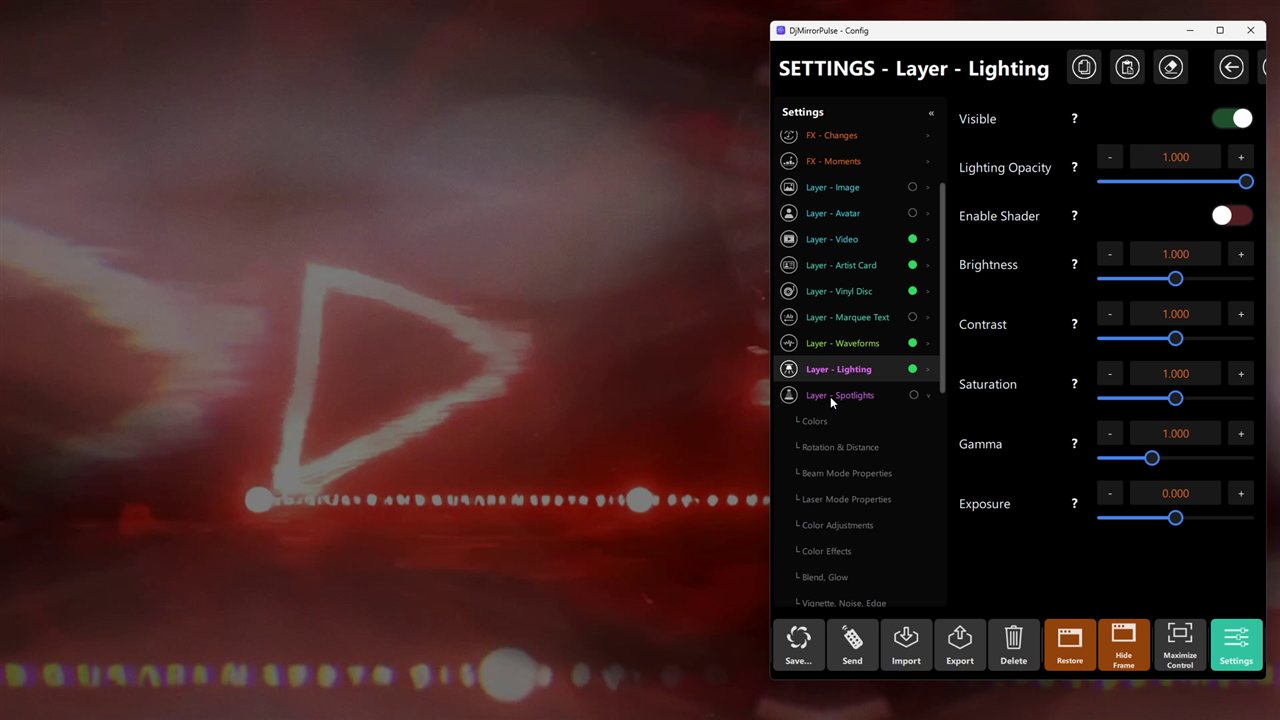 The Lighting layer combines its own controls with optional per-layer image effects.
Use a webcam for the Avatar layer
The Avatar layer can use a camera instead of cycling through its image playlist:
- Open Settings → Layer - Avatar → Webcam.
- Turn on Webcam instead of playlist.
- Choose the camera under Camera. The available entries depend on the cameras and virtual cameras detected by your system.
- Make sure Layer - Avatar is visible and check the output. Turn the webcam option off to return to the playlist.
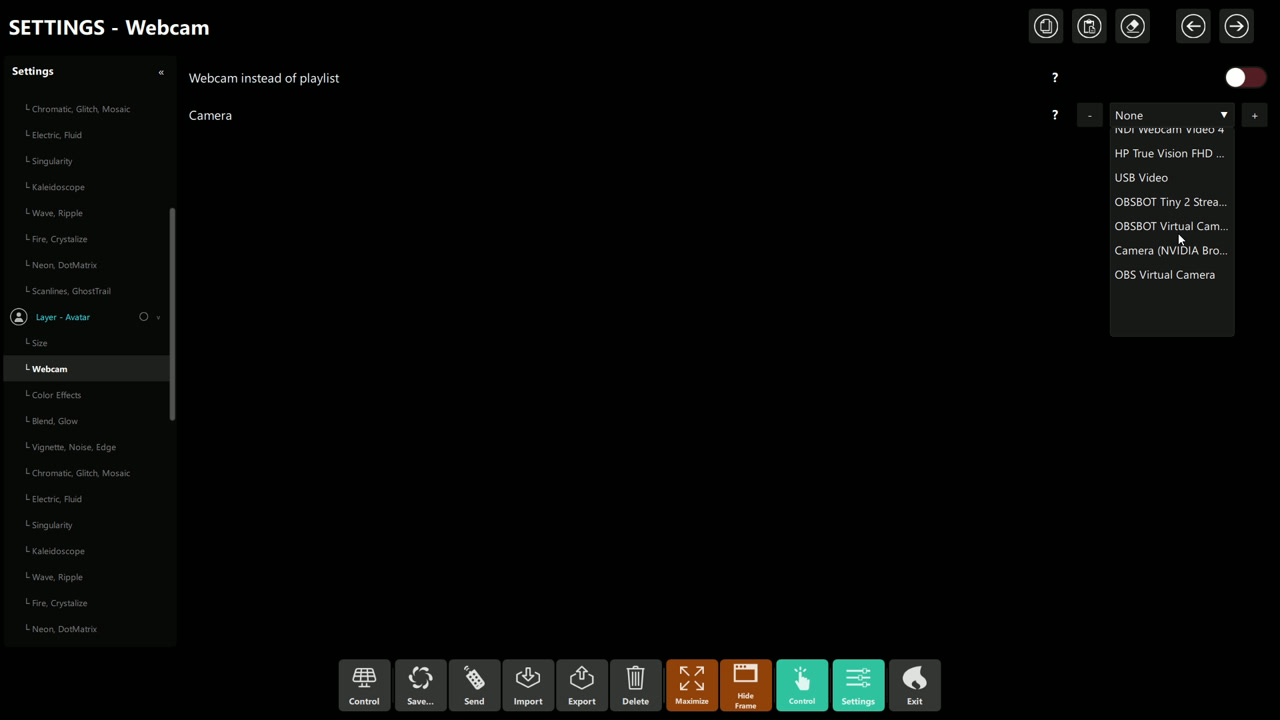 The Webcam section switches the Avatar layer from its playlist to a selected camera. In this capture the switch
is off; enable it and choose a camera to use the webcam.
The Webcam section switches the Avatar layer from its playlist to a selected camera. In this capture the switch
is off; enable it and choose a camera to use the webcam.
Chapter 3: Add An Audio Reaction In A Controlled Way
The examples below are starting points, not guaranteed settings for every song or audio level.
- Open Settings → FX - Transitions and choose one detector, such as Break.
- Open the matching effect group, such as Break Effects. Check Enabled and use a modest Max value and short duration to begin.
- Play a representative track and watch the output. Give the audio detector time to encounter the kind of moment it is meant to recognize; a Break or Drop detector will not necessarily react to every beat.
- If the effect is not noticeable, check the input meters first, then confirm the effect is enabled and that a relevant layer is visible. Adjust one detection or strength control at a time.
- If the result is too busy, lower the maximum effect strength or disable other effect groups before changing several detector thresholds at once.
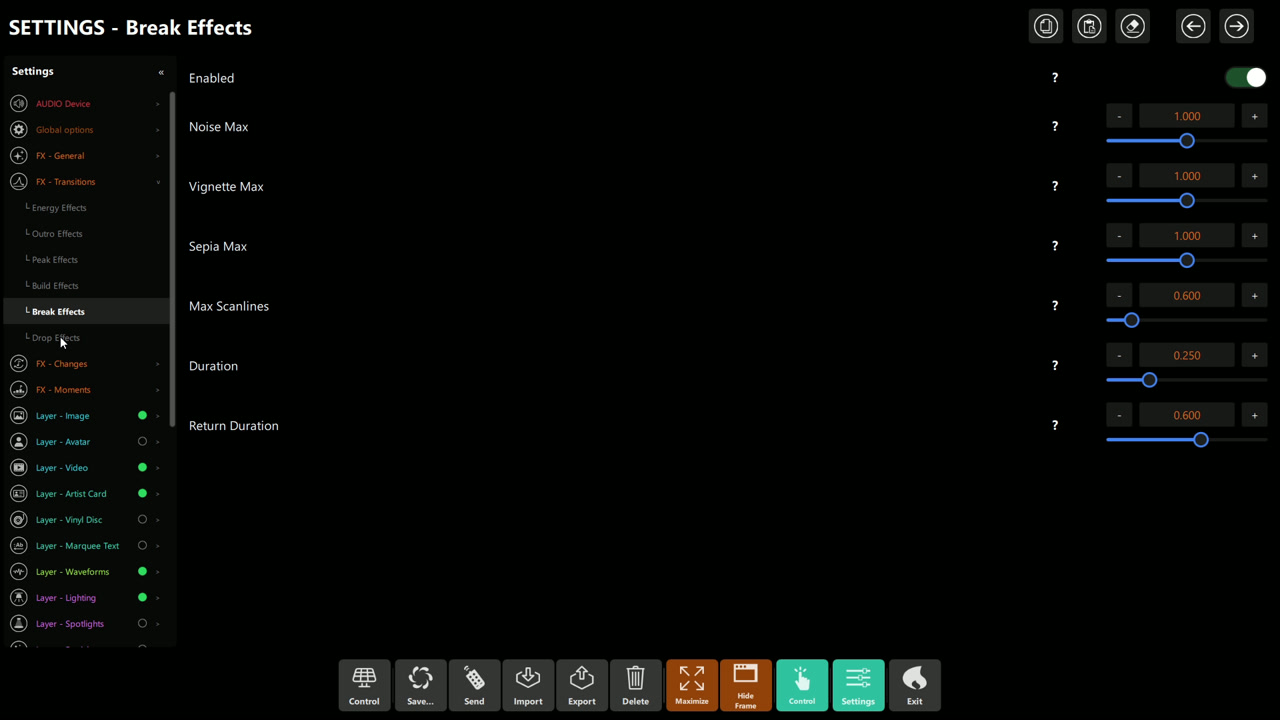 Break Effects has its own enable switch and visual-strength controls, including Noise, Vignette, Sepia, and
Scanlines. Duration and Return Duration shape how quickly the change appears and fades; the shown values are just
the captured configuration.
Break Effects has its own enable switch and visual-strength controls, including Noise, Vignette, Sepia, and
Scanlines. Duration and Return Duration shape how quickly the change appears and fades; the shown values are just
the captured configuration.
For a gentle look, use small effect strengths and let changes ease back with Return Duration. For a more energetic look, increase one effect gradually and test it across different tracks. Use strobe effects carefully, especially in public or camera-recorded environments.
Chapter 4: Per-Layer FX And Global FX Are Different
The application also contains an Advanced FX - Global Output panel for stylizing the complete output. It has choices such as ASCII, dithering, halftone, Matrix Rain, VHS, Aurora, Melt, Fracture, and Lightning, plus post-processing controls and FX preset actions.
In this version of Settings the Global Advanced FX entry for opening this panel is not shown. For effects you can reach in the normal Settings panels, use Enable Shader and the effect groups for an individual layer, or use the FX - General / Transitions / Changes / Moments audio settings.
Chapter 5: Masks And Practical Layering Tips
- Turn on Layer - Mask and choose a Shape with the − and + buttons. There are 18 choices, in this order: Blackout, Disable, Elipse, Circle, Heart, Rectangle Rounded, Rectangle, Square, Diamond, Star, Terror Mask, 3 Diamond, Face Masks, Pixel, TV, Flame, Waves and Jail Bars.
- Keep Opacity in mind when stacking image, video, avatar, or lighting layers. A visible layer at low opacity can blend with what is behind it instead of covering it.
- Use the Artist Card and Marquee Text for information that should remain readable; avoid placing strong glow, glitch, or global effects over important text.
- Add one visual change at a time. If you lose track of which setting caused a problem, reset that layer's adjustments before continuing.
- Waveforms has its own visualizer visibility and audio controls. A visible Waveforms layer alone does not mean every visualizer inside it is turned on.
Chapter 6: Troubleshooting
| What you see | What to check |
|---|---|
| Nothing from a layer appears | Confirm the layer's Visible setting, selected media/content, and (for audio visualizers) the visualizer's own Visible setting. |
| A layer appears but a shader change has no effect | Check Enable Shader for that layer. It is separate from Visible. |
| Nothing reacts to music | Check that the selected audio input is active and its meters move. Then check the relevant detector and matching Effects → Enabled setting. See Audio Setup & Beat Sync. |
| A reaction happens too often | Increase the relevant detector threshold or cooldown, or reduce the number/strength of enabled effects. Change one control at a time. |
| A reaction is too subtle | Confirm that the matching effect is enabled and a relevant layer is visible; then raise its Max strength gradually. |
| Looking for global output FX | The Global Advanced FX entry is not shown in this version of Settings. Use the available per-layer shader controls instead. |
| A mask has no visible result | Confirm Layer - Mask is visible and the selected shape is not Disable. Blackout intentionally covers the output. |
| Text or details are difficult to read | Reduce glow, glitch, or global post-processing, adjust layer opacity, or use a calmer background. |
For broader audio, display, or output issues, see Troubleshooting. For settings panel navigation, see the Settings Tour.
Chapter 7: Quick Reference
- Visible shows or hides a layer; Opacity controls how strongly it appears.
- Enable Shader allows image effects on supported layers; it is separate from layer visibility.
- FX - General / Transitions / Changes / Moments configure audio detectors and the effects associated with them.
- Global-output FX are separate from per-layer shaders; the global panel is not shown in this version of Settings.
- If audio reactions do not occur, check the incoming audio and the detector/effect switches before tuning values.