Setting names can vary slightly with the app language and version. The paths below use the English UI. For audio, media search, or layer effects, use the dedicated Audio Setup, Media Search & AI, and Layers, Shaders & FX guides.
Chapter 1: Correct The Picture On Screen
Start with global output controls before compensating for the same problem separately in several layers.
- Open Settings → Global options.
- Adjust Global Output Brightness, Contrast, Saturation or Blur to correct the overall output. These master controls affect the composition as a whole.
- If only one object or effect looks wrong, adjust that layer instead. See Layers, Shaders & FX.
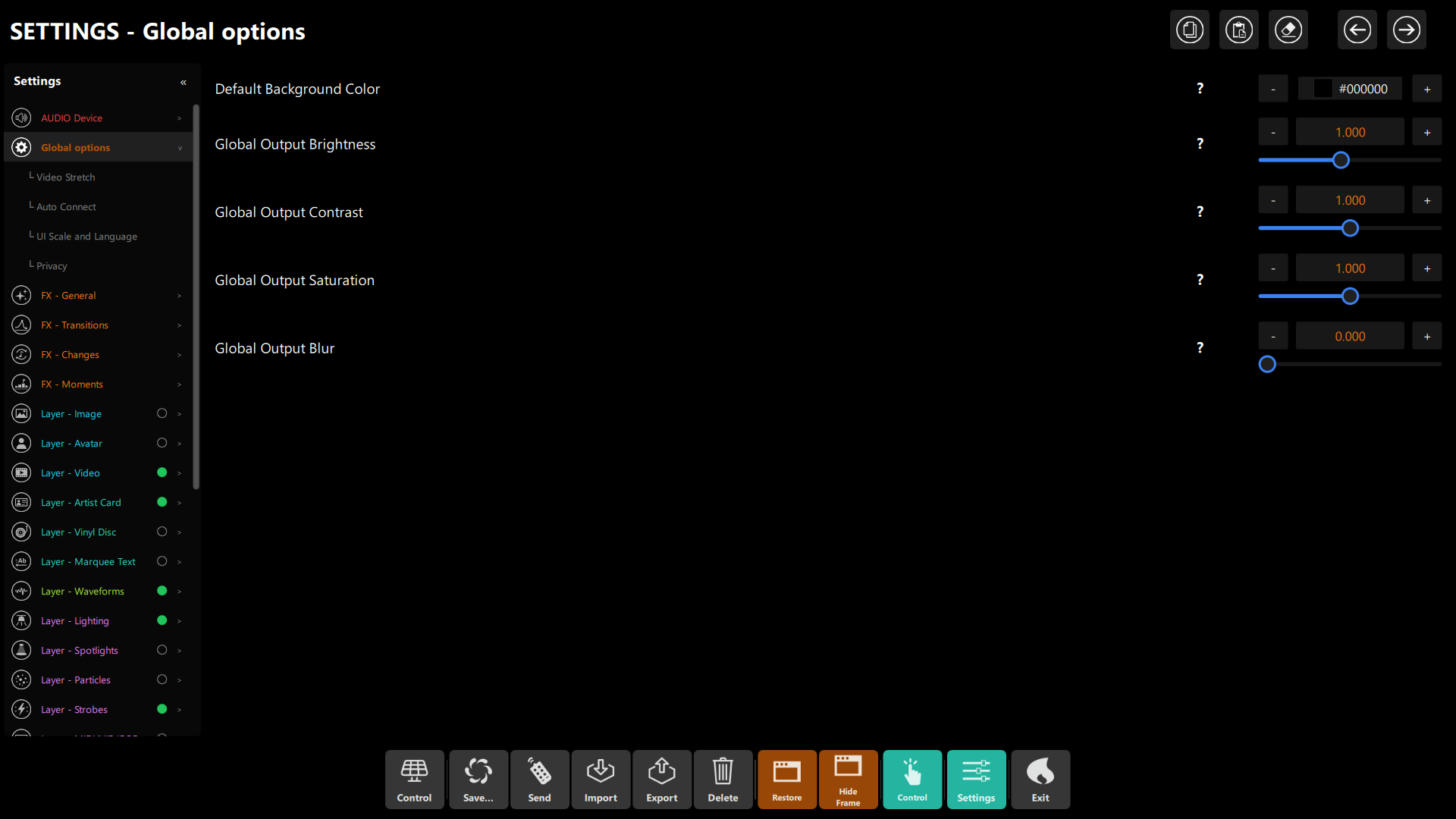 Figure 1: Settings → Global options. The sidebar lists its sub-pages (Video Stretch, Auto Connect, UI Scale and Language, Privacy); the page itself holds the master color, brightness, contrast, saturation and blur controls.
For content that appears stretched or cropped, open Settings → Global options → Video Stretch and set it to Crop, Fit or Stretch for the projector/display aspect ratio:
- Fit keeps the whole image visible and may leave unused space.
- Crop fills the display but can cut off the edges.
- Stretch fills the display by changing the image proportions.
Choose the result by checking the actual output screen, not only the control window.
Chapter 2: Configure Startup, Display And Privacy
| Setting | Where | What it does |
|---|---|---|
DMX Auto Connect at Startup (dmxAutoConnect) |
Global options → Auto Connect | Reconnects to configured DMX hardware at launch. Useful in a fixed installation; verify the correct interface is connected before a show. |
UI Scale (screenScale, 0.7–2.2) |
Global options → UI Scale and Language | Changes the size of the app controls, not the audience output. |
Language (language) |
Global options → UI Scale and Language | Choose a supported language or Auto to follow the system. |
Send Usage Statistics (analyticsConsent) |
Global options → Privacy | Controls optional usage analytics. License checks are separate and are not disabled by turning analytics off. |
Most user settings are saved by the app. Do not edit config.json to change an option unless you know that option
is file-backed; see Config & CLI for which settings live in that file and where the
effective copy is located.
Chapter 3: Manage Ticker Messages And Visual Overlays
Text Messages (marquee)
Open Settings → Layer - Marquee Text → Text Messages to add, edit or remove ticker messages. A message can use custom text, the selected artist's name, or the artist's bio (choose with the Custom, Artist Name and Artist Bio buttons). Use the switch at the left of each entry to enable or disable it, Add message to create one and ✕ to remove it. The Marquee Text layer's main page controls how the ticker looks — for example its color, speed and font — while this editor controls what it says. If no message is enabled, the artist's bio is shown.
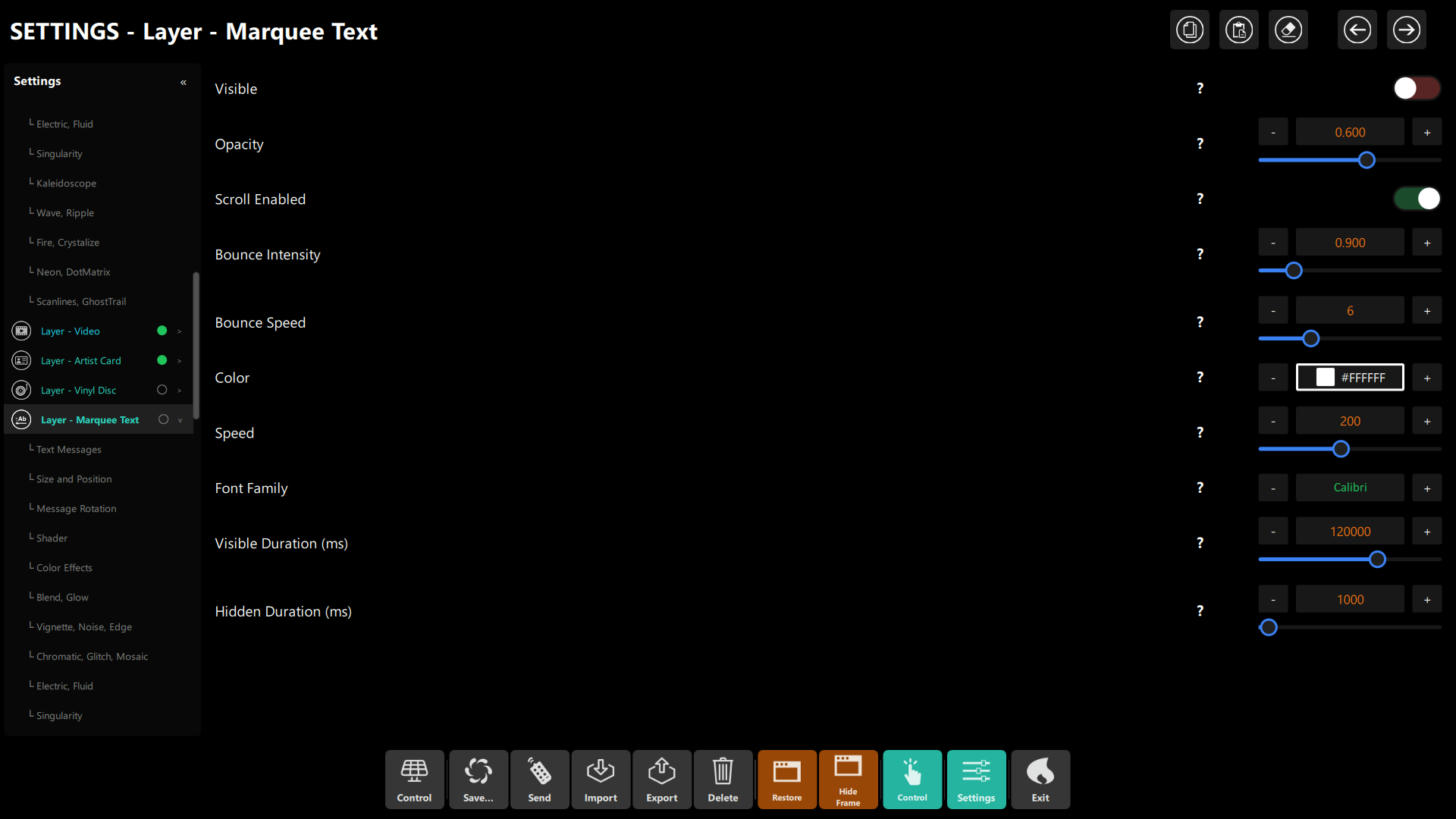 Figure 2: Settings → Layer - Marquee Text: visibility, opacity, scroll, bounce, color, speed, font and timing.
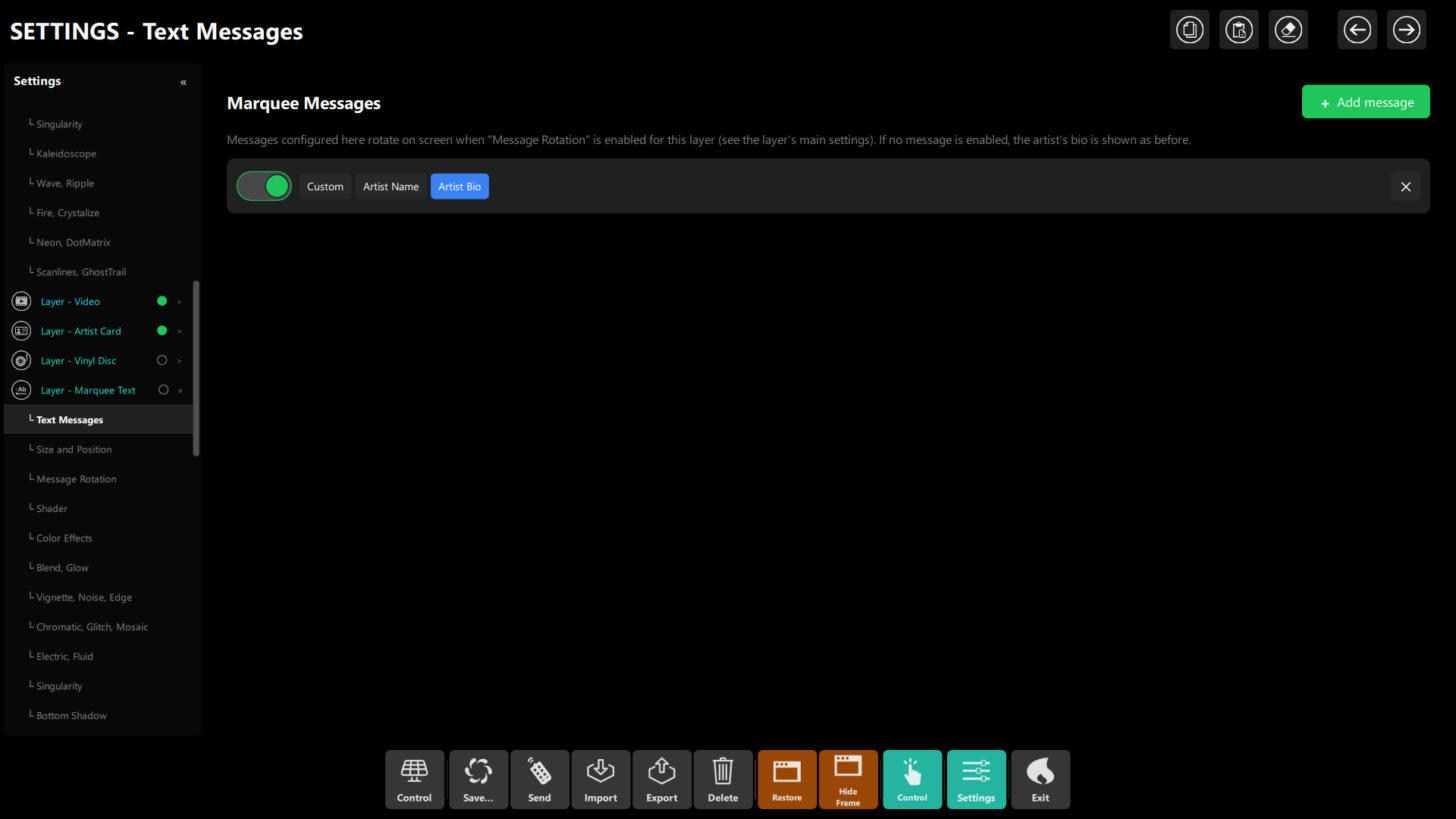 Figure 3: Text Messages sub-page: one row per message, each with an on/off switch and its source.
Mask
Open Settings → Layer - Mask to enable the mask, set its opacity, choose a shape and adjust its scale. A mask changes the visible image area; it does not crop or modify the source media file.
Artist Card
Open Settings → Layer - Artist Card for presentation controls such as 2D/3D logo style, visibility, opacity, size, position, rotation and animation. These are presentation settings for the card layer, not per-artist profile fields. The selected artist's name, logo and bio are managed in the Artists section; see Content Management.
Vinyl Disc
Open Settings → Layer - Vinyl Disc to show or hide the disc layer and adjust its opacity, color, rotation speed, line thickness, size and position. Treat the range values as tuning controls: change one at a time and check the audience output.
MIDI/HID/OSC reaction overlay
The MIDI/HID/OSC overlay is a visual feedback layer for controller activity. Its Visible and Opacity controls affect that glow; they do not configure the controller mapping itself. See MIDI & HID Controller Setup to map hardware actions.
Chapter 4: Rehearse Lighting And Automate A Show
These editors are optional. If you are new to the app, first make a manual change and confirm what it does before adding automation.
DMX Simulator
Open Settings → DMX Simulator to arrange virtual fixtures and rehearse output without relying on the physical stage lights. Use the simulator to check layout, colors, movement and dimmer behavior before connecting the real rig. For fixture patching and safety checks, follow the DMX Rig Configuration Guide.
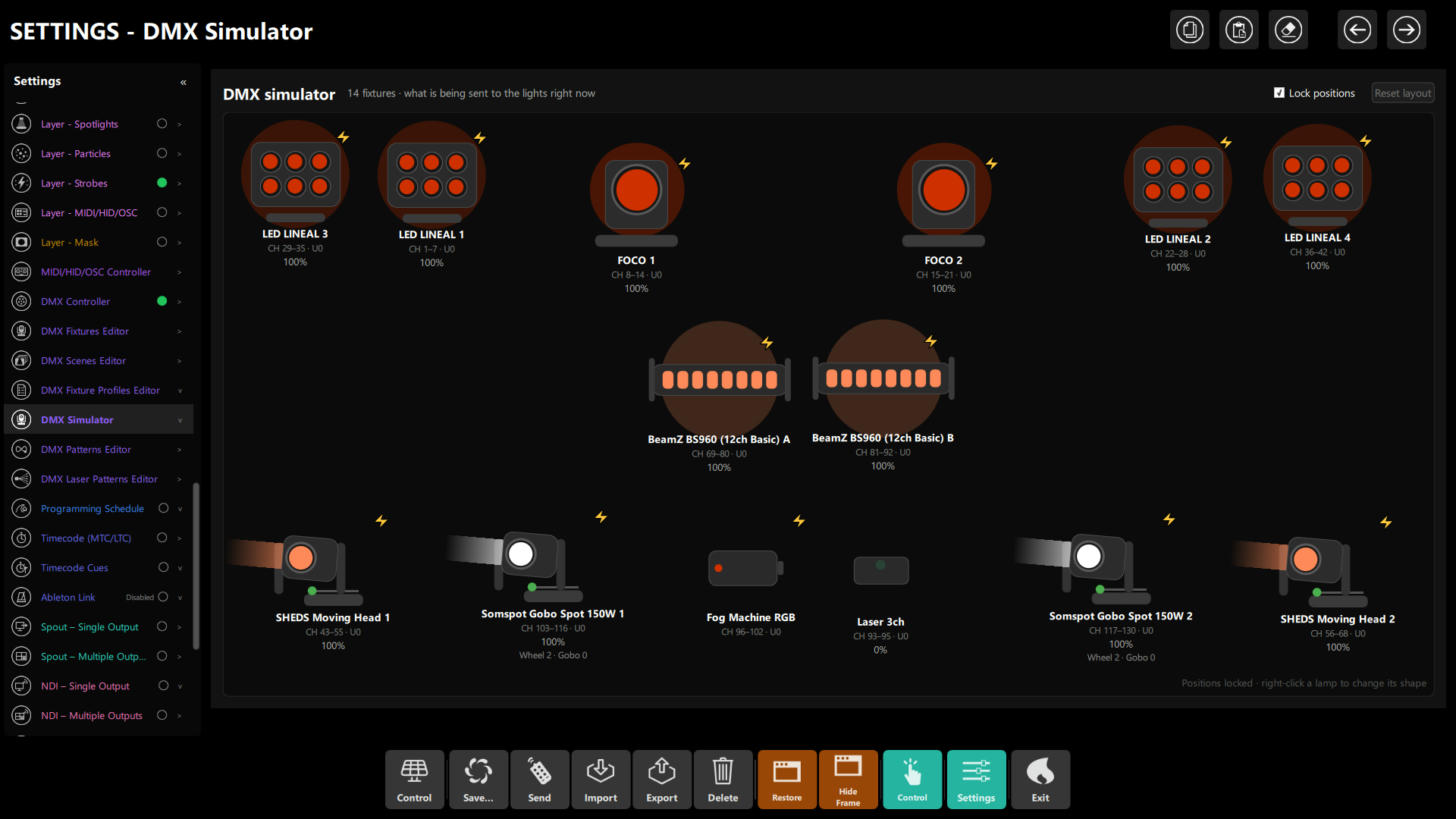 Figure 4: Settings → DMX Simulator. Each lamp shows its channel range, universe and current level, so you can see what is being sent to the lights right now. Untick Lock positions to rearrange the lamps; right-click a lamp to change its shape.
DMX Patterns and Laser Patterns
- DMX Patterns Editor manages movement patterns and keyframes, including pattern duration and looping.
- DMX Laser Patterns Editor configures laser preset intervals and blackout-related behavior.
Laser settings are safety-critical. Follow the fixture manufacturer's instructions and venue requirements; never use a rehearsal preview as a substitute for verifying the real installation.
Programming Schedule and Timecode Cues
- Programming Schedule runs configured actions at specified days and times.
- Timecode Cues runs actions when an MTC/LTC or manual timecode reaches a cue.
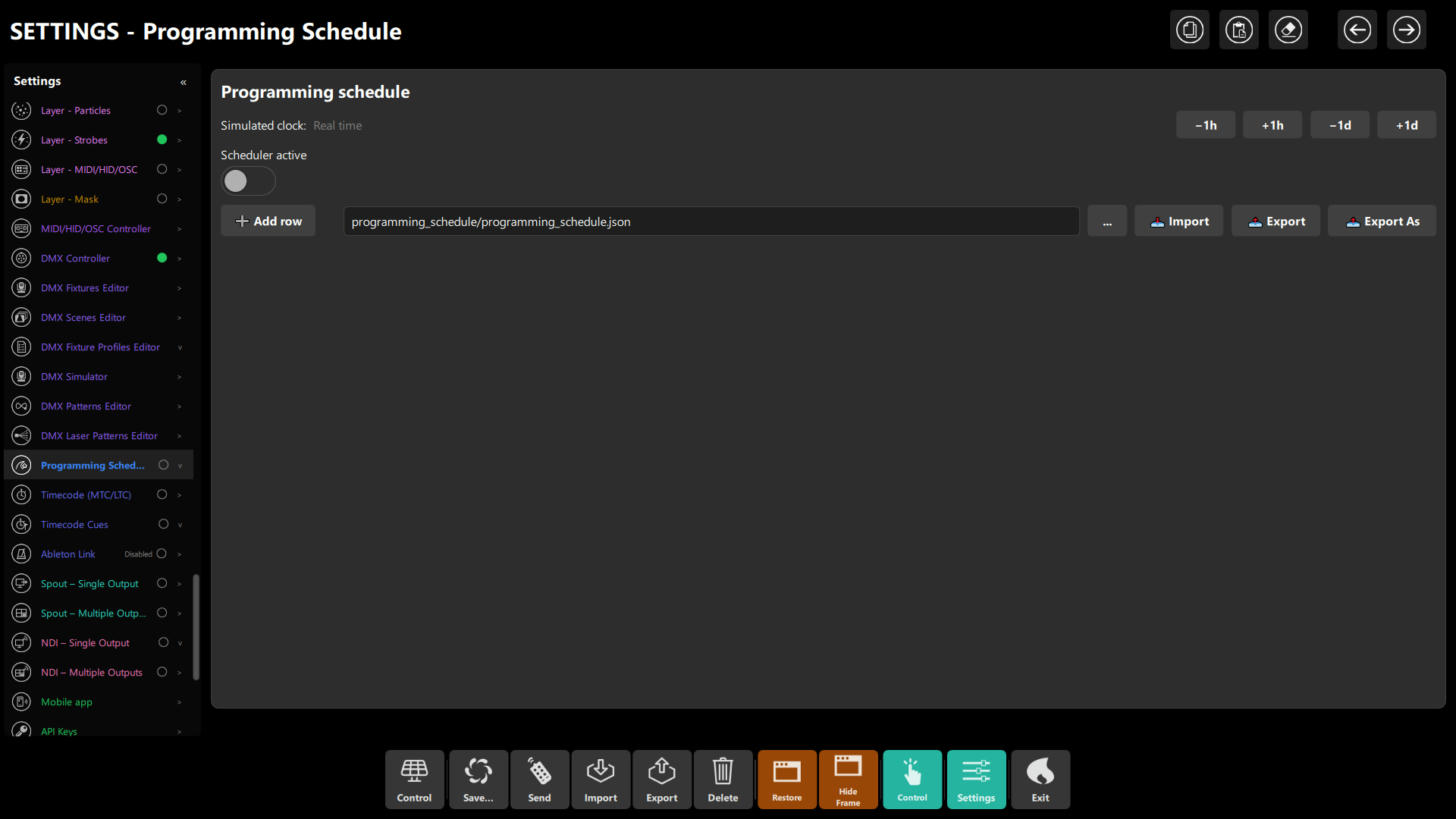 Figure 5: Settings → Programming Schedule. The Scheduler active master switch, the simulated-clock buttons (−1h, +1h, −1d, +1d), Add row, and the file Import/Export controls.
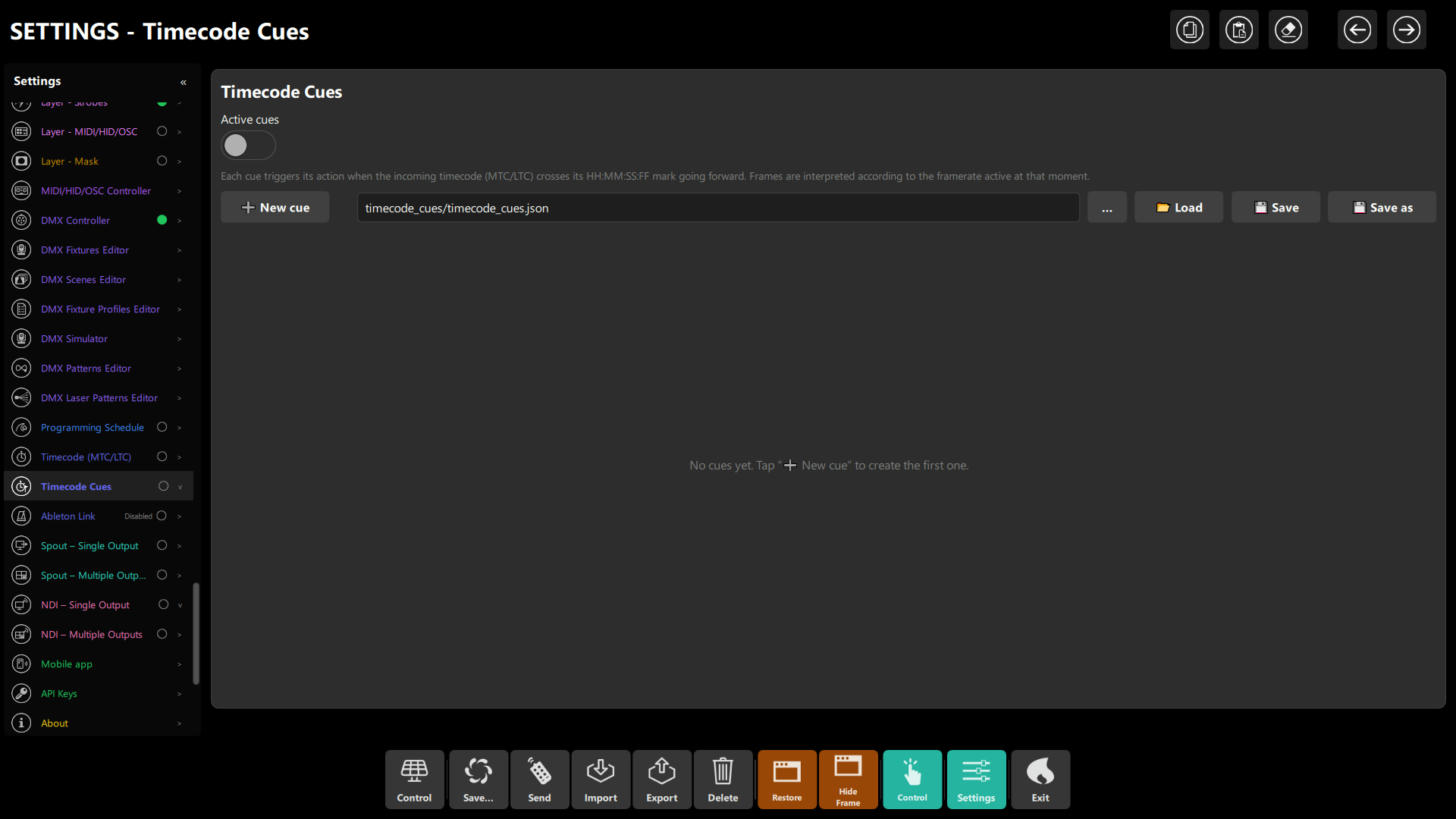 Figure 6: Settings → Timecode Cues: the Active cues switch, New cue, and the Load/Save/Save as file controls.
Rehearse each action before enabling it for a live event. The dedicated Schedule and Timecode Shows guides explain setup and cue behavior.
Ableton Link
Open Settings → Ableton Link to enable Link and select the clock source. The default Audio analysis uses
the app's audio beat tracking. Choose a Link-based source only when you intend to synchronize with other Link
participants. Beat policy, downbeat, phrase and effect-tempo controls affect beat-driven behavior; the effect
multiplier does not change the shared Link session tempo. Link and beat-clock settings are stored separately from
config.json.
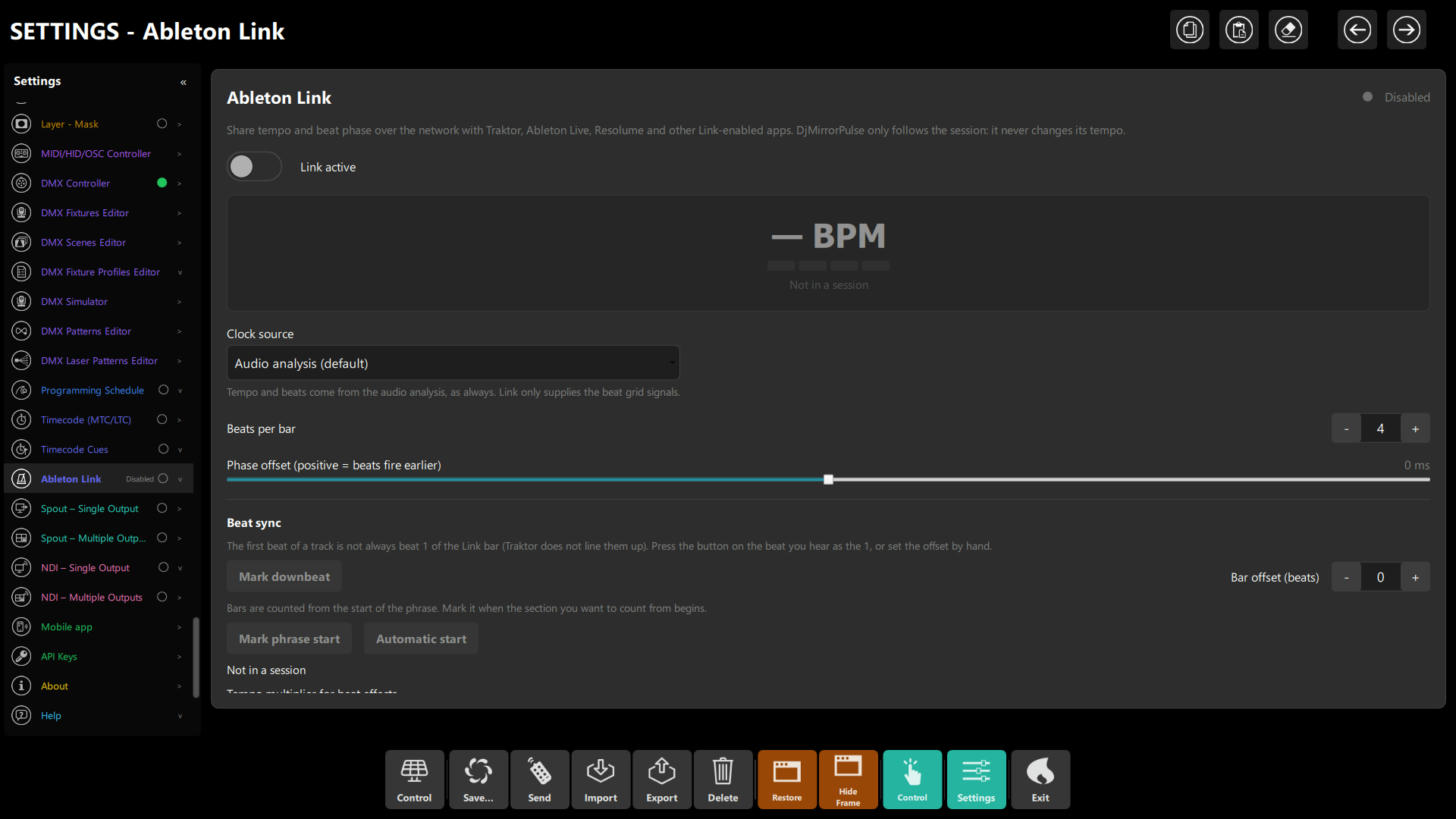 Figure 7: Settings → Ableton Link while disabled. Link active is the master switch; below it are the live BPM display, the Clock source (default: Audio analysis), beats per bar, phase offset and the beat-sync buttons.
DMX Quick Controls
The DMX panel's quick controls provide one-touch actions such as Strobe Burst, Clear Blackout, Movement Engine, Auto Dimmer and Long Fog Burst. They act on the live rig. Test their behavior with the simulator or in a controlled rehearsal before using them during a show.
Chapter 5: Find Help And Check Your License
- Help → Active License shows the edition, activation status, partial key, machine/distributor IDs and feature availability. Start here if a feature appears locked.
- What's New shows the app changelog.
- Network & Configuration summarizes server/client networking.
- MCP Server summarizes the MCP connection. For setup, see MCP Server for Users.
- Command Line summarizes launch flags. For file locations and flag behavior, see Config & CLI.
- About, License and Third-party licenses provide product and legal information.
Chapter 6: Quick Lookup
| I want to… | Start here |
|---|---|
| Fix brightness, contrast or saturation across the output | Settings → Global options |
| Change how video fits the display | Settings → Global options → Video Stretch |
| Add or edit ticker text | Settings → Layer - Marquee Text → Text Messages |
| Enter stock-media and AI keys | Settings → API Keys (Pixabay/Pexels image+video, Gemini) |
| Change a logo/card's presentation | Settings → Layer - Artist Card |
| Rehearse a lighting change | Settings → DMX Simulator |
| Schedule a change by clock time | Programming Schedule |
| Trigger changes from MTC/LTC | Timecode Cues |
| Diagnose a locked feature | Help → Active License |