Related guides: playlist basics are in the Quick Start; artist profiles and logos are in Content Management.
Chapter 1: At A Glance
| I want to… | Do this | Needs |
|---|---|---|
| Find a photo | Images → Edit → type a search → globe button | Pixabay and/or Pexels key (optional) |
| Find a video loop | Videos → Edit → type a search → globe button | Pixabay and/or Pexels key (optional) |
| Find a portrait for an avatar | Avatars → Edit → type a search → globe button | Pixabay and/or Pexels key (optional) |
| Keep a result | Press its download button, or Download all search results | Internet connection |
| Make a logo with AI | Edit an artist → AI logo enhancement styles | Gemini key |
Chapter 2: The Keys (2 Min, Once Per Machine)
Open Settings → API Keys. It has three pages, one per service. Key fields are masked with dots.
| Settings page | Field | Provider | Unlocks |
|---|---|---|---|
| Image Search | Pixabay API Key | Pixabay | Image and avatar search |
| Image Search | Pexels API Key | Pexels | The same, from a second source |
| Video Search | Pixabay API Key | Pixabay | Video search |
| Video Search | Pexels API Key | Pexels | The same, from a second source |
| Image Enhancement | Gemini API Key | Google Gemini | Text-to-image, image-to-image and background removal |
Without your own keys the panels use the services' built-in demo capacity; with your keys you get your own quotas and attribution. Keys are stored on this computer only — repeat the step on each booth laptop.
Warning
Treat API keys like passwords. Do not paste them into screenshots, chats or support tickets.
Chapter 3: How Searching Works
- Typing filters your own library. As you type in Search images… (or videos, avatars), the cards below narrow to the matching files already in the playlist. If nothing matches, the panel tells you there are no images.
- The globe button searches online too. Its tooltip reads Search locally and on the web. Pixabay and Pexels are asked at the same time, and the answers are merged into one list and shuffled for variety. The apps' own help quotes Pixabay as 3.9 million+ images and Pexels as 400 thousand+ photos and 30 thousand+ videos.
- Every word counts. A result must match all the words you typed, so
neon crowdreturns fewer pictures thanneon. Use fewer, more specific words if you get nothing. - Download = import. A downloaded image is saved at FullHD (1920×1080, centered crop) with a small information
file (
.meta) holding the source and credit; a video shows a progress indicator while it downloads. Files go to yourVisualsfolder (Images,Videos,Avatars,Logos) and are added to the active playlist, so they can play at once. - Playlists stay plain
.txtfiles. Downloading appends the new file names; it never rewrites your playlist by hand.
Chapter 4: Step By Step
Step 1 – Search images for tonight's theme (3 min)
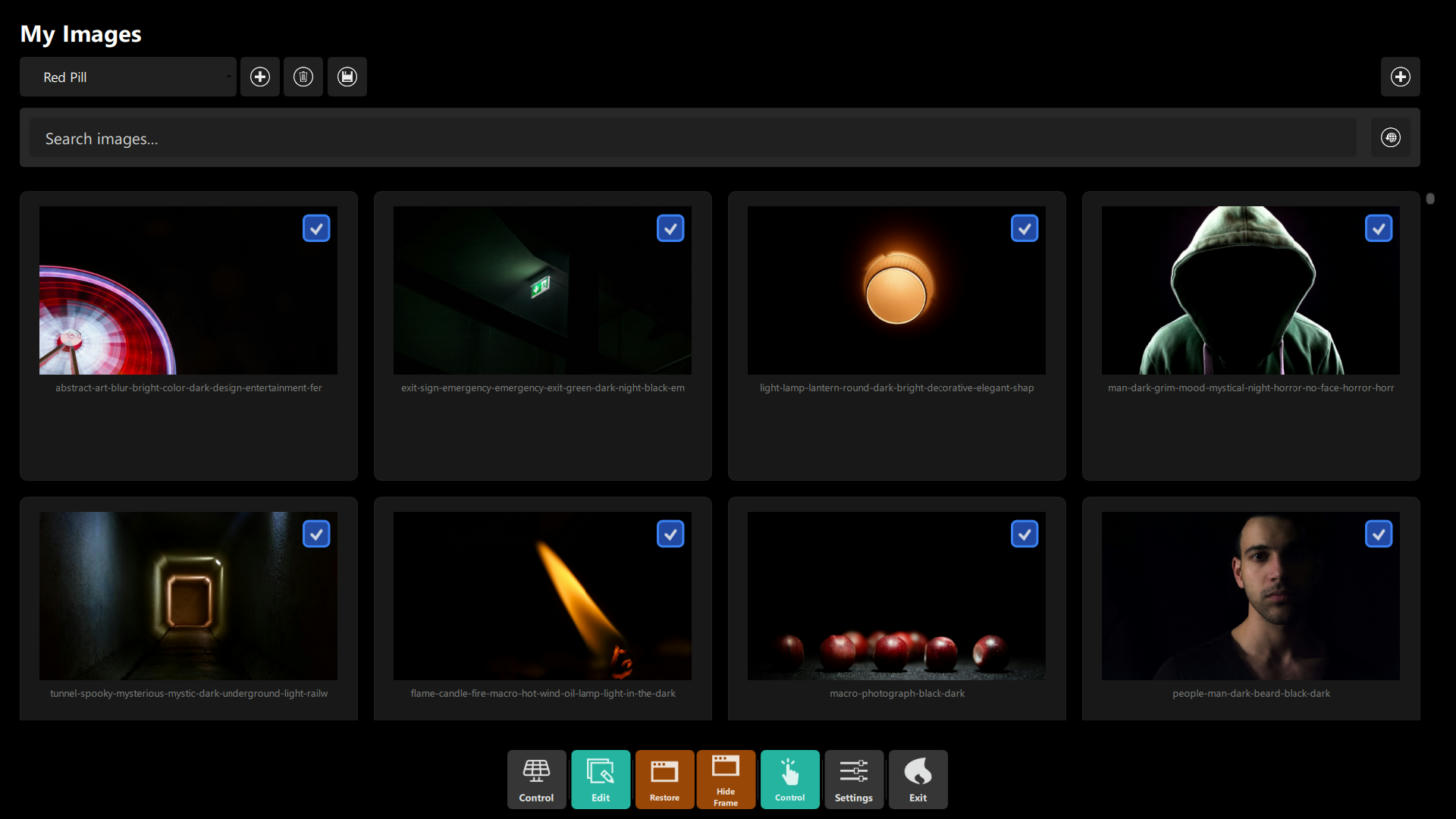 Figure 1: Images → Edit opens My Images: the playlist selector with New, Delete and Save buttons, the
Search images… box with the globe button, + to add an image from disk, and one card per image with a tick to
include it in the playlist.
Figure 1: Images → Edit opens My Images: the playlist selector with New, Delete and Save buttons, the
Search images… box with the globe button, + to add an image from disk, and one card per image with a tick to
include it in the playlist.
- Open the Images section (or Avatars) and press Edit in the bottom bar.
- Pick the playlist at the top left. The buttons beside it create a new playlist file, delete the selected playlist file and save the current selection.
- Type your search (
neon crowd,host portrait…) and press the globe button.
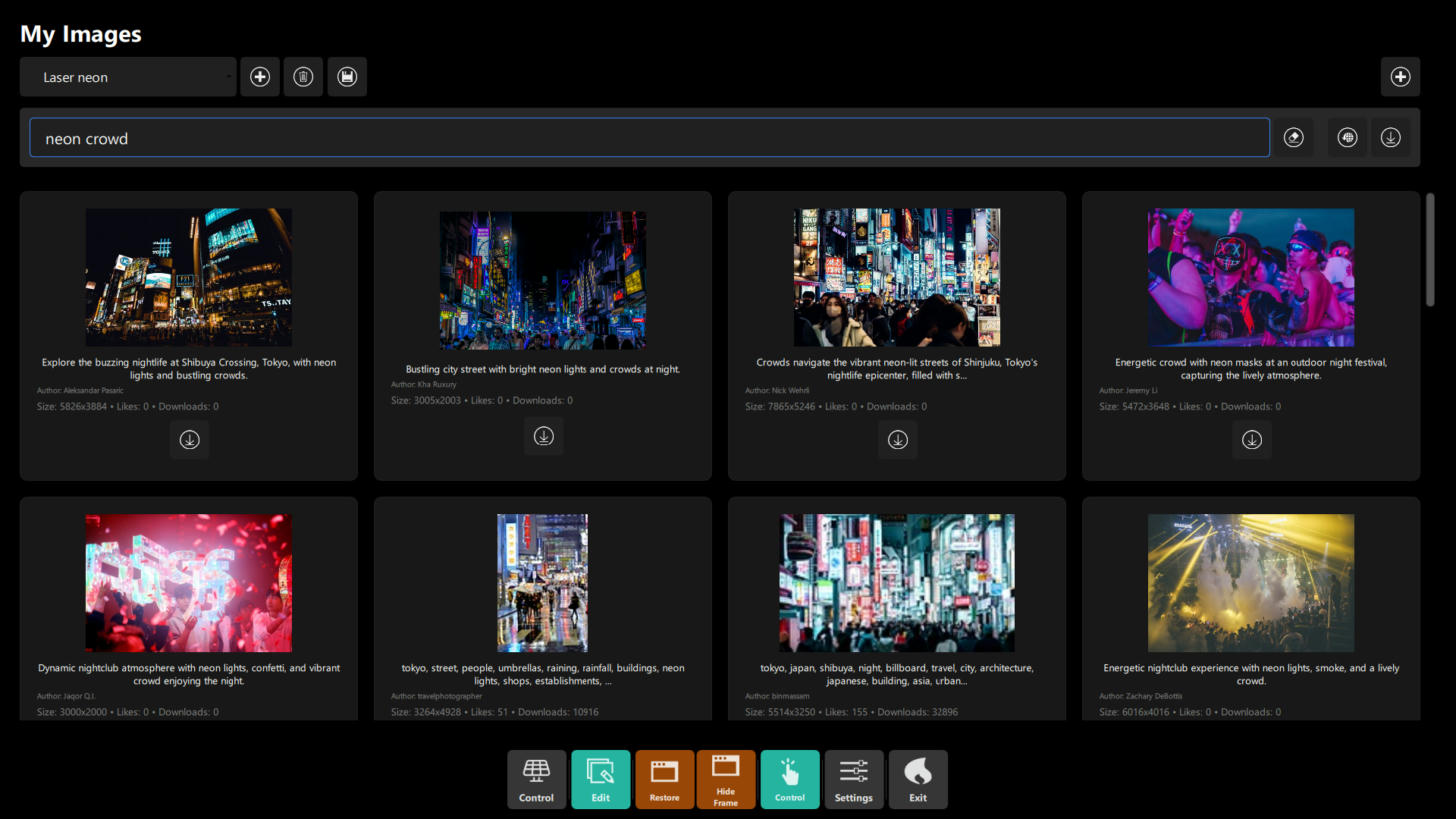 Figure 2: results for
 neon crowd. Each card shows a description, the author, the size, likes and downloads, and a
download button. The extra button at the top right, next to the globe, is Download all search results; the eraser
button clears the search.
- Download only the keepers. Confirm each one appears in the active playlist.
- Step through the playlist from your controller or keyboard — new files play like local ones. The small search icon on one of your own image cards searches the web using that image's name, which is a quick way to find more like it.
Tip
Downloading everything is easy and fills the disk. Preview first, then keep a handful per theme.
Step 2 – Pull two video loops (3 min)
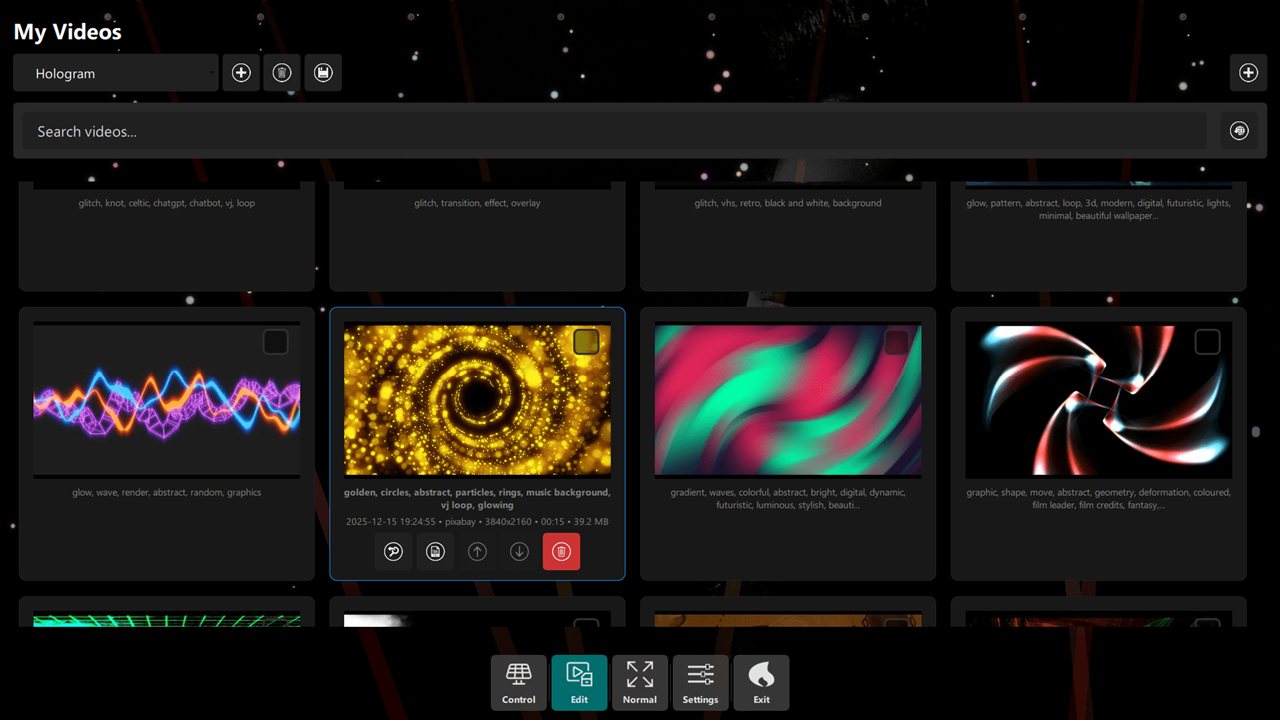 Figure 3: video results carry the source, resolution, duration and size — decide before you download.
Open Videos → Edit and search in the same way (Search videos…). Check the duration and size first, especially on venue Wi-Fi, then download (a progress indicator is shown). The file is added to the active video playlist; play it once to verify. Heavy files: download them at the hotel, not during doors.
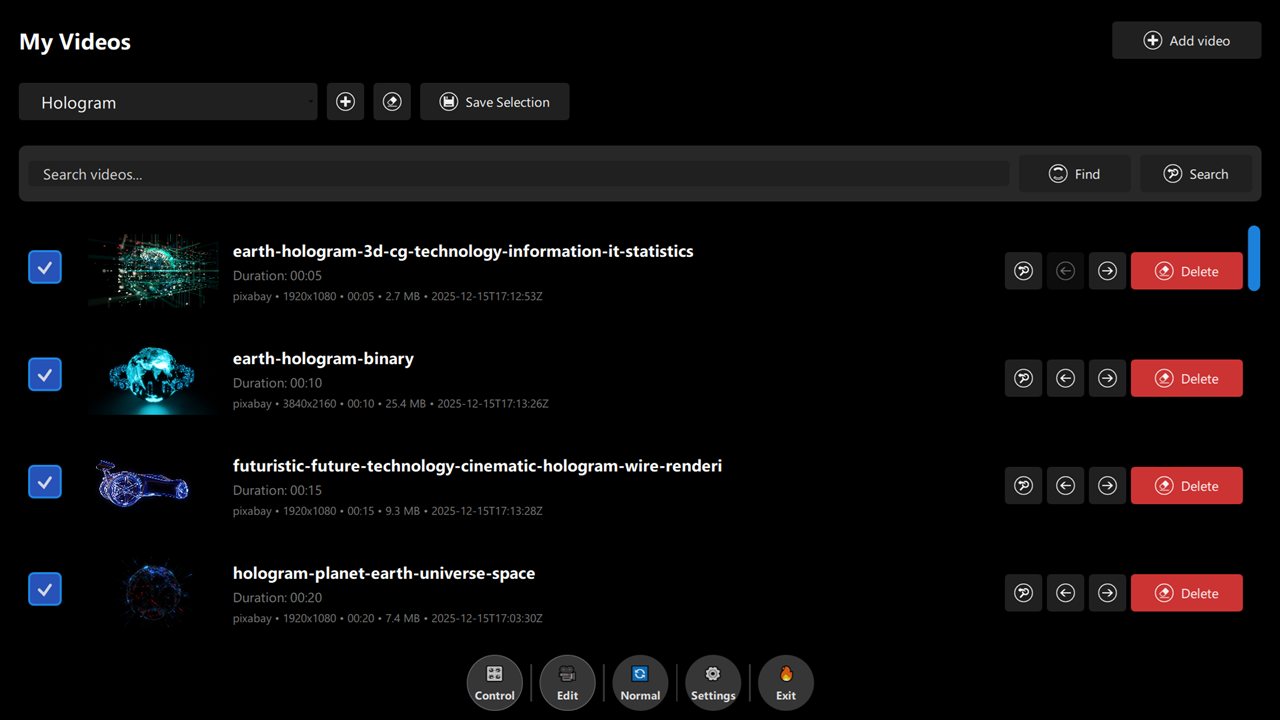 Figure 4: a grid of video results.
You can also add files you already own with the + button (Add an image from disk). The file picker accepts PNG, JPG/JPEG, GIF and BMP for images and avatars, and MP4, AVI, MOV and MKV for videos.
Step 3 – An AI logo for the headliner (5 min)
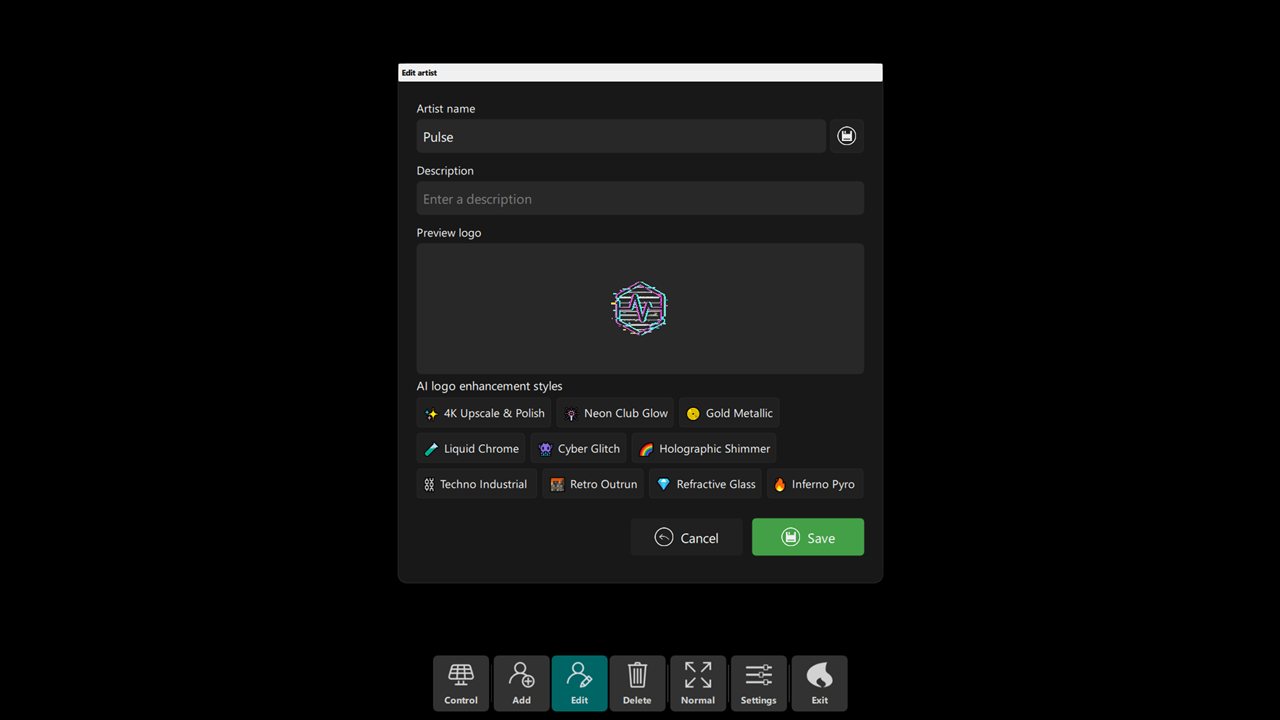 Figure 5: the AI styles offered when you edit an artist's logo.
- Set the Gemini key (§2).
- Create the artist with a logo first, then edit the artist: the dialog offers AI logo enhancement styles. Choose one of the ten presets and review the preview. The generated image is saved as a separate logo file, and a restore control brings back the original before you save. More about artist dialogs: Content Management.
- The result is a transparent PNG named
logo_ai_<timestamp>_<n>.png— it works well over dark visuals. Each preset asks the AI for a plain white background and the app then removes it automatically. Note which preset you used: recreating the same look later needs the same choice.
| Preset | Look |
|---|---|
| 4K Upscale & Polish | Sharper, cleaner version of the same logo |
| Neon Club Glow | Purple and cyan neon edges |
| Gold Metallic | Polished gold with 3D reflections |
| Liquid Chrome | Molten silver finish |
| Cyber Glitch | RGB split and scanlines |
| Holographic Shimmer | Iridescent rainbow finish |
| Techno Industrial | Brushed steel, gritty edges |
| Retro Outrun | 1980s synthwave gradients |
| Refractive Glass | Thick crystal with light dispersion and rainbow streaks |
| Inferno Pyro | Fire and molten lava with glowing-ember edges |
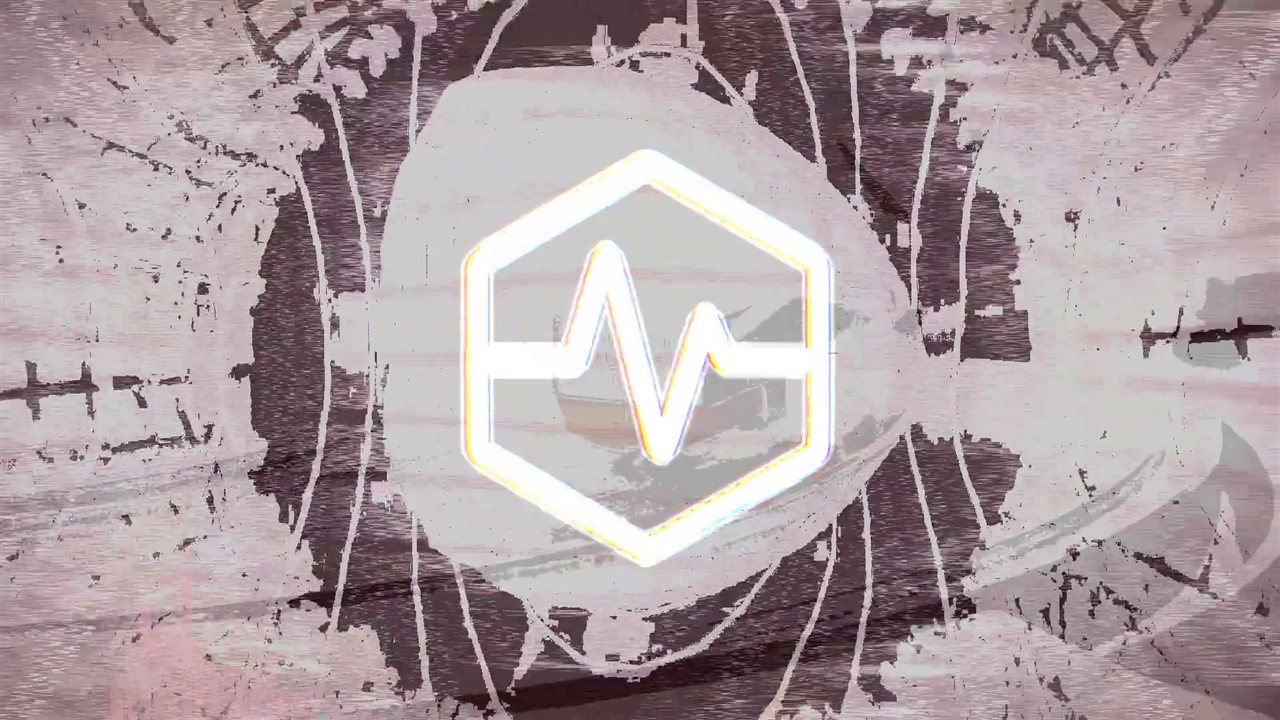 Figure 6: search → download → play: a downloaded stock visual with an artist logo on the output.
Chapter 5: Pre-Show Checklist
- Keys are present on the show machine (all five, or the ones you use).
- New downloads were played once in their playlists (images and videos).
- AI logos are on the Artist Card and the transparent background looks right on dark visuals.
- Large videos were downloaded in advance — no venue Wi-Fi roulette.
- The
.metafiles of downloaded media are kept if you need to show credits.
Chapter 6: Troubleshooting
| Symptom | Likely cause | Fix |
|---|---|---|
| Typing finds nothing | The text only filters your own library | Press the globe button to search online |
| Search returns nothing, or very few results | Too many words (all must match), no keys, or the demo quota is used up | Use fewer words; enter your keys (§2); check the provider's status |
| A download stalls | Big file on weak Wi-Fi | Download off-site, or pick a smaller rendition first |
| A new file will not play | Unsupported format | Use JPG/PNG for images and MP4 for video; add the file to the playlist again |
| The downloaded item is in the wrong playlist | A different playlist was selected | Select the playlist before downloading, then check its file list |
| The AI result still has a background | The automatic background removal could not separate the logo | Try another preset, or start from a logo with a plain, high-contrast background |
| Keys are missing on a second laptop | Keys are stored per computer | Repeat §2 on that machine |
| Avatar search looks wrong | Avatars use the image search | Search portrait-friendly terms |
More: Troubleshooting.
Chapter 7: Quick Recipe Card
- Keys: Settings → API Keys → Image Search (Pixabay, Pexels), Video Search (Pixabay, Pexels), Image Enhancement (Gemini). Per computer.
- Search: section → Edit → type → globe button (local + web) → download; the file lands in the active
playlist at FullHD with a
.metacredit file. - Typing alone only filters your library; every word must match online.
- AI: edit an artist → AI logo enhancement styles (10 presets) → transparent
logo_ai_*.png. - Verify everything plays; pre-download heavy video off-site.