It uses only the defaults the product ships with. Follow-up material lives in KEYBOARD_SHORTCUTS_REFERENCE (all shortcuts), VISUALIZERS_GUIDE (the five visualizers), MIDI_HID_CONTROLLER_GUIDE (hardware control) and DMX Rig Configuration Guide (stage lights).
Chapter 1: The 15-Minute Plan
| Minutes | Goal | You will do |
|---|---|---|
| 0–2 | Launch, survive the first run | Open the app, find Settings, go fullscreen |
| 2–5 | Audio in | Select the input device, play music, see the analyzers move |
| 5–8 | Picture out | Cycle styles, masks and background videos from the keyboard |
| 8–11 | Your content | Point playlists at your own videos/images, show an artist card |
| 11–13 | Make it yours | Keep a style, set volumes and silence to sane values |
| 13–15 | Prove it works | Run the pre-show checklist, know the escape keys |
Nothing here needs a controller, DMX hardware, a license key or a network. Defaults are enough for the first show.
 Figure 1: your booth, your visuals, a full floor.
Chapter 2: Minutes 0–2 — Install And Launch
- Install and open DjMirror Pulse on Windows or macOS, following the prompts shown by your installer.
- On first launch the app creates its content folders from the bundled
Visuals.zipif they do not already exist. The default root isDocuments/Visuals/, withVideos,Images,Avatars,LogosandStylesinside. If you or your installer changed the documents location, use that configured location instead. - For ordinary use, change settings in the app. If you need to edit configuration files, the effective
config.jsonis not necessarily next to the executable: on Windows it is%AppData%\DjMirror\DjMirrorPulse\config.json; on macOS it is~/Library/Application Support/DjMirror/DjMirrorPulse/config.json. The file beside the app is a shipped template. Command-line flags override the effective file. See Config & CLI before editing it. Useful flags for later:--server --port 8080(control API) and--client http://SERVER:8080(follow another machine). - Press
Ctrl+W— fullscreen, no window chrome. Press again to come back (windowed = half size, centered). Do every check below in fullscreen at least once: that is how the audience will see it.
Trial notice: the first run starts a 14-day trial of the Standard tier (Professional/Enterprise features show as locked). You don't need a key for this guide. Activation is covered in the License & Activation Guide.
Chapter 3: Minutes 2–5 — Get Audio Flowing
- Open Settings → AUDIO Device.
- Set Main Audio Device to the device carrying your mix (DJ mixer USB out, or system loopback if you play music on the same laptop). Set a Fallback Audio Device too — the app switches over instead of going silent if the main one disappears mid-show.
- Set Capture Input Volume (0.0–2.0) to about 1.0 and play music.
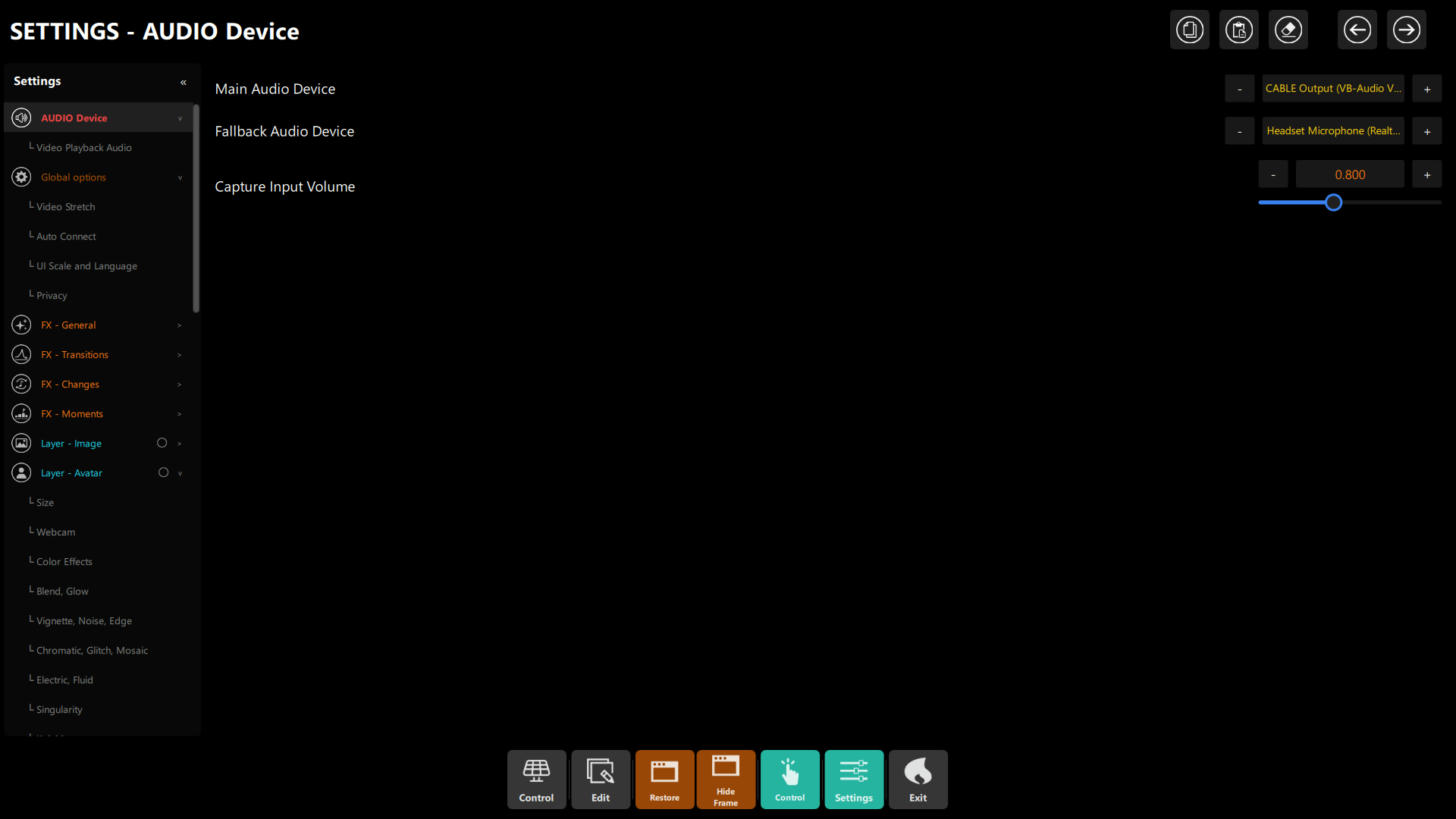 Figure 2: Settings → AUDIO Device — the Main and Fallback devices (use the − and + buttons to step through the list) and the Capture Input Volume. The sidebar entry below it, Video Playback Audio, is for audio that comes from played videos.
4. Watch the audio indicators / peak meters: bars should dance with the music. If they barely move, raise the capture
volume or the OS input level; if they pin at maximum, lower it. Clipping input = ugly visuals all night.
5. Leave silence-detection settings at their defaults for now. Tune them only if silence is falsely detected or
missed; see Audio Setup & Beat Sync and the
DMX guide's silence detector section.
Figure 2: Settings → AUDIO Device — the Main and Fallback devices (use the − and + buttons to step through the list) and the Capture Input Volume. The sidebar entry below it, Video Playback Audio, is for audio that comes from played videos.
4. Watch the audio indicators / peak meters: bars should dance with the music. If they barely move, raise the capture
volume or the OS input level; if they pin at maximum, lower it. Clipping input = ugly visuals all night.
5. Leave silence-detection settings at their defaults for now. Tune them only if silence is falsely detected or
missed; see Audio Setup & Beat Sync and the
DMX guide's silence detector section.
If you use Ableton Link (Pro/Enterprise), enable Link in both apps on the same local network, then open Settings → Ableton Link and choose a clock source. The default Audio analysis keeps the usual audio tempo and beat tracking; choose a Link mode only when you want the Link session to drive or supplement the beat grid. See Audio setup & beat sync for the source modes, beat policies, downbeat and phrase controls, and troubleshooting. Link is not needed for the first show — the audio beat tracker is enough.
Chapter 4: Minutes 5–8 — Drive The Picture From The Keyboard
All shortcuts are Ctrl-only, application-wide, case-insensitive. The window must have OS focus (click it once).
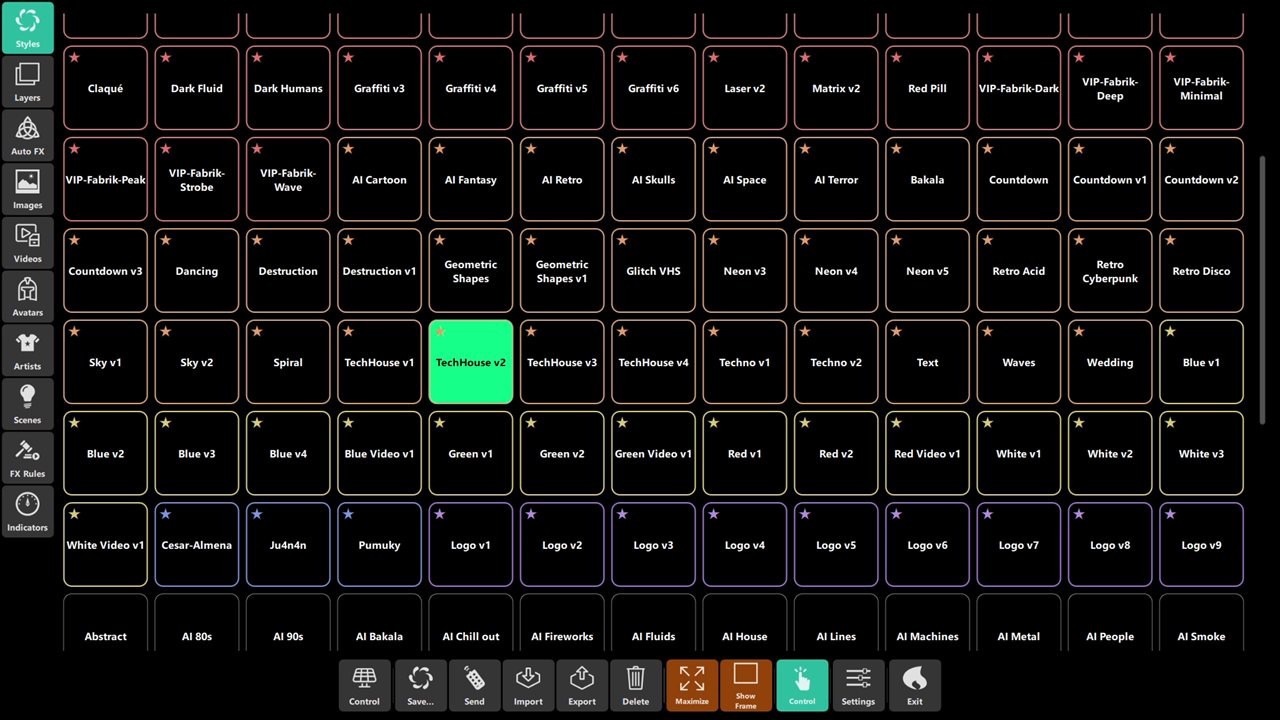 Figure 3: one tap switches the whole look.
| Shortcut | Effect |
|---|---|
Ctrl+F4 / Ctrl+F3 |
Next / previous style (visual theme, wraps around) |
Ctrl+F2 / Ctrl+F1 |
Next / previous mask (shape overlay) |
Ctrl+Down / Ctrl+Up |
Next / previous background video |
Ctrl+I |
FPS indicator — confirm smooth rendering, then hide it |
Exercise (do it now, 2 minutes): Ctrl+F4 five times (watch the whole look change), Ctrl+F2 three times,
Ctrl+Down through four videos. Then the double-hit — Ctrl+F4 + Ctrl+F2 together on a beat: that is your
transition move for the whole night. If F1–F4 change brightness instead, hold Fn or flip Fn-lock.
Chapter 5: Minutes 8–11 — Your Content: Playlists And Artists
Playlists are plain .txt files — one media filename per line — living beside their media in the Visuals
folders:
Documents/Visuals/Videos/<name>.txt→videoPlaylistDocuments/Visuals/Images/<name>.txt→imagePlaylistDocuments/Visuals/Avatars/<name>.txt→avatarPlaylist
- Copy a few clips into
Visuals/Videos/and make a<MySet>.txtfile in that same folder. Put one exact media filename on each line. - Select the playlist in the app and step with
Ctrl+Down/Ctrl+Up. Test every entry before the show; remove misspelled or missing filenames. - Artist card:
Ctrl+Right/Ctrl+Leftsteps through artists (and resets the card timer);Ctrl+Rbrings the card back without changing artist. Set the night's headliner now.
Styles are standalone files too: Visuals/Styles/<name>.json (visualizers + layers + shaders + screen FX).
Switching with Ctrl+F3/Ctrl+F4 never edits the file — experiment freely.
Style pack sharing / booth handoff: when a look uses custom media (logo, avatar, an image or video from the
current playlist), export it as a .style bundle before moving it to another booth or archiving it. The package is
just a ZIP that contains the style.json plus any bundled assets under Images/, Videos/, and Avatars/
(with metadata/thumbnail sidecars when present). Importing the package recreates the style and copies the media into
Documents/Visuals/ so the look is ready to play without manual re-linking. Use this for backup, venue templates,
show packages, and moving a ready-made set between laptops.
Chapter 6: Minutes 11–13 — A Few Useful Settings
- Output levels: brightness/saturation/opacity for the layers you use. Small room? Lower is better — bright projections on a near wall fatigue eyes fast.
- Video audio: Settings → AUDIO Device → Video Playback Audio — enable it and choose the output device, only if the show's audio comes from played videos.
- Silence: leave defaults today; tune per venue before any DMX show.
- Masks: Settings → Layer - Mask if a mask needs sizing for your projector.
Most settings persist automatically, although not all are stored in config.json (for example, the audio devices
are runtime settings). You normally do not need to
edit configuration files; see Config & CLI if you need to locate or change one.
Chapter 7: Minutes 13–15 — Prove It: The Pre-Show Checklist
Ctrl+Wfullscreen — no chrome, no cursor, no FPS overlay (Ctrl+Ioff).- Music playing — peak meters dance, visuals react.
Ctrl+Downthrough the entire playlist — no missing files, no vertical surprises.Ctrl+F4+Ctrl+F2transition — deliberate look change, wraps fine at list ends.- Artist card:
Ctrl+Rightto the headliner; let it hide;Ctrl+Rbrings it back. - Escape keys rehearsed:
Ctrl+Wback to windowed for emergencies. Never touchCtrl+Q(instant quit, no confirmation) during the show.
Chapter 8: Where To Go Next (After The First Show)
| Next step | Guide | When |
|---|---|---|
| Play without the mouse | Keyboard Shortcut Reference Card | Tape it to the laptop lid |
| Hands-on control | MIDI & HID Controller Setup | When you buy a controller (DDJ, Traktor, pads) |
| Light the room | DMX Rig Configuration Guide | Small rig first, then movement + scenes |
| Stream / project | NDI & Spout Output Guide | OBS, vMix, Resolume on same or remote PC |
| Multi-room | Multi-Screen & Client-Server Guide | One operator, many screens |
| Automate / integrate | HTTP & WebSocket API Reference | Show control from scripts and apps |
| Sound-savvy visuals | Visualizers Deep Dive | Pick the right visualizer per event |
| Touch control | OSC Integration Guide | TouchOSC, DAWs, Resolume Arena |
| Unlock tiers | License & Activation Guide | Trial ending, Pro/Enterprise features |
Chapter 9: Troubleshooting (First-Night Edition)
| Symptom | Likely cause | Fix |
|---|---|---|
| No visuals react to music | Wrong input device, or capture volume ~0 | Settings → AUDIO Device: correct Main device, volume ~1.0, OS input level up |
| Meters pinned at max | Input too hot | Lower capture volume / OS input level |
Ctrl+F1–F4 change brightness |
Laptop Fn/media keys | Hold Fn, or enable Fn-lock |
| Shortcut does nothing | App window not focused | Click the DjMirror Pulse window once |
| Black flash between videos | Missing file in the .txt playlist |
Step through the whole playlist in soundcheck; fix filenames |
| Card won't come back | Timer hidden + wrong keys | Ctrl+R (not arrows) brings it back unchanged |
| App quit mid-show | Hit Ctrl+Q next to Ctrl+W |
Left hand only for Ctrl+W; stay clear of Q |
| macOS combo dead | OS shortcut conflict | System Settings → Keyboard → Shortcuts, disable overlap |
Chapter 10: Quick Recipe Card (Your First 15 Minutes)
- 0–2: Launch → locate the configured
Visuals/folder →Ctrl+Wfullscreen. - 2–5: AUDIO Device → main + fallback → play music → meters dance.
- 5–8:
Ctrl+F4styles ·Ctrl+F2masks ·Ctrl+Downvideos · double-hit transitions. - 8–11: Own files into
Visuals/+.txtplaylist → step it fully →Ctrl+Rightheadliner. - 11–13: Levels sane · video-audio if needed · persist automatic.
- 13–15: Checklist §7 → escape
Ctrl+W→ hands offCtrl+Q.