It uses only what the product already provides; reference material lives in docs_keyboard/README_KEYBOARD_SHORTCUTS (full reference), MIDI_HID_CONTROLLER_GUIDE (the same actions from hardware) and VISUALIZERS_GUIDE (what masks and styles actually change on screen).
Chapter 1: The Example Set
| Moment of the night | What the audience sees | Shortcuts you will use |
|---|---|---|
| Setup / doors | App window on the projector, UI chrome visible | Ctrl+W (fullscreen) |
| Welcome / dinner | Artist card with the host's name, calm background video | Ctrl+Right / Ctrl+Left, Ctrl+R, Ctrl+Up / Ctrl+Down |
| Warm-up | Same playlist, first mask and style | Ctrl+F1 / Ctrl+F2, Ctrl+F3 / Ctrl+F4 |
| Dance sets | Style + mask + video changes on transitions | All visual shortcuts combined |
| Speeches / toast | Artist card back on screen | Ctrl+R |
| End of night | Back to windowed, quit | Ctrl+W, Ctrl+Q |
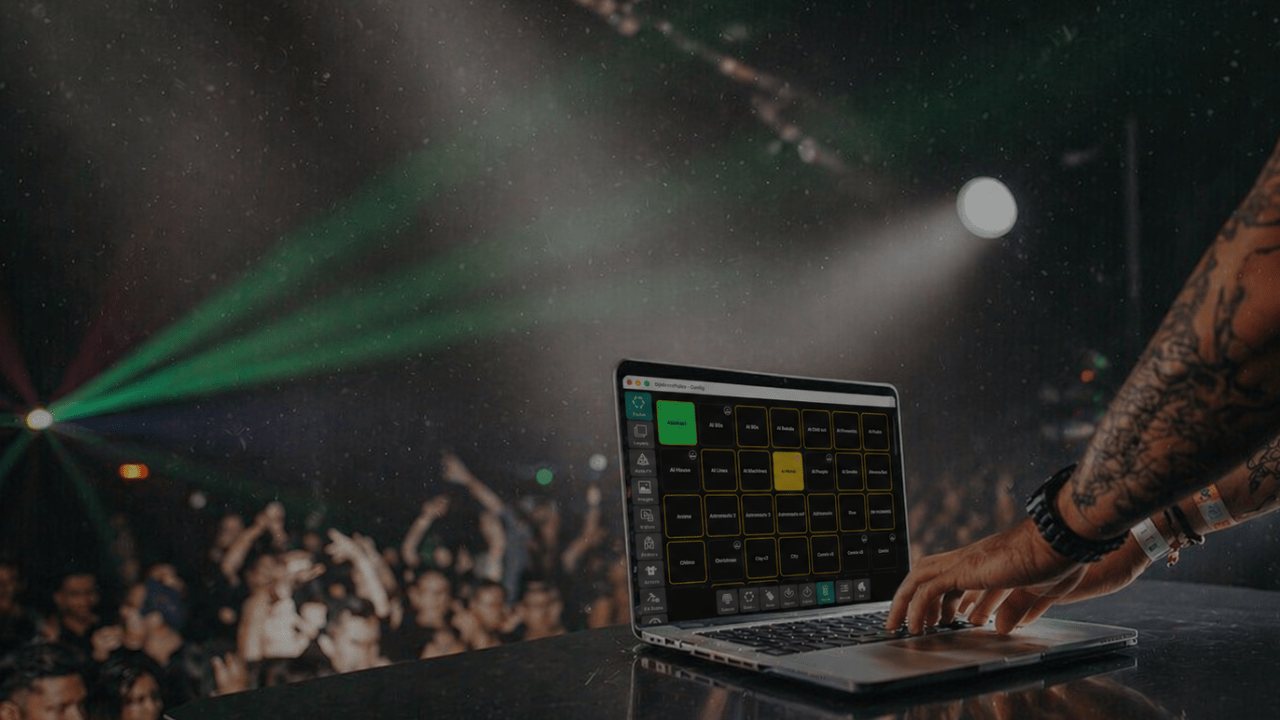 Figure 1: keyboard only on the booth — no controller needed.
Nothing here needs a controller, a second screen, or NDI/Spout. If you later add a MIDI/HID controller, the same
actions apply: every shortcut action (playlistStep, maskStep, style, artist) can be mapped to a button, fader
or pad — see the MIDI & HID guide.
Goals for a room this size
- The audience must never see the application chrome: go fullscreen before the doors open.
- One hand stays free (drinks, microphone, mixer): every action is a single
Ctrlcombination. - Transitions look intentional: change style + mask + video as a deliberate chain, not random key mashing.
- The artist card never stays hidden by accident: know the visibility timer reset by heart.
Chapter 2: Concepts In Two Minutes
- Application-wide,
Ctrl-only. All 14 shortcuts use theCtrlmodifier (neverAlt,Metaor⌘on macOS) and work anywhere in the app — no need to click a panel first. They are case-insensitive (Ctrl+W=Ctrl+w). Implemented as QtShortcutwithQt.ApplicationShortcutcontext. - Focus is required. The DjMirror Pulse window must have OS focus (click it once). If a shortcut does nothing, focus was stolen by another app — not a bug in the shortcut.
- Two windows.
Ctrl+Wdrives the main window;Ctrl+Sdrives the separate (second-screen) window.Ctrl+Ftoggles the main window's frame, but only in windowed mode (fullscreen is always frameless). - Wrap-around lists. Styles and masks cycle and wrap: past the last style comes the first one again. There is no "style 0" to get stuck on.
- Artist timer.
Ctrl+Right/Ctrl+Leftstep through the artist list and reset the artist card + marquee visibility timer.Ctrl+Rresets the timer without changing artist — the "bring the card back" key. - Video playlist.
Ctrl+Up/Ctrl+Downstep through the background video playlist (previous / next). They control the background video view only. - Fixed set. Shortcuts are currently hardcoded — there is no remapping UI. To get the same actions on hardware buttons, map them in Settings → MIDI/HID/OSC Controller instead.
Chapter 3: Step By Step
Step 1 – Go fullscreen before anyone looks at the screen
Press Ctrl+W once. The window chrome disappears and the visuals fill the projector.
- Pressing
Ctrl+Wagain returns to windowed mode: the window is resized to half its current dimensions and centered — handy for reaching Settings between sets without dragging corners. - Second screen?
Ctrl+Stoggles the separate window fullscreen/windowed (windowed = 80 % of that screen, centered).Ctrl+Fhides/shows the main window frame — windowed mode only.Ctrl+Itoggles the FPS indicator: useful during setup to confirm rendering headroom, hide it before doors. - Do this before the doors open. The audience should never see panels, cursors or window borders.
- On laptops where
F1–F4are media/brightness keys, check the Fn-lock now (holdFnif needed) — you will needCtrl+F1…Ctrl+F4later and you do not want to discover the Fn key mid-drop.
Step 2 – Put the right artist on screen
| Shortcut | Effect |
|---|---|
Ctrl+Right |
Next artist (also resets card + marquee timer) |
Ctrl+Left |
Previous artist (also resets timer) |
Ctrl+R |
Reset timer only — card reappears if hidden, artist unchanged |
Rehearse this chain: Ctrl+Right three times (watch the card change), wait for the card to auto-hide, then
Ctrl+R (card comes back). That is the exact move you will use when the host grabs the microphone.
Step 3 – Learn the two visual axes: masks and styles
Masks are shape overlays on the output; styles are saved visual themes (colors, layers, behavior).
| Shortcut | Effect |
|---|---|
Ctrl+F1 / Ctrl+F2 |
Previous / next mask |
Ctrl+F3 / Ctrl+F4 |
Previous / next style (wraps around) |
Practice the transition double-hit: Ctrl+F4 then Ctrl+F2 (next style + next mask). Fired together on a
phrase change, it reads as one deliberate visual cut. Reverse it (Ctrl+F3 + Ctrl+F1) to step back if you
overshoot — both lists wrap, so you can always come around again.
Step 4 – Drive the background video without the mouse
| Shortcut | Effect |
|---|---|
Ctrl+Up |
Previous video in the playlist |
Ctrl+Down |
Next video in the playlist |
These control the background video view only. Step through the whole playlist once during soundcheck so there are no surprises (vertical phone clips, black intros) during the set.
Step 5 – Know the two exit keys and when NOT to press them
| Shortcut | Effect | Warning |
|---|---|---|
Ctrl+W |
Toggle main-window fullscreen / windowed | Safe anytime, but never mid-drop — the resize is visible |
Ctrl+S |
Toggle separate (second-screen) window fullscreen / windowed | Windowed returns at 80 % of screen size, centered |
Ctrl+F |
Toggle main-window frame (windowed mode only; fullscreen is always frameless) | No effect in fullscreen |
Ctrl+I |
Toggle FPS indicator overlay | Monitor-only, audience never needs it |
Ctrl+Q |
Quit immediately | No confirmation. Keep this key away from fat-finger range during the set |
If your laptop keyboard puts
WandQnext to each other (most do), train yourself: fullscreen =Ctrl+Wwith the left hand only before the set; nothing nearQwhile dancing.
Chapter 4: Putting It Together: What Your Hands Should Do
| Moment | Hands | Result |
|---|---|---|
| Doors (empty room) | Ctrl+W |
Fullscreen, clean projection |
| Guests arrive | Ctrl+Right × n to the host, Ctrl+Down to a calm loop |
Correct name, calm video |
| Card hides itself | Ctrl+R |
Card back, same artist |
| Warm-up → dance | Ctrl+F4 + Ctrl+F2, Ctrl+Down |
New style + mask + video in one phrase |
| Overshot the style | Ctrl+F3 (or keep going — it wraps) |
Previous style, no panic |
| Speech / toast | Ctrl+R (card back), leave masks alone |
Room attention on the name, visuals calm |
| Break / emergency | Ctrl+W to windowed for Settings, Ctrl+W back after |
Audience sees at most one clean toggle |
| End of night | Ctrl+W, then Ctrl+Q |
Windowed, quit |
Chapter 5: Test It Before The Event (2 Minutes, No Audience Needed)
- Click the DjMirror Pulse window once (focus), press
Ctrl+W— confirm fullscreen with no chrome. Ctrl+Right,Ctrl+Left— confirm the artist card changes and the timer resets (card reappears).- Let the card auto-hide, press
Ctrl+R— confirm it comes back without changing artist. Ctrl+F2,Ctrl+F1,Ctrl+F4,Ctrl+F3— confirm masks and styles cycle and wrap at both ends.Ctrl+Up,Ctrl+Down— confirm the background video steps through the playlist.- If any of
Ctrl+F1–F4adjusts brightness/volume instead: holdFnor flip Fn-lock, repeat step 4. - On macOS: open System Settings → Keyboard → Shortcuts, confirm no OS entry steals your combos.
Print the reference card (§8) and tape it to the laptop lid — under stage lighting you will not read a PDF.
Chapter 6: Doing It From Hardware Later (Same Actions, No Re-Learning)
Every shortcut action exists as a mappable controller action for when you buy a controller:
| Shortcut | Controller action equivalent |
|---|---|
Ctrl+F1 / Ctrl+F2 |
maskStep with previous / next |
| Video step | playlistStep on videoPlaylist with previous / next |
| Style / artist recall | style / artist with the saved name |
| Timer reset habit | No direct equivalent — map a spare pad to style re-fire or just keep Ctrl+R on the keyboard |
Keyboard and controller can be used simultaneously: keep Ctrl+R and Ctrl+W on the keyboard even after
mapping everything else to pads. See MIDI_HID_CONTROLLER_GUIDE.md §9 for a worked DDJ example.
Chapter 7: Troubleshooting
| Symptom | Likely cause | Fix |
|---|---|---|
| Shortcut does nothing | DjMirror Pulse window not focused | Click anywhere on the DjMirror Pulse window first |
| Shortcut intercepted (e.g. browser/VPN hotkey fires) | Another app registered a global hotkey | Quit or rebind the other app's global hotkeys |
Ctrl+F1–F4 change brightness/volume |
Laptop Fn/media keys | Hold Fn while pressing, or enable Fn-lock |
| macOS combo does nothing | macOS system shortcut conflict | System Settings → Keyboard → Shortcuts, disable overlapping entries |
| Shortcuts stopped mid-session | Focus lost to another window | Click DjMirror Pulse to refocus; restart app if it persists |
| Want different key bindings | Shortcuts are fixed in 6.9 | Use a MIDI/HID controller mapping instead (any button → same action) |
Ctrl+Q quit the app mid-set |
Fat-finger next to Ctrl+W |
Keep left hand anchored; never reach across the Q/W pair while dancing |
Chapter 8: Quick Recipe Card (Print Me)
- Before doors:
Ctrl+W→ fullscreen (Ctrl+Sfor the second screen). Check Fn-lock forF1–F4.Ctrl+Ito check FPS, then hide it. - Artist:
Ctrl+Right/Ctrl+Leftto pick ·Ctrl+Rto bring the card back. - Look:
Ctrl+F3/Ctrl+F4styles ·Ctrl+F1/Ctrl+F2masks · chain style+mask for transitions. - Video:
Ctrl+Up/Ctrl+Downthrough the background playlist. - After:
Ctrl+Wto windowed ·Ctrl+Qto quit (no confirmation — careful!). - If dead: click the window (focus) → retry → check Fn / macOS conflicts.
- All
Ctrl, case-insensitive, application-wide. Fixed set in 6.9 — hardware mapping is the customization path.