DjMirror Pulse keeps three related things separate:
- Artist profiles provide the name, logo, and optional marquee text used when an artist is selected.
- Media libraries hold image, video, avatar, and logo files on disk.
- Playlists are
.txtfiles that choose and order media for playback.
Stock search and AI tools help add files to those libraries, but they are not the libraries themselves. This guide explains where each item belongs and how to get it on screen. For provider keys and search/download details, see Media Search & AI; for playlist playback, see Quick Start.
Chapter 1: At A Glance
| I want to… | Go to | Notes |
|---|---|---|
| Create, edit or delete an artist | Side menu Artists → Add, Edit, Delete in the bottom bar | Name and logo are required |
| Show a different artist | Tap the artist tile, or Ctrl+Right / Ctrl+Left |
Stepping wraps at the ends of the list |
| Manage pictures, videos or avatars | Side menu Images, Videos or Avatars → Edit | One playlist file per list |
| Find new media online | The globe button in those editors | See Media Search & AI |
| Restyle a logo with AI | Edit an artist → AI logo enhancement styles | Needs the Gemini key |
| Change how the logo looks on screen | Settings → Layer - Artist Card | Applies to all artists |
Your media lives in the Visuals folder, inside the folder set by documentsPath (by default your Documents
folder). See Config & CLI if yours is somewhere else.
Chapter 2: Add An Artist Profile
Open the Artists section from the side menu. The artist tiles in the control panel are the profiles available for the show; the selected profile is highlighted. The Add, Edit and Delete buttons in the bottom bar act on this section and, for Edit and Delete, on the currently selected artist.
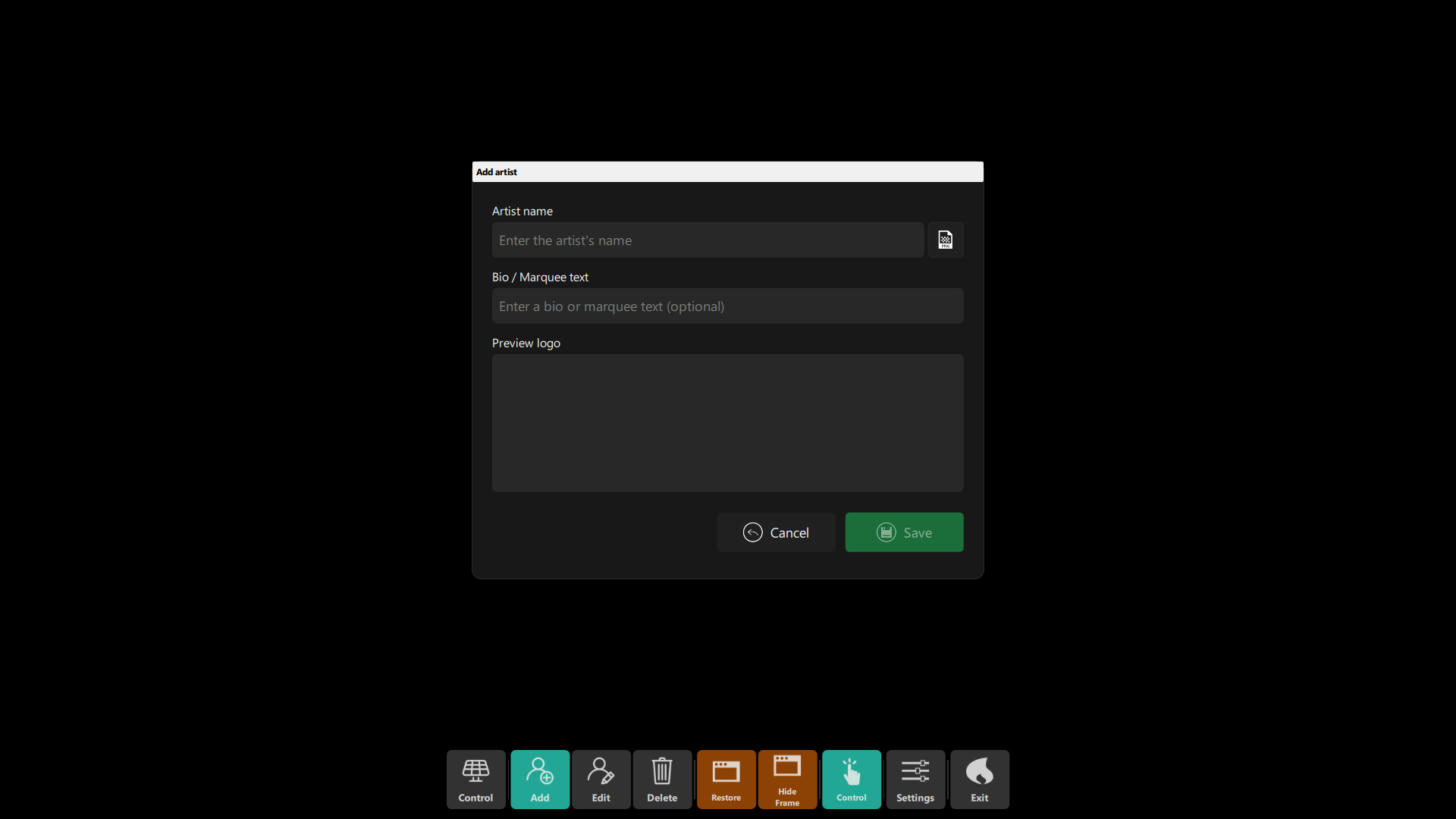 Figure 1: the Add artist dialog — Artist name with its logo file button, the optional Bio / Marquee text, the
Preview logo area, and Cancel / Save.
Figure 1: the Add artist dialog — Artist name with its logo file button, the optional Bio / Marquee text, the
Preview logo area, and Cancel / Save.
- Choose Add to open the artist dialog.
- Enter an Artist name.
- Use the file button at the right of the name field to choose a logo. The path itself is not an editable field; check the Preview logo area to confirm the image loaded.
- Optionally enter a short line in Bio / Marquee text.
- Choose Save. Name and logo are required; the marquee text is optional.
The logo picker accepts PNG, JPG/JPEG, GIF, and BMP. If the selected file is outside the app's Visuals/Logos/
folder, DjMirror Pulse copies it there and stores the filename with the profile. Keep the copied logo file in that
folder; deleting or moving it can leave the profile pointing to a missing image.
Choose distinct artist names. The app creates an internal artist ID from a new name by lowercasing it and removing spaces. Names that differ only by capitalization or spaces can therefore conflict. If a newly added profile does not appear, check that its name does not conflict with an existing one.
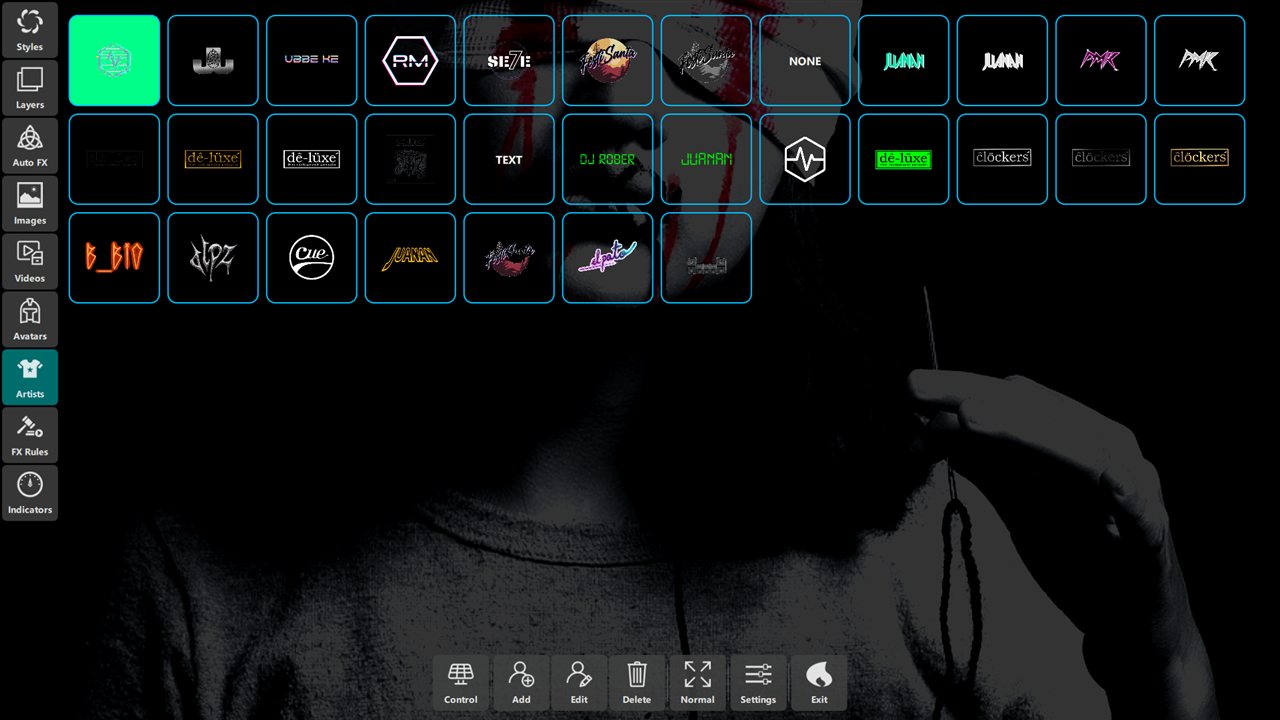 Figure 2: artist profiles available to select from the control panel.
Chapter 3: Edit, Select, Or Remove An Artist
- Edit: select the artist tile, then choose Edit. Change the name, logo, or optional marquee text, then save.
- Select for the show: choose the artist in the control panel, or step through the list with
Ctrl+RightandCtrl+Left. Stepping wraps at the ends of the list. Theartistaction can select an artist by name in a schedule, a timecode cue or a controller mapping — see the action reference. - Delete: select the artist tile, choose Delete, and confirm. This removes the profile from the artist
list; it does not remove the logo file from
Visuals/Logos/.
The profile stores only three artist-specific values: name, logo filename, and description. The description is passed to the marquee as the artist-description text. It is not a long biography field: write a short line that can scroll on screen. It appears only when the marquee is visible and its message setup uses the artist description (the default configuration does). If it is blank, the artist contributes no description text.
Logo appearance settings such as 2D/3D, size, position, color, and effects belong to the Artist Card visual element/style, not to individual artist profiles. Changing those settings changes the presentation for artists generally. See the Artist Card section in Layers, Shaders & FX.
When editing an existing artist, the dialog also offers AI logo enhancement styles. These enhance the currently selected logo; they are not the Add Artist flow and do not create a profile. There are ten presets: 4K Upscale & Polish, Neon Club Glow, Gold Metallic, Liquid Chrome, Cyber Glitch, Holographic Shimmer, Techno Industrial, Retro Outrun, Refractive Glass and Inferno Pyro. The generated image is saved as a separate logo asset with a transparent background. Use the restore control to return to the original logo before saving if needed. AI enhancement requires the Gemini key described in Media Search & AI.
Chapter 4: Understand Libraries And Playlists
A media file and a playlist entry are different things:
- A library folder contains the actual files.
- A playlist is a
.txtfile containing filenames, one per line, in playback order. - Selecting a playlist makes it the current playlist for that media type. Adding or downloading an item into a playlist does not mean it has been copied into every other playlist.
| Control-panel section | Files stored in | Playlist files | Supported file types |
|---|---|---|---|
| Images | Visuals/Images/ |
Visuals/Images/*.txt |
PNG, JPG/JPEG, GIF, BMP |
| Videos | Visuals/Videos/ |
Visuals/Videos/*.txt |
MP4, AVI, MOV, MKV |
| Avatars | Visuals/Avatars/ |
Visuals/Avatars/*.txt |
PNG, JPG/JPEG, GIF, BMP |
| Artist logos | Visuals/Logos/ |
None; selected by an artist profile | PNG, JPG/JPEG, GIF, BMP |
Open Images, Videos, or Avatars from the side menu to manage that library. In the matching panel,
choose a playlist, add local files, remove items, or change their order. Playlist edits are saved to the selected
.txt file. A media file can exist in its library without being in a playlist; add it to the playlist you intend
to use.
Stock downloads are saved into the matching library and added to the currently selected playlist. Image and avatar search use the image providers; video search uses the video providers. Avatars have their own folder and playlist even though their search comes from image results.
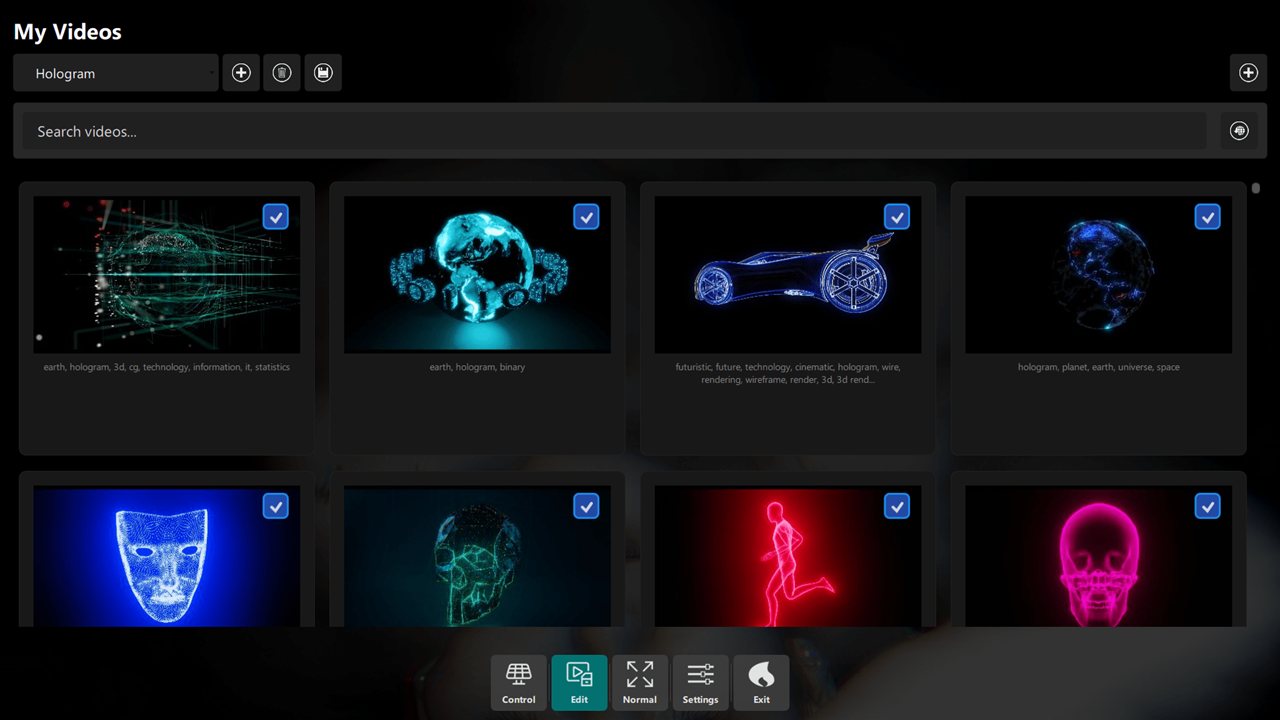 Figure 3: media files in the library are managed separately from artist profiles.
Chapter 5: Add Stock Or AI-Created Media
For stock images and videos:
- Open the appropriate media panel and select the playlist you want to populate.
- Search for a specific subject, preview the results, and download only the items you want to keep.
- Confirm the downloaded item appears in the selected playlist, then preview or play it before the show.
For AI-created or enhanced logos, use the image tools in Media Search & AI. To apply one of the artist-dialog enhancement presets, first create and save the artist with a logo, then edit that artist and apply the preset. Review the preview before saving the profile.
Search downloads include a .meta sidecar with source and attribution information. Keep it beside the downloaded
file if you want to retain that information. The media file remains separate: removing a sidecar does not delete
the media, but it does remove the saved attribution details. Manually added and AI-created files may not have the
same stock-provider metadata.
 Figure 4: an example of artwork suitable for an artist logo.
Chapter 6: A Reliable Setup Workflow
- Create the artist profiles you need and confirm each logo preview.
- Add a short marquee line only when you want one shown. Confirm the marquee element is visible and its message source includes artist description.
- Select the intended artist in the control panel; verify the name and logo on the output.
- Select the intended playlist separately for images, videos, and avatars. Add the files and order them for the show.
- Preview or play the selected playlists and check that every referenced file is present.
- If you used stock search, keep the
.metasidecars for attribution.
Chapter 7: Troubleshooting
| What you see | Check this |
|---|---|
| The artist is missing after saving | Use a unique name; names differing only by spaces or capitalization can produce the same internal ID. |
| The selected artist has no logo | Re-edit the profile, choose an accepted image file, and confirm it appears in Preview logo. |
| The logo preview works but output has no artist card | Select the profile and make sure the Artist Card element is visible in the active style. |
| The artist name appears but the marquee line does not | Fill Bio / Marquee text and check that the marquee is visible and configured to show artist description. |
| 2D/3D or effects change for every artist | Those are Artist Card element/style settings, not per-profile fields. |
| A playlist does not show a file | Add the media to the selected playlist; files in the library are not automatically in every playlist. |
| A downloaded item is not in the expected playlist | Select the intended playlist before downloading, then check that playlist's file list. |
| Credits are missing | Look for the item's .meta sidecar. Stock attribution is not reconstructed just by keeping the media file. |
| The logo file dialog shows no files | It only lists PNG, JPG/JPEG, GIF and BMP; convert other formats first. |
| A video does not appear in the file dialog | The video picker lists MP4, AVI, MOV and MKV only. |
| The AI styles are not offered or fail | Create and save the artist with a logo first, then edit it; check the Gemini key. |
Chapter 8: Quick Reference
- Artist profile: name + logo + optional short marquee line.
- Artist selection: control panel,
Ctrl+Right/Ctrl+Left, or anartistaction. - Presentation: Artist Card and marquee visibility/settings are controlled separately from the profile.
- Library: actual media files under
Visuals/Images/,Videos/,Avatars/, andLogos/. - Playlist: a separate
.txtfile listing media filenames in playback order. - Stock search: download into the matching library and currently selected playlist; preserve
.metafor credits.