Note
The Lighting layer is a picture on the screen. It does not send anything to lights. To control real fixtures over DMX, use the DMX Rig Configuration guide. The two can run side by side.
Related guides: Layers, Shaders & FX (the other layers and the shared effects), Audio Setup & Beat Sync (the sound that drives the lighting) and MIDI & HID Controllers (the controller shapes).
Chapter 1: What The Layer Contains
The Lighting layer is a container with four parts. Each part has its own Visible switch and its own Opacity, and you can use any combination.
| Part | What you see | What drives it |
|---|---|---|
| Spotlights | Six light beams that sweep across the picture. Two looks: Normal (wide soft beams) or Laser (thin lines). | The overall sound level. The beams move while there is sound. |
| Particles | Small glowing dots that fall through the picture. Their colour follows bass, mid or high sound. | The sound level in three frequency bands. |
| Strobes | Four flash panels along the top and/or bottom edge, solid or as vertical bars. | The kick drum during the drop of a track (see 4.4). |
| MIDI/HID/OSC Actions | Shapes that appear when you press controls on a connected controller. | Your controller, not the audio. |
 Figure 1: the Lighting tiles on the touch panel's Layers page. Lighting Layer is the container; the four
tiles below it switch the parts on and off. A green tile is on.
Figure 1: the Lighting tiles on the touch panel's Layers page. Lighting Layer is the container; the four
tiles below it switch the parts on and off. A green tile is on.
The container has to be visible for any part to show. Its Opacity applies to everything inside it, and each part then applies its own opacity on top. In the layer stack, Lighting sits above the Vinyl Disc and below the Waveforms, Artist Card, Marquee Text and Mask layers.
Turn the layer on
- Touch panel: open Layers and tap Lighting Layer, then tap the parts you want (Spotlights, Particles, Strobes, MIDI/HID/OSC Actions).
- Settings: open Settings → Layer - Lighting and switch Visible on. Each part has its own page (Layer - Spotlights, Layer - Particles, Layer - Strobes, Layer - MIDI/HID/OSC) with its own Visible switch.
- Programming Schedule: the Lighting layer is in the list of layers a schedule row can show or hide.
Tip
Factory settings start with the layer and all four parts off. After you turn the layer on, also turn on the part you want, or nothing appears.
Chapter 2: Before You Start: Sound
Spotlights, Particles and Strobes only react when the app is hearing sound. If the picture stays still:
- Check the audio input as described in Audio Setup & Beat Sync.
- Play music at show volume and make sure the level meters in the Indicators page move.
Quiet passages, breaks and silence calm the effects down; they come back with the music.
Chapter 3: Layer Settings (Settings → Layer - Lighting)
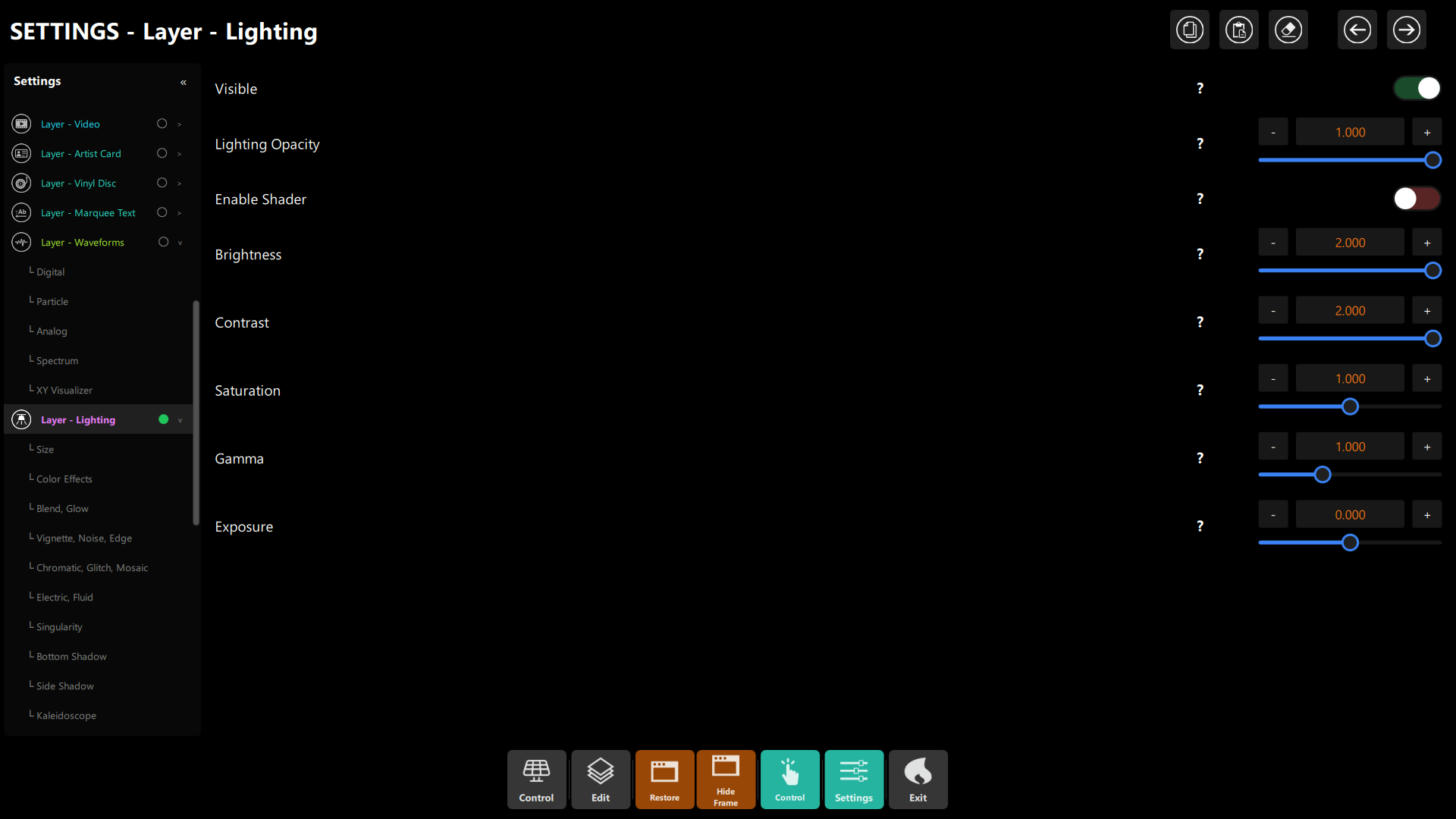 Figure 2: Settings → Layer - Lighting. Visible, Opacity, Enable Shader and the basic colour controls.
| Setting | Range | Factory default | What it does |
|---|---|---|---|
| Visible | on / off | off | Shows or hides the whole layer. |
| Lighting Opacity | 0.00–1.00 | 0.80 | Transparency of the whole layer. |
| Enable Shader | on / off | on | Applies the image effects below to the combined picture of the parts that are on. Off = no effects, which also saves graphics power. |
| Brightness | 0.0–2.0 | 1.0 | Overall light level. |
| Contrast | 0.0–2.0 | 1.0 | Difference between dark and light. |
| Saturation | 0.0–2.0 | 1.0 | Colour strength. 0 = grey. |
| Gamma | 0.5–2.0 | 1.0 | Brightens or darkens the mid-tones. |
| Exposure | −2.0 to 2.0 | 0.0 | Brightens or darkens everything. |
Below these, the sidebar lists extra pages with more image effects (see section 7). Size → Scale (0.1–2.0, default 1.0) enlarges or shrinks the whole layer.
Tip
If the picture looks burnt out after you switch Enable Shader on, bring Brightness and Contrast back to 1.0 and change them in small steps.
Chapter 4: The Four Parts
4.1 Spotlights
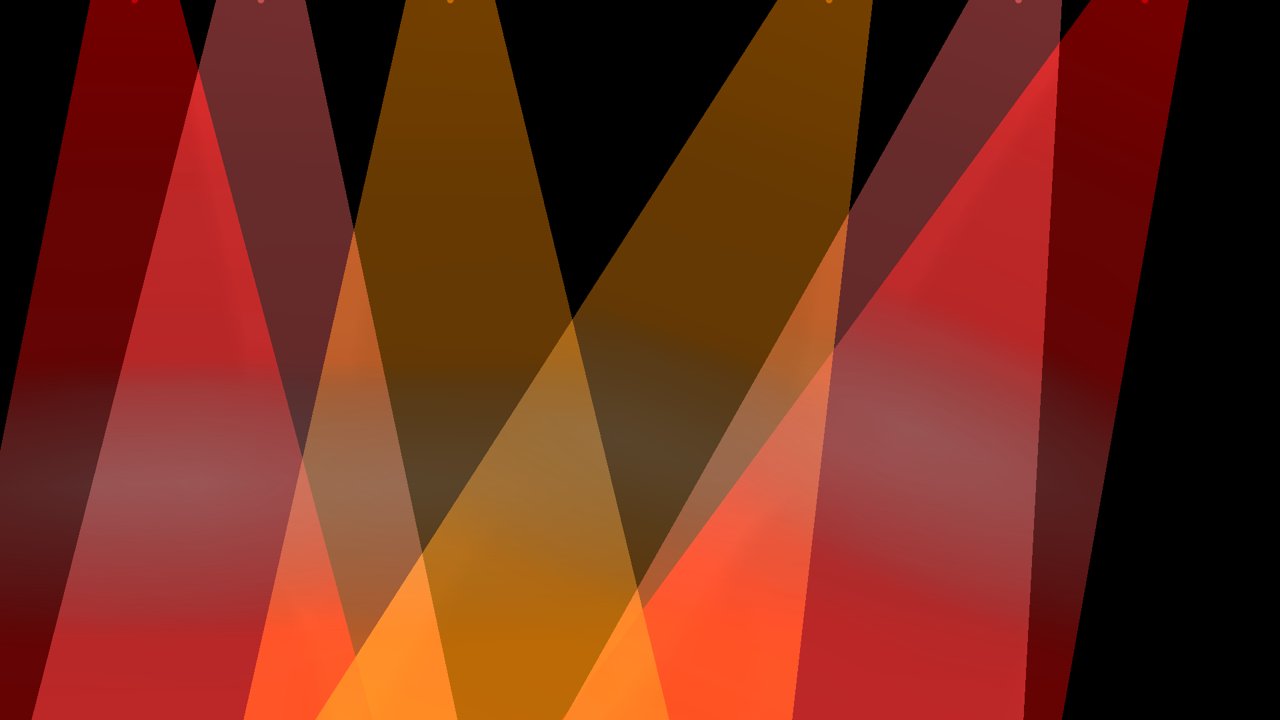
Six beams of light come from the top of the picture and sweep from side to side. The beams move while there is sound; the flicker follows the sound level.
| Normal | Laser |
|---|---|
 |
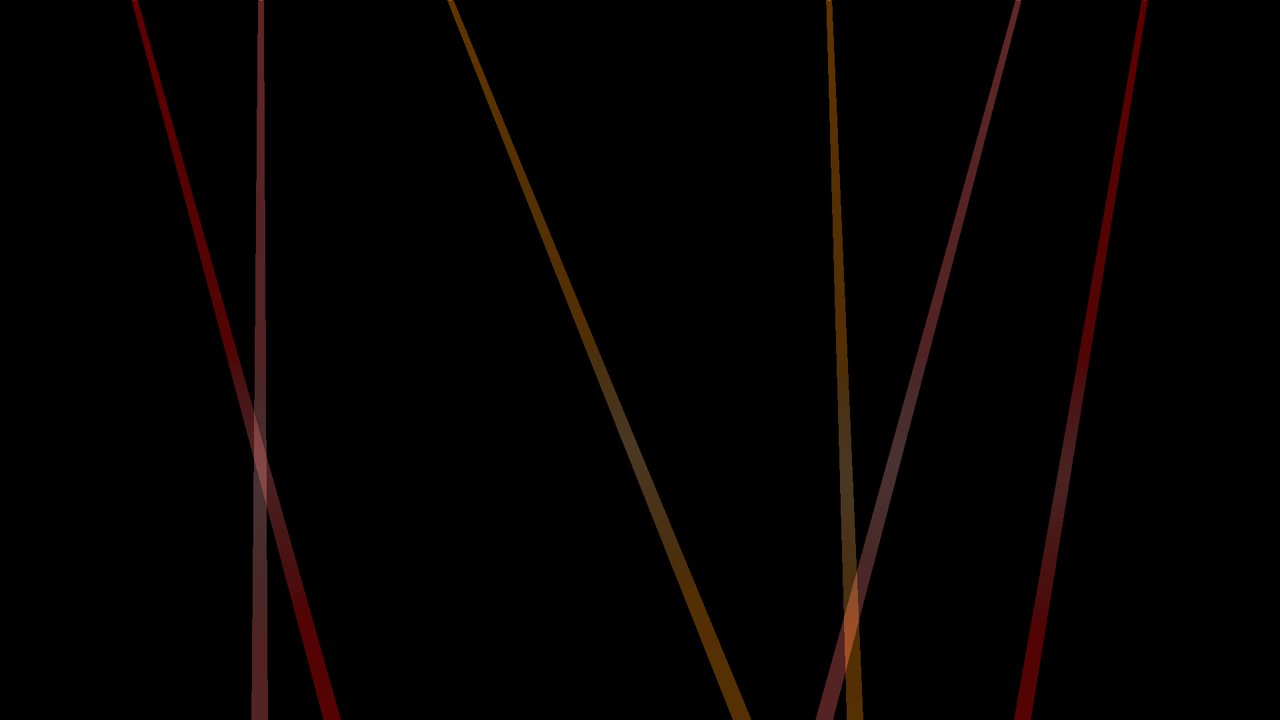 |
| Figure 3: Normal mode — wide, soft beams. | Figure 4: Laser mode — thin lines. |
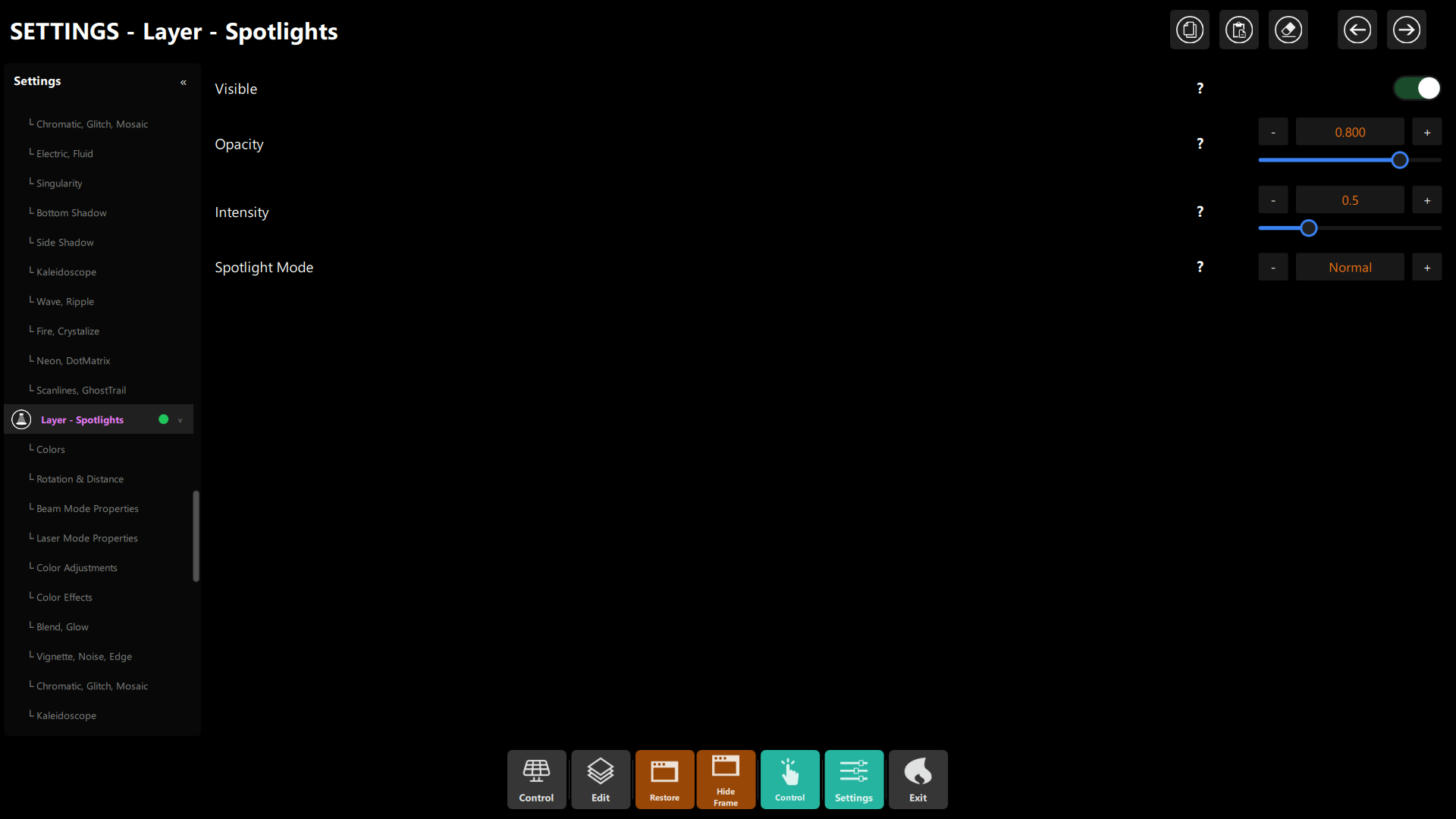 Figure 5: Settings → Layer - Spotlights.
Main page
| Setting | Range | Factory default | What it does |
|---|---|---|---|
| Visible | on / off | off | Shows or hides the spotlights. |
| Opacity | 0.00–1.00 | 0.80 | Transparency of the spotlights. |
| Intensity | 0.0–2.0 | 0.5 | Brightness of the beams. |
| Spotlight Mode | Normal / Laser | Laser | Wide soft beams or thin lines. Use the − and + buttons to change it. |
Colors page
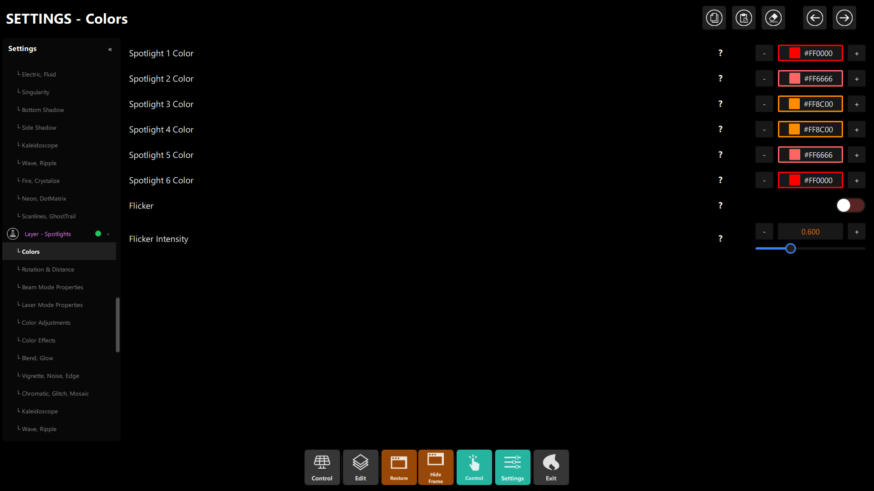 Figure 6: each of the six beams has its own colour.
| Setting | Range | Factory default | What it does |
|---|---|---|---|
| Spotlight 1 … 6 Color | any colour | red, light red, orange, orange, light red, red | Colour of each beam. Set all six the same for a single-colour look. |
| Flicker | on / off | on | Makes the beams twinkle with the sound level. |
| Flicker Intensity | 0.0–2.0 | 0.6 | How strong the twinkle is. |
Rotation & Distance page
| Setting | Range | Factory default | What it does |
|---|---|---|---|
| Rotation Speed Factor | 0.0–2.0 | 0.5 | How fast the beams sweep. 0 stops the sweep. |
| Rotation Amplitude Factor | 0.0–1.0 | 0.5 | How wide the sweep is. |
| Distance | 100–1600 | 1000 | How far the beams reach. |
| Distance Multiplier | 1.0–2.0 | 1.0 | Extra length on top of Distance. |
Beam Mode Properties page (the look of Normal mode)
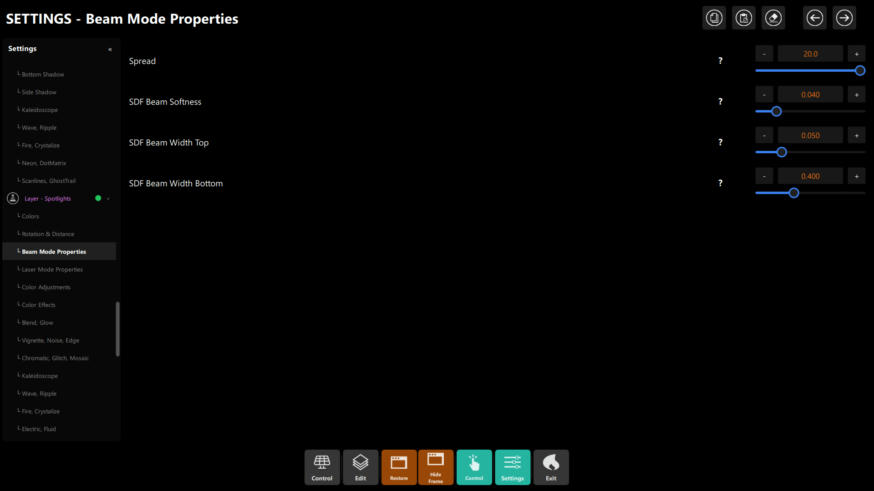 Figure 7: Beam Mode Properties.
| Setting | Range | Factory default | What it does |
|---|---|---|---|
| Spread | 1–10 on the slider | 20 | Opening angle of each beam. The factory value is higher than the slider's upper end, so the slider starts pinned to the right. |
| SDF Beam Softness | 0.01–0.20 | 0.04 | How soft the beam edges are. |
| SDF Beam Width Top | 0.01–0.20 | 0.05 | Width of the beam where it leaves the light. |
| SDF Beam Width Bottom | 0.10–1.00 | 0.40 | Width of the beam at the far end. |
Laser Mode Properties page (the look of Laser mode)
| Setting | Range | Factory default | What it does |
|---|---|---|---|
| Laser Width | 0.1–10.0 | 1.0 | Thickness of each line. |
| Laser Intensity | 0.0–3.0 | 1.0 | Brightness of the lines. |
The remaining pages of Layer - Spotlights (Color Adjustments, Color Effects, Blend/Glow, Vignette/Noise/Edge, Chromatic/Glitch/Mosaic, Kaleidoscope, Wave/Ripple, Fire/Crystalize, Electric/Fluid, Neon/DotMatrix and Scanlines/GhostTrail) are image effects that apply only to the spotlights. They are described in section 7.
4.2 Particles
Small glowing dots fall through the picture. Their colour is chosen by the part of the sound that is strongest at that moment: bass, mid or high. They are emitted only while the sound is above a low level.
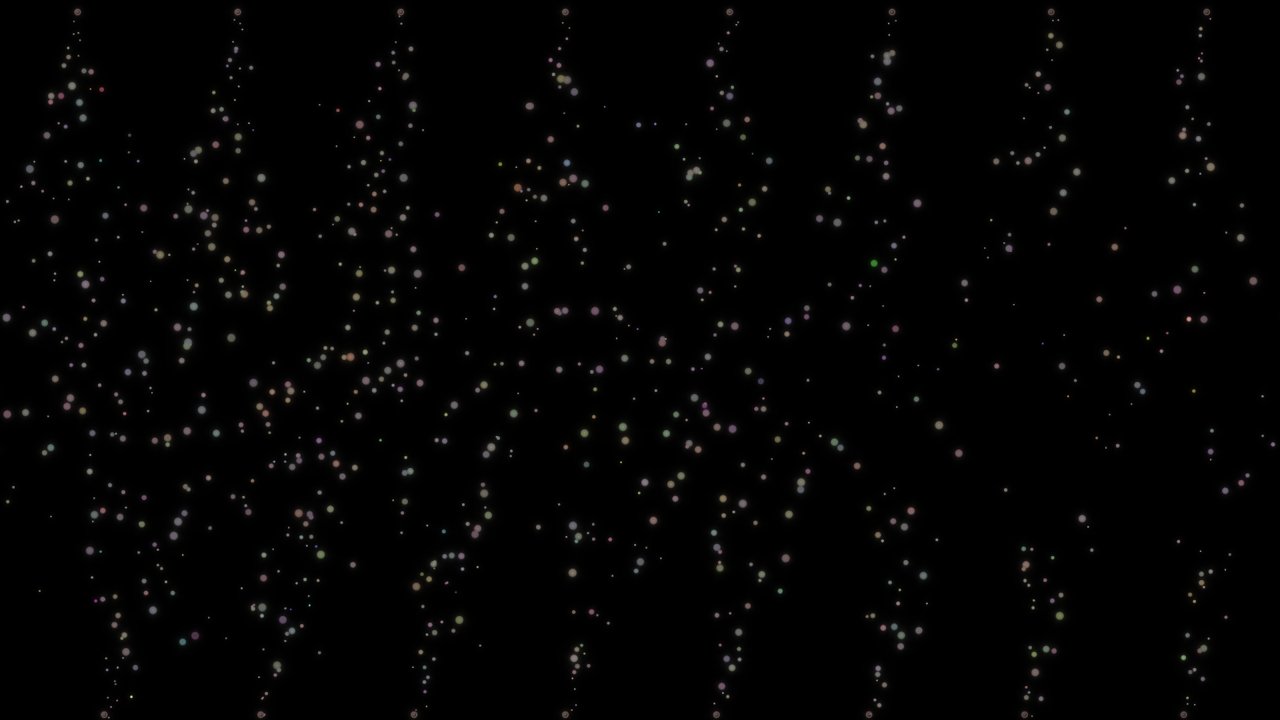 Figure 8: particles with both emitters on, at full density.
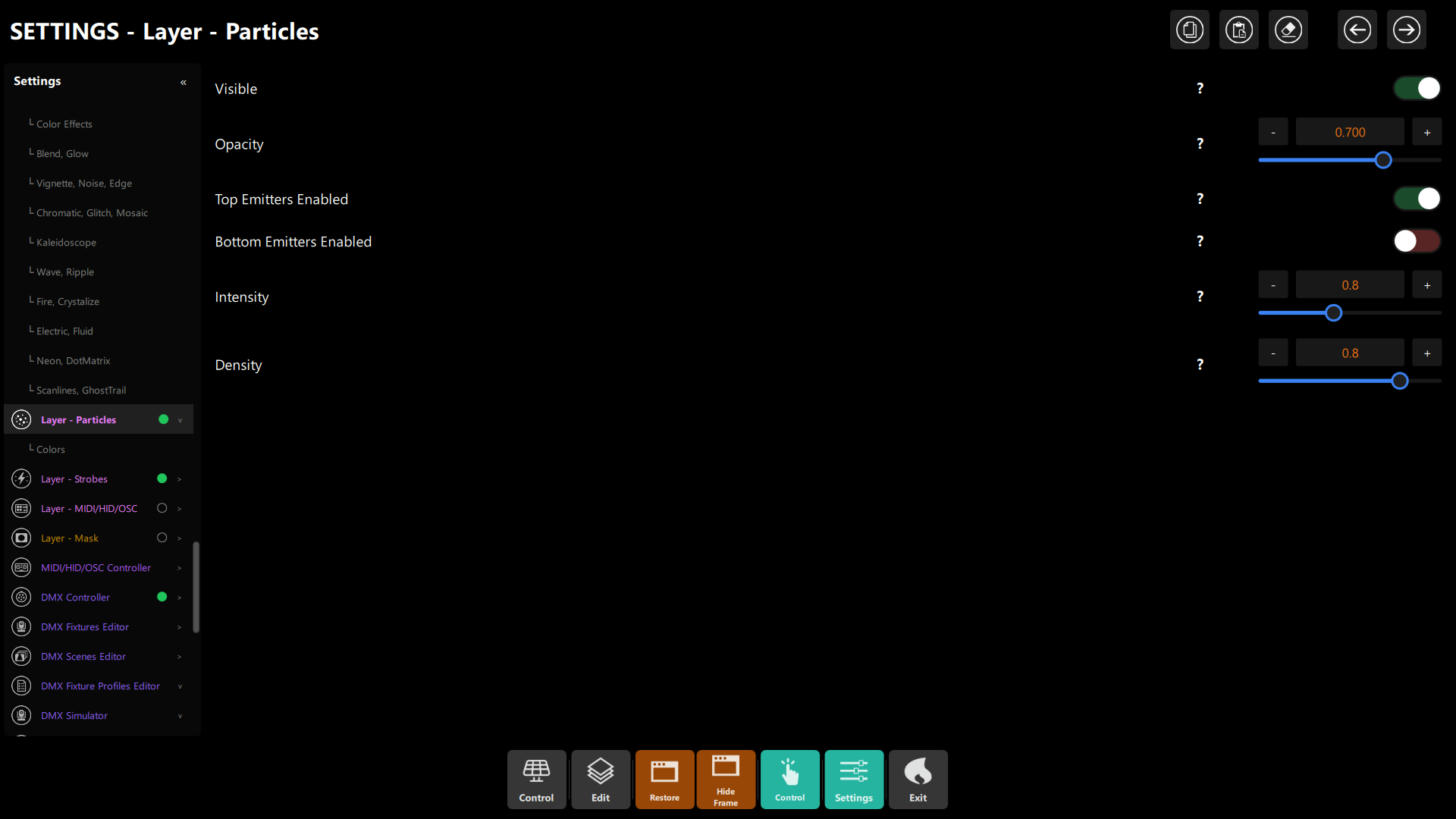 Figure 9: Settings → Layer - Particles.
| Setting | Range | Factory default | What it does |
|---|---|---|---|
| Visible | on / off | off | Shows or hides the particles. |
| Opacity | 0.00–1.00 | 0.70 | Transparency of the particles. |
| Top Emitters Enabled | on / off | on | Particles start at the top edge. |
| Bottom Emitters Enabled | on / off | off | Particles also start at the bottom edge. |
| Intensity | 0.0–2.0 | 0.8 | Strength of the particles. |
| Density | 0.0–1.0 | 0.8 | How many particles are emitted. |
Colors page
| Setting | Range | Factory default | What it does |
|---|---|---|---|
| Bass Color | any colour | orange-red | Colour while the bass is strongest. |
| Mid Color | any colour | yellow | Colour while the mid sound is strongest. |
| High Color | any colour | sky blue | Colour while the high sound is strongest. |
| Color Variation | 0.00–1.00 | 0.50 | How much each particle's colour differs from the main colour. |
| Saturation Factor | 0.00–1.00 | 0.30 | Colour strength of the particles. |
| Lightness Factor | 0.00–1.00 | 0.50 | How light the particles are. |
| Alpha Factor | 0.00–1.00 | 0.60 | How see-through the particles are. |
4.3 MIDI/HID/OSC Actions
This part draws shapes when you press controls on a MIDI, HID or OSC controller. It is separate from the audio: nothing appears until you press a mapped control that spawns a shape.
| Setting | Range | Factory default | What it does |
|---|---|---|---|
| Visible | on / off | off | Shows or hides the controller shapes. |
| Opacity | 0.00–1.00 | 1.00 | Transparency of the shapes. |
The shapes themselves, how to map a control to a shape and the limits on how many appear at once are explained in the MIDI & HID Controllers guide.
4.4 Strobes
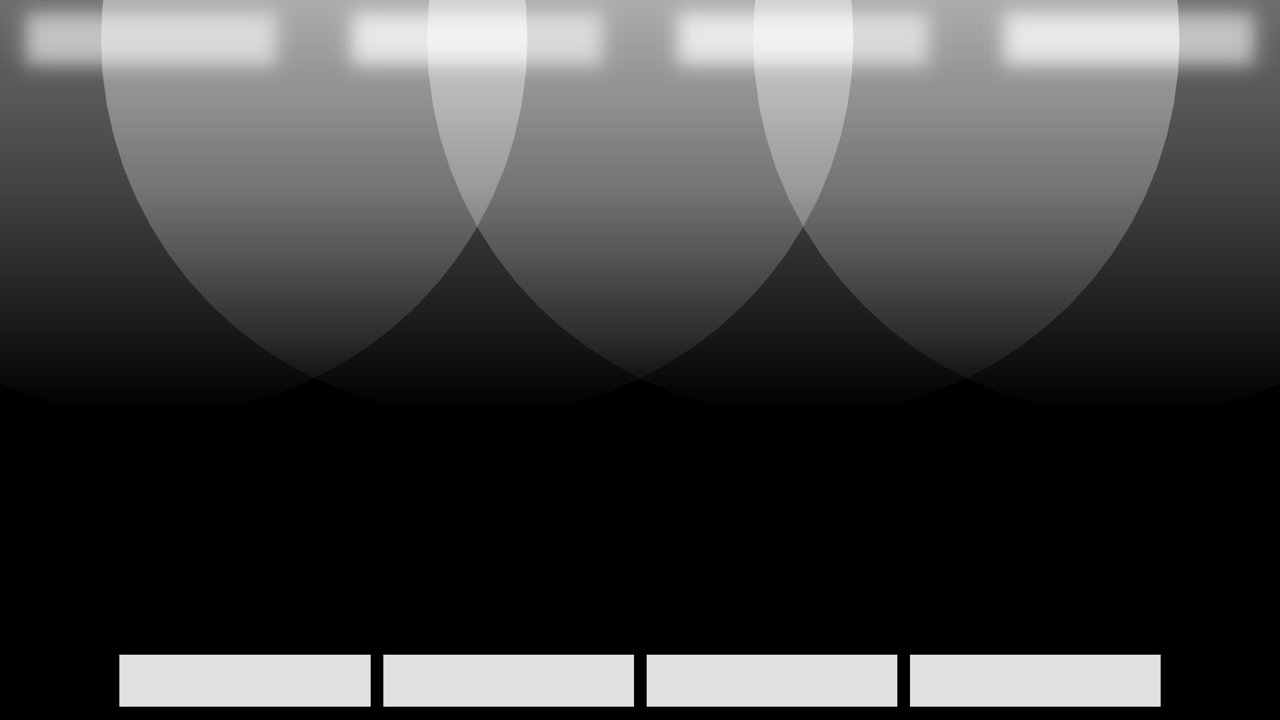
Four flash panels. Solid shows rectangles; Vertical Bars shows tall vertical bars across the picture.
| Solid | Vertical Bars |
|---|---|
 |
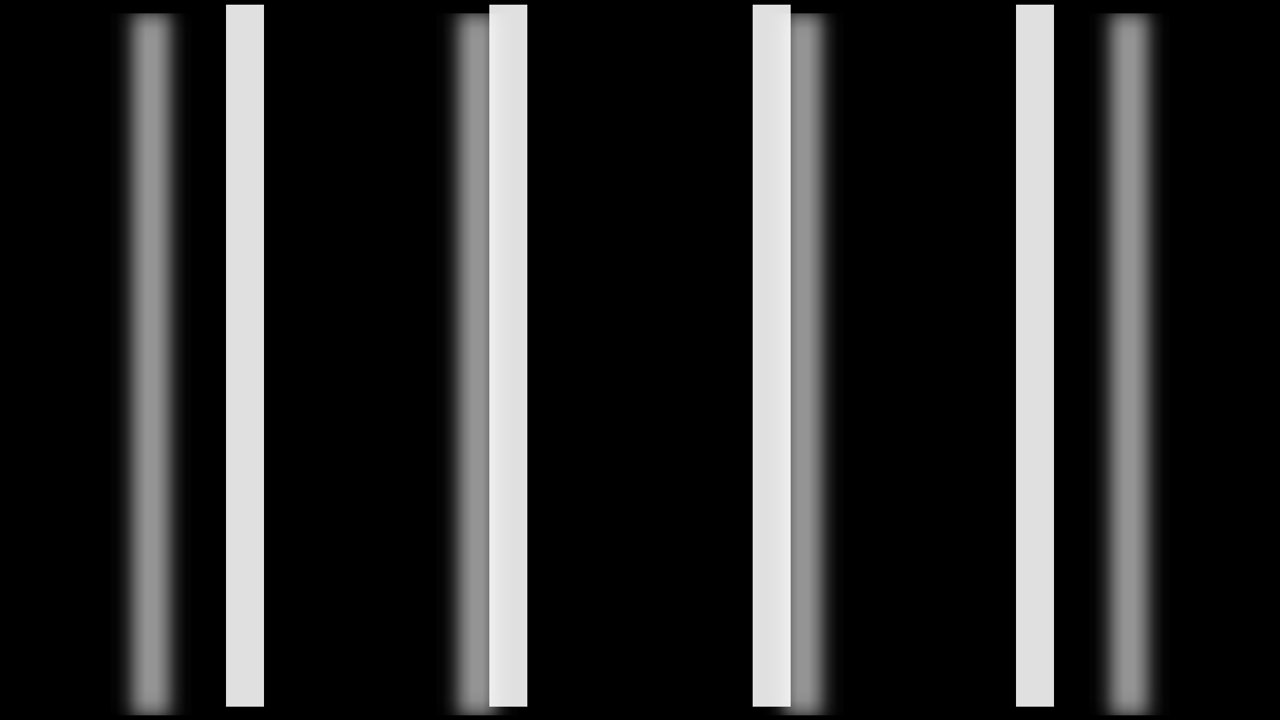 |
| Figure 10: Solid, with top and bottom strobes on, caught during a flash. | Figure 11: Vertical Bars, caught during a flash. |
Important
Strobes flash on the kick drum during the drop of a track — the loudest, most intense part. They do not flash on every beat, and they stay dark during intros and quiet parts. This is on purpose, so the flash keeps its impact. If you want to check the layer, play the loudest section of a track.
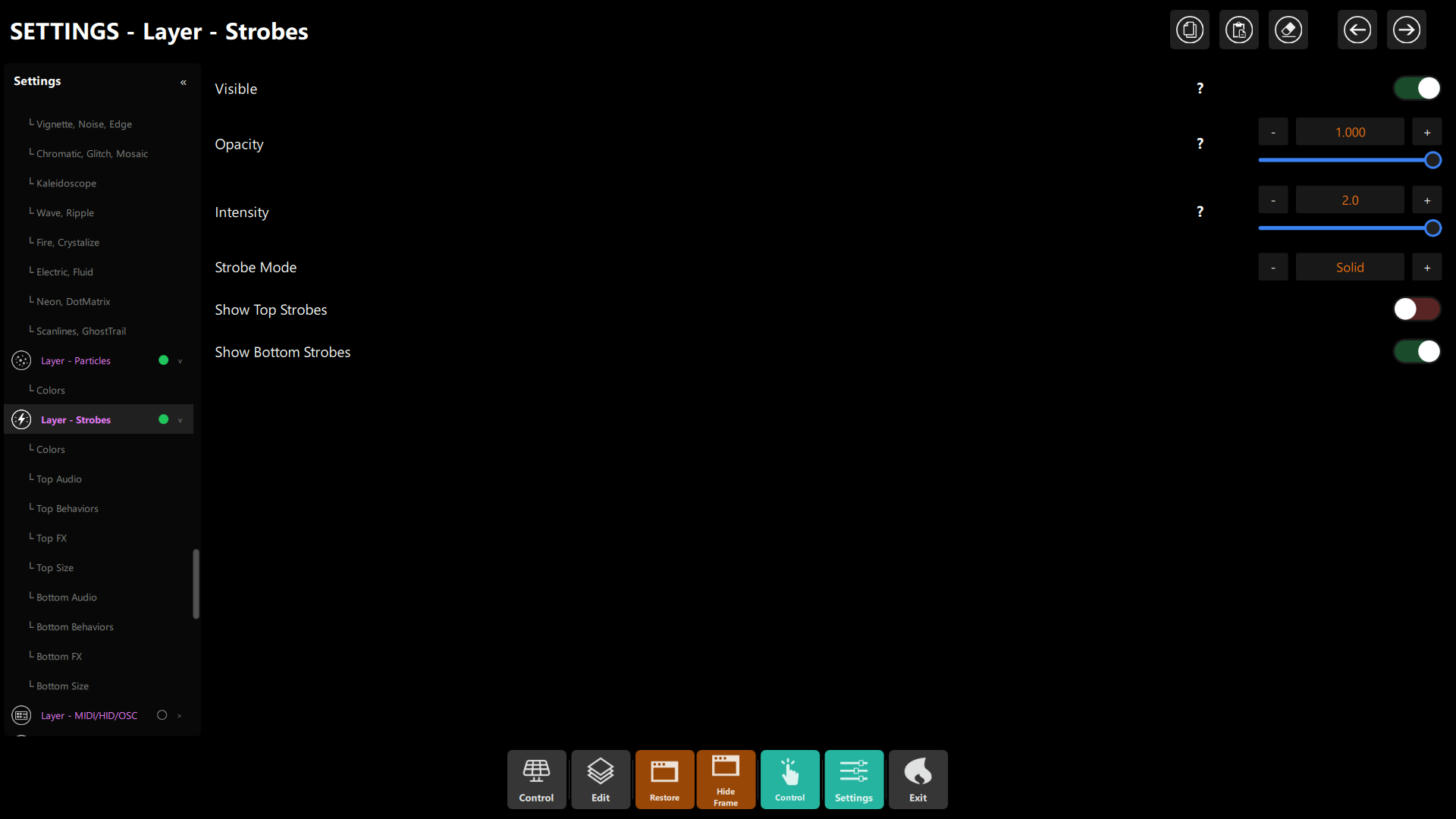 Figure 12: Settings → Layer - Strobes.
Main page
| Setting | Range | Factory default | What it does |
|---|---|---|---|
| Visible | on / off | off | Shows or hides the strobes. |
| Opacity | 0.00–1.00 | 1.00 | Transparency of the strobes. |
| Intensity | 0.0–2.0 | 2.0 | Brightness of the flash. |
| Strobe Mode | Solid / Vertical Bars | Solid | Rectangles or vertical bars. |
| Show Top Strobes | on / off | on | Flash panels along the top edge. |
| Show Bottom Strobes | on / off | on | Flash panels along the bottom edge. |
Colors page: Strobe 1 Color … Strobe 4 Color set the colour of each of the four panels. All four are white at the factory.
The top and bottom rows have their own sets of pages: Top Audio, Top Behaviors, Top FX, Top Size and the same four with Bottom. They have the same settings, so the table shows them once.
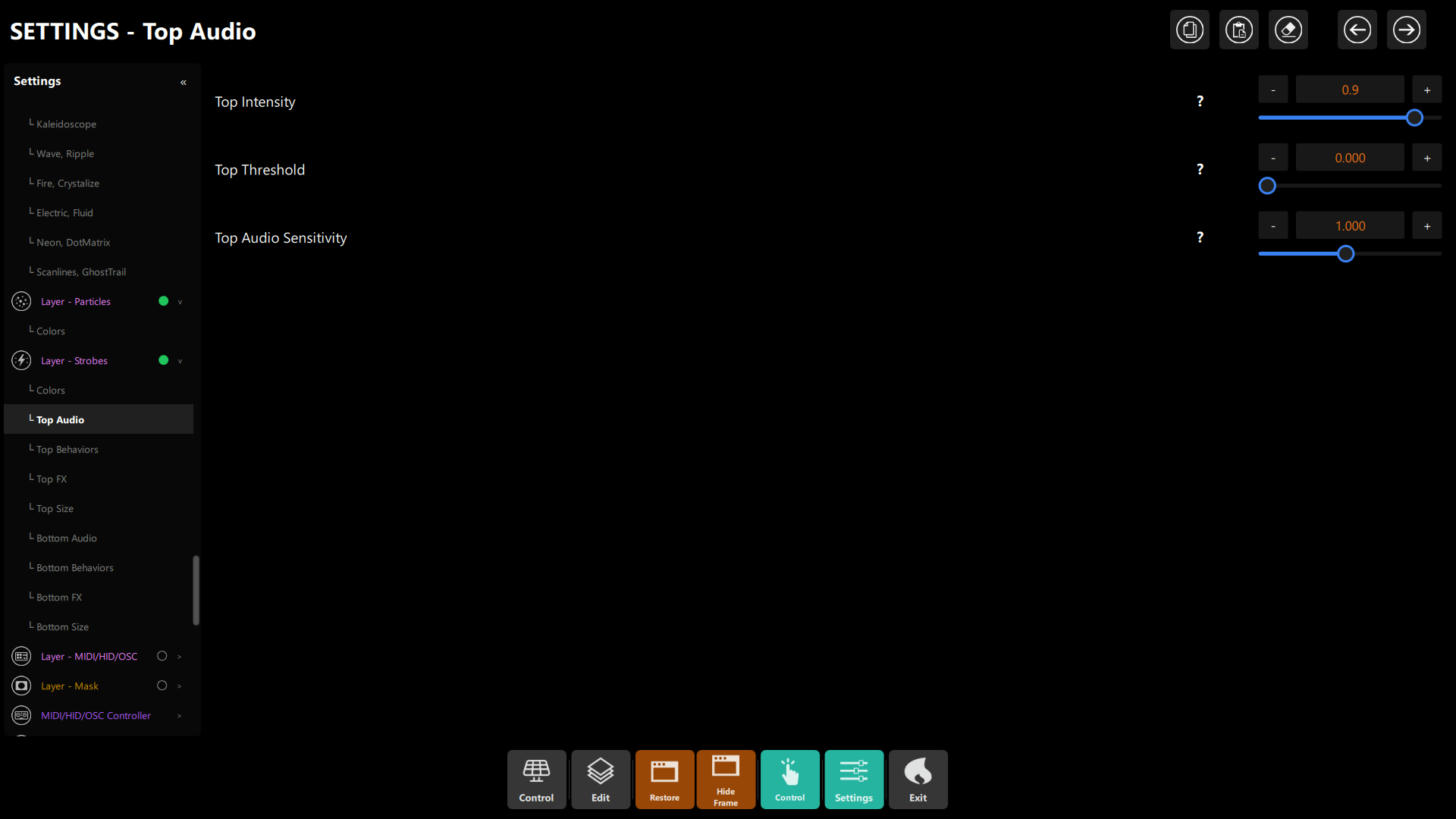 Figure 13: the Top Audio page. The Bottom pages are identical.
| Page | Setting | Range | Factory default | What it does |
|---|---|---|---|---|
| Audio | Intensity | 0.1–1.0 | 0.9 | Strength of this row's flash. |
| Behaviors | Min Opacity | 0.00–0.80 | 0.40 | The weakest a flash can be. |
| Behaviors | Max Opacity | 0.20–1.00 | 1.00 | The strongest a flash can be. |
| Behaviors | Min Flash Duration | 10–100 ms | 20 | How long each flash lasts. |
| FX | Enable Glow | on / off | on | Soft glow around the flash. |
| FX | Enable Radial Glow | on / off | on | A round glow that spreads from the flash. |
| FX | Glow Intensity | 0.0–1.0 | 0.8 | Strength of the glow. |
| FX | Glow Radius | 1.0–4.0 | 3.0 | Size of the glow. |
| Size | Strobe Spacing | 0.00–0.40 | 0.06 | Gap between the four panels, as a share of the width. |
| Size | Strobe Width | 0.00–0.60 | 0.20 | Width of each panel, as a share of the width. |
Note
Strobes are triggered only by the drop detector, not by a sound level. That is why the menu has no threshold, sensitivity or frequency controls for them. Shape the flashes with Intensity, Min/Max Opacity, Min Flash Duration, the glow controls, Spacing and Width.
Chapter 5: A Look To Start With
- Open Settings → Layer - Lighting and switch Visible on.
- Open Layer - Spotlights, switch Visible on and choose Normal mode.
- Open Colors and give the six beams two or three colours that match your visuals.
- Open Layer - Particles and switch Visible on. Leave the defaults.
- Play music. Adjust Opacity of each part until the lights support the picture instead of hiding it.
- For big moments, switch Layer - Strobes on and use Intensity 1.0 to start with.
- Check the result on the actual screen or projector.
Ideas
- Club look: Spotlights in Laser mode, Rotation Speed Factor 1.0, particles off, strobes on.
- Soft ambience: Spotlights in Normal mode at Intensity 0.3, Flicker off, particles on with low Density.
- Only the drop: keep only Strobes on, with Intensity 2.0 and Bottom Strobes only.
Chapter 6: Use It With The Rest Of The Show
- Touch panel: the Layers page has tiles for each part, so you can bring lights in and out live.
- Programming Schedule: a schedule row can show or hide the Lighting layer at a set time. See Programming Schedule.
- Controller: map a controller button to the layer's Visible setting or to the shape actions. See MIDI & HID Controllers.
- Other layers: Lighting sits above the Vinyl Disc and below the visualizers, so the waveforms stay readable on top of the beams.
Chapter 7: Image Effects
The same family of effects is available in three places:
| Where | What it affects | Needs |
|---|---|---|
| Layer - Lighting (the pages under it) | The whole layer: spotlights, particles and strobes together. | Enable Shader on. |
| Layer - Spotlights (the pages under it) | The spotlights only. | Nothing extra. |
| Layer - Particles / Strobes | They have no effect pages. | — |
The pages and their settings (range for the whole layer first; the spotlights use the same names):
| Page | Settings |
|---|---|
| Color Adjustments (spotlights) | Brightness, Contrast, Saturation 0–2; Gamma 0.5–2; Exposure −2 to 2. |
| Color Effects | Invert 0–1, Hue 0–1, Sepia 0–1. The whole layer also has Threshold 0–1. |
| Blend, Glow | Blend Color, Blend Amount 0–0.99, Glow 0–1, Glow Color. The whole layer also has Move Time 0–100. |
| Vignette, Noise, Edge | Vignette 0–1, Pixelation 0–10, Noise 0–1, Edge Detection 0–1. |
| Chromatic, Glitch, Mosaic | Chromatic Aberration 0–1, RGB Split 0–2, Glitch 0–1, Mosaic 0–0.05. |
| Kaleidoscope | Kaleidoscope 0–1, Sides (6–24 for the layer, 3–24 for the spotlights), Rotation 0–6.28, Offset X/Y −0.5 to 0.5. |
| Wave, Ripple | Wave 0–1, Speed, Frequency; Ripple 0–1, Ripple Frequency 0–2, Ripple Speed. |
| Fire, Crystalize | Fire 0–1, Fire Speed, Fire Scale; Crystalize 0–1, Crystal Scale, Crystal Speed, Crystal Edge. |
| Electric, Fluid | Electric 0–1, Intensity 0–5, Speed 0–5, Branches; Fluid 0–1, Speed, Scale, Complexity 0–5. |
| Neon, DotMatrix | Neon Outline, Thickness, Intensity; Dot Matrix, Rows, Cols, Intensity. |
| Scanlines, GhostTrail | Scanlines, Density, Brightness; Ghost Trail, Distance, Steps, Noise. |
| Singularity (whole layer only) | Singularity 0–1, Radius 0–2, Twist 0–10, Glow 0–5, Rotation ±6.28, Speed 0–5, Offset X/Y. |
| Bottom Shadow (whole layer only) | Bottom Shadow 0–1, Blur 0–10, Offset X/Y. |
| Side Shadow (whole layer only) | Side Shadow Neon 0–5, Angle ±180, Blur 0–10, Layers 1–10, Speed 0–5, Saturation 0–5. |
Every effect is off at 0. Turn up one effect at a time; they add up, and a few together can make the picture hard to read.
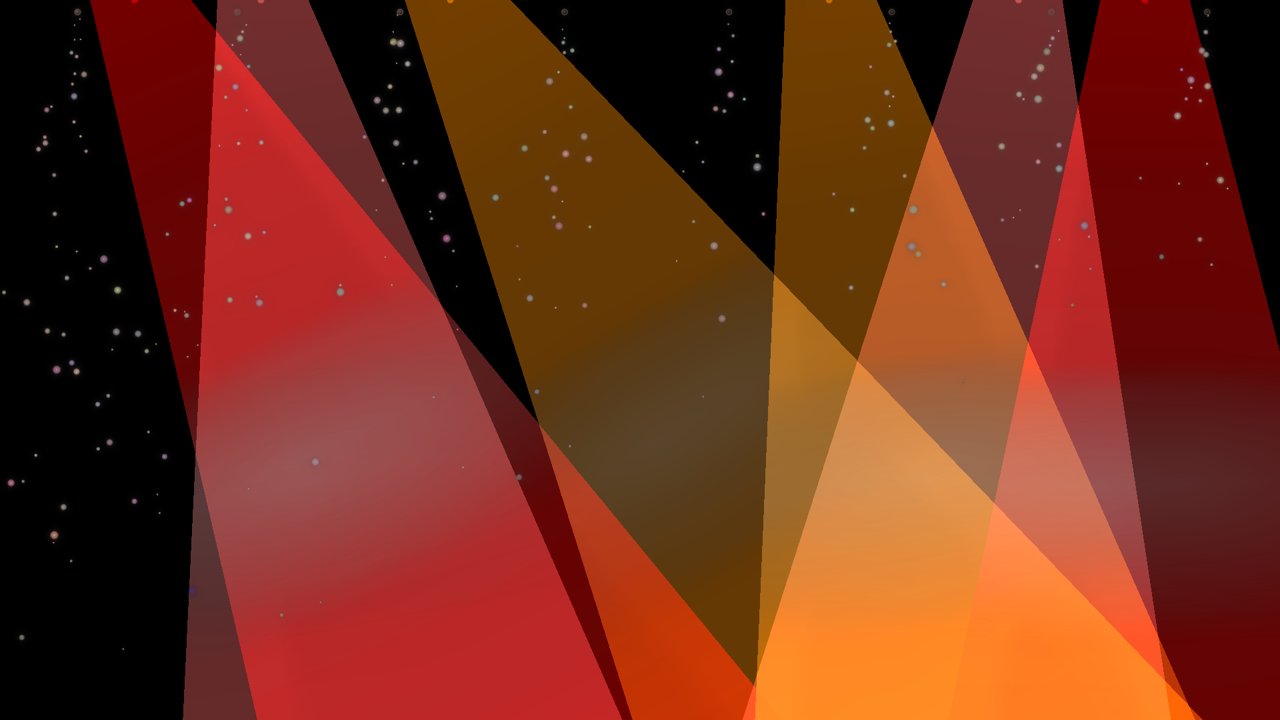 Figure 14: spotlights and particles with Enable Shader off, no effects.
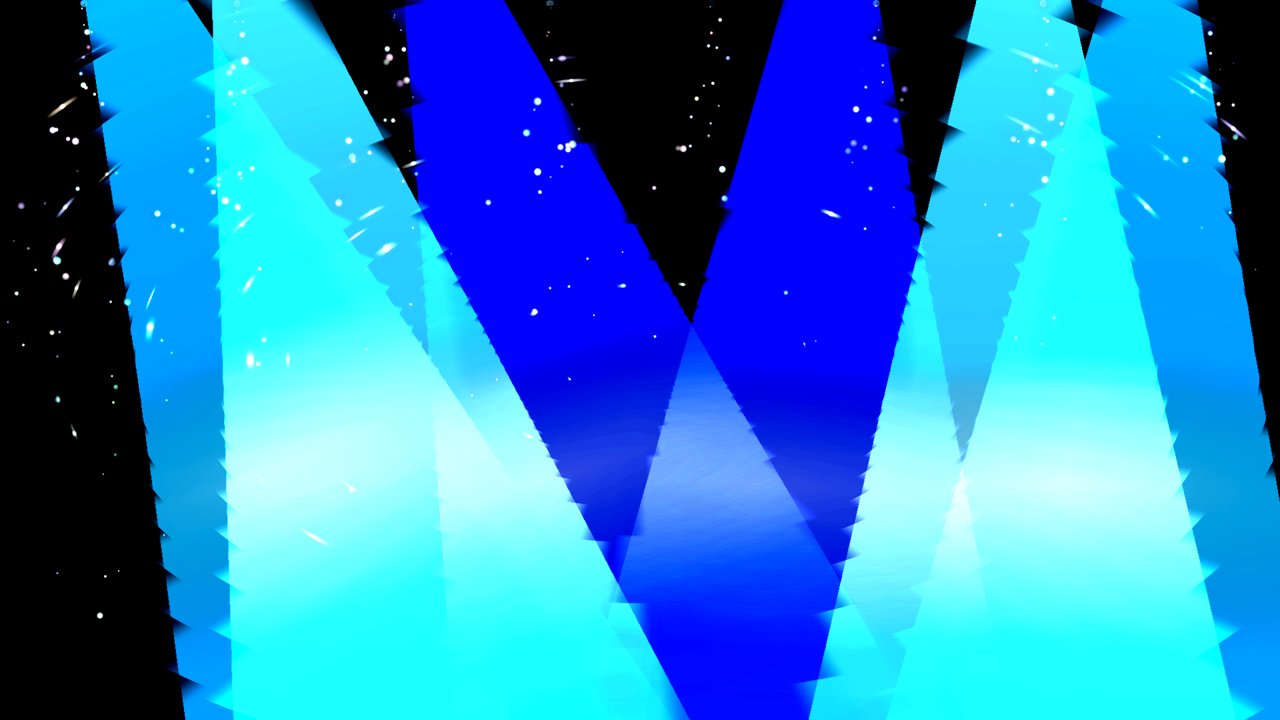 Figure 15: the same scene with Enable Shader on, Hue 0.55 and Kaleidoscope 0.6.
Chapter 8: Troubleshooting
| Problem | Likely cause | What to do |
|---|---|---|
| Nothing appears | The layer or the part is off. | Switch Layer - Lighting → Visible and the part's Visible on. Check the Lighting Opacity is above 0. |
| Beams or particles are still | No sound reaches the app. | Check the audio input. See Audio Setup & Beat Sync. |
| Strobes never flash | They only flash on the kick during a track's drop. | Play the loudest part of a track. Check Show Top/Bottom Strobes and Intensity. |
| You look for a Strobes threshold or sensitivity control | Strobes flash only when the drop is detected, so they have no such controls. | Use Intensity, Min/Max Opacity and Min Flash Duration instead. |
| Picture looks harsh or burnt out | Brightness or Contrast is above 1 with Enable Shader on. | Set both back to 1.0. |
| The layer slows the show down | Many effects stacked, or particles at full density. | Lower Density, turn Enable Shader off, or switch off parts you do not need. |
| Particles only at the top | Bottom Emitters Enabled is off. | Switch it on. |
| Controller shapes do not show | MIDI/HID/OSC Actions is off, or no control spawns a shape. | Switch Layer - MIDI/HID/OSC → Visible on and check the mapping. |
Chapter 9: For Advanced Users: Configuration Keys
All settings live under elements.lightingView in the configuration. They can be changed with the HTTP API
(PATCH /api/v1/config), for example:
{ "elements": { "lightingView": {
    "visible": true,
    "spotlights": { "visible": true, "spotlightMode": 0, "intensity": 0.8 },
    "particles":  { "visible": true, "bottomEmittersEnabled": true },
    "strobes":    { "visible": false }
} } }
| Key | Meaning |
|---|---|
visible, opacity, shaderEnabled |
The layer container. |
spotlights.spotlightMode |
0 = Normal, 1 = Laser. |
strobes.strobeMode |
0 = Solid, 1 = Vertical Bars. |
strobes.top.*, strobes.bottom.* |
Per-row settings. Keys such as audioThreshold, audioSensitivity, minFrequency, maxFrequency and maxFlashDuration exist in the file but have no effect on strobes. |
spotlights.audioThreshold, particles.audioThreshold |
Sound level above which the beams move and the particles are emitted. They have no menu control (defaults 0.03 and 0.02). |
midi.visible, midi.opacity |
The controller shapes. |
See the HTTP & WebSocket API guide for how to read and change the configuration.