Related guides: playlist content and searching are in Media Search & AI and Content Management; what each layer does is in Layers, Shaders & FX; every keyboard shortcut is in the Keyboard Shortcuts Reference.
Chapter 1: The Bottom Bar In One Picture
| Button | Effect |
|---|---|
| Control | Back to the Control grid view |
| Add / Edit / Delete (contextual) | Artists: add, edit by id, delete. Styles: Save…, Send, Import, Export, Delete (never ""/"default") |
| Maximize / Restore | Main window fullscreen ↔ windowed + centered |
| Hide Frame / Show Frame | Main window frame on/off (windowed mode) |
| Maximize Control / Control | Separate (second-screen) window fullscreen ↔ 80 % windowed |
| Settings | Jump to the Settings tree |
| Exit | Quit — with a Confirm exit dialog (unlike Ctrl+Q) |
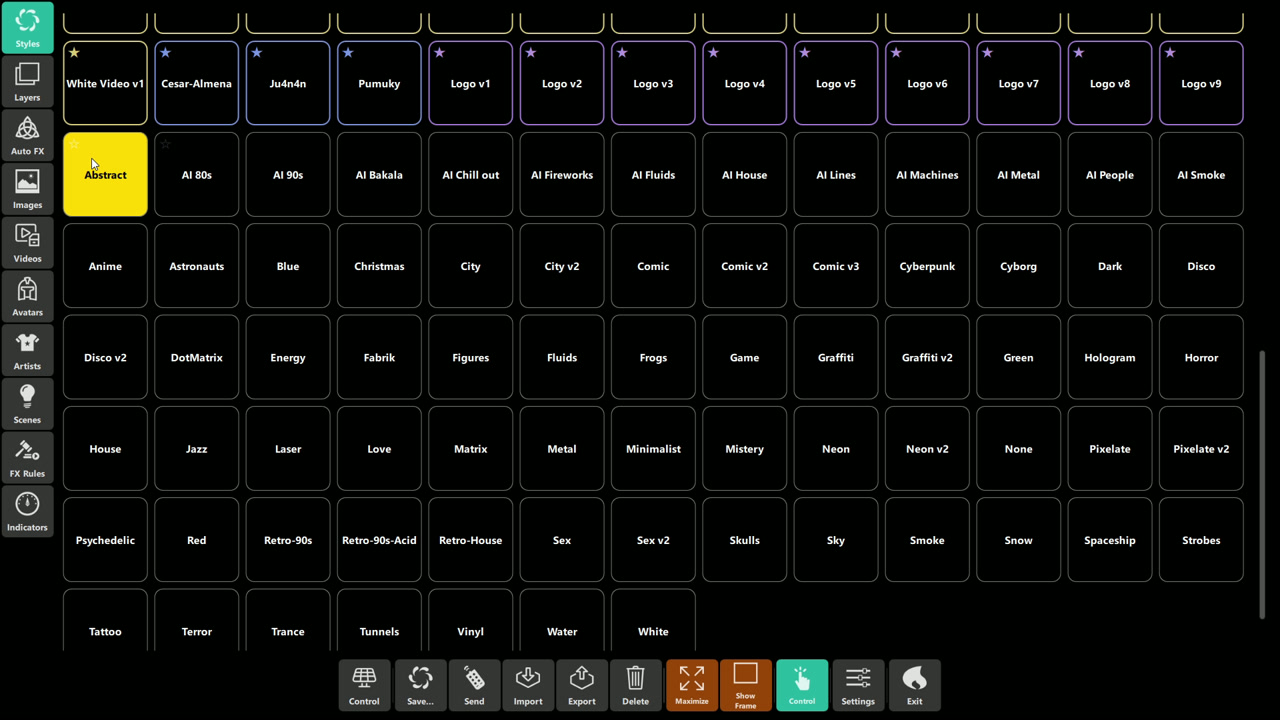 The bottom actions depend on the selected section. In Styles, the bar includes Save, Send, Import, Export,
and Delete.
The bottom actions depend on the selected section. In Styles, the bar includes Save, Send, Import, Export,
and Delete.
Notes: clicking the bar background hides/shows the bar (kiosk mode). The three window buttons are hidden on
macOS. Send pushes the full live config to connected HTTP clients.
Chapter 2: Side-Menu Sections
Styles · Layers · Auto FX · Images · Videos · Avatars · Artists · Scenes · FX Rules · Indicators — each opens
its Control grid. What matters per section:
- Styles:
Save…opens Override/Save-new with Style name, Author, Version, Description, Download URL, Is Installed (renaming creates a NEW style — warning shown). Delete asks Confirm Delete. Import/Export work on*.zipfiles (export defaults to<currentStyle>.zip). - Artists: Add / Edit / Delete dialogs by artist id; selection syncs the live artist.
- Images / Videos / Avatars:
*.txtplaylist combo, New/Delete/Save-selection file buttons, add-from-disk, local+web search, download-all; choose the playlist tile in the relevant section, tick items, reorder with ±1 moves, then save. A playlist file stores its items as newline-separated entries. - Layers (18 tiles): Image Layer, Avatar Layer, Video Layer, Artist Card Layer, Vinyl Disc, Marquee Text, Waveforms Layer, the five visualizers (Waveform, Particle, Analog, Spectrum and XY Visualizer), Lighting Layer, Spotlights, Particles, Strobes, MIDI/HID/OSC Actions and Mask. Tap a layer tile in the Layers grid to turn that layer on or off; turning on a visualizer does not show anything unless the Waveforms Layer tile is on too. Reorder with ▲/▼ in Layer Management (saved on exit); the ordering editor does not enable layers.
- Auto FX: tap an effect tile to turn that automatic effect on or off. The tile grid is a quick way to choose which audio-reactive effects are available; use FX Rules to adjust their thresholds and limits.
- Scenes: choose a scene mode (
Per scene,Auto,Manual, orMix; the screenshot label isMixto) and use the scene tiles. Some tiles are direct actions; others run timed scenes. When DMX fixtures are configured, their controls appear below the scene grid. Choose the laser pattern and dimmer there when available. Blackout sends a blackout command to all DMX universes; use Clear Blackout to release it. - FX Rules: inspect and adjust the thresholds and effect limits used by audio-triggered rules. The cards group related controls; their current numbers are configuration examples, not recommended values.
- Indicators (
🔍 DEBUG PANEL): MAIN METRICS (Energy, Silence vs threshold), CHARACTERISTICS (BPM, Danceability, Rhythm, Vibe, Harmony…), SILENCE DETAIL (state, frames, energy, smoothed value), the 9 screen zoneszone0–8Color, and live performance status. Your live truth during soundcheck (see Audio guide).
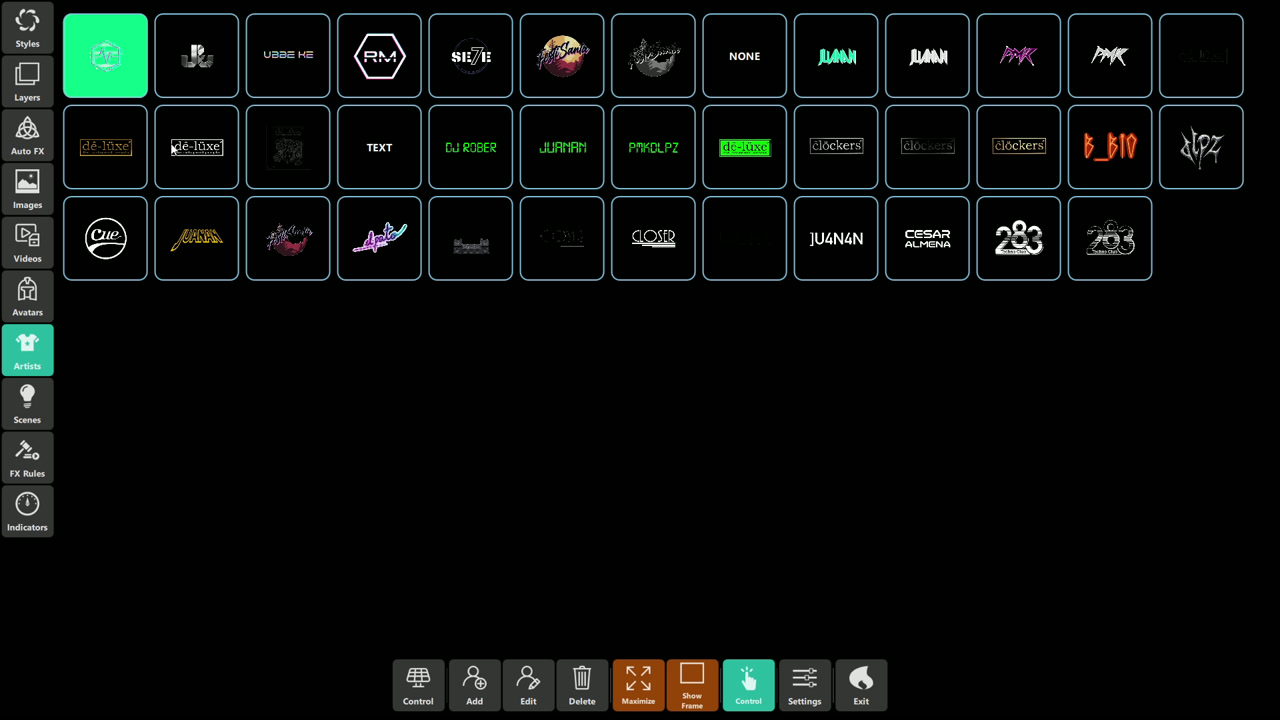 Select an artist tile to make that artist active. Use the contextual Add, Edit, or Delete buttons for artist
management.
Select an artist tile to make that artist active. Use the contextual Add, Edit, or Delete buttons for artist
management.
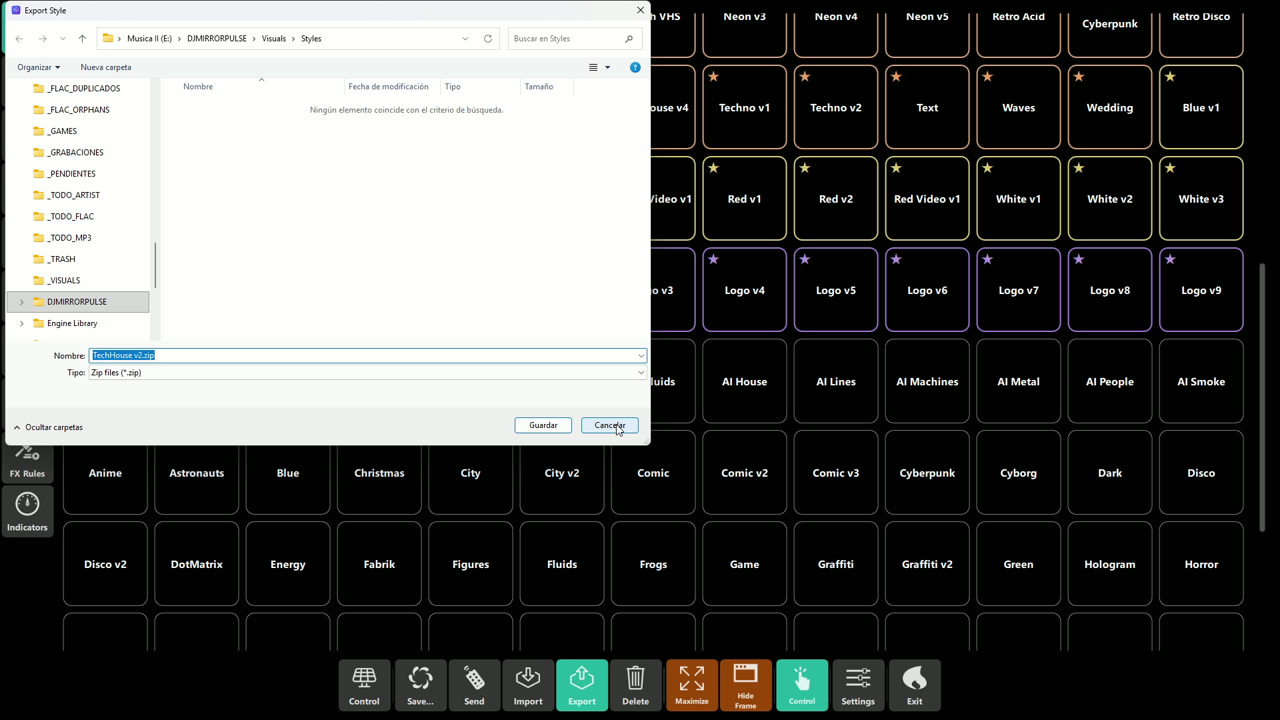 Export opens the system file dialog. Choose a destination and ZIP filename, then save the style archive.
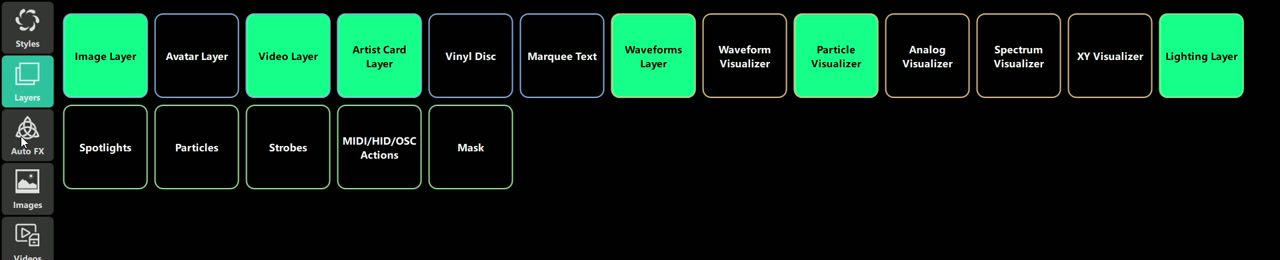 Tap a layer tile to toggle it. The bright tiles in this captured screen are on; dark tiles are off.
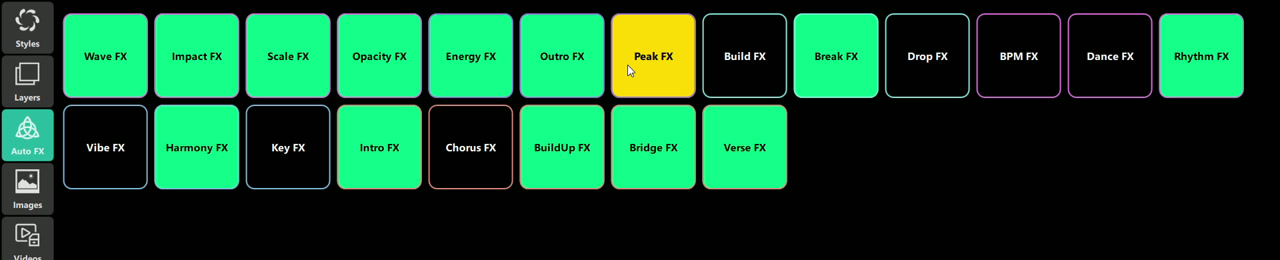 Tap an effect tile to toggle that automatic effect. This is separate from changing its threshold in FX Rules.
Choosing a media playlist
Open Images, Videos, or Avatars in the left menu, then choose the playlist tile you want to work with. These screenshots show the playlist grids; the highlighted tile reflects the captured cursor/selection state and is not a recommended default.
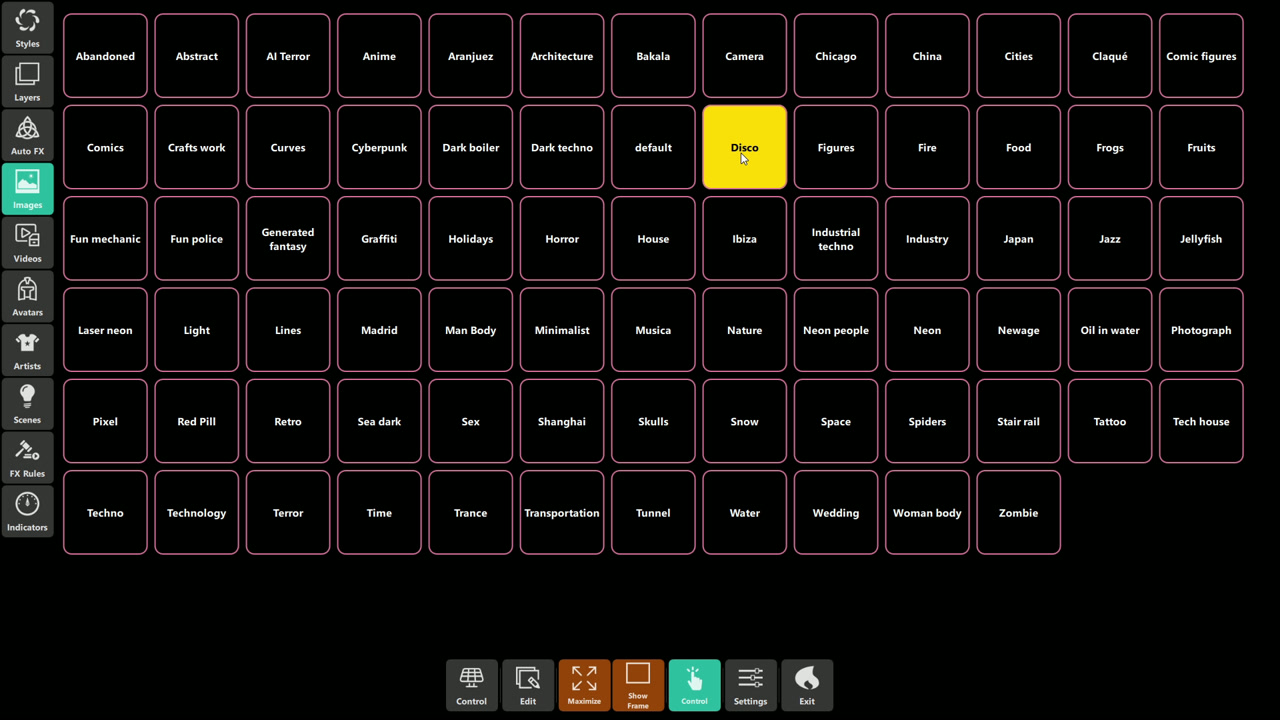 Choose an image playlist from this grid. The highlighted tile is the selection shown in the screenshot, not a
recommended default.
Choose an image playlist from this grid. The highlighted tile is the selection shown in the screenshot, not a
recommended default.
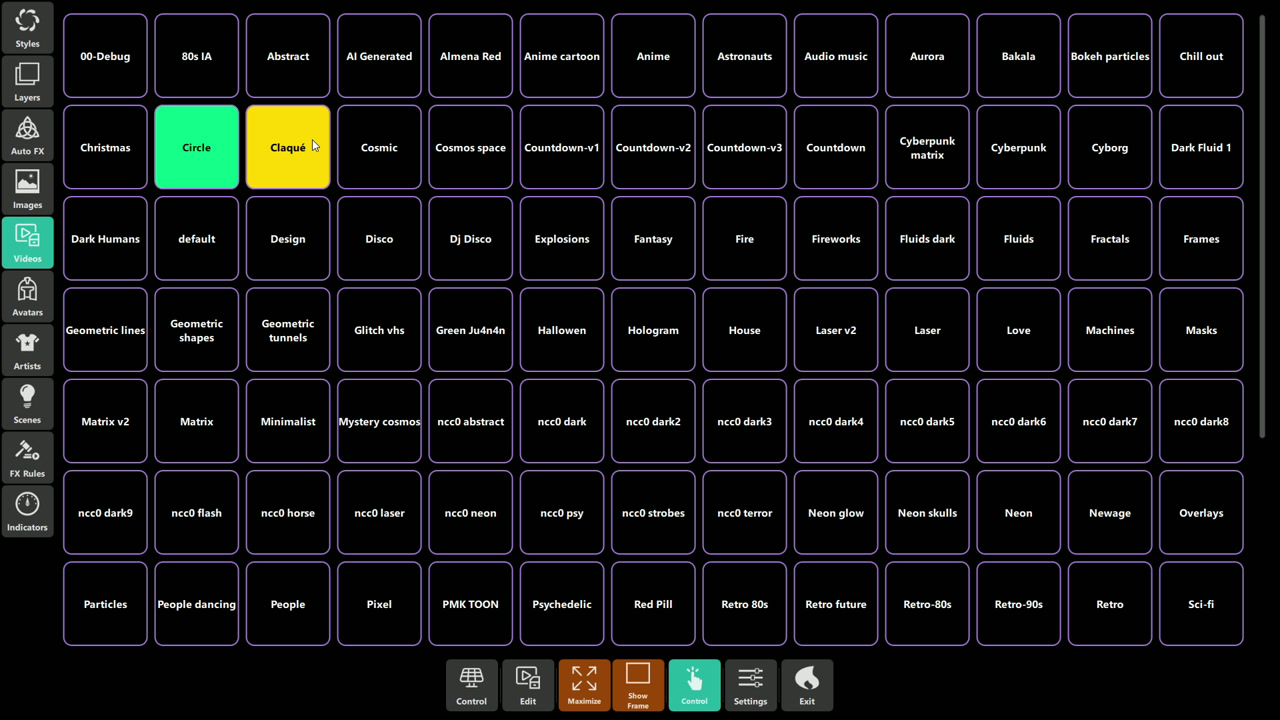 Choose a video playlist from this grid. The highlighted tile is the selection shown in the screenshot, not a
recommended default.
Choose a video playlist from this grid. The highlighted tile is the selection shown in the screenshot, not a
recommended default.
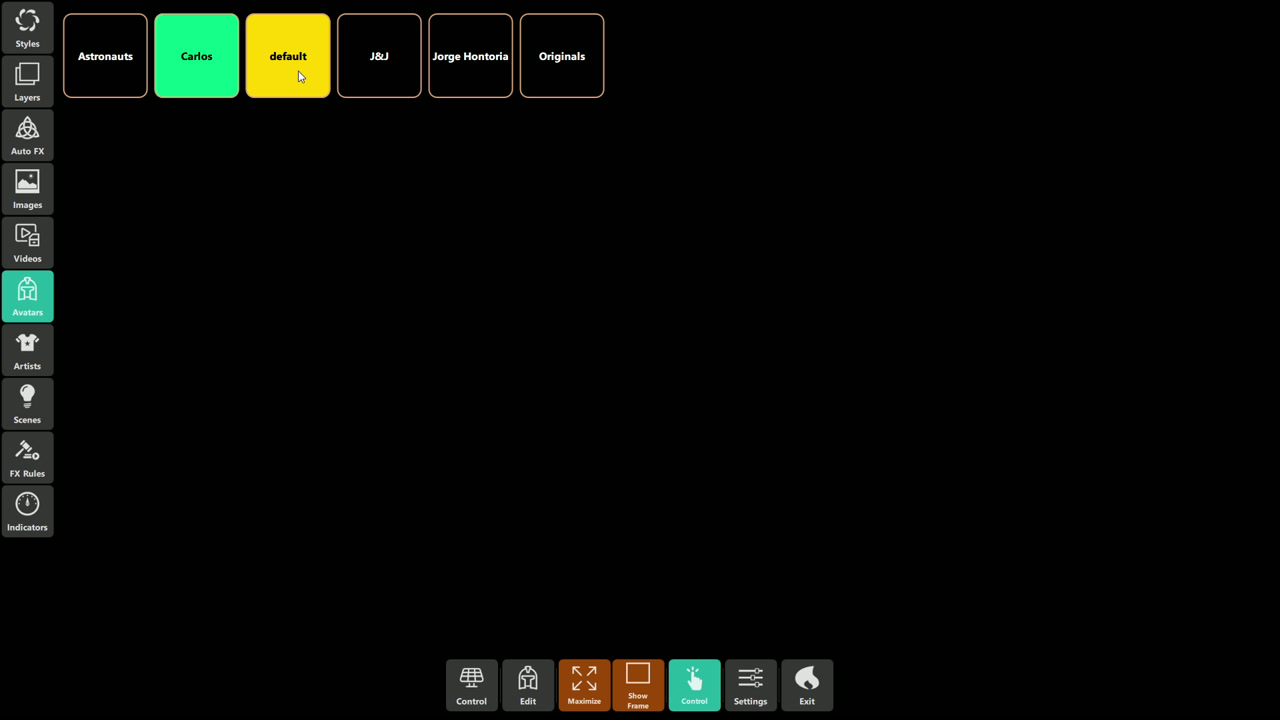 Choose an avatar playlist from this grid. The highlighted tile is the selection shown in the screenshot, not a
recommended default.
Choose an avatar playlist from this grid. The highlighted tile is the selection shown in the screenshot, not a
recommended default.
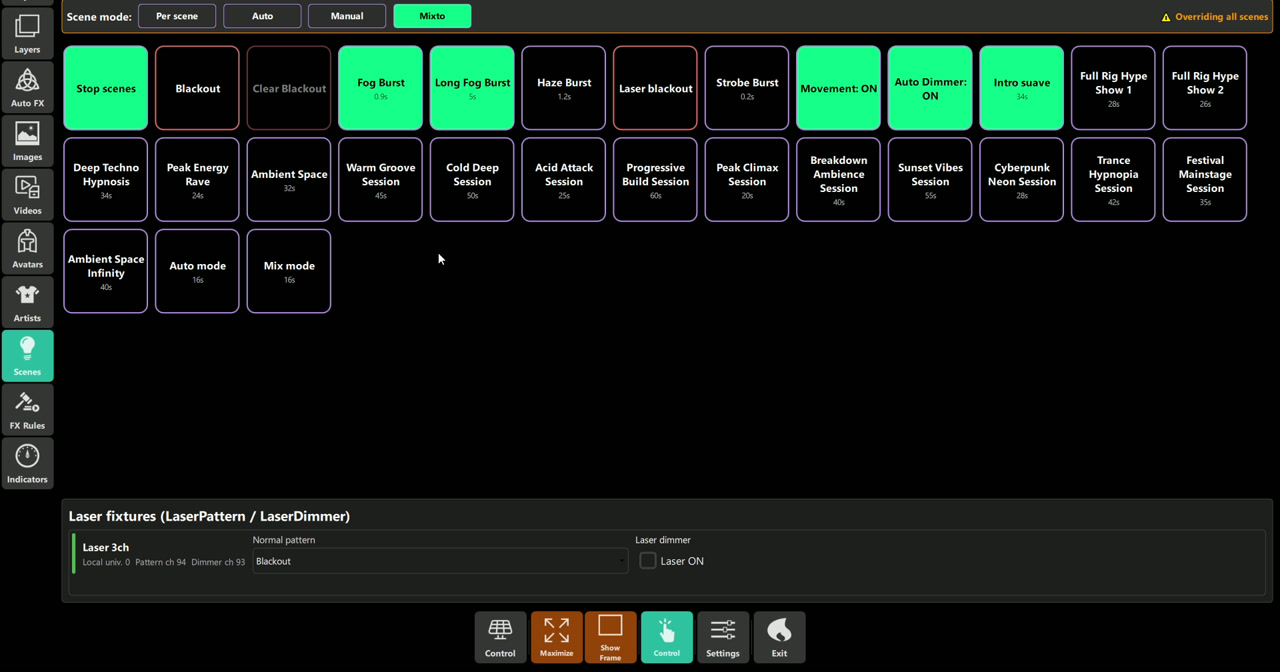 The selected scene mode is highlighted. The tile colors and durations shown are the captured live setup, not
a preset recommendation.
The selected scene mode is highlighted. The tile colors and durations shown are the captured live setup, not
a preset recommendation.
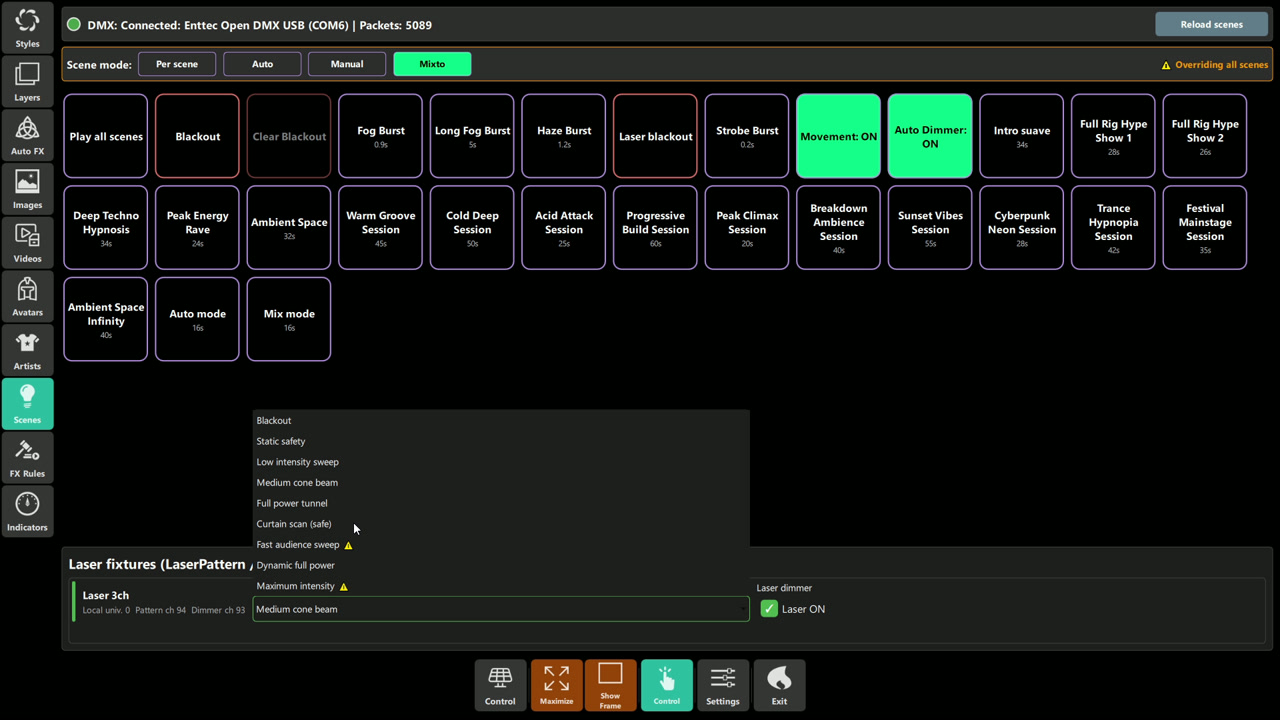 When a supported fixture is connected, choose its laser pattern and dimmer in this panel. The selected pattern
and checked Laser ON box are only the captured state; use appropriate safe settings for your venue.
When a supported fixture is connected, choose its laser pattern and dimmer in this panel. The selected pattern
and checked Laser ON box are only the captured state; use appropriate safe settings for your venue.
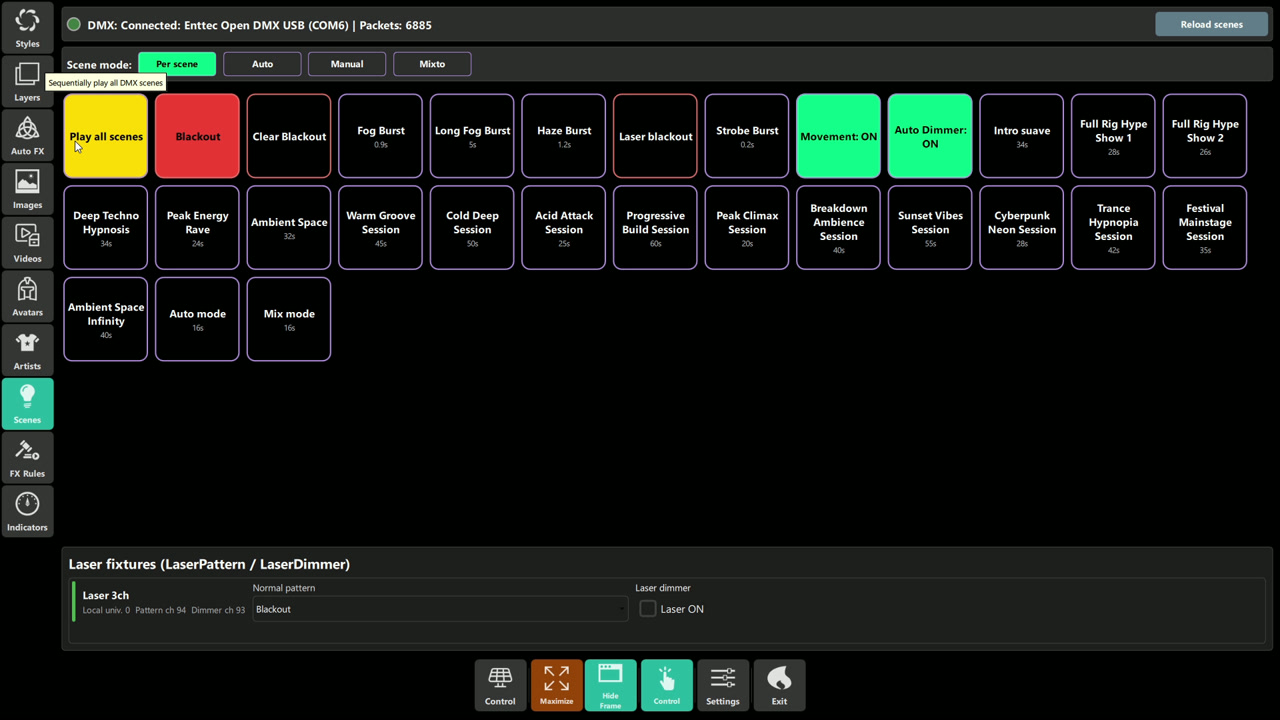 Blackout turns off output across DMX universes; select Clear Blackout to restore output. Check the lighting rig
before releasing blackout.
Blackout turns off output across DMX universes; select Clear Blackout to restore output. Check the lighting rig
before releasing blackout.
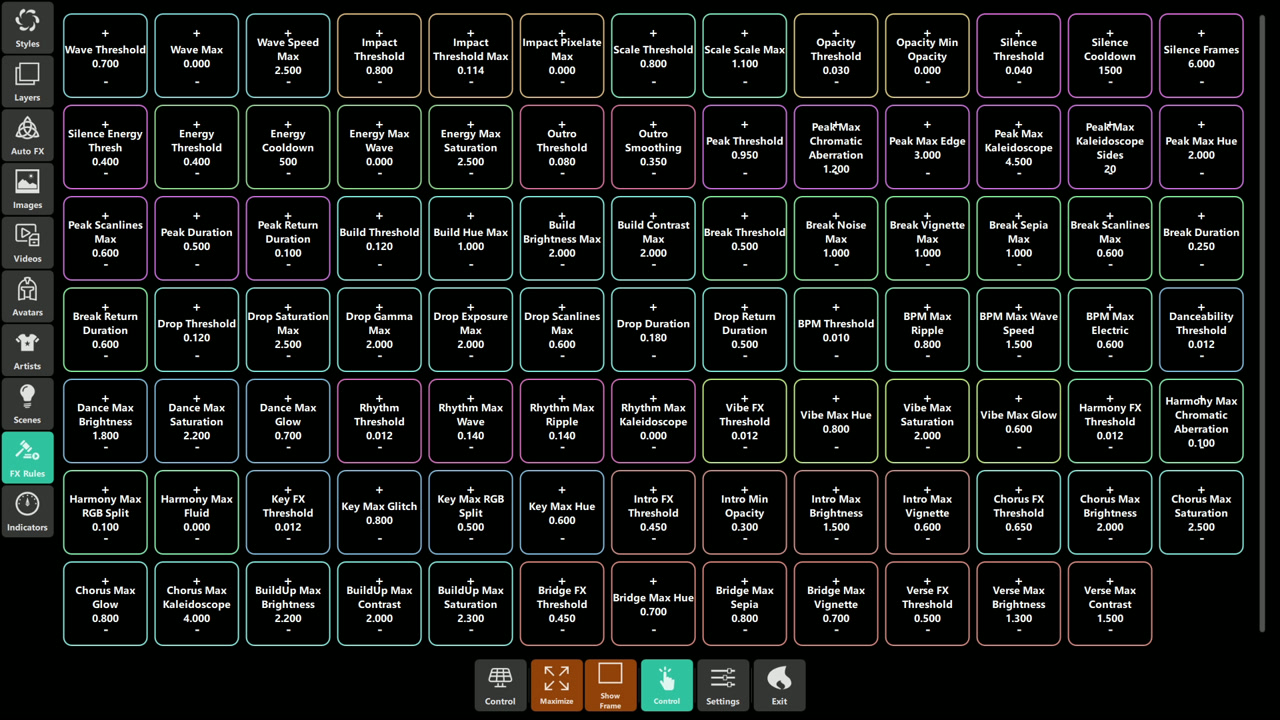 Each card shows a rule parameter and its configured value. Use the controls in the app to change values for
your setup; the numbers in this capture are examples.
Each card shows a rule parameter and its configured value. Use the controls in the app to change values for
your setup; the numbers in this capture are examples.
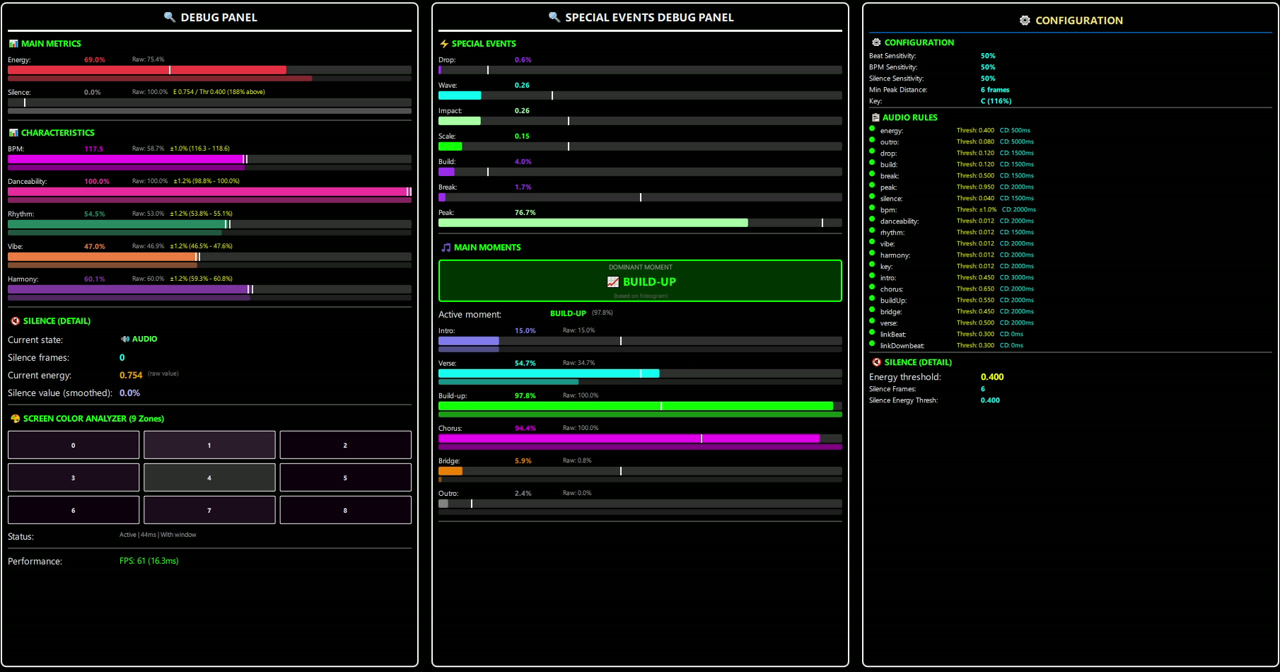 The dashboard brings audio metrics, detected events, silence details, screen zones, and rule configuration
together. Live readings change with the input signal and are not fixed targets.
The dashboard brings audio metrics, detected events, silence details, screen zones, and rule configuration
together. Live readings change with the input signal and are not fixed targets.
Chapter 3: Pre-Show Checklist (Control View)
- Styles: tonight's look saved (or imported
.zip), Delete-protected defaults untouched. - Images, Videos, and Avatars: choose the intended playlist in each section and verify its item order.
- Layers and Auto FX: enable only the tiles needed for the show.
- Playlists:
.txtfiles saved, order verified with ±1 moves. - Scenes and FX Rules: confirm the right scene mode and intended audio-rule values.
- Indicators: detectors alive, silence state correct, zones lit.
- Bar hidden (background click) for a clean booth screen; Exit needs confirmation — safe.
Chapter 4: Troubleshooting
| Symptom | Likely cause | Fix |
|---|---|---|
| Save created a duplicate style | Renamed in the dialog | Renaming always creates new — intended; delete the spare |
| Can't delete a style | It's ""/"default" |
Protected — pick another current style first |
| Reorder lost after exit | Exited oddly | Order saves on clean exit; use Exit/Settings flow |
| Window buttons missing | macOS | Hidden on macOS by design — use Ctrl+W/Ctrl+S |
| Bar disappeared | Background click hides it | Click background again |
Chapter 5: Quick Recipe Card
- Bar: Control · contextual Add/Edit/Delete/Save/Send/Import/Export · Maximize/Hide-Frame/Control-windows · Settings · Exit (confirmed).
- Styles in
.zip; artists by id; media playlists as.txtwith ±1 reorder; layer and Auto FX tiles toggle their functions on or off. - Scenes provide selectable modes and tiles; FX Rules expose audio thresholds; Indicators show live metrics, silence detail, and 9 zones.