Control Your Show with AI
MCP live-show control and AI-powered image creation
Just ask. Your visuals respond.
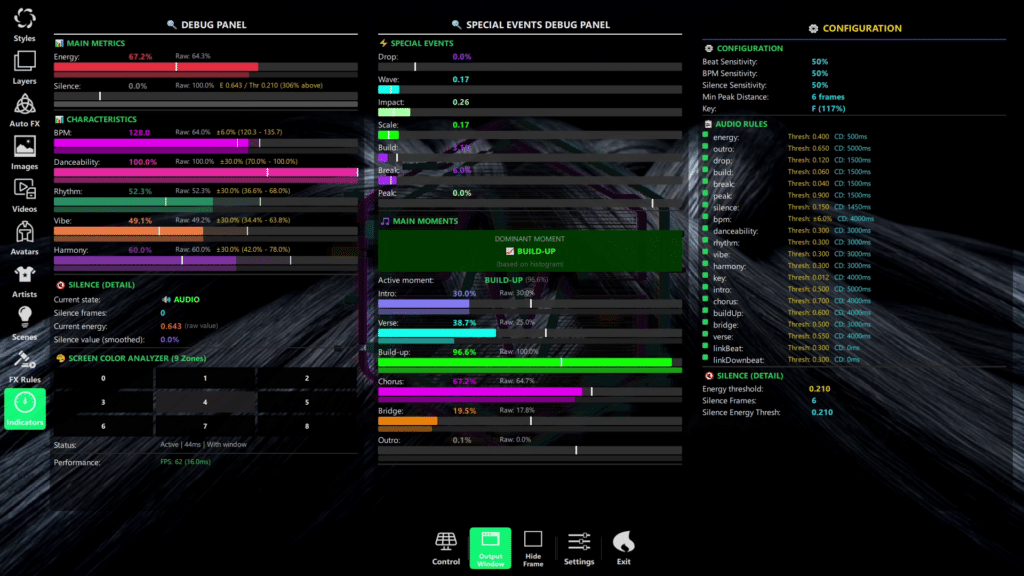
Connect an MCP-compatible AI assistant to DjMirror Pulse and control your show in plain language. The shipped DjMirror Pulse MCP companion exposes more than 220 tools in the current build, covering live configuration, styles, artists, layers, media, playlists, DMX, scheduling, timecode and video outputs. Ask your assistant to inspect the current setup, make a focused change or find content without writing a script.
Use STDIO for a local desktop AI client, or the MCP Streamable HTTP endpoint for a compatible client. The companion routes requests to the running DjMirror Pulse app; it does not connect directly to your lighting hardware. MCP control and AI image creation complement each other, but image generation and editing run in the dedicated Image AI panel.
Try DjMirror Pulse free for 14 days.
Windows 10/11 x64 – MacOS Arm64 (M1, M2, M3, M4 compatible)
What can you ask your AI assistant?
- “Switch to a dark techno style and pull the lighting intensity down.”
- “Turn on the video layer and turn off avatars.”
- “Find some neon-style videos on Pixabay and add them to the current playlist.”
- “Show me the DMX scenes available. Do not trigger one.”
- “Create a new artist profile named Aurora and list the available logo files.”
How it works
Set up the connection once; keep the desktop app open whenever you use it:
- Run DjMirror Pulse with its HTTP config server enabled. MCP is available with a Professional or Enterprise license.
- Configure your MCP client to start the shipped
DjMirrorPulseMcpcompanion over STDIO, or connect a compatible client to the local Streamable HTTP endpoint athttp://127.0.0.1:8800/mcp. - Start with a read-only request. Then ask for a specific change and review the assistant’s proposed action before applying it, especially for lighting and DMX.
The recommended STDIO connection and the default HTTP listener are local to the computer; HTTP uses Streamable HTTP, not the app’s WebSocket transport. If API authentication is enabled, configure the same API key for the app and MCP companion. Do not expose the HTTP listener to the internet. Read the MCP setup and troubleshooting guide.
What it can control
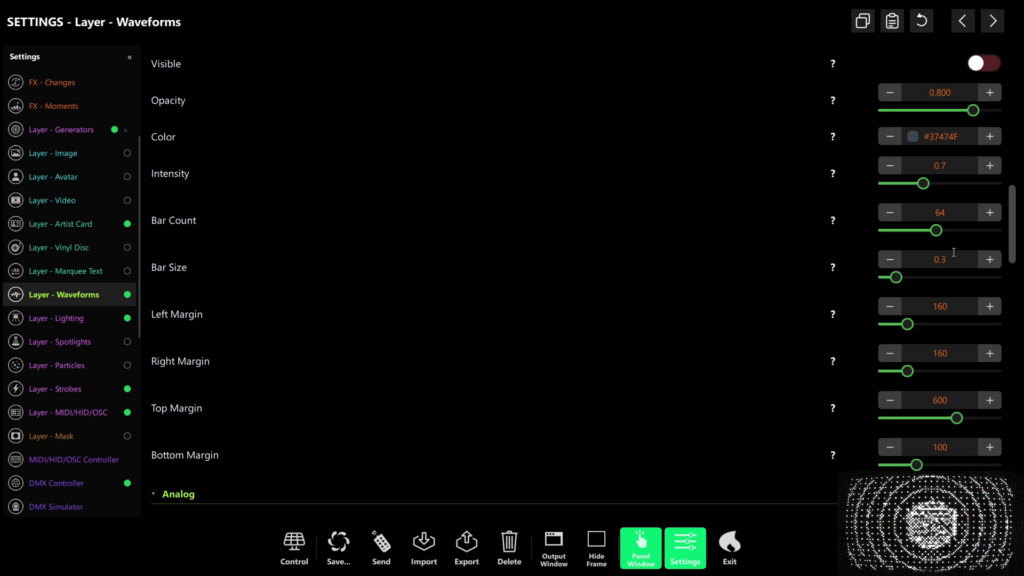
- Read and update live settings, visual styles, artists and the full configuration of show layers
- Manage image, video and avatar media and playlists; search and download stock media from Pixabay and Pexels
- Control DMX fixtures, scenes, channels, blackout and macros; read or update Auto FX rules
- Manage schedules and timecode cues, check Ableton Link and beat-clock status, and control screen recording
- Check and configure Spout and NDI outputs; Enterprise tools also cover Global FX, Generators and shader gallery workflows
Create and personalize show images with AI
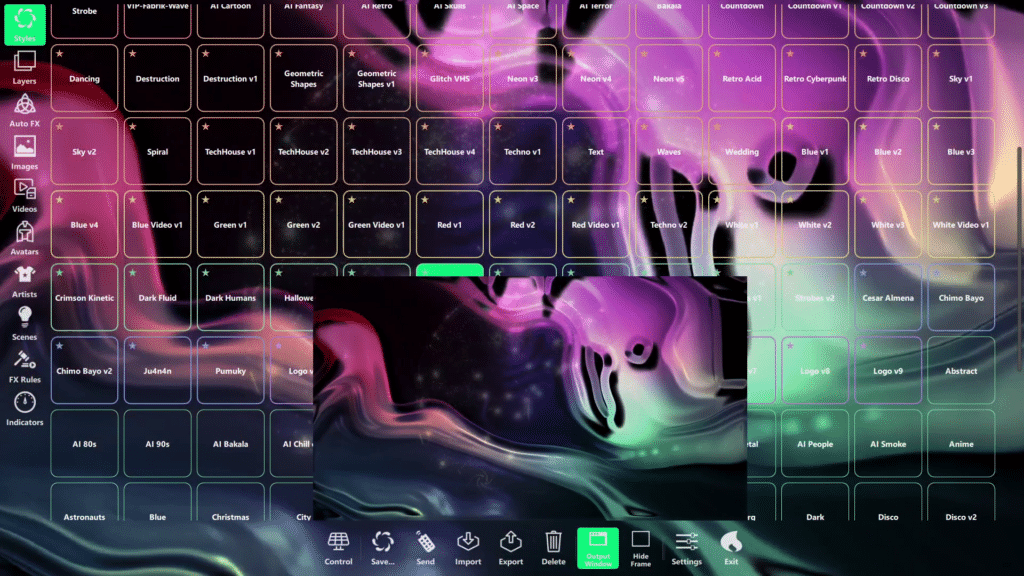
Use Image AI to give an artist logo a new look or create original artwork from a text prompt. Choose a provider for the task: run a supported diffusion model locally, or send the request to Google’s Gemini API. The panel offers instant offline Classic effects as well as AI image enhancement and text-to-image generation, with editable prompts and controls for aspect ratio, output size and transparent-background removal.
Local AI — keep image processing on your machine
Select a downloaded model pack and use the local engine to restyle a source logo or generate a new image. Local processing does not send the prompt or source image to an image-generation cloud provider. Model downloads require an internet connection; generation requires a supported engine, a compatible model, enough GPU memory and an AVX2-capable CPU. The local engine is not included in the Mac App Store build.
Cloud AI — generate with Google Gemini
Choose the Gemini API provider to enhance a logo or generate an image without installing a local model. Add and test a Gemini API key in Image AI settings; an internet connection and available API quota are required. The prompt and source image are sent to Google for processing.
- Enhance: open an existing logo, choose from ten visual presets and edit the prompt to personalize the result.
- Generate: describe a new image, select an aspect ratio and generate from text. Seed and step controls are available with supported local models; Gemini manages those settings itself.
- Prepare for the screen: request a transparent background, adjust the cut-out and output size, preview the result, then save it as a PNG. The source image is not overwritten.
Image AI is a separate workflow from MCP: use the Image AI panel to create or edit an image, then save it before adding it to show content. MCP can help manage artists, image files and playlists, but the current MCP tool list does not expose the Image AI generation engine itself. Image AI requires Enterprise or an eligible trial. Read the Image AI guide · Explore media search and artist logos.
Windows and macOS. No credit card needed.
Requirements
MCP: the Windows or macOS desktop app must be open, its HTTP config server enabled, and a Professional or Enterprise license active. The MCP companion supports local STDIO and Streamable HTTP connections. The default HTTP listener is loopback-only; a cloud-hosted AI client cannot normally reach your computer’s 127.0.0.1. Although the MCP server runs locally, the assistant provider may process the prompts and show information you share with it.
Image AI: Enterprise or an eligible trial is required. Local generation needs a supported engine, model and capable hardware; the Mac App Store build does not include the local engine. Gemini needs a Google API key, internet access and available quota. See system requirements.
Connect an MCP-compatible assistant to your live workflow, then create or customize show-ready images with local or cloud AI. Try DjMirror Pulse free for 14 days — no credit card.
Windows 10/11 x64 – MacOS Arm64 (M1, M2, M3, M4 compatible)